Why Did Usb Fail
Why did USB fail is a question many computer users face when their devices suddenly stop working. USB failures can happen because of damaged ports, outdated drivers, software conflicts, or hardware problems. This guide walks you through the most common causes and simple fixes to get your USB devices working again. Whether it is a mouse, flash drive, or external hard drive, you will find actionable solutions to troubleshoot and resolve USB connection problems quickly.
Key Takeaways
- Loose or damaged USB ports are the most common reason devices fail to connect.
- Outdated or corrupted drivers can cause your USB device to stop being recognized.
- Software conflicts and power settings often interrupt USB connections silently.
- Physical damage to cables or connectors leads to intermittent or complete USB failure.
- Quick troubleshooting steps like restarting, replugging, and updating drivers solve most issues.
- Knowing when to seek professional help saves time and prevents further damage.
📑 Table of Contents
Why Did USB Fail: The Most Common Culprits
You plug in your USB device. Nothing happens. The screen stays blank. The mouse does not move. Your flash drive does not show up. It is frustrating, right? Why did USB fail all of a sudden? The answer is usually simpler than you think.
USB failures happen to everyone. Whether you are using a USB mouse, an external hard drive, or a simple flash drive, the connection can drop without warning. The good news is that most USB problems have quick and easy fixes. You do not need to be a tech expert to solve them.
In this guide, we will walk you through every major reason your USB connection might have failed. We will also give you step-by-step fixes you can try right now. Let us get your devices back online.
Loose or Damaged USB Ports
The number one reason for USB failure is a loose or damaged port. Over time, USB ports wear out. They get bent. They lose their tight connection. When this happens, your device keeps disconnecting or will not connect at all.
Here is what to look for:
- Loose fit – The USB plug wiggles inside the port.
- Physical damage – The port is cracked, bent, or has debris inside.
- Intermittent connection – The device works sometimes but not always.
If your port feels loose, try plugging the device into a different port. If it works in another port, the original port is likely the problem. You can also use a USB hub to reduce wear on a single port.
Sometimes dust or lint gets inside the port. Use a toothpick or compressed air to clean it gently. Never force a USB plug into a port. That makes the damage worse.
When Your Mouse Stops Working Because of Port Issues
A loose USB port often shows up first with a mouse not connecting to laptop. If your cursor suddenly disappears, the port might be to blame. Try plugging the mouse into a different port. If the mouse works there, you have confirmed the original port is failing.
For users dealing with a wireless USB receiver, the same rules apply. A weak connection in the port causes the mouse to keep freezing on laptop or disconnect randomly. Switching ports often solves this instantly.
Driver Problems and Software Conflicts
Drivers are the software that tells your computer how to talk to your USB devices. When drivers get outdated or corrupted, your device simply stops working. This is one of the sneakiest reasons for USB failure because nothing looks physically wrong.
Common driver-related issues include:
- Device not recognized – Windows or Mac does not see the USB device at all.
- Yellow warning triangle – A device icon shows up with an error symbol.
- Intermittent disconnects – The device works, then drops, then works again.
To fix driver issues, open your Device Manager. Find the USB device under “Universal Serial Bus controllers.” Right-click and select “Update driver.” If that does not work, try uninstalling the device and restarting your computer. Windows will reinstall the driver automatically.
How Software Conflicts Cause USB Disconnects
Sometimes a newly installed program conflicts with your USB drivers. Antivirus software, virtualization tools, and even Windows updates can change how USB devices behave. If your USB device not showing up started after a software change, that is your clue.
Try booting your computer in Safe Mode. If the USB device works there, a software conflict is the cause. You can then uninstall recent programs or roll back updates to fix the issue.
Cable and Connector Damage
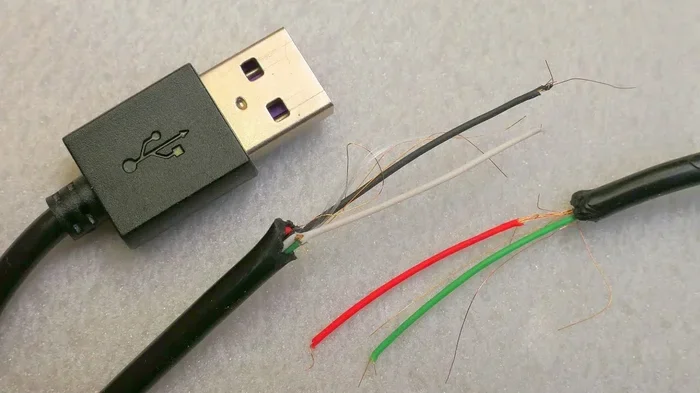
USB cables take a beating. They get bent, twisted, stepped on, and yanked. All of this wear and tear leads to internal wire damage. A damaged cable is one of the most common reasons for USB connection failure.
Here is how to spot a bad cable:
- Visible fraying – The outer jacket is torn or exposed wires are visible.
- Bent connector – The USB plug is not straight anymore.
- Intermittent working – You have to wiggle the cable to get it to work.
- Only works at one angle – The device only connects when the cable is held a certain way.
The fix is simple: replace the cable. Use a high-quality cable from a reputable brand. Cheap cables often fail quickly and can even damage your devices. If you are using a USB-C cable, make sure it supports the data transfer speed you need.
Why Cheap USB Cables Fail Faster
Budget cables often use thinner wires and cheaper connectors. They cannot handle the same power or data loads as quality cables. Over time, the internal wires break, and the cable stops working. Investing in a good cable saves you from constant USB disconnects and frustration.
Power Supply and USB Power Management
USB ports supply power to connected devices. Sometimes, the power is simply not enough. This happens when you connect too many devices to one port or use a unpowered USB hub. The result? Your device keeps disconnecting or will not power on at all.
Here is what you should know about USB power:
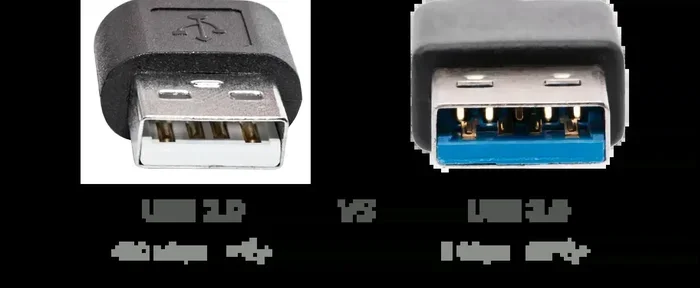
- USB 2.0 ports supply up to 500mA of power.
- USB 3.0 ports supply up to 900mA of power.
- USB-C ports can supply much more, especially with Power Delivery.
If you are connecting power-hungry devices like external hard drives, use a powered USB hub. This gives the device its own power source and prevents power-related disconnects.
Power Management Settings That Kill USB Connections
Both Windows and Mac have power-saving features that turn off USB ports to conserve energy. This is called USB selective suspend. While it saves battery, it can cause your device to stop working unexpectedly.
To disable USB selective suspend in Windows:
- Open Control Panel and go to Power Options.
- Click “Change plan settings” for your active plan.
- Select “Change advanced power settings.”
- Find “USB settings” and expand it.
- Set “USB selective suspend” to Disabled.
This simple change can fix a lot of mysterious USB disconnects, especially on laptops running on battery power.
Hardware Failure and Device Compatibility
Sometimes the problem is not your computer. Sometimes the USB device itself has failed. Hardware failure can happen because of age, overheating, electrical surges, or manufacturing defects. When a device fails, it usually will not work on any computer or port.
How to tell if it is a hardware failure:
- The device does not work on any computer – Try plugging it into a different machine.
- The device gets unusually hot – Overheating signals internal damage.
- Burning smell or visible damage – Stop using it immediately.
- The device worked fine before – Sudden failure without any changes points to hardware issues.
If the device is under warranty, contact the manufacturer for a replacement. If it is out of warranty, it may be time to replace it. Trying to repair internal hardware yourself often causes more harm than good.
Compatibility Issues Between USB Devices and Ports
Not all USB devices work with all ports. A USB 1.0 port cannot handle the speed of a USB 3.0 device, though it should still work at slower speeds. Similarly, some older devices do not work well with newer USB-C ports without an adapter. Always check compatibility before connecting devices.
If you are using a USB adapter or converter, make sure it supports the data transfer and power requirements of your device. A cheap adapter that only supports charging will not work for data transfer.
Quick Fixes That Solve Most USB Problems
Before you dive deep into troubleshooting, try these quick fixes. They solve the majority of USB connection issues in seconds:
- Unplug and replug the device – Wait 10 seconds and try again.
- Try a different USB port – Rule out a single bad port.
- Restart your computer – This resets USB drivers and connections.
- Try the device on another computer – Isolate whether the problem is the device or the computer.
- Update your operating system – Updates often include USB driver fixes.
- Check Device Manager – Look for any yellow warning icons.
- Use a different cable – Rule out a damaged cable.
These steps take less than five minutes and solve most USB problems. Start here before trying anything more advanced.
Preventing Future USB Failures
Prevention is always better than cure. Here are simple habits that keep your USB devices and ports working reliably:
- Always eject devices properly – Do not just pull the plug.
- Keep ports clean – Dust and debris cause connection issues.
- Use quality cables and hubs – They last longer and perform better.
- Avoid stretching cables – Do not run cables under heavy furniture or doors.
- Do not force plugs – If it does not fit easily, check the orientation.
- Use port covers on laptops – They protect ports from dust when not in use.
These small habits add up. They extend the life of your USB devices and save you from annoying connection problems.
When to Seek Professional Help
Most USB problems are easy to fix at home. But some situations need professional attention. If you have tried all the steps above and your device still does not work, it is time to get help. Also, if you notice a burning smell, visible damage to the port, or a device that gets extremely hot, stop using it immediately.
A professional technician can diagnose issues that are not visible to the naked eye. They have specialized tools to test port functionality, check for motherboard issues, and replace damaged components. Sometimes a failing USB controller on the motherboard needs replacement. This is not a DIY fix.
For laptop users, if your mouse not showing up on laptop persists across all ports and after all troubleshooting steps, the USB controller on the motherboard might be failing. A professional can confirm this and provide the right solution.
Final Thoughts on USB Failure
Why did USB fail is a question with many possible answers. From loose ports and damaged cables to driver issues and power management settings, the causes are varied. But the fixes are almost always simple and within your reach.
Start with the basics. Check the cable. Try a different port. Restart your computer. Update your drivers. In most cases, one of these steps will solve the problem. Keep your USB devices and ports clean, use quality cables, and handle everything with care. Your USB connections will stay strong and reliable for years to come.
Remember, a little prevention goes a long way. Take care of your USB ports and cables, and they will take care of you. Happy computing!
Frequently Asked Questions
Why did USB fail all of a sudden?
Sudden USB failure is usually caused by a loose connection, a damaged cable, or a driver issue. Try unplugging the device, waiting a few seconds, and plugging it back in. If that does not work, try a different port or cable. Most sudden failures are easy to fix with these simple steps.
How do I know if my USB port is damaged?
Signs of a damaged USB port include a loose fit, visible physical damage, debris inside the port, or the device working intermittently. Try plugging the same device into a different port. If it works elsewhere, the original port is likely damaged and may need repair.
Can a bad USB cable cause connection failure?
Absolutely. A damaged USB cable is one of the most common reasons for connection failure. Look for fraying, bent connectors, or exposed wires. If you have to wiggle the cable to get it to work, it is time to replace it with a quality cable.
Why does my USB device keep disconnecting and reconnecting?
This usually happens because of power management settings, driver issues, or a loose connection. Check your USB selective suspend settings in Windows and disable them. Also try updating your USB drivers and making sure the cable is firmly plugged in.
Do USB hubs cause connection problems?
Yes, especially unpowered USB hubs. They can draw too much power from a single port, causing devices to disconnect or fail to work. Use a powered USB hub for multiple devices or for power-hungry devices like external hard drives.
What should I do if my USB device is not recognized by my computer?
First, try a different USB port and a different cable. If that does not work, open Device Manager and look for the device under “Universal Serial Bus controllers.” Update or reinstall the driver. If the device still does not show up, try it on another computer to determine if the problem is the device or your computer.