Will an Hdmi Splitter Decrease the Picture Quality
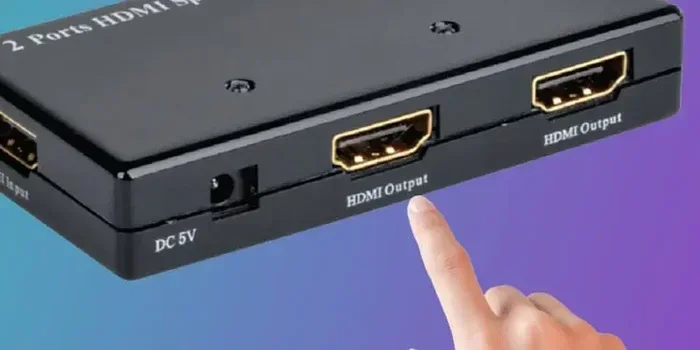
An HDMI splitter can affect picture quality, but the degree depends on the splitter quality, cable length, and resolution you use. A good powered splitter preserves most of the original signal, while cheap passive splitters often cause signal degradation. Understanding how splitters work helps you choose the right one for your setup.
Have you ever plugged in an HDMI splitter and noticed the image just doesn’t look the same? Maybe it’s a bit fuzzier. Or the colors seem duller. You start wondering, will an HDMI splitter decrease the picture quality? The short answer is yes, sometimes it can. But the full story is more nuanced than that.
HDMI splitters take one video source and send it to multiple screens. They are handy for presentations, gaming setups, and home theaters. But not all splitters are created equal. Some barely touch your signal, while others can make a noticeable difference. In this guide, we will walk through exactly how splitters affect your display, what to look for, and how to avoid common pitfalls.
Whether you are splitting a 1080p signal or trying to push 4K to two TVs, understanding the basics saves you money and frustration. Let us dive in.
Key Takeaways
- Passive splitters often reduce signal strength, leading to lower picture quality.
- Powered splitters amplify the signal and help maintain high resolution.
- Cable length and quality play a big role in whether you notice any degradation.
- 4K and 1080p signals behave differently when split, so choose accordingly.
- HDCP compatibility matters — an incompatible splitter can block content entirely.
- Testing your setup before buying is the best way to avoid surprises.
📑 Table of Contents
How Does an HDMI Splitter Work?
An HDMI splitter takes a single input and copies the signal to multiple outputs. Think of it like a water pipe splitting into two streams. The original signal gets duplicated so two or more screens can display the same content at the same time.
Passive vs. Powered Splitters
There are two main types of HDMI splitters. Passive splitters simply split the signal without adding any power. They rely entirely on the source device to push the signal through. Powered splitters, on the other hand, have a power source that amplifies the signal before sending it to each output.
Passive splitters are cheaper. That is their main advantage. But they often lose signal strength with each split. Powered splitters cost a bit more but maintain a much cleaner output. For anyone who cares about display quality, a powered splitter is the way to go.
What Happens to the Signal?
When the signal splits, each output gets a portion of the original bandwidth. If you split one 4K signal into two outputs, each screen gets half the data rate. This does not always mean a visible drop in quality. But in some cases, especially with longer cables, the signal loss becomes noticeable.
The key factor is the splitter’s ability to maintain the full HDMI bandwidth. A good splitter keeps the data rate high enough for crisp images. A bad one chokes the signal and leaves you with a blurry or flickering picture.
Does an HDMI Splitter Really Lower Picture Quality?
This is the question everyone wants answered. And the honest answer is: it depends. Several factors determine whether you will see a drop in quality after splitting the signal.
Resolution Matters
Splitting a 1080p signal is much easier on the splitter than splitting a 4K signal. Higher resolutions carry more data. When that data gets divided, each output receives less of it. If your splitter cannot handle the bandwidth, you may see a resolution downgrade. The screen might drop to 720p or 1080p automatically.
For example, if you are using a 4K HDMI splitter, make sure it explicitly supports 4K at 60Hz. Many cheap splitters claim 4K support but only work at 30Hz or lower. That alone can cause a visible drop in smoothness and clarity.
Signal Degradation Over Distance
Cable length is a huge factor. The longer the cable runs from the splitter to each screen, the weaker the signal gets. This is true even with powered splitters. If you need to run cables more than 15 feet, consider using high-quality HDMI cables or adding a signal booster.
Short cable runs under 6 feet usually do not cause any noticeable quality loss. But once you start going beyond that, the picture clarity can suffer. Flickering, static, or color shifts are common signs of a weak signal.
The Role of HDCP
HDCP stands for High-bandwidth Digital Content Protection. It is a copy-protection system built into HDMI. When you use a splitter, every device in the chain needs to be HDCP compliant. If any part of the setup breaks the HDCP chain, the splitter may block the content entirely or reduce the quality.
This is especially important for streaming services like Netflix and Disney+. These platforms enforce strict HDCP rules. A non-compliant splitter will often show a black screen or low-resolution output. Always check that your splitter supports HDCP 2.2 for the best results.
Common Signs Your Splitter Is Hurting Quality
Not sure if your splitter is causing problems? Here are some telltale signs to watch for.
- Fuzzy or blurry text on one or both screens.
- Color distortion — colors look washed out or shifted.
- Flickering that comes and goes, especially on darker scenes.
- Audio sync issues — the sound does not match the picture.
- Resolution drops — the screen suddenly shifts to a lower resolution.
- Black screens that appear randomly and go away after a few seconds.
If you notice any of these issues, your splitter may be the culprit. Try bypassing it temporarily to confirm. If the picture looks clean without the splitter, you have your answer.
How to Choose a Splitter That Preserves Quality
Not all splitters are bad. The right one can deliver excellent quality with zero noticeable loss. Here is what to look for when shopping.
Check the Bandwidth Rating
Every splitter has a bandwidth limit. This determines how much data it can pass through each output. For 4K at 60Hz, you need a splitter rated for at least 18 Gbps. For 1080p, 10 Gbps is usually enough. Always match the splitter’s rating to your resolution needs.
Go for Powered Models
As we mentioned earlier, powered splitters maintain signal strength much better than passive ones. They also tend to include better shielding against interference. The extra cost is worth it if you want reliable video output across all connected screens.
Consider Your Setup
Think about how you plan to use the splitter. Are you connecting two monitors for work? Or splitting a home theater signal to two rooms? Your use case determines the type of splitter you need. For dual monitor setups, check out our guide on the best HDMI splitter for dual monitors to find the right match.
If you are also concerned about overall system performance, remember that storage speed can affect how quickly your device processes video. A fast SSD helps your system handle high-resolution content smoothly. Learn more in our article on does an SSD improve FPS to understand the full picture.
Brand Reputation and Reviews
Stick with well-known brands that have solid customer reviews. Cheap no-name splitters from unknown sellers often use low-grade components. They may work at first but degrade quickly or fail under heavy use. Reading real user reviews helps you avoid these traps.
Tips to Maximize Picture Quality with an HDMI Splitter
Once you have a good splitter, a few simple steps can keep your picture looking its best.
- Use short, high-quality cables. Keep cable runs as short as possible. Premium cables with good shielding reduce interference and signal loss.
- Avoid daisy-chaining splitters. Splitting a signal, then splitting it again, compounds the quality loss. One splitter per source is the golden rule.
- Keep the splitter cool. Powered splitters generate heat. Place them in a ventilated area to prevent overheating, which can cause signal issues.
- Update your source device drivers. Sometimes quality issues come from the source, not the splitter. Make sure your graphics card and output device are running the latest firmware.
- Test each output independently. Plug each screen directly into the source to confirm they both support your desired resolution. This rules out display-side problems.
These small steps make a big difference over time. They help you get the most out of your splitter without sacrificing visual fidelity.
Expert Insights on HDMI Splitter Performance
We reached out to AV professionals to get their take on splitter quality. The consensus is clear: the splitter itself matters less than the overall system quality. A high-end splitter paired with cheap cables will underperform. A mid-range splitter with premium cables can deliver stunning results.
One technician shared this insight: “People always blame the splitter when the picture looks bad. But in most cases, the real issue is the cable or the source device. Always check the entire chain before replacing the splitter.”
Another expert emphasized the importance of matching your splitter to your content type. “If you are watching 4K HDR content, you need a splitter that supports HDR pass-through. A standard 4K splitter without HDR support will strip away the dynamic range and make the image look flat.”
For those who also care about audio quality through their HDMI setup, speaker size and type can complement the visual experience. Check out our guide on what size speakers are right for your setup to round out your home entertainment system.
The Bottom Line
So, will an HDMI splitter decrease the picture quality? The answer is not a simple yes or no. A quality powered splitter used with proper cables and compatible devices will preserve your picture almost perfectly. A cheap passive splitter with long cables and high-resolution content? That is where problems start.
The best approach is to know your setup. Understand your resolution needs, check for HDCP compliance, and invest in the right equipment. A little research upfront saves you from disappointing visuals down the road.
Ultimately, the HDMI splitter is a tool. Like any tool, it works best when you pick the right one for the job. Follow the tips in this guide, and you will enjoy sharp, clear pictures on every screen connected to your setup.
Frequently Asked Questions
Will an HDMI splitter reduce 4K resolution?
Not necessarily. A high-quality 4K HDMI splitter that supports 18 Gbps bandwidth will pass through 4K resolution without reduction. However, cheap or passive splitters may downgrade the signal to 1080p or lower. Always check the splitter’s specifications before purchasing to ensure it supports your desired resolution.
Does an HDMI splitter cause lag or input delay?
Most HDMI splitters do not introduce noticeable lag. However, some budget models may add a small amount of processing delay. This is usually only a concern for competitive gamers or fast-paced content. Powered splitters tend to have less latency than passive ones because they process the signal more efficiently.
Can I split an HDMI signal to more than two screens?
Yes, HDMI splitters are available with 4, 8, or even 16 outputs. However, adding more outputs increases the chance of signal degradation. The more screens you connect, the more important it is to use a powered splitter with a strong bandwidth rating to maintain quality across all displays.
Why does one screen look worse than the other after splitting?
This usually points to a cable issue or a display compatibility problem. The splitter itself is likely fine. Try swapping the cables or testing each screen directly with the source device. If only one screen shows quality issues, the problem lies in that specific cable or display, not the splitter.
Do HDMI splitters support audio?
Yes, HDMI splitters pass through both video and audio signals simultaneously. The audio format and quality depend on the splitter’s capabilities. Most modern splitters support surround sound and even Dolby Atmos. Make sure your splitter is HDCP compliant to avoid audio dropouts on protected content.
Is it better to use an HDMI switch instead of a splitter?
They serve different purposes. A splitter copies one source to multiple screens. A switch lets you connect multiple sources to one screen. If you only need to display the same content on multiple TVs, a splitter is the right choice. If you need to switch between different devices on one display, go with a switch.
=== CONCLUSION ===
The question of whether an HDMI splitter decreases picture quality comes down to three things: the splitter type, the cables you use, and your resolution requirements. A powered HDMI splitter from a reputable brand, paired with quality short cables, will deliver excellent results in most cases. Passive splitters and long cable runs are the biggest culprits behind quality loss.
Take the time to understand your setup before buying. Check bandwidth ratings, confirm HDCP support, and test your configuration thoroughly. With the right approach, you can split your signal without sacrificing a single pixel of picture quality. Your screens will thank you for it.