Do I Need to Make Usb Bootable
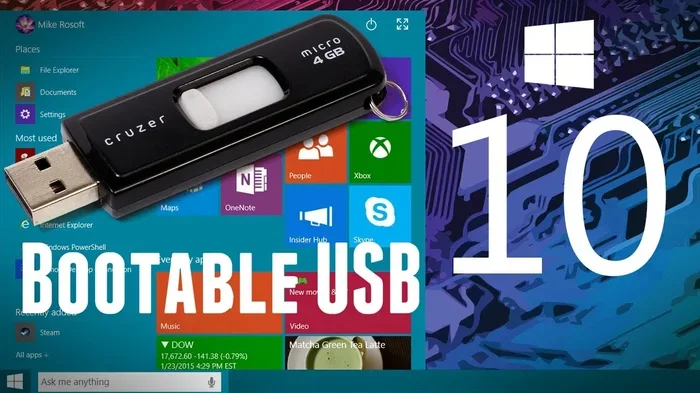
You only need to make a USB bootable when you are installing an operating system, recovering your system, or running a portable OS. A bootable USB drive acts like a digital toolkit that lets you start your computer from a flash drive instead of your hard drive. Whether you are setting up a new PC or rescuing a broken system, knowing how to create bootable media saves time and frustration.
Have you ever wondered whether you actually need to create a bootable USB drive? Maybe a friend told you to do it, or you saw the term floating around online and felt confused. The truth is, a bootable USB drive is one of the most useful tools you can have for your computer. It lets you install a fresh operating system, rescue a broken PC, or even run a portable version of an OS straight from a flash drive.
But here is the thing. Not everyone needs one all the time. If you are just storing photos or moving files around, a regular USB stick does the job. The need for bootable media depends entirely on what you are trying to accomplish with your computer. In this guide, we will walk through every situation where a bootable USB makes sense, how to create one, and common mistakes to avoid along the way.
Key Takeaways
- You need a bootable USB for OS installation: It is the most reliable way to install Windows, Linux, or other operating systems on a new or reformatted drive.
- System recovery becomes easier: A bootable USB lets you repair, troubleshoot, and restore a broken computer without needing a CD or DVD.
- Not everyone needs one: If you are just transferring files or running your current setup, a regular USB drive works perfectly fine.
- Free tools make the process simple: Tools like Rufus, the Windows USB Download Tool, and BalenaEtcher make creating bootable media straightforward for beginners.
- USB speed matters: Using a USB 3.0 or faster drive significantly reduces creation time and improves boot performance.
- BIOS settings must be correct: Even a perfectly created bootable USB will fail if your boot order is not set properly in BIOS.
📑 Table of Contents
What Is a Bootable USB Drive?
A bootable USB drive is a flash drive that contains a complete operating system or recovery environment. When you plug it into a computer and start it up, the machine reads the USB instead of the hard drive. This is incredibly powerful because it means you can install, repair, or run an operating system completely independent of what is stored on your internal drive.
Think of it like a survival kit for your computer. Just as you would keep a first aid kit ready for emergencies, a bootable USB keeps your options open when your system fails or when you need to set up something fresh. The drive contains all the necessary files, boot loaders, and installation files packed into a format your computer can read during startup.
Most people encounter bootable USBs when they are installing a new version of Windows or trying out Linux. But the concept goes much deeper than that. IT professionals, system builders, and even casual users rely on bootable media for everything from drive cloning to system diagnostics. The beauty of this tool is that it works on almost any computer, regardless of the brand or model.
How Does Bootable Media Work?
When your computer turns on, it follows a specific sequence called the boot order. This order tells the system where to look for an operating system. Normally, it checks the hard drive or SSD first. But when you plug in a bootable USB and change the boot order in your BIOS settings, the computer reads the USB drive instead. From there, it loads the operating system or recovery tools directly into memory and runs them without touching your internal storage.
When Do You Actually Need a Bootable USB?
Now that you understand what a bootable USB is, let us talk about when you actually need one. The answer might surprise you because there are more use cases than most people realize.
Installing a Fresh Operating System
The most common reason people create a bootable USB is to install a new operating system. Whether you are building a new PC, replacing an old hard drive, or just want a clean install of Windows, a bootable USB is essential. You download the ISO file from Microsoft or your chosen Linux distribution, use a tool to write it to the USB, and then install the OS from scratch.
If you are upgrading your laptop’s RAM before a fresh install, you might want to check how much RAM you need in a laptop first to make sure your system is ready for the new OS. A well-prepared system makes the installation process much smoother.
System Recovery and Repair
When your computer refuses to boot, a bootable USB becomes your best friend. Windows includes built-in recovery tools that you can load from a USB drive. These tools let you repair startup issues, restore your system to a previous state, or even completely wipe and reinstall the operating system. Without a bootable USB, you would be stuck trying to fix a broken system from inside Windows, which is often impossible if the system will not start.
Many people keep a bootable USB sitting in their desk drawer at all times. It is like an insurance policy. You hope you never need it, but you will be incredibly grateful it exists when something goes wrong. This is especially true if you have important files on your computer that you cannot afford to lose.
Running a Portable Operating System
One of the coolest things about a bootable USB drive is that you can run an entire operating system from it. Linux distributions like Ubuntu and Linux Mint are designed to work this way. You plug the USB into any computer, boot from it, and get a fully functional desktop environment. Nothing gets installed on the host machine, and when you remove the USB, the computer returns to its original state. This is perfect for public computers, testing software, or using a secure environment on the go.
How to Make a USB Bootable
Creating a bootable USB is simpler than most people think. You do not need to be a tech expert. The process usually takes about 10 to 20 minutes, and there are several free tools that walk you through each step. Let us break down the most popular methods.
Using the Windows USB Download Tool
Microsoft offers a free tool called the Media Creation Tool that makes creating a bootable USB for Windows incredibly easy. You download the tool from Microsoft’s website, select your USB drive, and the tool handles everything else. It downloads the correct Windows files, formats the USB, and writes the bootable image automatically. This is the easiest method if you are installing Windows and want a straightforward process.
Make sure your USB drive has at least 8GB of storage. A faster USB 3.0 drive will also save you time during both the creation process and the actual Windows installation. If you are working with external storage devices, you might also consider using an M.2 NVMe SSD to USB 3.1 adapter to connect your drive directly for faster data transfer during cloning or backup tasks.
Using Third-Party Tools
Several free third-party tools make the process even more flexible. Rufus is probably the most popular option. It works with Windows ISO files, Linux distributions, and even utility discs. You simply select your ISO file, choose your USB drive, and click Start. Rufus handles the formatting and file writing in minutes.
Another great option is BalenaEtcher, which has a very simple interface. You drag in your ISO file, select the USB drive, and click Flash. It works on Windows, Mac, and Linux, making it a versatile choice for anyone. These tools are safe, free, and widely trusted by millions of users around the world.
Creating a Bootable USB on Mac
If you are on a Mac, the process is slightly different but just as simple. You can use the built-in Terminal application to create a bootable USB for macOS or Linux. The command line might look intimidating, but the instructions are straightforward. You just need your USB drive, the macOS installer, and a few commands typed into Terminal. For those who prefer a graphical interface, tools like BalenaEtcher work perfectly on Mac as well.
For users who need to connect external NVMe drives, an NVMe SSD to USB adapter can be very handy when working with large disk images or backing up bootable content to external storage.
Common Mistakes When Making a USB Bootable
Even though the process is straightforward, people still run into problems. Most of these issues come from simple mistakes that are easy to avoid. Let us look at the most common ones.
Using the Wrong USB Drive
The first mistake is using a USB drive that is too small or too slow. You need at least 8GB of space for most modern operating systems. Some Windows installations require 16GB or more. Using a drive smaller than that will cause the process to fail. Additionally, an older USB 2.0 drive will make the creation process painfully slow and may even cause boot issues. Always use a USB 3.0 or newer drive for the best results.
Skipping BIOS Configuration
Another common mistake is creating the bootable USB perfectly but then forgetting to change the boot order in BIOS. When you start your computer with the USB plugged in, it will still boot from the hard drive if the BIOS is not set correctly. To fix this, you need to enter BIOS during startup, usually by pressing F2, F12, DEL, or ESC depending on your computer brand. Then you move the USB drive to the top of the boot order.
Not Verifying the ISO File
Downloading a corrupted or incomplete ISO file is a sneaky problem. Always make sure your ISO file downloaded completely and matches the expected file size. A corrupted ISO will create a USB that looks bootable but fails when you try to use it. Taking a few extra minutes to verify the file can save you hours of frustration later.
Do You Always Need a Bootable USB?
Here is the honest answer. No, you do not always need a bootable USB. If your computer is working fine and you are not planning to install a new operating system, a regular USB drive is all you need. Bootable USBs serve a specific purpose, and using one when you do not need it adds unnecessary steps.
For everyday tasks like backing up files, transferring documents, or carrying photos, a standard USB flash drive works perfectly. The same goes for running portable applications that do not require a full operating system. You only need to create bootable media when you are doing something that requires the computer to start from the USB rather than the internal drive.
That said, having a bootable USB ready to go is never a bad idea. It takes about 15 minutes to create one, and the peace of mind it provides is worth it. Think of it as a tool you might not use every day but will be incredibly grateful to have when the need arises. You can also check out this guide on what to do after installing a new GPU if you are setting up a new system and want to make sure everything is configured correctly from the start.
When a Bootable USB Is Optional
There are scenarios where a bootable USB is helpful but not strictly necessary. For example, if you are upgrading existing hardware like RAM or swapping in a new storage drive, you might not need to boot from a USB at all. Many modern systems allow you to upgrade components without reinstalling the operating system. If you are planning such upgrades, knowing how much RAM you need on my laptop can help you decide whether a fresh install is even necessary.
Alternatives to Bootable USBs
Before bootable USBs became popular, people used CDs and DVDs for OS installation. While those still work, they are slow and most modern computers no longer include optical drives. Network-based installation is another alternative, but it requires specific server setup and is mostly used in enterprise environments. For the average user, a bootable USB remains the simplest, fastest, and most versatile option.
Final Thoughts
So, do you need to make a USB bootable? It depends entirely on what you are trying to do. If you are installing a new operating system, recovering a broken system, or running a portable OS, then yes. A bootable USB drive is not just helpful. It is essential. The process is simple, the tools are free, and the results are reliable.
On the other hand, if you are just using your computer for everyday tasks like browsing the web, watching videos, or working on documents, a regular USB drive is all you need. The key is understanding the difference between a standard USB and a bootable one so you can use the right tool for the right job.
Start by keeping a blank USB drive and a reliable creation tool on hand. When the time comes that you need a bootable USB, you will be glad you are prepared. It is one of those simple skills that makes you more self-sufficient with your computer and saves you from depending on others for basic system tasks.
Frequently Asked Questions
Can I use any USB flash drive to create a bootable USB?
You can, but it is best to use a USB 3.0 drive with at least 8GB of storage. Smaller or slower drives may work but can cause problems during installation or take much longer to create. A reliable USB stick with fast read and write speeds makes the entire process smoother and more dependable.
Will making a USB bootable erase all the data on it?
Yes. The process formats the USB drive completely, which means all existing files will be deleted. Make sure you back up any important data from the USB before you start creating the bootable media. Once the process is complete, the drive will only contain the operating system or recovery files.
Can I use a bootable USB on any computer?
In most cases, yes. A bootable USB works on any computer that can boot from a USB device. However, very old computers may not support USB booting, and some newer systems require specific BIOS settings to be adjusted. Always check your computer’s boot options if the USB does not start automatically.
How long does it take to create a bootable USB?
It usually takes between 10 and 20 minutes depending on the tool you use and the speed of your USB drive. USB 3.0 drives are significantly faster than USB 2.0 drives. The size of the ISO file also plays a role, but most modern tools handle the process quickly and efficiently.
Can I reuse a bootable USB for other purposes?
Yes. Once you have used the bootable USB to install or recover an operating system, you can format it and use it as a regular USB drive. If you want to create a new bootable USB with different files, simply repeat the creation process with a new ISO file. The drive is fully reusable after formatting.
Do I need an internet connection to create a bootable USB?
You need internet access to download the ISO file and the creation tool. Once the USB is created, you do not need an internet connection to boot from it or install the operating system. However, during the actual OS installation, having a connection helps you download updates and drivers more easily.
=== CONCLUSION ===
Understanding whether you need to make a USB bootable is one of those basic computer skills that pays off again and again. A bootable USB drive gives you the power to install fresh operating systems, recover broken computers, and run portable environments without relying on internal storage. The process is simple, the tools are free, and the benefits are real. Whether you are a casual user or someone who works with computers regularly, having a bootable USB ready is a smart move. Start today, keep one drive ready, and you will always have a safety net when your computer needs help the most.