Why Usb Is Not Working in Windows 10
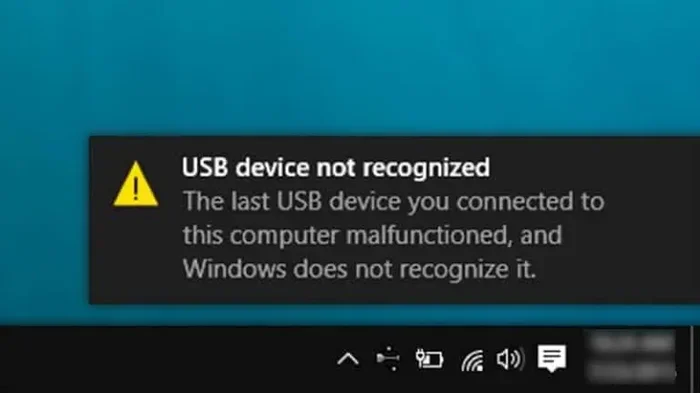
USB not working in Windows 10 is a common frustration that can stem from driver issues, power settings, or hardware problems. This guide walks you through every possible cause and fix so you can get your USB devices back up and running fast. You will learn practical troubleshooting steps that actually work.
There is nothing more annoying than plugging in a USB device and getting nothing in return. Whether it is a flash drive, a mouse, or an external hard drive, the feeling of a blank screen when you expect your device to show up is all too familiar. If you are dealing with this right now, you are not alone. Thousands of Windows 10 users face the same problem every single day.
The good news is that most USB not working Windows 10 issues have simple solutions. You do not need to be a tech expert to fix them. In this article, we will walk you through every possible reason your USB device is not connecting and show you exactly how to fix it. Let us get started.
Key Takeaways
- Driver issues are the #1 cause: Outdated or corrupted USB drivers often lead to USB not working in Windows 10.
- Power settings can kill USB connections: Windows 10 USB selective suspend may be turning off your ports to save energy.
- Hardware checks matter: A loose cable or damaged port can mimic software problems.
- Device Manager is your best friend: It lets you update, roll back, or reinstall USB drivers easily.
- Simple fixes work surprisingly often: Restarting your PC or trying a different port solves many USB issues.
- BIOS settings can block USB: Sometimes USB ports get disabled at the firmware level.
📑 Table of Contents
Why USB Is Not Working In Windows 10: The Most Common Causes
Before you start fixing anything, it helps to understand what might be going wrong. USB issues in Windows 10 can come from several different directions. Here are the most common culprits.
1. Outdated or Corrupted USB Drivers
Drivers are the software that tells Windows how to talk to your hardware. When a USB driver gets outdated or corrupted, your device simply stops communicating with the system. This is the number one reason USB not working Windows 10 problems happen.
Think of it like this. You are trying to have a conversation with someone who does not speak the same language. The connection is there, but nothing gets through. That is exactly what a bad driver does to your USB device.
2. USB Selective Suspend Power Settings
Windows 10 has a power-saving feature called USB selective suspend. It turns off USB ports when they are not in use to conserve battery. The problem? Sometimes it turns them off when you are actively using them.
This feature is especially common on laptops running on battery power. If your USB device works when plugged into a charger but stops when on battery, this is likely the cause.
3. Hardware and Cable Issues
It sounds obvious, but a damaged cable or a loose port causes more problems than people realize. A frayed USB cable might still charge your phone but fail to transfer data. Similarly, a dusty or bent port can prevent a proper connection.
If you plug in a USB device and it does not show up, try a different cable first. Then try a different port. This simple swap can save you hours of troubleshooting.
4. Disabled USB Ports in BIOS or Device Manager
Sometimes USB ports get disabled at the system level. This can happen after a Windows update, a BIOS change, or even by accident. If your USB ports are turned off in the BIOS or hidden in Device Manager, nothing you plug in will work.
This is a less common cause, but it is worth checking if nothing else fixes the problem.
5. Windows Update Glitches
Windows updates are supposed to make things better. But sometimes they introduce new bugs. After a major Windows 10 update, some users report that their USB devices suddenly stop working. The update may have changed driver compatibility or disabled certain USB controllers.
If your USB was working fine before an update, the timing is a strong clue that the update caused the issue.
How to Fix USB Not Working in Windows 10
Now that you know the likely causes, let us get into the fixes. Try these steps in order, starting from the simplest solutions.
Step 1: Unplug and Replug the Device
This sounds too simple to matter, but it works more often than you think. Unplug your USB device, wait about 10 seconds, and plug it back in. This resets the connection and forces Windows to recognize the device again.
If you are using a USB hub, remove it and plug the device directly into your computer. Hubs can sometimes cause power or connection issues that block detection.
Step 2: Restart Your Computer
A quick restart clears temporary glitches and refreshes system processes. Many users have fixed USB not working Windows 10 issues simply by restarting their PC. Do not skip this step. It takes 30 seconds and solves the problem more often than you would expect.
Step 3: Check Device Manager for Driver Issues
Device Manager is where you can see all the hardware connected to your system and manage their drivers. Here is how to use it:
- Right-click the Start button and select Device Manager.
- Expand the Universal Serial Bus controllers section.
- Look for any yellow warning icons or red X marks.
- Right-click any problematic device and select Update Driver.
- Choose Search automatically for drivers and follow the prompts.
If updating does not work, try uninstalling the driver and restarting your PC. Windows will reinstall the driver automatically on boot.
For USB mouse issues specifically, check out why is my USB mouse not working on my laptop for targeted help.
Step 4: Disable USB Selective Suspend
If power settings are causing the problem, turning off USB selective suspend should fix it. Here is how:
- Open the Control Panel and go to Power Options.
- Click Change plan settings next to your active plan.
- Select Change advanced power settings.
- Expand USB settings and then USB selective suspend setting.
- Set it to Disabled for both On battery and Plugged in.
- Click OK to save your changes.
This stops Windows from turning off your USB ports to save power. You will notice better USB stability, especially on laptops.
Step 5: Run the Windows USB Troubleshooter
Windows 10 has a built-in troubleshooter that can automatically detect and fix USB problems. Here is how to access it:
- Go to Settings > Update & Security > Troubleshoot.
- Scroll down and click Hardware and Devices.
- Click Run the troubleshooter.
- Follow the on-screen instructions and apply any fixes it suggests.
The troubleshooter checks for common issues like disabled devices, driver conflicts, and registry problems. It is a great first step before diving into manual fixes.
Step 6: Update Windows 10
If a recent update caused the problem, the next update might fix it. Microsoft regularly releases patches that address USB compatibility issues. Go to Settings > Update & Security > Windows Update and click Check for updates. Install any available updates and restart your PC.
Also, check your device manufacturer’s website for updated drivers. A laptop brand like Dell or HP may offer specific USB drivers for their models.
Step 7: Check BIOS Settings
If none of the above steps work, your USB ports might be disabled in BIOS. Restarting your PC and entering the BIOS setup (usually by pressing F2, F12, Del, or Esc during boot) will let you check this. Look for USB configuration settings and make sure all USB ports are enabled.
Be careful in BIOS. Only change settings you understand. If you are unsure, take a screenshot of the current settings before making any changes.
USB Not Working on Specific Devices
Different USB devices can have different issues. Here is a quick look at common problems by device type.
USB Flash Drives Not Showing Up
If your flash drive does not appear in File Explorer, the issue is often a driver conflict or a file system error. Try the device on another computer to rule out a dead drive. You can also use Disk Management (right-click Start > Disk Management) to see if Windows detects the drive even if it does not assign a letter to it.
USB Mouse or Keyboard Not Responding
A non-responsive USB mouse or keyboard is one of the most common USB problems. If you are dealing with this, you might want to check why my mouse is not working on laptop for more detailed guidance. Often, a driver update or a USB port swap fixes the issue right away.
External Hard Drives Disconnecting
External drives that keep disconnecting are usually a power issue. USB 3.0 ports provide more power than USB 2.0 ports. Try plugging your drive into a USB 3.0 port. If you are on a laptop, make sure it is plugged into a power source, as Windows may limit USB power on battery.
Preventing USB Issues in Windows 10
Once you get your USB working again, you want to keep it that way. Here are some simple habits that prevent future problems.
- Keep your drivers updated: Check for driver updates monthly, especially after Windows updates.
- Use quality cables: Cheap cables cause connection drops and data corruption. Invest in good ones.
- Eject devices properly: Always use the Safely Remove Hardware option before unplugging.
- Keep ports clean: Dust and debris in USB ports cause intermittent connection failures.
- Avoid cheap USB hubs: They often do not provide enough power and cause devices to disconnect.
If you are still having trouble with your mouse or pointing device, why is my mouse not connecting to my laptop has more in-depth troubleshooting steps you can try.
When to Seek Professional Help
Most USB issues are software-related and fixable at home. But sometimes the problem is hardware. If you have tried every step above and your USB ports still do not work, it could be a failing motherboard USB controller or a physically damaged port. In that case, it is best to consult a professional technician.
Also, if your laptop is still under warranty, contact the manufacturer before opening anything. Opening the device yourself could void your warranty.
Final Thoughts
Dealing with USB not working in Windows 10 can be frustrating, but the vast majority of cases have straightforward fixes. Start with the simple stuff, like restarting your PC and checking your cables. Then move on to driver updates, power settings, and built-in troubleshooters. By the time you reach BIOS checks, you will have already solved the problem nine times out of ten.
The key is patience and following the steps in order. Do not skip ahead. Each step narrows down the cause and gets you closer to a working USB connection. Bookmark this guide for the next time your device stops being recognized.
Remember, USB issues are almost never permanent. They are almost always fixable. With the right knowledge and a little patience, you will have your devices connected and working again in no time.
Frequently Asked Questions
Why is my USB device not showing up in Windows 10?
The most common reason is a driver issue or a USB selective suspend power setting. Try updating your drivers through Device Manager and disabling USB selective suspend in your power plan settings. If those do not work, restart your PC and try a different USB port.
How do I fix a USB port that is not working in Windows 10?
Open Device Manager, expand Universal Serial Bus controllers, and look for any warning icons. Right-click the problematic device, uninstall it, and restart your PC. Windows will reinstall the driver automatically. Also check your BIOS settings to make sure the USB ports are enabled.
Can a Windows update cause USB devices to stop working?
Yes, Windows updates can sometimes introduce driver conflicts that break USB functionality. If your USB stopped working after an update, try rolling back the update or checking for a newer driver from your device manufacturer. Running the Windows troubleshooter can also help.
Why does my USB flash drive keep disconnecting on Windows 10?
This is usually a power management issue. USB selective suspend or insufficient power from the port can cause disconnects. Try plugging the drive into a USB 3.0 port, disable USB selective suspend, and make sure your laptop is plugged into power if you are on battery.
Is it safe to update USB drivers manually?
Yes, it is safe. Go to Device Manager, find the USB controller, right-click it, and select Update Driver. You can also download the latest driver from your computer manufacturer’s website. Always create a system restore point before making driver changes, just to be safe.
What should I do if none of the fixes work for USB not working in Windows 10?
If every fix has been tried, the issue may be hardware-related. Try the USB device on another computer to confirm it is not dead. If it works on another PC, your USB port or controller may be physically damaged. At that point, contact a professional technician or your laptop manufacturer for repair.