Why Wont the Hdmi Work on My Tv

HDMI problems on your TV can be frustrating, but most issues are simple to fix. Whether your screen shows no signal, the picture flickers, or sound fails, this guide walks you through every common cause and solution. You will learn how to check cables, adjust TV settings, and identify hardware problems in minutes.
You sit down to watch your favorite show. You plug in the HDMI cable. And then… nothing. Your TV stays black. This is one of the most common tech headaches people face today. The good news is that why won’t the HDMI work on my TV usually has a simple answer. Most of the time, the fix takes just a few minutes.
HDMI cables carry both video and audio through a single connection. They are convenient, reliable, and widely used. But like any technology, they can fail. The reasons range from a loose cable to deeper hardware problems. This guide covers every major cause and gives you clear steps to solve each one. By the end, you will know exactly what to check and how to fix it.
Let us start with the basics. Understanding how HDMI connections work makes troubleshooting much easier. You do not need to be a tech expert. Just follow along, and you will get your TV working again.
Key Takeaways
- Loose or damaged cables are the number one cause of HDMI failures on TVs.
- Incorrect TV input settings can make it seem like your HDMI port is dead.
- HDCP and resolution mismatches often block the display signal entirely.
- Firmware and software updates can resolve hidden compatibility issues.
- Port damage and adapter problems are common but easily overlooked.
- Knowing when to call a professional saves time and money on unnecessary repairs.
📑 Table of Contents
Understanding How HDMI Connections Work
HDMI stands for High-Definition Multimedia Interface. It sends high-quality video and audio through one cable. This makes it the go-to choice for connecting devices like streaming boxes, gaming consoles, and laptops to your TV. When everything works, you barely notice it is there. When it stops working, it is very obvious.
The HDMI handshake is the process where your TV and source device talk to each other. They agree on the resolution, refresh rate, and format. If this handshake fails, your screen stays blank. This is called an HDMI handshake failure, and it is one of the top reasons people search for answers about why won’t the HDMI work on my TV.
Different HDMI versions support different features. HDMI 1.4 handles 4K at 30Hz. HDMI 2.0 supports 4K at 60Hz. HDMI 2.1 goes even further with 8K and higher refresh rates. Using the wrong version can cause display problems, especially with newer devices.
Common Reasons HDMI Won’t Work on Your TV
Several issues can cause your HDMI connection to fail. Let us look at the most common ones so you can start troubleshooting with confidence.
Loose or Damaged Cables
A loose cable is the simplest and most common cause. If the connector is not fully plugged in, your TV will not receive a signal. Over time, cables can bend, fray, or break inside. This leads to intermittent signal loss or a complete failure.
Check both ends of your HDMI cable. Make sure they click firmly into the ports. If the cable looks damaged, replace it. A new cable costs very little and solves many problems instantly.
Wrong TV Input Source
This sounds obvious, but it happens more than you think. If your TV is set to the wrong input, it will not display the HDMI signal. Your TV might be on HDMI 1, but your device is plugged into HDMI 2.
Use your remote to cycle through the inputs. Look for labels like HDMI 1, HDMI 2, or HDMI 3. Select the port where your device is connected. This alone fixes the problem for many people.
HDCP Errors
HDCP stands for High-bandwidth Digital Content Protection. It is a copy protection system built into HDMI. Sometimes HDCP errors block the display. This often happens when streaming copyrighted content. If your TV display shows a black screen or a flashing message, HDCP might be the culprit.
Restarting both devices usually clears HDCP errors. Unplug both the TV and the source device, wait 30 seconds, and plug them back in. This resets the connection and often fixes the problem.
Resolution or Refresh Rate Mismatch
Your source device might be set to a resolution or refresh rate your TV does not support. For example, sending a 4K 120Hz signal to a TV that only supports 4K 60Hz can cause a no signal error. The TV simply cannot display what the device is sending.
Check the display settings on your source device. Lower the resolution or refresh rate temporarily to see if the connection comes back. Once you confirm this is the issue, you can set it to the correct value.
Firmware or Software Issues
Both your TV and your source device run on software. Outdated firmware can cause compatibility problems with HDMI. Manufacturers release updates that fix bugs and improve performance. If your TV HDMI port stopped working after a recent change, an update might be the answer.
Check your TV settings for a software update option. Do the same for your streaming box, gaming console, or computer. Keeping devices updated prevents many HDMI issues.
Step-by-Step Troubleshooting Guide
Now that you know the common causes, let us walk through fixing them one by one. Follow these steps in order for the best results.
Step 1: Check the Physical Connection
Start with the basics. Unplug the HDMI cable from both ends. Look at the connectors for dust, bent pins, or damage. Plug them back in firmly. Make sure you hear the click if the port has a locking mechanism.
If you have another HDMI cable available, try swapping it out. This quickly tells you whether the cable is the problem. Many people carry a spare cable in their setup bag for exactly this reason.
Step 2: Try a Different Port
Most TVs have multiple HDMI ports. Plug your device into a different port and switch the input. This helps you figure out if the problem is with the port or the cable. If the second port works, the first port might be damaged.
Also try connecting a different device to the same port. This tells you whether the port itself is the issue. If no device works in that port, the port may need repair.
Step 3: Power Cycle Both Devices
Turn off both your TV and the source device. Unplug them from the power outlet. Wait at least 30 seconds. Plug them back in and turn them on. This simple step refreshes the connection and clears temporary glitches.
Power cycling works because it resets the HDMI handshake. It clears any error states that may have built up during use. This is one of the most effective first steps for any connectivity problem.
Step 4: Adjust Display Settings
Go to the display settings on your source device. Look for resolution, refresh rate, and output format options. Try changing these one at a time. Start with the lowest supported resolution and work your way up.
If you are connecting a laptop, you may need to press a function key to toggle the display output. Many laptops use a shortcut like Fn plus F4 or F5 to switch between screen modes. This can help if your laptop HDMI output is not sending a signal.
Step 5: Disable HDCP Temporarily
If you suspect an HDCP error, try disabling HDCP on your source device. Some devices have this option in their display or audio settings. Note that disabling HDCP may prevent you from playing protected content, so use this only for testing.
If disabling HDCP fixes the problem, the issue is likely a compatibility error between your devices. Updating firmware on both devices often resolves this without needing to keep HDCP disabled.
HDMI Cable and Port Issues
The HDMI cable and the ports on your TV are the physical foundation of your connection. Problems here can cause a wide range of issues, from no picture to poor audio quality.
Choosing the Right HDMI Cable
Not all HDMI cables are the same. Using an older cable with a newer device can limit performance or prevent a connection entirely. Look for cables labeled Premium High Speed or Ultra High Speed. These support 4K and even 8K resolutions.
Cable length also matters. Very long cables can weaken the signal. If you need a cable longer than 15 feet, consider an active HDMI cable with a built-in signal booster. This ensures a strong, stable connection over longer distances.
Signs of a Damaged HDMI Port
Inspect your TV’s HDMI ports closely. Look for bent or broken pins inside the port. Check for loose or wobbly connections. A port that feels loose when you plug in a cable may be worn out.
Dust and debris can also block the connection. Use a can of compressed air to clean the ports gently. Never use sharp objects to clean inside an HDMI port. This can cause more damage.
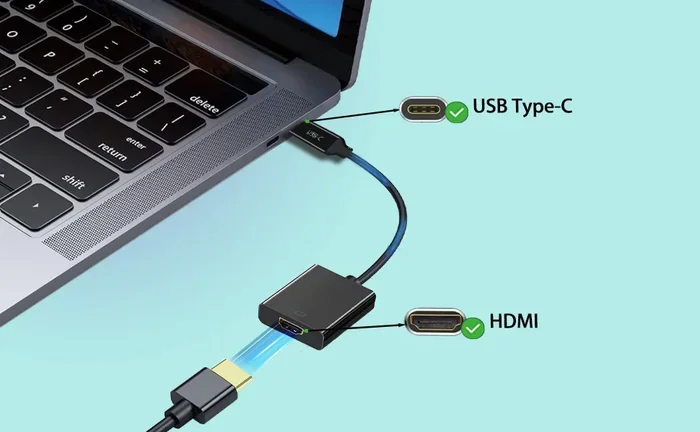
Using HDMI Adapters and Converters
Adapters can introduce problems if they are low quality or incompatible. If you use an HDMI adapter, make sure it supports the resolution and format you need. Cheap adapters often fail with 4K or high refresh rate signals.
If your adapter is causing issues, try removing it and connecting directly. If the direct connection works, the adapter is the problem. Replace it with a higher-quality version from a reputable brand.
TV Settings and Configuration
Your TV has many settings that affect how it handles HDMI connections. Adjusting the right settings can solve many problems without any hardware changes.
Checking the Input Signal Format
Some TVs let you set the input signal format for each HDMI port. Go to your TV’s settings menu and look for HDMI signal format or input settings. Make sure each port is set to the correct format for the device connected to it.
For example, a PC connected to an HDMI port might need the format set to PC or computer mode. A gaming console might need the standard or auto setting. Getting this right can make a big difference in picture quality and connection stability.
Adjusting Sound Settings
Sometimes HDMI video works but audio does not. This usually happens when the TV is set to the wrong audio output. Go to your sound settings and make sure the HDMI output is selected as the audio device.
If you are connecting a soundbar or home theater system, check its settings too. The audio output format on your source device should match what your sound system supports. Mismatched formats often cause silent HDMI connections.
Resetting Your TV to Factory Settings
If nothing else works, a factory reset can clear deep settings that may be causing the problem. Go to your TV’s settings menu and find the reset option. This will erase all your custom settings, so make sure you note them down first.
After the reset, set up your TV again and test the HDMI connection. Many users find that this simple step resolves stubborn HDMI problems that nothing else could fix.
When to Seek Professional Help
Most HDMI problems are easy to solve at home. But sometimes the issue goes beyond a simple fix. Knowing when to call a professional saves you time and prevents further damage.
If you have tried every step above and the HDMI still does not work, the problem may be hardware-related. A damaged HDMI port on your TV usually requires professional repair. Similarly, a faulty graphics card or output chip in your source device needs expert attention.
Check your TV’s warranty before scheduling a repair. Many newer TVs come with a one-year warranty that covers hardware defects. If your TV is still under warranty, contact the manufacturer first. They may send a technician or replace the unit at no cost.
For older TVs, professional repair might not be worth the cost. In these cases, consider using an alternative connection like a streaming device with wireless output. This lets you keep watching while you decide whether to replace the TV.
Conclusion
Dealing with an HDMI connection that will not work is frustrating, but it is almost always fixable. Start with the simplest checks like cable connections and input settings. Work your way through the troubleshooting steps in this guide. Most people find the solution within the first few steps.
The key to solving why won’t the HDMI work on my TV is patience and a systematic approach. Check the cable, test the ports, adjust the settings, and update the software. If the problem persists, consider professional help. With the right steps, you will be back to enjoying your favorite content in no time.
Keep your HDMI cables in good condition. Update your device firmware regularly. And do not panic the next time the screen goes black. You now have the knowledge to handle most HDMI problems on your own.
Frequently Asked Questions
Why does my TV show no signal when I plug in HDMI?
The most common reason is a loose cable or the wrong input source. Unplug the HDMI cable from both ends, plug it back in firmly, and make sure your TV is set to the correct HDMI input. If the problem continues, try a different cable or port.
Can a bad HDMI cable damage my TV?
A bad HDMI cable will not damage your TV, but it can cause display problems like a black screen, flickering, or no audio. Replacing the cable is the easiest fix. Always use a cable that matches your device’s resolution and speed requirements.
Why does my HDMI work sometimes but not other times?
Intermittent HDMI issues are usually caused by a loose connection, a damaged cable, or a port that needs cleaning. Check that the cable clicks in securely at both ends. If the problem comes and goes, replacing the cable often solves it.
Do I need a special HDMI cable for 4K TV?
Yes, you need a Premium High Speed HDMI cable or higher to support 4K resolution. Standard cables may not handle the bandwidth required for 4K content. Look for cables labeled Premium High Speed or Ultra High Speed for the best results.
How do I fix an HDMI handshake problem?
Power cycle both your TV and the source device by unplugging them for 30 seconds. This resets the HDMI handshake. You can also try changing the resolution or refresh rate on your source device to see if that clears the error.
Is it better to use HDMI or wireless streaming for TV?
HDMI provides a more stable and higher-quality connection than wireless streaming. It is the best choice for gaming, 4K video, and home theater setups. Wireless options are convenient but can experience latency or signal drops, especially on busy Wi-Fi networks.
=== CONCLUSION ===
Why won’t the HDMI work on my TV is a question with many possible answers, but most of them are easy to fix. Start with the cable, check the input, and work through the settings. You have the tools and knowledge to solve this problem today. Do not let a simple HDMI issue keep you from enjoying your favorite shows and movies.