Will Usb C to Hdmi to Vga Work
Yes, a USB C to HDMI to VGA setup can work, but it depends on your devices, adapter quality, and signal conversion method. You need an active adapter or a USB-C docking station that supports both HDMI and VGA output. Understanding how digital-to-analog conversion works helps you avoid common compatibility issues and get the best results.
Have you ever been in a situation where you need to connect your modern laptop to an older projector or monitor? Maybe you are at work, in a classroom, or setting up a home theater. The problem is your laptop only has a USB-C port, and the display you want to use only has a VGA input. So, will USB C to HDMI to VGA work? This is a question many people ask, and the answer is more nuanced than a simple yes or no.
The short answer is yes, it can work. But there are important things you need to know before you buy an adapter or cable. Not all USB-C ports support video output. Not all adapters handle the conversion properly. And not all setups will deliver a clear, stable picture. In this guide, we walk through everything you need to know about using a USB-C to HDMI to VGA connection. We cover compatibility, signal conversion, adapter types, and practical tips to get your display working.
Whether you are trying to connect a new laptop to an old projector or hook up a monitor in a conference room, this article has you covered. Let us dive in and make sense of this display connection puzzle.
Key Takeaways
- USB-C to HDMI to VGA can work with the right active adapter or docking station that handles digital-to-analog conversion.
- Passive adapters alone will not convert signals between HDMI and VGA — you need an active converter built in.
- Check your device’s USB-C port capabilities to confirm it supports video output (DisplayPort Alt Mode or Thunderbolt).
- Resolution and refresh rate may be limited when converting from digital HDMI to analog VGA signals.
- Quality adapters matter — cheap converters often cause signal loss, flickering, or no display at all.
- Driver and software support can affect whether your USB-C to VGA connection works properly.
- Test your setup before relying on it for important presentations or professional use.
📑 Table of Contents
Understanding USB-C, HDMI, and VGA
Before we answer whether a USB-C to HDMI to VGA setup works, it helps to understand what each of these connectors does and how they differ.
What Is USB-C?
USB-C is a reversible connector found on most modern laptops, tablets, and phones. It can carry data, power, and video signals. But not every USB-C port supports video output. Some USB-C ports only handle data and charging. If you want to connect to a display, your port needs to support DisplayPort Alt Mode or Thunderbolt.
What Is HDMI?
HDMI is a digital video and audio connection standard. It is common on TVs, monitors, and projectors. HDMI carries both video and sound through a single cable. It provides high-quality digital signals with good resolution support.
What Is VGA?
VGA is an older analog video standard. It has been around since the 1980s and is still found on many projectors and older monitors. VGA only carries video — no audio. It uses a 15-pin D-sub connector and delivers lower quality than digital connections like HDMI.
Will USB C to HDMI to VGA Work?
This is the big question. The answer depends on several factors, including your laptop, the adapter you choose, and the display you are connecting to.
The Role of Signal Conversion
Here is the key concept. USB-C carries a digital signal. HDMI also carries a digital signal. VGA carries an analog signal. So when you go from USB-C to HDMI, you are staying in the digital world. But when you convert from HDMI to VGA, you need to convert digital to analog. This process requires an active adapter with built-in conversion circuitry.
A simple passive cable or dongle will not do this job. You need a converter that contains a chip to translate the digital HDMI signal into an analog VGA signal. Without this chip, the connection simply will not work.
What You Need for a Working Setup
To make a USB-C to HDMI to VGA connection work, you need the following:
- A laptop or device with a USB-C port that supports video output
- A USB-C to HDMI adapter or cable
- An HDMI to VGA active converter
- A VGA cable to connect the converter to your display
- Power supply for the active converter if required
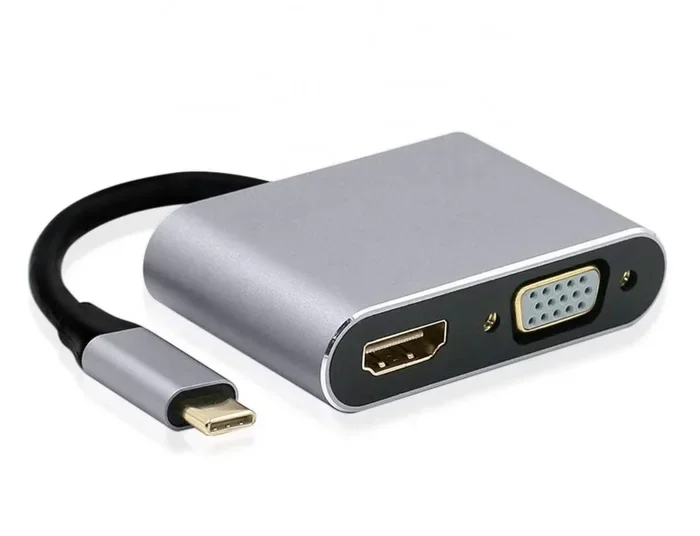
Some all-in-one adapters combine these steps. A single USB-C to VGA adapter can handle the entire conversion in one device. These are often simpler and more reliable than chaining multiple adapters together.
Common Compatibility Issues
Not every setup will work smoothly. Here are common issues you might run into:
- USB-C port does not support video output. Check your device specifications to confirm it has video output capability.
- Passive adapter used instead of active converter. Passive adapters cannot convert digital to analog signals.
- Incompatible resolution. Older VGA displays may not support the resolution your laptop outputs over HDMI.
- No audio over VGA. Remember that VGA does not carry sound. You may need separate speakers or headphones.
- Driver issues. Some systems need specific drivers to recognize the adapter and output video correctly.
Types of Adapters and Converters
Not all adapters are created equal. Understanding the different types helps you choose the right one for your needs.
USB-C to HDMI Adapters
These adapters plug into your laptop’s USB-C port and output an HDMI signal. They are widely available and affordable. Look for adapters that explicitly state they support video output and are compatible with your operating system.
Some adapters also include USB ports for peripherals, turning your laptop connection into a full docking station. If you frequently connect to external displays, a USB-C docking station can be a great investment.
HDMI to VGA Converters
These devices take an HDMI input and convert it to a VGA output. They are active converters, meaning they need power — either from a USB port or a wall adapter. The conversion chip inside does the heavy lifting of turning digital into analog.
When shopping for an HDMI to VGA converter, look for one that supports at least 1080p resolution. Cheaper models may only support lower resolutions, which can result in a blurry or unclear image.
All-in-One USB-C to VGA Adapters
These combine the USB-C to HDMI step and the HDMI to VGA conversion into a single device. They are more convenient and often more reliable than chaining two separate adapters. An all-in-one adapter reduces connection points and potential failure spots.
Comparison Table
| Adapter Type | Pros | Cons |
|---|---|---|
| USB-C to HDMI + HDMI to VGA Converter | Flexible, widely available | Multiple cables, more connection points |
| All-in-One USB-C to VGA Adapter | Simple setup, fewer cables | May be more expensive |
| USB-C Docking Station with VGA | Extra ports, reliable | Bulky, higher cost |
How to Set Up Your USB-C to HDMI to VGA Connection
Setting up your connection is straightforward once you have the right equipment. Follow these steps for a smooth setup.
Step 1: Check Your USB-C Port
First, confirm your laptop’s USB-C port supports video output. Check your laptop’s manual or the manufacturer’s website. Look for terms like “DisplayPort Alt Mode” or “Thunderbolt 3/4.” If your port only supports data and charging, you will need a different solution.
Step 2: Connect the USB-C to HDMI Adapter
Plug the USB-C to HDMI adapter into your laptop. Connect an HDMI cable from the adapter to the HDMI input of your VGA converter.
If you are using a USB-C docking station that has HDMI output, connect the HDMI cable from the dock to the converter instead.
Step 3: Connect the HDMI to VGA Converter
Plug the HDMI end of the converter into the HDMI cable. Then connect a VGA cable from the converter to your projector or monitor. If the converter requires external power, plug it in now.
Step 4: Configure Display Settings
Once everything is connected, go to your laptop’s display settings. On Windows, right-click the desktop and select Display Settings. On macOS, go to System Settings and click Displays. Make sure the external display is detected and configured correctly.
Step 5: Adjust Resolution
If the display looks blurry or the image does not fit properly, try lowering the resolution. VGA works best at resolutions like 1024×768 or 1920×1080. Match the output resolution to your display’s native resolution for the best results.
Tips for the Best Experience
Getting a USB-C to HDMI to VGA setup working is one thing. Getting it working well is another. Here are some practical tips.
Buy Quality Adapters
Cheap adapters often cause problems. They may overheat, produce flickering images, or fail to convert signals properly. Invest in a reputable brand. Look for adapters with good reviews and solid build quality. A reliable adapter saves you frustration in the long run.
Keep Cables Short
Longer cables can degrade signal quality, especially with analog VGA connections. Use the shortest cables that work for your setup. This helps maintain a clear and stable picture.
Update Your Drivers
Make sure your laptop’s graphics drivers are up to date. Outdated drivers can cause display detection issues or poor performance. Visit your laptop manufacturer’s website to download the latest drivers.
Test Before Important Meetings
Never set up a new adapter for the first time right before a big presentation. Test your entire setup days in advance. This gives you time to troubleshoot if something does not work.
Consider Audio Needs
VGA does not carry audio. If you need sound, connect speakers or headphones directly to your laptop or use an HDMI to VGA converter that also has a 3.5mm audio output.
When USB-C to HDMI to VGA Will NOT Work
It is equally important to know when this setup will not work. Understanding limitations helps you avoid wasting money and time.
- Your USB-C port does not support video output. Some budget laptops and tablets have USB-C ports that only handle charging and data.
- You use a passive HDMI to VGA cable. Passive cables cannot convert digital signals to analog. You will get no display.
- Your display only supports very old resolutions. Some VGA projectors max out at 800×600, which may not be compatible with modern HDMI outputs.
- Your operating system does not recognize the adapter. Some older systems lack the drivers needed for USB-C video output.
If your setup falls into any of these categories, you may need to consider alternatives. A USB-C to USB-C direct connection might work if your display also has USB-C input. Or you could look into a wireless display adapter that connects to your display without cables.
Expert Insights on USB-C Display Adapters
Display adapter technology has evolved rapidly. USB-C has become the universal standard for modern devices, but the legacy of VGA is still very much alive in conference rooms, classrooms, and event venues. Experts recommend always carrying a reliable adapter when traveling, especially if you frequently present on unfamiliar equipment.
The key takeaway from industry professionals is this: invest in quality. A well-made active adapter with proper digital-to-analog conversion will outperform a cheap alternative every time. Look for adapters that support the resolution and refresh rate you need. And always check compatibility with your specific device before purchasing.
Some professionals also recommend keeping a spare adapter in your bag. Adapter failures happen at the worst possible times. Having a backup ensures you are never stuck without a working display connection.
Final Thoughts
So, will USB C to HDMI to VGA work? Yes, it can work reliably when you use the right equipment and understand the signal conversion process. The key is using an active converter that properly translates digital signals to analog. Check your USB-C port capabilities, invest in quality adapters, and test your setup before you need it.
With the right setup, you can connect virtually any modern device to an older VGA display. Whether you are giving a presentation, setting up a home office, or connecting to a projector in a classroom, the USB-C to HDMI to VGA path is a practical and workable solution.
Remember the tips in this guide. Choose quality adapters, keep your drivers updated, and always test before important use. With these steps, your USB-C to HDMI to VGA connection will serve you well for years to come.
Frequently Asked Questions
Can I use a USB-C to HDMI to VGA chain for gaming?
It is not recommended for gaming. VGA is an analog connection with limited resolution and refresh rate support. The digital-to-analog conversion also adds latency. For gaming, stick to digital connections like HDMI or DisplayPort directly.
Do I need a powered adapter for HDMI to VGA conversion?
Yes, most HDMI to VGA converters require external power. They need a USB connection or a wall adapter to power the internal conversion chip. Without power, the converter will not work.
Will audio work through a USB-C to HDMI to VGA setup?No, VGA does not carry audio signals. You will get video through the VGA connection, but you need a separate audio solution. Connect speakers or headphones to your laptop or use a converter with a 3.5mm audio output.
What resolution can I expect from a USB-C to HDMI to VGA setup?
Most converters support up to 1080p resolution. Some cheaper models may only support 720p or lower. Check the specifications of your converter to confirm the maximum resolution it supports.
Can I use a USB-C hub with HDMI and VGA ports simultaneously?
Yes, many USB-C docking stations and hubs offer both HDMI and VGA outputs. You can connect to multiple displays at once if your laptop supports multi-display output. Check your laptop’s graphics capabilities to confirm.
Are USB-C to VGA adapters better than USB-C to HDMI to VGA chains?
Generally yes. A direct USB-C to VGA adapter has fewer connection points and is simpler to set up. It also avoids potential signal loss from chaining multiple adapters together. A direct adapter is often more reliable for everyday use.