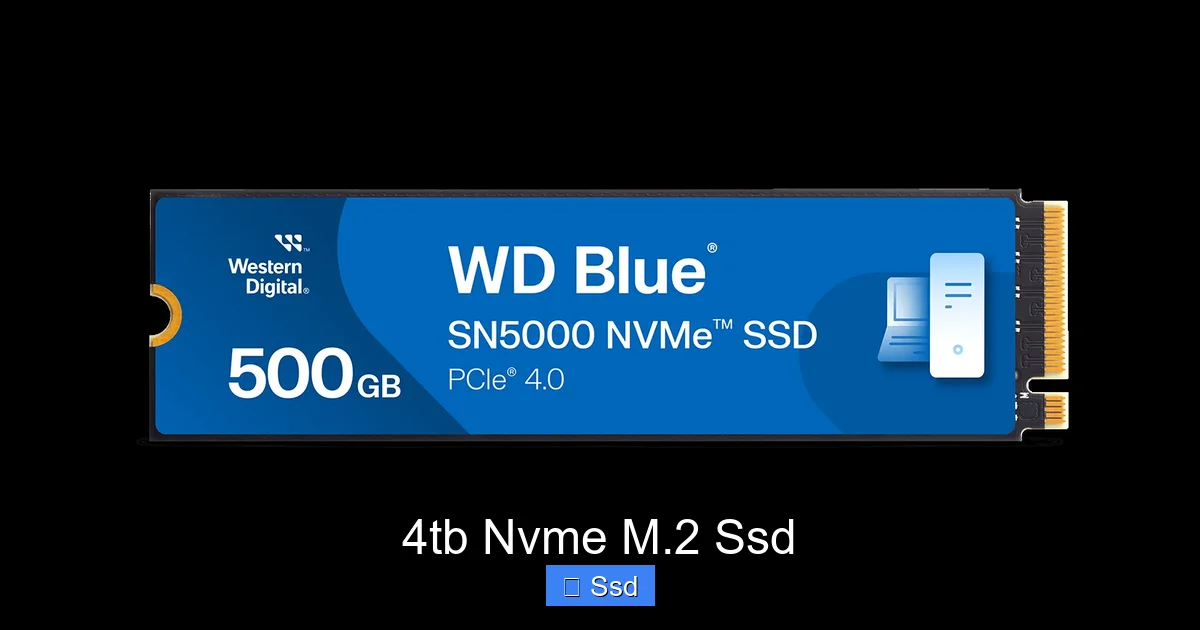
4tb Nvme M.2 Ssd
A 4TB NVMe M.2 SSD represents the current pinnacle of high-capacity, high-speed consumer storage. It delivers near-instant boot times, lightning-fast game and application loading, and seamless performance for demanding creative workflows like 4K video editing and 3D rendering. This guide cuts through the jargon to help you choose the right drive, understand its real-world benefits over older SATA SSDs, and install it correctly to unlock its full potential. It’s the definitive upgrade for anyone building a new PC or revitalizing an older system with massive, ultra-fast storage.
Remember the days of waiting for your computer to boot? Or loading a game level and having time to make a cup of coffee? If you’re still using a hard drive or even an older SATA SSD, those memories are all too real. The technological leap brought by NVMe M.2 SSDs, especially in a generous 4TB capacity, isn’t just an upgrade—it’s a complete transformation of how you interact with your PC. It’s the difference between a cautious stroll and a full sprint. This guide will walk you through everything you need to know about the 4TB NVMe M.2 SSD, from the tech under the hood to which one you should buy today.
Key Takeaways
- Unmatched Speed: A 4TB NVMe M.2 SSD is exponentially faster than any SATA SSD or hard drive, with sequential read/write speeds often exceeding 7,000 MB/s, drastically reducing load times and wait periods.
- Massive Capacity in a Tiny Form: It provides a huge 4 terabytes of storage on a stick-sized circuit board (the M.2 form factor), freeing up space in your PC case and eliminating the need for multiple drives for most users.
- Direct CPU Connection: NVMe drives connect via the PCIe bus directly to your motherboard and CPU, bypassing slower SATA controller bottlenecks for lower latency and higher throughput.
- Ideal for Demanding Tasks: It’s the perfect storage solution for modern PC gaming, professional video editing, large dataset work, virtual machines, and as a primary drive for operating systems and key applications.
- Compatibility is Key: You must ensure your motherboard has an available M.2 slot that supports NVMe (PCIe) and the correct length (usually 22110 or 2280 for 4TB drives). Check for PCIe generation (4.0 or 5.0) support.
- Heat Management Matters: High-performance 4TB NVMe drives can get very hot under sustained workloads. Using the included heatsink or an aftermarket motherboard/GPU heatsink is crucial for maintaining peak performance and longevity.
- Future-Proof Investment: With game and software file sizes ballooning, a 4TB capacity provides ample room for years to come, while NVMe technology ensures your storage won’t be the bottleneck in future system upgrades.
📑 Table of Contents
- What Exactly is a 4TB NVMe M.2 SSD? Demystifying the Jargon
- Performance Deep Dive: What Do Those Speeds Mean in Real Life?
- Who Needs a 4TB NVMe M.2 SSD? (And Who Can Wait?)
- Buying Guide: How to Choose the Right 4TB NVMe M.2 SSD
- Installation & Optimization: Getting the Most from Your Drive
- The Future-Proof Question: Is 4TB Enough, and What’s Next?
- Conclusion: The Clear-Cut Verdict on the 4TB NVMe M.2 SSD
What Exactly is a 4TB NVMe M.2 SSD? Demystifying the Jargon
Let’s break it down. “4TB” is simple: four terabytes of storage space. That’s enough for thousands of high-resolution photos, hundreds of hours of 4K video, or a massive library of modern games (many of which now exceed 100GB each). The “SSD” part means Solid State Drive—no moving parts, just memory chips, which makes it inherently faster, quieter, and more shock-resistant than a mechanical hard disk drive (HDD).
The M.2 Form Factor: Small but Mighty
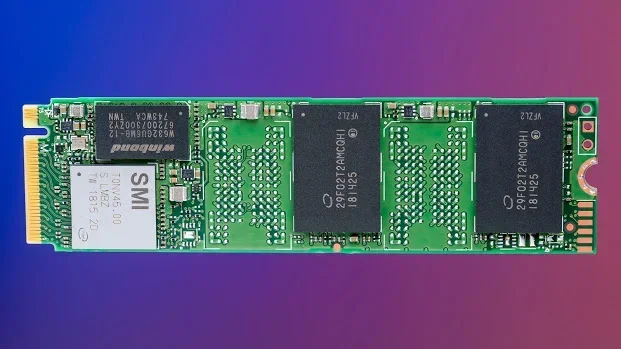
The “M.2” refers to the physical shape and interface. Unlike a traditional 2.5-inch SSD that needs a power cable and data cable, an M.2 drive is a slim, stick-like card that slots directly into a dedicated connector on your motherboard. This saves considerable space in your case and simplifies installation—just screw it in and you’re done. For a 4TB NVMe M.2 SSD, you’ll typically encounter sizes like 2280 (22mm wide, 80mm long) or the slightly longer 22110, so checking your motherboard’s supported lengths is the first step.
NVMe vs. SATA: The Performance Chasm
This is the most critical distinction. Many M.2 slots also support SATA-based M.2 drives, which look identical but perform like their 2.5-inch cousins. The keyword “NVMe” (Non-Volatile Memory Express) is the magic here. NVMe is a communication protocol designed specifically for the speed of flash memory. It uses the high-speed PCIe (Peripheral Component Interconnect Express) lanes that normally connect your graphics card. A SATA III SSD is capped at around 550 MB/s. A modern 4TB NVMe M.2 SSD on the PCIe 4.0 standard can easily hit 7,000 MB/s read speeds—over 12 times faster. PCIe 5.0 drives, while still emerging, double that potential again. The result? Your operating system feels instantly responsive, large files copy in seconds, and games load worlds before you can blink.
Performance Deep Dive: What Do Those Speeds Mean in Real Life?
Spec sheets can be dazzling with their “7,000 MB/s” numbers, but what does that translate to for you? Let’s move from benchmarks to real-world experience.
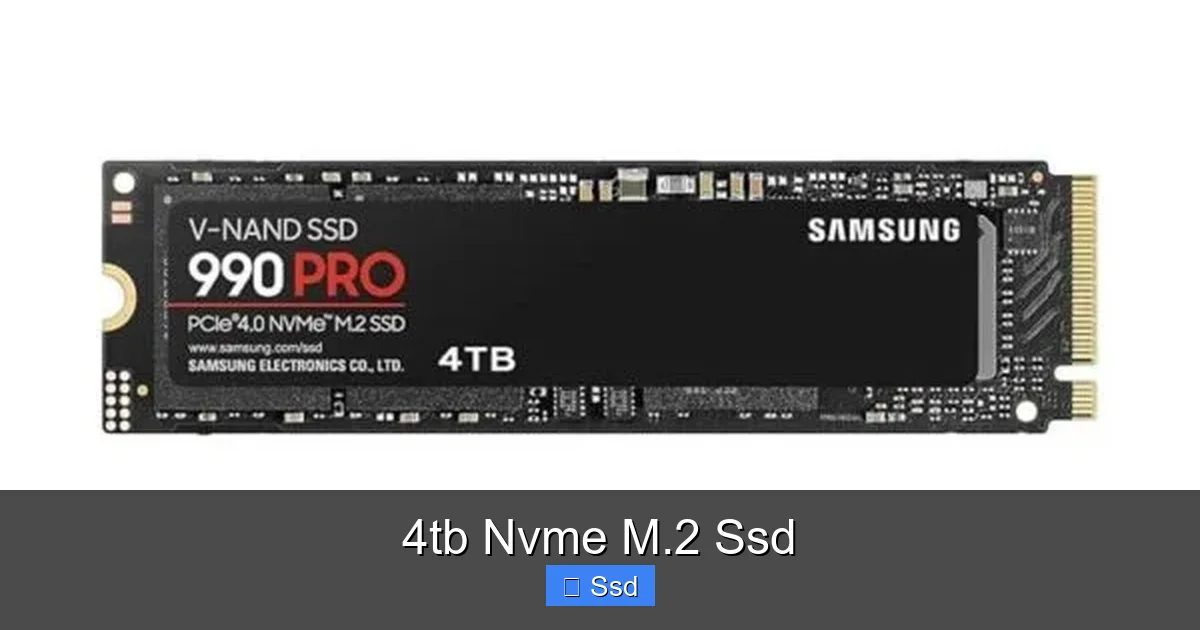
Visual guide about 4tb Nvme M.2 Ssd
Image source: pcstudio.in
Boot Times and System Responsiveness
We’re talking about going from pressing the power button to a fully loaded desktop in 5-10 seconds. Opening applications, even massive ones like Adobe Photoshop or Visual Studio, is virtually instantaneous. The lag you might feel when launching a program or opening a large document on an older drive simply vanishes. This is due to not just sequential speeds (reading large, contiguous files) but, more importantly, insane random read/write speeds (IOPS – Input/Output Operations Per Second). Your operating system is constantly reading and writing tiny files all over the drive. An NVMe SSD handles millions of these operations per second with ease.
The Gaming Experience: No More Loading Screens
This is where the 4TB NVMe M.2 SSD shines for enthusiasts. Modern open-world games like “Red Dead Redemption 2,” “Cyberpunk 2077,” or “Starfield” stream assets from the storage as you move. A slow drive causes texture pop-in, stuttering, and long load times. With a fast NVMe drive, worlds render seamlessly, textures load at the highest detail immediately, and you spend less time staring at loading screens and more time playing. For competitive gamers, that edge in a game like “Valorant” or “CS:GO” where maps load instantly can be a tangible advantage. The 4TB capacity means you can install your entire library without constantly managing space.
Creative & Professional Workflows
If you work with video, especially 4K, 6K, or 8K footage, your storage speed is your productivity. Editing directly off a 4TB NVMe M.2 SSD is a game-changer. scrubbing through a timeline in DaVinci Resolve or Adobe Premiere Pro becomes buttery smooth. Rendering and exporting times plummet. For 3D artists, loading complex scenes in Blender or Unreal Engine is dramatically faster. Photographers handling thousands of high-megapixel RAW files will see near-instant previews and batch processing. The 4TB size allows you to keep multiple active projects and a vast library of assets on your primary drive, avoiding the slowdown of external or network-attached storage.
Who Needs a 4TB NVMe M.2 SSD? (And Who Can Wait?)
Not everyone needs a 4TB drive, and that’s okay. Understanding your use case is key to making a smart purchase.
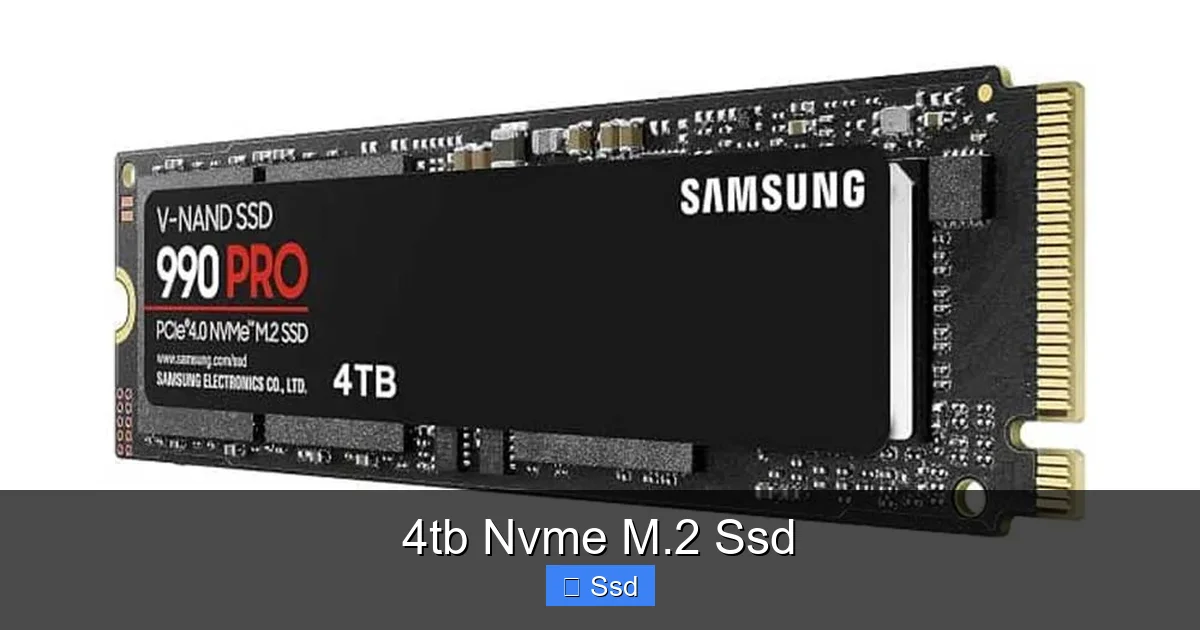
Visual guide about 4tb Nvme M.2 Ssd
Image source: pcstudio.in
The Power User & Enthusiast
This is the primary audience. If you are a PC builder, a hardcore gamer with a massive library, a streamer recording high-bitrate gameplay, or a content creator working with high-resolution media, the 4TB NVMe M.2 SSD is your ideal single-drive solution. It eliminates storage anxiety. You install your OS, all your software, your entire game library, and your current work projects on one blisteringly fast drive. No juggling files between a smaller fast drive and a slower bulk storage drive.
The Mainstream Gamer & General User
For many, a 1TB or 2TB NVMe SSD is perfectly sufficient for the OS, key applications, and a selection of favorite games. However, if you hate deleting games to make room for new ones and your budget allows, stepping up to 4TB is a fantastic quality-of-life upgrade that will serve you well for 4-5 years or more. It’s a “buy once, cry once” investment in frustration-free computing.
The Professional on a Budget
Professionals often use a tiered storage setup: a fast NVMe for active projects, a larger SATA SSD or HDD for archives. But if your projects are consistently large and your budget can stretch, a single 4TB NVMe M.2 SSD simplifies your workflow immensely. You might even consider using two 4TB drives in a RAID 0 configuration for double the throughput (though this adds complexity and risk).
Who Should Consider a Smaller Drive First?
- Casual Browsers & Office Users: If you mainly web browse, use Office, and stream video, a 512GB or 1TB NVMe is more than enough and represents better value.
- Secondary/Backup Drives: For bulk storage of completed projects, media libraries, or backups, a large SATA SSD or even a high-capacity HDD offers far better cost-per-gigabyte.
- Older System Limits: If your motherboard only has PCIe 3.0 M.2 slots, you’ll still get a huge speed boost over SATA, but the performance gap to a new PCIe 4.0 drive is smaller. You might allocate that budget elsewhere (more RAM, a better GPU).
Buying Guide: How to Choose the Right 4TB NVMe M.2 SSD
The market is crowded, but your choice narrows quickly when you focus on a few key specs. Here’s your checklist.
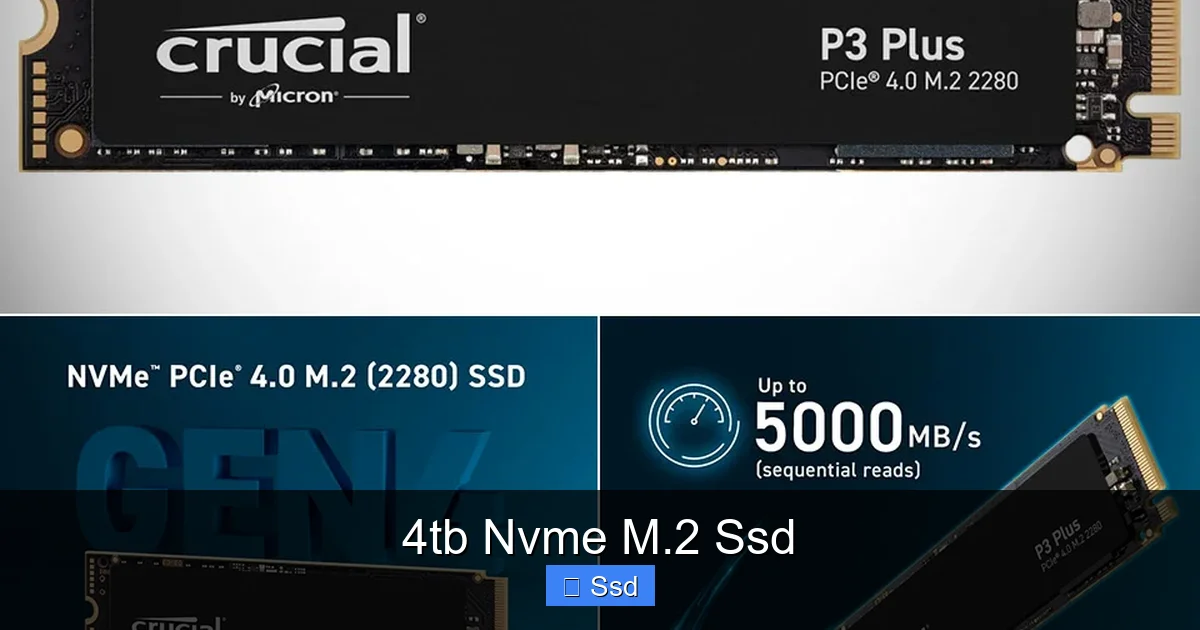
Visual guide about 4tb Nvme M.2 Ssd
Image source: techeblog.com
1. PCIe Generation: 4.0 vs. 5.0 vs. 3.0
This is the single biggest factor in speed and price. Your motherboard dictates what you can use.
- PCIe 4.0: The current mainstream sweet spot. Speeds up to ~7,000 MB/s read. Widely supported on motherboards from 2020 onwards (AMD Ryzen 3000+/Intel 11th Gen+). Best price-to-performance for most.
- PCIe 5.0: The new standard, doubling the bandwidth to ~14,000 MB/s. Requires a compatible motherboard (Intel 12th Gen+/AMD Ryzen 7000+) and often comes with a substantial built-in heatsink due to higher heat output. The performance benefit for most tasks is currently minimal, but it’s future-proof.
- PCIe 3.0: Still very fast (up to ~3,500 MB/s) and a great upgrade for older systems. Drives are often cheaper.
Action: Check your motherboard’s specs page for “M.2” or “Storage” to see which PCIe generations it supports and how many lanes each slot has.
2. The Controller and NAND: The Brains and the Memory
The “controller” is the drive’s processor that manages data. Brands like Samsung (in-house), Phison (E18, E26), and Silicon Motion are top-tier. For a 4TB NVMe M.2 SSD, you’re almost certainly getting a high-end controller.
The “NAND” is the actual flash memory. Look for:
- Type: TLC (3-bit per cell) is the standard for high-performance consumer drives. QLC (4-bit) is cheaper but slower for sustained writes, though some newer QLC drives are surprisingly good. For a primary 4TB drive, TLC is the safer, more reliable bet.
- Layers: 176-layer or 232-layer NAND is the latest, offering better performance and density.
- DRAM Cache: A small, fast DRAM chip acts as a buffer for the controller’s map of where data is stored. Most high-end 4TB drives have it (DRAM cache). Some budget-friendly models use “HMB” (Host Memory Buffer), which borrows a slice of your system RAM. HMB is fine for general use, but a dedicated DRAM cache is preferable for heavy workloads.
3. Sustained Write Speeds and Heat
All SSDs slow down once their fast cache is full. For a 4TB drive, the cache (SLC cache) is large, but if you’re moving a single 100GB+ file, the sustained write speed becomes important. Check reviews for “post-cache” speeds. More importantly, check thermal performance. A drive that throttles (slows down) due to heat is a problem. Many 4TB PCIe 4.0/5.0 drives come with a thick heatsink and even a small fan. If your motherboard doesn’t have a good M.2 heatsink, buying a drive with one included is a smart move.
4. Top Contenders in the 4TB NVMe M.2 SSD Arena (Late 2024)
While specific models change, here are the categories to consider:
- Overall Performance King (PCIe 4.0): Drives like the Samsung 990 Pro, WD Black SN850X, and Crucial T500. They offer the best blend of speed, thermal management, and software suites. Expect to pay a premium.
- Great Value / High Performance: The Sabrent Rocket 4 Plus, TeamGroup MP44L, and Lexar NM790. These often match the top speeds for less money, sometimes with slightly higher power draw/heat. Excellent for budget-conscious enthusiasts.
- PCIe 5.0 Leaders: The Crucial T705, WD Black SN850X (Gen5 version), and TeamGroup MP44L (Gen5). They are overkill today but are the fastest you can buy. They require a compatible motherboard and robust cooling.
- Reliable Workhorse: The Samsung 980 Pro (non-Pro) or Crucial P5 Plus. Slightly lower peak speeds than the top tier but still incredibly fast and very reliable, often at a better price.
Tip: Always read recent professional and user reviews focusing on thermal throttling tests and real-world application performance before buying.
Installation & Optimization: Getting the Most from Your Drive
You’ve bought the drive. Now, let’s make sure it performs as advertised.
Step-by-Step Physical Installation
1. Power Down: Shut down your PC and unplug the power cable.
2. Access the M.2 Slot: Locate the M.2 slot on your motherboard (usually near the CPU or below the GPU). Remove the small mounting screw and any heatsink covering it.
3. Insert the Drive: Hold the 4TB NVMe M.2 SSD by the edges. Align the notch on the drive’s connector with the key in the M.2 slot. Insert it at a slight angle (~30 degrees) until it clicks into place.
4. Secure It: Gently lay the drive flat and screw it down with the mounting screw. Don’t overtighten. If your drive or motherboard has a heatsink, install it now according to the instructions (often involves a thermal pad and a second screw).
5. Reassemble and Boot: Put your case side panel back on, plug in, and power on.
Initial Setup in the Operating System
Your new drive won’t show up in File Explorer immediately.
1. Press Win + X and select Disk Management.
2. You’ll see your new disk listed as “Unallocated.” Right-click it and select New Simple Volume.
3. Follow the wizard, choosing your drive letter, and most importantly, formatting it. Always use NTFS for Windows. For maximum compatibility and performance on modern Windows 10/11, leave the allocation unit size at “Default.”
4. Once formatted, your 4TB NVMe M.2 SSD will appear in File Explorer, ready for use.
Critical BIOS Settings for Peak Performance
Before you even install Windows on it, check these:
- AHCI Mode: Ensure your SATA/NVMe mode is set to AHCI (Advanced Host Controller Interface), not RAID or IDE. This is required for NVMe drives to work properly. It’s usually the default.
- Above 4G Decoding & Resizable BAR: If you have a modern GPU (RTX 3000+/RX 6000+), enabling these in BIOS (often together) allows your GPU to access the entire SSD buffer at once, giving a small but measurable performance boost in games. Your motherboard and GPU manual will confirm compatibility.
- Secure Boot: Can usually be left enabled. It doesn’t impact NVMe performance.
Firmware Updates
Manufacturers occasionally release firmware updates that improve stability, performance, and power management. Use the manufacturer’s software (like Samsung Magician, WD Dashboard, or Crucial Storage Executive) to check for and install these updates safely. It’s a simple maintenance task that keeps your drive healthy.
The Future-Proof Question: Is 4TB Enough, and What’s Next?
Storage needs never shrink. A decade ago, 1TB felt enormous. Today, “Call of Duty: Modern Warfare III” and “Alan Wake 2” each demand over 150GB. A single project in Unreal Engine 5 can easily consume hundreds of gigabytes. A 4TB NVMe M.2 SSD isn’t just for today; it’s a hedge against the file sizes of tomorrow.
The Rising Tide of Game and Project Size
With 8K texture packs, lossless audio, and increasingly detailed open worlds, the 100GB+ game is becoming the norm, not the exception. For creators, 8K video, 3D asset libraries, and AI training datasets are voracious. 4TB provides a comfortable buffer, allowing you to keep multiple large projects and your entire game library installed simultaneously without the constant chore of curation and deletion.
PCIe 5.0 and Beyond: Should You Wait?
PCIe 5.0 is here, but its practical benefits for consumer storage are still marginal for most. The drives are hot, expensive, and the speed advantage (14,000 MB/s vs. 7,000 MB/s) is only noticeable in very specific, sustained large-file transfers—think professional video editors moving terabytes of raw footage daily. For gaming and general use, a top-tier PCIe 4.0 drive is already so fast that the system’s CPU and GPU become the limiting factor. PCIe 5.0 will become the standard, and prices will drop, but a 4TB NVMe M.2 SSD based on PCIe 4.0 today will remain a supremely capable drive for the lifespan of your current PC.
The Role of Software and Caching
The future may also see smarter caching. Microsoft’s DirectStorage (already in Windows 11) allows games to bypass the CPU and load assets directly from the SSD to the GPU memory, reducing latency dramatically. This technology will benefit from the high bandwidth of NVMe SSDs, making fast storage even more critical for next-gen gaming. A 4TB NVMe M.2 SSD is perfectly positioned to take advantage of these advancements.
Conclusion: The Clear-Cut Verdict on the 4TB NVMe M.2 SSD
The 4TB NVMe M.2 SSD is no longer a luxury item for the elite; it’s a practical, transformative upgrade for a vast segment of PC users. It consolidates the roles of system drive, game library, and project workspace into one silent, lightning-fast package. The performance leap from SATA is monumental, and the capacity alleviates one of the most common modern computing frustrations: running out of space.
If your motherboard supports it and your budget allows, there is almost no downside to choosing a 4TB capacity for your primary NVMe drive. You are investing in a component that will delight you every single day through snappy responsiveness and freedom from storage management. Do your homework on PCIe generation, check for a good heatsink, and install it correctly. Once you’ve experienced the speed and space of a 4TB NVMe M.2 SSD, there’s no going back. It is, without question, one of the most impactful upgrades you can make to a modern PC.
Frequently Asked Questions
Will a 4TB NVMe M.2 SSD work in my older PC with a PCIe 3.0 motherboard?
Yes, absolutely. NVMe drives are backward compatible. If your older motherboard has an M.2 slot that supports NVMe (not just SATA), your 4TB drive will work. You’ll get PCIe 3.0 speeds (around 3,500 MB/s), which are still vastly faster than any SATA SSD. Just ensure the slot supports the drive’s length (like 2280) and that your system’s BIOS is updated to recognize NVMe drives.
Is there a real-world difference between a PCIe 4.0 and PCIe 5.0 4TB SSD for gaming?
For the vast majority of gamers, the difference is negligible or non-existent in actual gameplay. Game loading is already incredibly fast on a good PCIe 4.0 drive. The CPU and GPU become the bottleneck long before the storage speed does. PCIe 5.0’s benefits are currently seen only in extreme professional workloads involving sustained, massive file transfers. For gaming, a top-tier PCIe 4.0 drive offers the best value.
Do I need a heatsink for my 4TB NVMe M.2 SSD?
For high-performance PCIe 4.0 and all PCIe 5.0 drives, yes, a heatsink is highly recommended, often necessary. These drives generate significant heat, and without cooling, they will thermal throttle (slow down) during extended reads/writes to protect themselves. Many 4TB drives come with a heatsink pre-installed. If yours doesn’t, check if your motherboard has an M.2 heatsink plate or consider an aftermarket one.
How long will a 4TB NVMe M.2 SSD last? What about its write endurance?
Modern SSDs have incredibly long lifespans. The “TBW” (Terabytes Written) rating specifies how much data can be written before the drive is likely to wear out. For a high-end 4TB consumer NVMe drive, TBW is often between 1,200 TBW and 2,400 TBW (or even higher). This means you’d have to write hundreds of gigabytes every single day for many years to reach that limit. For normal gaming and general use, the drive will likely become obsolete due to technology advances long before it wears out.
Can I use a 4TB NVMe M.2 SSD as my only drive for both OS and games?
Yes, and this is one of the best use cases. A 4TB capacity provides ample room for a full Windows installation, all your essential applications (Office, Adobe Suite, etc.), and a massive library of modern games without constant space management. The speed ensures everything launches quickly. Just be sure to have a robust backup strategy, as with any primary drive.
Is a 4TB NVMe M.2 SSD worth the extra cost over a 2TB model?
It depends entirely on your storage needs. The cost-per-gigabyte usually improves with larger capacities, so a 4TB drive isn’t exactly double the price of a 2TB. If you know you will fill a 2TB drive within a year or constantly uninstall games to make space, the 4TB model is worth the premium for the convenience and future-proofing. If you are a more casual user, the 2TB might be the sweet spot, allowing you to spend the difference on a better GPU or CPU.




6 Comments