How Do I Increase Ram on My Laptop
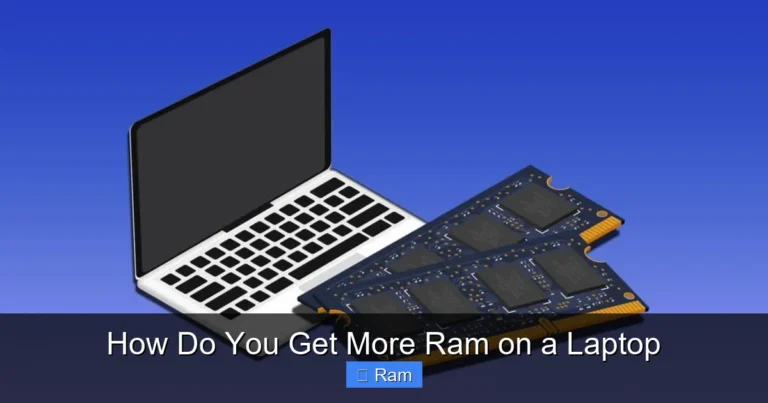
Increasing the RAM on your laptop is one of the easiest ways to speed up your computer and improve multitasking. Whether you are running slow programs or want to game without lag, adding memory can make a huge difference. This guide walks you through checking your current RAM, choosing the right upgrade, and installing it yourself.
If your laptop feels slow, freezes when you open too many tabs, or struggles with demanding apps, the answer might be simple: you need more RAM. How do i increase ram on my laptop is one of the most common questions tech beginners ask. The good news is that upgrading your laptop’s memory is easier than you think, and it can transform the way your computer performs.
RAM, or Random Access Memory, is the short-term memory your laptop uses to handle tasks. When you have too little of it, everything slows down. In this guide, we will show you exactly how to check your current RAM, pick the right upgrade, and install it yourself. No tech degree required.
Before we dive in, it helps to understand what RAM does. Think of it as your laptop’s workspace. The more workspace you have, the more apps you can open at once without things getting sluggish. If you are already familiar with checking your current setup, you can check the RAM on your laptop to see where you stand.
Key Takeaways
- Know Your Limits: Check your laptop’s maximum RAM capacity before buying anything.
- Choose the Right Type: DDR4 and DDR5 are the most common RAM types for modern laptops.
- Installation Is Simple: Most laptops let you upgrade RAM in under 30 minutes with basic tools.
- Check First: Always verify how much RAM you currently have and what slots are available.
- Performance Boost: More RAM means smoother multitasking, faster load times, and better overall speed.
📑 Table of Contents
Why Increasing RAM Matters
RAM affects almost everything you do on your laptop. Browsing the web, editing documents, streaming video, and running software all rely on memory. When your RAM fills up, your laptop starts using your hard drive as temporary storage. This is called virtual memory or paging, and it is much slower than actual RAM.
Here are some signs that you need more memory:
- Your laptop takes forever to open apps
- You experience lag when switching between programs
- Your browser crashes with too many tabs open
- Videos and games stutter or freeze
- Your system feels generally slow and unresponsive
If any of these sound familiar, a memory upgrade could be the fix you need. Many people spend hundreds of dollars on a new laptop when a simple RAM upgrade would solve the problem. Understanding how much RAM do I need on my laptop is the first step toward making the right choice.
How to Check Your Current RAM
Before you buy anything, you need to know what you already have. Checking your current RAM takes just a few minutes. On Windows, you can open Task Manager by pressing Ctrl + Shift + Esc and clicking the Performance tab. Look for Memory to see your total RAM and how much you are using.
Using System Information
Another easy way is to use the built-in System Information tool. Press the Windows key, type “System Information,” and hit Enter. Look for “Installed Physical Memory (RAM)” to see your total amount. This tells you both how much memory you have and what type of RAM modules are installed.
On a Mac, click the Apple menu, select About This Mac, and you will see your memory details right there. Knowing your current setup helps you figure out how much more you can add and what type of RAM you need.
If you want a more detailed look at your laptop’s memory configuration, you can also learn how to check my laptop RAM for deeper insights into your system’s memory slots and compatibility.
How Much RAM Does Your Laptop Support
Not every laptop can hold unlimited RAM. Each model has a maximum capacity, and some have limited slots. Before purchasing any memory, you need to confirm what your laptop supports.
Finding Your Laptop’s Maximum RAM
The easiest way to find your laptop’s RAM limit is to check the manufacturer’s website. Search for your laptop model number and look up the specs. Most modern laptops support between 8GB and 64GB of RAM, but older models may have lower limits.
You can also use a free tool called Crucial System Scanner. It automatically detects your laptop model and tells you exactly what type of RAM is compatible and how much your system can handle. This saves you from buying the wrong kind of memory.
Another helpful resource is your laptop’s user manual or the product page on the manufacturer’s site. Look for terms like “maximum memory support” or “RAM slots available.” Some laptops have soldered RAM, meaning you cannot upgrade them at all. This is more common in ultra-thin models, so check before you buy anything.
Choosing the Right RAM for Your Laptop
Not all RAM is the same. Different types, speeds, and form factors exist, and choosing the wrong one can cause compatibility issues. Here is what you need to know to pick the right memory for your upgrade.
Understanding RAM Types
The two most common types of RAM for laptops today are DDR4 and DDR5. DDR4 has been the standard for several years and is widely available at affordable prices. DDR5 is newer and faster, but it is also more expensive and not supported by all laptops yet.
Older laptops might use DDR3, but this type is largely outdated now. Always match your RAM type to what your laptop supports. Mixing different RAM types will not work, even if they physically fit.
RAM Speed and Frequency
RAM speed is measured in megahertz (MHz). Higher numbers mean faster data transfer. For most users, DDR4-3200 or DDR5-4800 offers excellent performance. You do not need to chase the fastest speeds unless you are a hardcore gamer or video editor.
Here is a quick comparison of common RAM options:
- DDR4-2666: Budget-friendly, good for everyday tasks
- DDR4-3200: Sweet spot for most users and gamers
- DDR4-3600: Great for demanding workloads
- DDR5-4800: Latest standard, best for future-proofing
- DDR5-5600: High performance, ideal for heavy multitasking
When in doubt, stick with the most common speed for your laptop type. You can also learn how to upgrade RAM on a laptop for more detailed guidance on matching specifications.
Single Channel vs Dual Channel
Laptops with two RAM slots can run in dual-channel mode, which doubles the data transfer rate between the memory and the processor. For the best performance, install matching pairs of RAM sticks. If you have one 8GB stick, consider adding another 8GB stick rather than a single 16GB stick.
How to Install RAM in Your Laptop
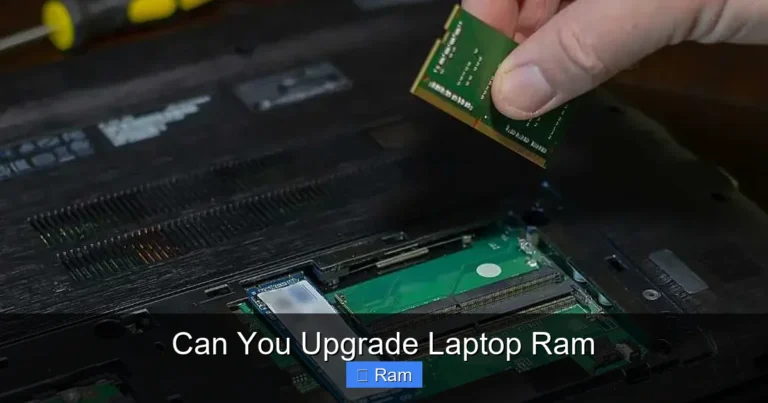
Installing RAM is one of the simplest laptop upgrades you can do. You do not need to be a tech expert. With the right tools and a little patience, you can complete the process in about 15 to 30 minutes.
What You Will Need
- A new RAM stick compatible with your laptop
- A small Phillips-head screwdriver
- A clean, flat workspace
- An anti-static wrist strap (optional but recommended)
Step-by-Step Installation Guide
Step 1: Power Down and Unplug. Turn off your laptop completely. Unplug the power cable and remove any external devices. If your laptop has a battery, remove it if possible.
Step 2: Ground Yourself. Static electricity can damage your components. Touch a metal surface like a doorknob or use an anti-static wrist strap to discharge any static buildup.
Step 3: Open the Back Panel. Flip your laptop over and locate the screws holding the bottom cover. Use your screwdriver to remove them carefully. Keep the screws in a safe place. Gently pry off the cover using a plastic spudger or your fingernail.
Step 4: Locate the RAM Slots. You should see one or two RAM sticks already installed. They are held in place by small clips on each side. If your laptop has empty slots, you can skip ahead to Step 6.
Step 5: Remove Existing RAM (If Needed). Push outward on the clips on both sides of the RAM stick. The module will pop up at an angle. Gently pull it out of the slot.
Step 6: Install the New RAM. Align the notch on the RAM stick with the ridge in the slot. Insert the stick at a 45-degree angle and press it down firmly until the clips click into place. The RAM should sit flat against the motherboard.
Step 7: Close Up and Test. Replace the bottom cover and screw it back in. Reconnect the battery and power cable. Turn on your laptop and check if the system recognizes the new memory.
If you want to see if your laptop even supports user-upgradeable RAM, you can check whether you can install more RAM on your laptop before opening it up.
Common Mistakes to Avoid
Upgrading RAM is straightforward, but a few common mistakes can cause problems. Here is what to watch out for:
- Buying the Wrong Type: Always double-check that your laptop uses DDR4 or DDR5 before purchasing.
- Ignoring Maximum Capacity: Installing more RAM than your laptop supports will not work and wastes money.
- Mixing Different Speeds: If you mix fast and slow RAM, both sticks will run at the slower speed.
- Skipping the Grounding Step: Static discharge can permanently damage your memory modules.
- Forcing the RAM In: If it does not fit easily, check the alignment and try again.
Avoiding these simple mistakes ensures a smooth upgrade and protects your laptop from damage.
When to Consider a Professional
Most laptop RAM upgrades are DIY-friendly. However, some models are sealed or have soldered memory that cannot be upgraded. If you are unsure about opening your laptop, it is perfectly fine to take it to a professional. Many computer repair shops offer affordable RAM installation services.
Also, if your laptop is still under warranty, opening it yourself might void the coverage. Check your warranty terms before proceeding. Some manufacturers offer authorized upgrade services that keep your warranty intact.
Additionally, if you are not comfortable working with small screws and delicate components, a professional can handle the job safely. There is no shame in asking for help. The goal is to improve your laptop’s performance without risking any damage.
How Much Does a RAM Upgrade Cost
The cost of a RAM upgrade varies depending on the type and amount of memory you need. DDR4 8GB sticks typically cost between $20 and $40, while 16GB sticks range from $40 to $80. DDR5 memory tends to be slightly more expensive but offers better future-proofing.
Compared to buying a new laptop, a RAM upgrade is incredibly affordable. Most users see a noticeable performance improvement for under $100. It is one of the best value upgrades you can make for your computer.
Conclusion
Learning how do i increase ram on my laptop opens up a world of better performance and smoother multitasking. Whether you are a student, a professional, or a casual user, adding memory can breathe new life into an aging laptop. The process is affordable, straightforward, and well worth the effort.
Start by checking your current RAM and your laptop’s maximum capacity. Choose the right type and amount of memory, and follow the installation steps carefully. If you run into any issues, consult your laptop’s manual or seek help from a professional.
With the right upgrade, your laptop will feel faster, more responsive, and ready to handle whatever you throw at it. Do not let slow performance hold you back. Upgrade your RAM today and experience the difference for yourself.
Frequently Asked Questions
Can I increase RAM on any laptop?
Not all laptops allow RAM upgrades. Some models have soldered memory that cannot be replaced. Before purchasing RAM, check your laptop’s specifications to confirm it has upgradeable slots. You can also visit the manufacturer’s website or use a system scanner tool to verify compatibility.
How much RAM do I actually need?
For most everyday users, 8GB of RAM is sufficient for browsing, office work, and streaming. Power users and gamers should aim for 16GB or more. If you run demanding software like video editing tools or virtual machines, 32GB or higher will give you the best experience.
Is it hard to install RAM myself?
No, installing RAM is one of the easiest laptop upgrades you can do. It only takes a few simple tools and about 15 to 30 minutes. Just make sure you ground yourself to prevent static damage, and follow the steps carefully. If you are unsure, a professional can do it for a small fee.
Will adding RAM make my laptop faster?
Yes, adding RAM can significantly improve your laptop’s speed, especially if you currently have very little memory. More RAM allows your laptop to handle more tasks at once without slowing down. However, if your laptop is slow for other reasons, like an old hard drive, RAM alone may not solve everything.
What happens if I install the wrong type of RAM?
If you install the wrong type of RAM, it simply will not work. The laptop will not boot, or the system will not recognize the memory. Always match the RAM type (DDR4, DDR5), speed, and form factor to what your laptop supports. Using a compatibility scanner before buying can prevent this issue.
How can I check if my laptop recognizes the new RAM?
After installing new RAM, restart your laptop and check the system information. On Windows, press Ctrl + Shift + Esc to open Task Manager and look at the Memory section. On a Mac, click the Apple menu and select About This Mac. The total RAM shown should reflect your new upgrade.