Hp Pavilion Laptop Ram Upgrade
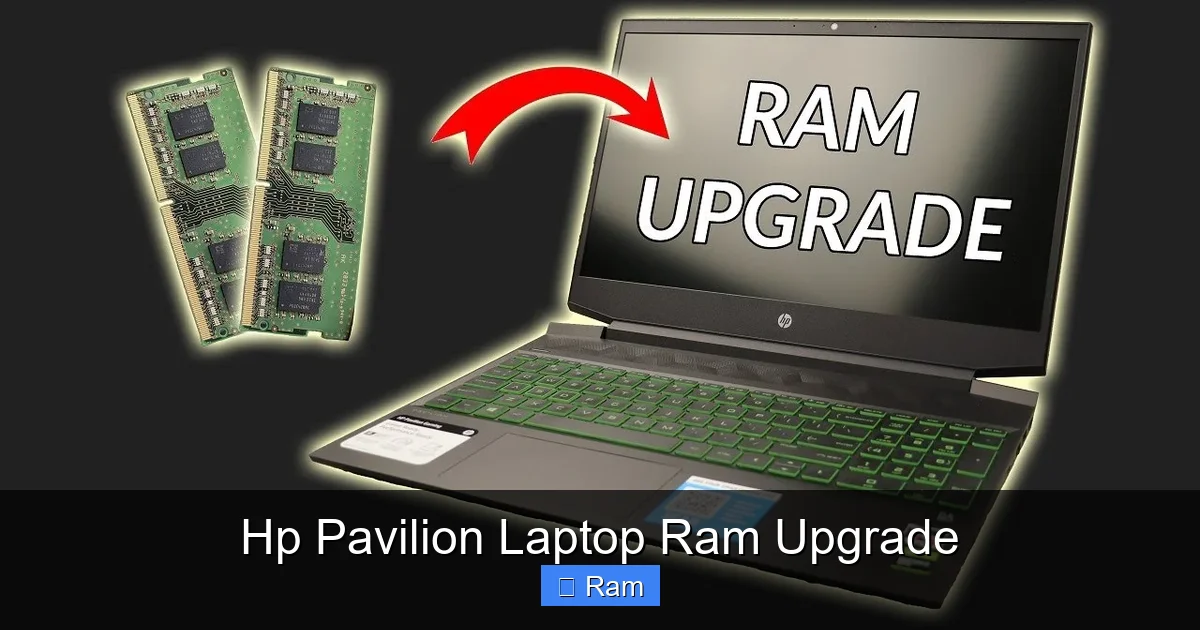
Looking to speed up your HP Pavilion laptop? Upgrading the RAM is one of the easiest and most effective ways to boost performance. This guide walks you through checking compatibility, choosing the right memory, and installing it yourself—no tech wizardry required.
Key Takeaways
- Understanding hp pavilion laptop ram upgrade: Provides essential knowledge
📑 Table of Contents
- Why Upgrade the RAM in Your HP Pavilion Laptop?
- Step 1: Identify Your HP Pavilion Model and Its RAM Limits
- Step 2: Choose the Right RAM Modules
- Step 3: Gather Your Tools and Prepare the Workspace
- Step 4: Open the Laptop and Locate the RAM Slots
- Step 5: Install the New RAM
- Step 6: Reassemble and Test the Upgrade
- Performance Gains You Can Expect
- Tips for Maintaining Your Upgraded HP Pavilion
- Conclusion
Why Upgrade the RAM in Your HP Pavilion Laptop?
Most of us buy a laptop for everyday tasks—email, streaming, browsing, maybe a bit of light gaming. Over time, the same tasks start to feel sluggish. The culprit is often memory, or RAM. When your system runs out of RAM, it starts swapping data to the slower hard drive, which makes everything crawl.
Adding more RAM gives the computer a bigger playground to store active data. The result? Faster app launches, smoother multitasking, and a noticeable lift in overall responsiveness. For HP Pavilion owners, the good news is that many models are designed with user‑upgradeable memory slots, so you don’t need to buy a brand‑new machine.
Step 1: Identify Your HP Pavilion Model and Its RAM Limits
Find the exact model number
HP places the model identifier on a sticker at the bottom of the laptop or under the battery. Look for something like HP Pavilion 15‑ec2000 or HP Pavilion x360 14‑da0055. Write it down.
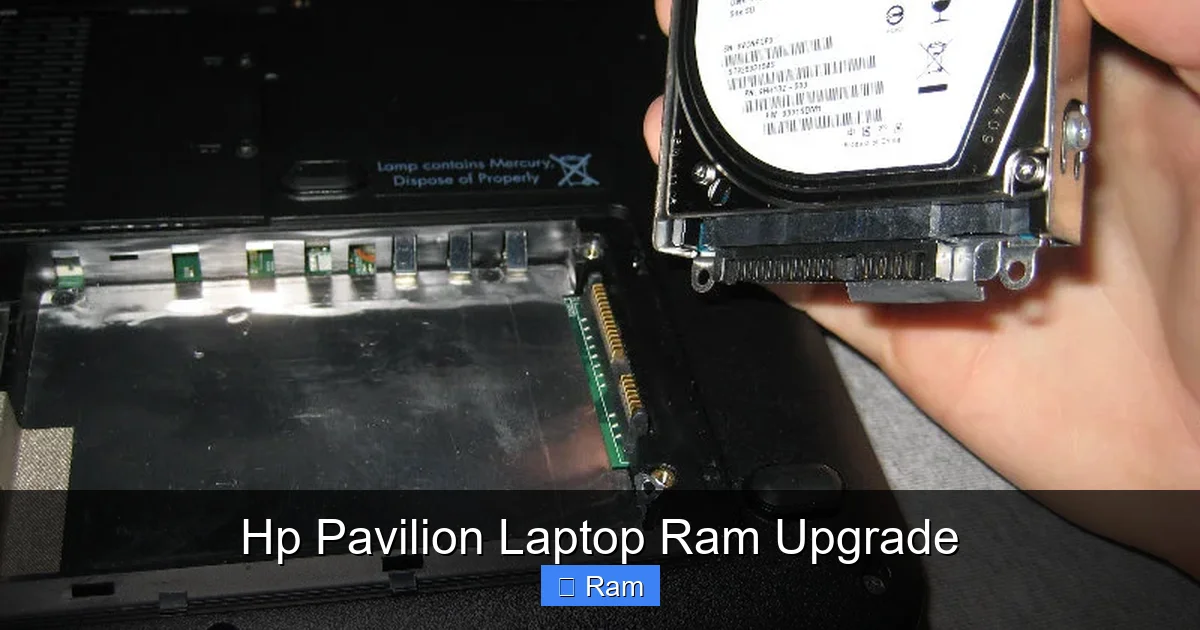
Visual guide about Hp Pavilion Laptop Ram Upgrade
Image source: paulstravelpictures.com
Check the official specifications
Visit the HP Support website, enter your model number, and locate the “Memory” or “Hardware Maintenance Guide” section. Here you’ll see:
- Maximum RAM capacity (e.g., 32 GB)
- Supported DDR generation (DDR3, DDR4, DDR5)
- Speed (e.g., 2666 MHz, 3200 MHz)
- Number of slots (usually 1 or 2)
Knowing these details prevents buying the wrong type of memory.
Step 2: Choose the Right RAM Modules
DDR generation and form factor
All modern HP Pavilion laptops use DDR4 SODIMM modules, though older models may still run DDR3. SODIMM stands for “Small Outline DIMM,” the tiny stick you see in laptops.
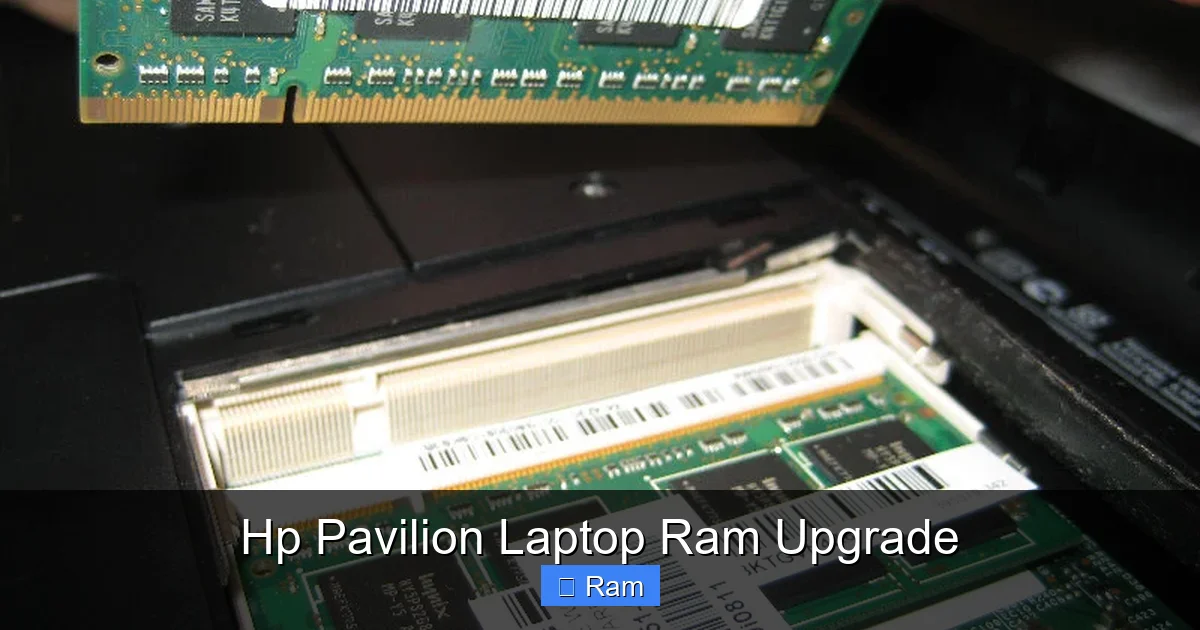
Visual guide about Hp Pavilion Laptop Ram Upgrade
Image source: paulstravelpictures.com
Capacity per slot
If your laptop has two slots and a 16 GB maximum, you can install 2 × 8 GB sticks or a single 16 GB stick plus a smaller one. Matching sizes (dual‑channel) often yields the best performance.
Speed and latency
Higher megahertz (MHz) numbers mean faster data transfer. However, the laptop will only run at the speed it supports. Buying 3200 MHz RAM for a machine that tops out at 2666 MHz is fine—it will simply operate at the lower speed.
Brand and warranty
Stick with reputable brands like Crucial, Kingston, Corsair, or Samsung. Most offer a limited lifetime warranty, which adds peace of mind.
Step 3: Gather Your Tools and Prepare the Workspace
Essential tools
- Phillips #0 or #1 screwdriver (most HP Pavilion panels use tiny screws)
- Anti‑static wrist strap (optional but recommended)
- Soft, static‑free surface (e.g., a microfiber mat)
Safety first
Turn off the laptop, unplug the power adapter, and remove any external devices. If your model has a removable battery, take it out. This reduces the risk of short circuits.
Visual guide about Hp Pavilion Laptop Ram Upgrade
Image source: paulstravelpictures.com
Ground yourself
Touch a metal part of the chassis or wear the anti‑static wrist strap before handling the RAM. This simple step prevents electrostatic discharge that could damage components.
Step 4: Open the Laptop and Locate the RAM Slots
Removing the back panel
Most HP Pavilion models have a single bottom cover held by 6‑10 screws. Loosen them in a diagonal pattern to keep the panel from warping.
Once the screws are out, gently pry the panel off with a plastic spudger. Start at a corner and work around the edges. If the panel resists, double‑check for hidden screws under rubber feet or stickers.
Finding the memory compartment
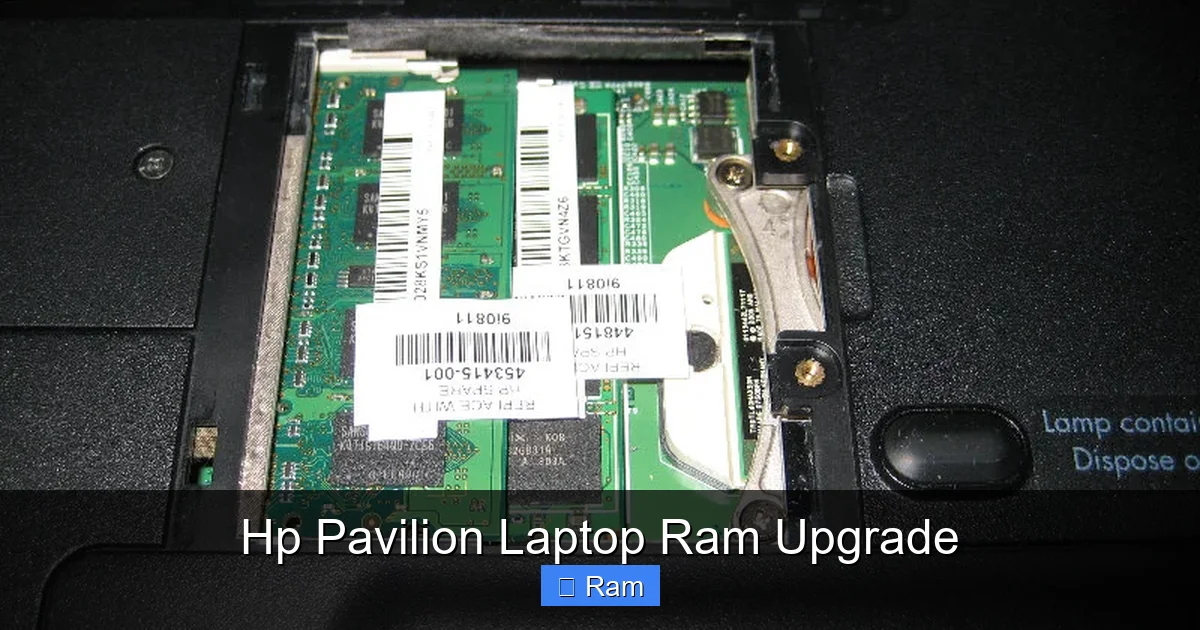
The RAM slots are usually near the center of the chassis, covered by a small metal shield or a plastic latch. In dual‑slot models, you’ll see two long, thin sockets side by side. In single‑slot models, there’s just one.
Step 5: Install the New RAM
Removing existing modules (if needed)
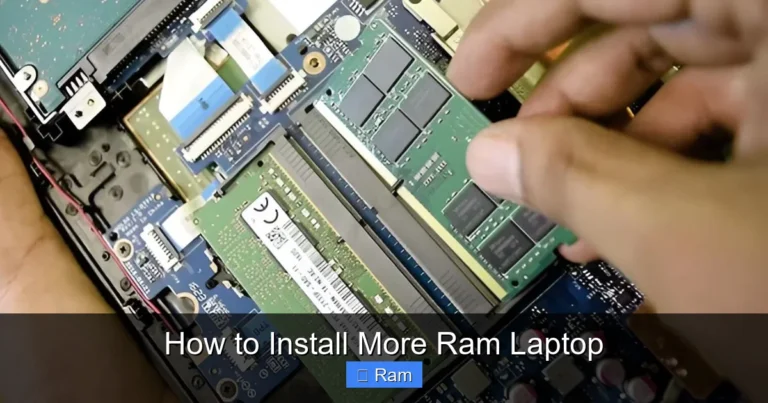
Push the metal clips on either side of the module outward. The stick will pop up at an angle. Grip the edges (avoid touching the gold contacts) and pull it out gently.
Inserting the new module
Align the notch on the RAM stick with the key in the slot. The stick only fits one way. Slide it in at a 30‑degree angle, then press down until the side clips snap into place. You should hear a faint click.
Double‑checking the fit
Make sure the module sits flush with the surrounding metal. If it’s tilted, remove it and try again.
Step 6: Reassemble and Test the Upgrade
Close the back panel
Replace the bottom cover, align the screw holes, and tighten the screws in the same diagonal pattern you removed them. Don’t overtighten; a snug fit is enough.
Power on and verify
Reconnect the battery (if you removed it) and plug the charger back in. Turn on the laptop. Within seconds, Windows (or your OS) should recognize the new memory.
To confirm, right‑click Start > System on Windows 10/11, or go to About This Mac > Memory on macOS (if you run macOS on a Hackintosh). The total RAM displayed should match the installed amount.
Troubleshooting common issues
- Computer won’t boot: Reseat the RAM—sometimes the module isn’t fully seated.
- Memory not recognized: Verify that the RAM type and speed match the laptop’s specifications.
- Beeping sounds: This usually indicates an incompatibility; double‑check the model’s supported RAM.
Performance Gains You Can Expect
Everyday tasks
Web browsing with many tabs, Office work, and video streaming become noticeably smoother. You’ll see less stuttering when switching between applications.
Creative work and gaming
Programs like Adobe Photoshop, Premiere, or light gaming titles benefit from the extra memory. Rendering times drop, and frame rates become steadier.
Future‑proofing
Even if you don’t need the full capacity today, installing the maximum supported RAM now saves you a future upgrade hassle. Many users start with 8 GB and later add another 8 GB when their workload grows.
Tips for Maintaining Your Upgraded HP Pavilion
- Keep the BIOS updated: HP releases firmware updates that improve memory compatibility.
- Run a memory diagnostic: Use Windows Memory Diagnostic or MemTest86 after installation to ensure stability.
- Clean the vents: More RAM can generate a bit more heat; keep airflow clear.
- Backup regularly: An upgrade is a good reminder to keep your data safe.
Conclusion
Upgrading the RAM in your HP Pavilion laptop is a low‑cost, high‑impact way to breathe new life into a machine that may feel sluggish after a few years. By confirming the correct specifications, selecting a reliable memory module, and following a simple step‑by‑step installation process, you can enjoy faster performance, smoother multitasking, and a more enjoyable computing experience—all without spending a fortune on a new laptop.
Take a moment, check your model, order the right RAM, and give your HP Pavilion the boost it deserves. Your future self will thank you every time an app opens instantly.
Frequently Asked Questions
Can I upgrade the RAM on any HP Pavilion laptop?
Most recent HP Pavilion models have user‑upgradeable RAM, but a few ultra‑thin or budget versions come with soldered memory. Check the maintenance guide for your specific model.
Do I need to match the RAM speed of the existing module?
If you’re adding a second stick, it’s best to match speed and latency for dual‑channel performance. Mixing speeds works, but the system will run at the slower module’s speed.
Will installing more RAM improve battery life?
Generally, RAM upgrades have a minimal impact on battery life. You may see a slight increase in power draw, but the faster performance can actually reduce the time the laptop stays active, offsetting the difference.
Is it safe to upgrade RAM without a warranty?
Yes. HP designs many Pavilion models for user upgrades, and opening the bottom panel does not void the warranty. However, keep the original screws and panels in case you need to revert.
How can I tell if my laptop uses DDR4 or DDR3?
The easiest way is to look up the model on HP’s support site. DDR4 is common in models released after 2015, while older units may still use DDR3.
What should I do if the laptop doesn’t recognize the new RAM?
First, reseat the module to ensure a proper connection. Then verify that the RAM type, speed, and capacity are supported by your model. If it still fails, test the stick in another compatible device to rule out a faulty module.