Upgrade Ram in Toshiba Satellite Laptop
Upgrading the RAM in your Toshiba Satellite laptop is one of the easiest and most affordable ways to breathe new life into an older machine. Whether you have a Toshiba Satellite Pro, L305, or A205 series, adding more memory can dramatically improve speed, multitasking, and overall performance. This guide walks you through everything from checking your current RAM to installing new modules, with simple steps anyone can follow.
Is your Toshiba Satellite laptop feeling slow? Do you find yourself waiting forever for programs to open or your browser to load? You are not alone. Many Toshiba Satellite owners deal with sluggish performance every day, and the culprit is often simple: not enough RAM.
The good news is that fixing this problem is easier and cheaper than you might think. Upgrading the RAM in your Toshiba Satellite laptop can transform how fast and smoothly your computer runs. In this guide, we will walk you through every step of the process. You will learn how to check your current memory, find compatible RAM, and install it yourself. No computer science degree required.
Whether you are a student, a remote worker, or just someone who wants their laptop to run faster, this guide has you covered. We will keep things simple, practical, and easy to follow. Let us get started.
Key Takeaways
- Easy Upgrade: Upgrading RAM in a Toshiba Satellite laptop is a straightforward process that most users can do at home in under 30 minutes.
- Cost Effective: Adding RAM is far cheaper than buying a new laptop and delivers noticeable performance gains immediately.
- Check Compatibility First: Not all Toshiba Satellite models support the same type or maximum amount of RAM, so always verify before purchasing.
- SODIMM Modules Are Standard: Toshiba Satellite laptops use small outline DIMM (SODIMM) RAM sticks, which are widely available and affordable.
- Dual Channel Matters: Installing matched pairs of RAM sticks can improve memory bandwidth and overall system responsiveness.
- Performance Boost: More RAM helps with multitasking, browsing, video editing, and running heavier applications smoothly.
📑 Table of Contents
- Why Upgrade RAM in Your Toshiba Satellite Laptop?
- Understanding RAM Types for Toshiba Satellite Laptops
- How to Check Your Current RAM and Laptop Compatibility
- How to Upgrade RAM in Your Toshiba Satellite Laptop
- How to Maximize Performance After Your RAM Upgrade
- How Much Does It Cost to Upgrade RAM?
- When Should You Not Upgrade RAM?
- Final Thoughts
Why Upgrade RAM in Your Toshiba Satellite Laptop?
RAM stands for Random Access Memory. It is the short-term memory your laptop uses to handle tasks right now. When you open a browser, a game, or a video editor, all of that runs in your RAM. The more RAM you have, the more tasks your laptop can handle at once without slowing down.
Here are some real reasons why upgrading your Toshiba Satellite RAM makes a big difference:
- Faster multitasking: You can have many browser tabs open while running other apps without lag.
- Smoother browsing: Modern websites use a lot of memory. More RAM keeps everything running fast.
- Better performance in apps: Programs like Microsoft Office, Photoshop, and video editors work much better with extra memory.
- Longer laptop life: Instead of buying a new laptop, a RAM upgrade gives your current machine a new lease on life.
- Affordable upgrade: RAM sticks are inexpensive compared to replacing an entire computer.
Most Toshiba Satellite laptops come with 4GB or 8GB of RAM out of the box. For everyday use in 2024 and beyond, 8GB is the bare minimum. If you want a truly smooth experience, 16GB of RAM is the sweet spot for most users.
How Much RAM Do You Really Need?
The right amount of RAM depends on what you do with your laptop. Here is a quick breakdown:
- 4GB: Basic web browsing and word processing only. You will feel limits quickly.
- 8GB: Good for everyday tasks, light multitasking, and casual gaming.
- 16GB: Great for heavy multitasking, photo editing, and moderate video work.
- 32GB: Overkill for most users but perfect for professional video editing or running virtual machines.
If you are unsure what you currently have, you should check your current RAM before buying anything new. This saves time and money.
Understanding RAM Types for Toshiba Satellite Laptops
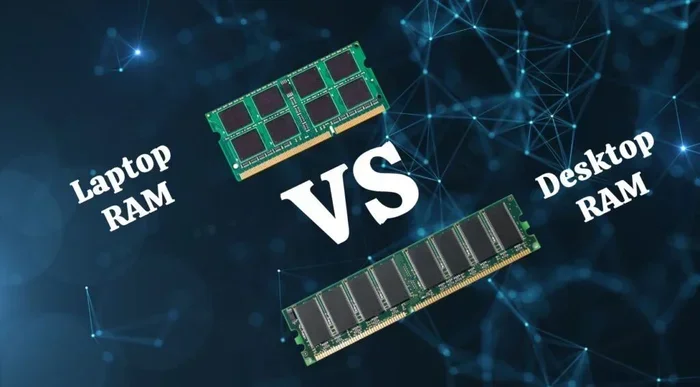
Not all RAM is the same. Toshiba Satellite laptops use a specific type of memory module called SODIMM, which stands for Small Outline Dual In-Line Memory Module. These are smaller than desktop RAM sticks and designed specifically for laptops.
DDR3 vs DDR4 RAM
The two most common types of RAM you will find for Toshiba Satellite laptops are DDR3 and DDR4. Here is what you need to know:
- DDR3 RAM: Older but still found in many Toshiba Satellite models from 2010 to 2015. It runs at lower speeds but is very affordable.
- DDR4 RAM: Newer and faster. Found in Toshiba Satellite laptops from 2015 onward. It uses less power and delivers better performance.
It is very important to match the RAM type to your laptop. You cannot mix DDR3 and DDR4 in the same laptop. They are physically different and will not fit in each other’s slots.
RAM Speed and Frequency
RAM speed is measured in megahertz (MHz). Common speeds for laptop RAM are 1600MHz, 2400MHz, and 3200MHz. Higher numbers mean faster data transfer. However, your laptop’s motherboard will only support certain speeds. Always check your Toshiba Satellite model’s specifications before buying.
For most users, the speed difference between 2400MHz and 3200MHz is not dramatic in everyday use. The bigger performance gain comes from simply having more RAM overall.
How to Check Your Current RAM and Laptop Compatibility
Before you buy any new RAM, you need to know two things: what you currently have and what your laptop can support. This step is crucial because buying the wrong RAM will waste your money.
Step 1: Check Your Current RAM
Checking your current RAM on a Windows laptop is very simple:
- Press the Ctrl + Shift + Esc keys to open Task Manager.
- Click on the Performance tab.
- Select Memory from the left sidebar.
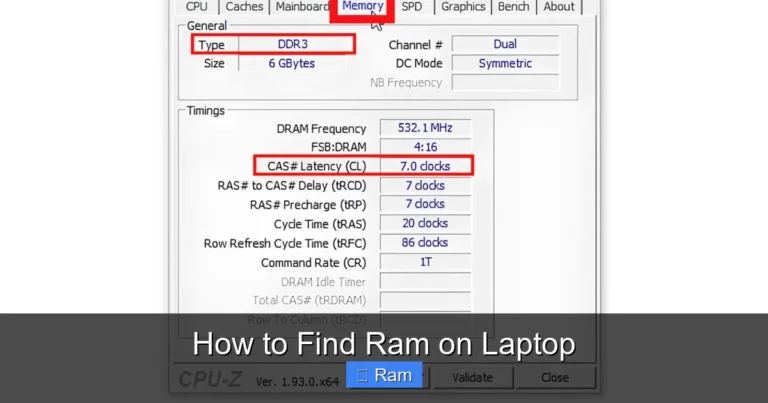
- Look at the total amount of RAM and the speed listed.
You can also search for “System Information” in the Windows search bar. Look for “Installed Physical Memory (RAM)” to see your total.
Step 2: Find Your Toshiba Satellite Model Number
You need your exact model number to find compatible RAM. Here is how to find it:
- Flip your laptop over and look at the bottom for a sticker with the model number.
- Open your laptop and check the inside of the battery compartment.
- Type “System Information” in the Windows search bar and look for the “System Model” field.
Once you have the model number, search online for the maximum RAM your Toshiba Satellite supports. Most older models support up to 8GB or 16GB, while newer ones can handle 16GB or 32GB.
If you are still unsure about whether your laptop supports RAM upgrades, you can learn more about whether your laptop supports RAM upgrades to confirm compatibility.
How to Upgrade RAM in Your Toshiba Satellite Laptop
Now comes the fun part. Actually upgrading the RAM in your Toshiba Satellite laptop is simpler than most people think. You do not need any special tools or technical skills. Just follow these steps carefully.
What You Will Need
- A compatible SODIMM RAM stick (or two, if you want to use dual channel).
- A small Phillips-head screwdriver.
- A clean, flat workspace.
- An anti-static wrist strap (optional but recommended).
Step-by-Step Installation Process
Step 1: Power off your laptop completely. Do not just put it to sleep. Shut it down fully and unplug the power adapter.
Step 2: Remove the battery if possible. Some Toshiba Satellite models have removable batteries. If yours does, take it out. This prevents any electrical damage during the upgrade.
Step 3: Locate the RAM access panel. Flip your laptop over and look for a small rectangular panel on the bottom. It usually has a small icon of memory sticks or says “RAM” on it.
Step 4: Remove the screws. Use your small screwdriver to unscrew the panel. Keep the screws in a safe place.
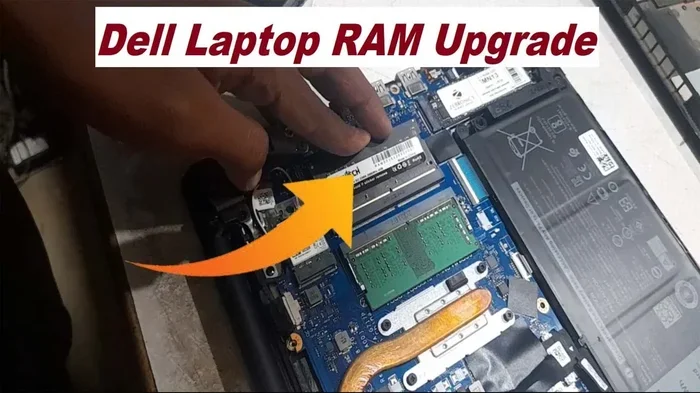
Step 5: Remove the existing RAM (if needed). Gently push the metal clips on either side of the RAM stick outward. The stick will pop up at an angle. Pull it straight out.
Step 6: Insert the new RAM. Align the notch on the new SODIMM stick with the slot. Push it in at a 45-degree angle until it clicks into place. Then press it down flat until the metal clips snap back.
Step 7: Replace the panel and screws. Put the access panel back on and secure it with the screws you removed earlier.
Step 8: Power on and verify. Turn on your laptop. If you installed the RAM correctly, your laptop should recognize the new memory immediately. You can verify this by going back to Task Manager and checking the Memory section.
If you prefer a visual walkthrough, you can also refer to our detailed guide on how to install RAM in a laptop for additional tips and visuals.
Common Mistakes to Avoid During RAM Installation
- Forcing the RAM stick: If it does not go in easily, check the alignment. Forcing it can damage the slot.
- Mixing different RAM brands: While it sometimes works, using matched pairs from the same brand and speed is always better for stability.
- Skipping the anti-static precaution: Static electricity can damage RAM modules. Touch a metal surface before handling the sticks.
- Not seating the RAM fully: If the clips do not snap back, the RAM is not fully inserted. Your laptop will not recognize it.
How to Maximize Performance After Your RAM Upgrade
Once you have installed your new RAM, there are a few things you can do to get the most out of it. These tips will help you squeeze every bit of performance from your upgraded Toshiba Satellite laptop.
Enable Dual Channel Mode
If your laptop has two RAM slots and you installed two matching sticks, you are running in dual channel mode. This means your laptop can access memory twice as fast. To get the best results, always install two identical RAM sticks rather than one larger stick.
Update Your BIOS
Sometimes, updating your laptop’s BIOS can improve memory compatibility and performance. Visit the Toshiba support website, enter your model number, and look for the latest BIOS update. Follow the instructions carefully, as updating BIOS can be risky if done incorrectly.
Close Unnecessary Programs
Even with more RAM, running too many programs at once can slow things down. Get in the habit of closing apps you are not using. This frees up memory for the tasks that matter most.
Check for Malware
Malware and viruses can eat up your system resources, including RAM. Run a full antivirus scan regularly to keep your laptop clean and fast.
How Much Does It Cost to Upgrade RAM?
One of the best things about upgrading RAM is how affordable it is. A single 8GB DDR4 SODIMM stick typically costs between $20 and $40. A matched pair of 8GB sticks (for 16GB total) usually runs $40 to $70. Compare that to the cost of a new laptop, and the value is obvious.
You can find RAM at most electronics stores, online retailers like Amazon, or directly from memory manufacturers like Crucial, Kingston, and Corsair. Always double-check the specifications before purchasing to make sure you get the right type for your Toshiba Satellite model.
If you are shopping for RAM, you might also want to check out our guide on how to upgrade RAM in a laptop for more buying tips and recommendations.
When Should You Not Upgrade RAM?
While RAM upgrades are great for most Toshiba Satellite laptops, there are a few situations where it might not help:
- Your laptop has soldered RAM: Some newer laptops have RAM that is permanently attached to the motherboard. You cannot upgrade these.
- Your laptop already has maximum RAM: If your Toshiba Satellite already has the maximum supported RAM, adding more will not help.
- Your slowdown is caused by something else: A slow hard drive, outdated processor, or malware could be the real problem. Upgrading RAM will not fix those issues.
If you are not sure what is causing your laptop’s slow performance, consider checking your hard drive health or running a speed test before investing in new RAM.
Final Thoughts
Upgrading the RAM in your Toshiba Satellite laptop is one of the best investments you can make for your computer. It is affordable, easy to do, and delivers immediate results. Whether you are struggling with slow multitasking, long load times, or apps that freeze, adding more memory can solve these problems and more.
Remember to check your laptop’s compatibility first, buy the right type of RAM, and follow the installation steps carefully. Within about 30 minutes, you can have a faster, more responsive laptop that feels almost new again.
Do not rush out to buy a new laptop just because your current one feels slow. Try a RAM upgrade first. You might be surprised at how big a difference it makes. Your Toshiba Satellite has plenty of life left in it, and a simple memory upgrade can unlock a whole new level of performance.
Frequently Asked Questions
Can I upgrade the RAM in any Toshiba Satellite laptop?
Most Toshiba Satellite laptops have removable RAM and can be upgraded. However, some newer or budget models may have soldered memory that cannot be replaced. Always check your specific model’s specifications before purchasing RAM.
How do I know which type of RAM my Toshiba Satellite needs?
Check your laptop’s model number and look up its specifications online. The key details you need are the RAM type (DDR3 or DDR4), the maximum supported capacity, and the form factor (SODIMM). You can also use tools like Crucial’s System Scanner to find compatible RAM automatically.
Is it safe to upgrade RAM myself?
Yes, upgrading RAM is one of the safest and easiest laptop upgrades you can do yourself. Just make sure your laptop is powered off, unplugged, and that you handle the RAM sticks carefully. Avoid touching the gold connectors and ground yourself to prevent static damage.
Will upgrading RAM make my Toshiba Satellite faster?
Yes, adding more RAM can significantly improve performance, especially if your current memory is low. You will notice faster multitasking, quicker app launches, and smoother browsing. However, RAM upgrades will not help if the bottleneck is a slow processor or hard drive.
How much RAM is too much for a Toshiba Satellite laptop?
Most Toshiba Satellite laptops support a maximum of 16GB or 32GB of RAM. Installing more than the maximum supported amount will not work and could damage your system. Always check your laptop’s maximum RAM capacity before buying.
Can I mix different RAM brands or speeds in my Toshiba Satellite?
You can mix RAM brands and speeds, but it is not recommended. Using matched pairs of the same brand, capacity, and speed gives the best performance and stability. If you must mix, try to match the speed and voltage specifications as closely as possible.