Upgrade Ram in Acer Laptop
Upgrading RAM in your Acer laptop is one of the easiest and most affordable ways to breathe new life into your machine. Whether you own an Acer Aspire, Nitro, or Predator, adding more memory can speed up multitasking, improve gaming performance, and make everyday tasks feel instant. This guide walks you through everything you need to know, from checking your current RAM to choosing the right upgrade and installing it yourself.
Key Takeaways
- Easy Performance Boost: Upgrading RAM in your Acer laptop can significantly improve speed and multitasking without replacing the whole machine.
- Know Your Limits: Every Acer model has a maximum RAM capacity and specific slot requirements you must check before buying.
- Affordable Upgrade: RAM upgrades are one of the cheapest ways to improve laptop performance, often costing under $50.
- DIY Friendly: Most Acer laptops let you upgrade RAM at home with just a screwdriver and a few minutes of your time.
- Check Compatibility First: Not all RAM works with all laptops. Match the type, speed, and form factor to your specific Acer model.
📑 Table of Contents
- Upgrade RAM in Acer Laptop: The Complete Guide
- Why Upgrade RAM in Your Acer Laptop?
- How Much RAM Does Your Acer Laptop Need?
- Understanding Acer Laptop RAM Specifications
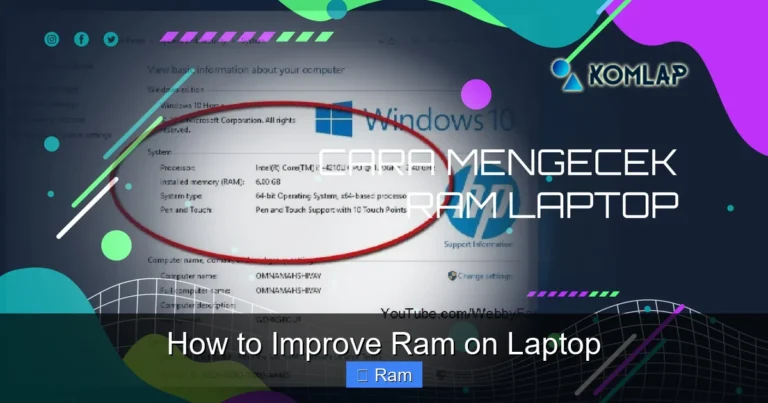
- How to Check Your Current RAM
- How to Upgrade RAM in Your Acer Laptop
- Common Mistakes to Avoid When Upgrading RAM
- Where to Buy Compatible RAM for Acer Laptops
- Expert Tips for Maximum Performance
Upgrade RAM in Acer Laptop: The Complete Guide
Is your Acer laptop feeling slow? Do apps take forever to open or freeze when you have too many tabs open? You are not alone. Many Acer laptop users face this same frustration. The good news is that upgrade ram in Acer laptop is one of the simplest and most cost-effective fixes you can make.
RAM, or Random Access Memory, is the short-term memory your laptop uses to handle tasks. More RAM means your laptop can juggle more things at once without slowing down. Think of it like adding more desks to a busy office. The more desk space you have, the more work gets done at the same time.
If you have been searching for ways to speed up your Acer laptop without spending hundreds of dollars, upgrading your memory is the answer. In this guide, we will walk you through every step. From understanding what RAM does to choosing the right module and installing it yourself, you will have everything you need.
Before you dive in, you might want to check out our general guide on how to upgrade RAM in a laptop for broader tips that apply across all brands. Now let us focus on what makes Acer laptops unique.
Why Upgrade RAM in Your Acer Laptop?
There are many reasons to consider a memory upgrade. Let us look at the biggest benefits first.
Faster Multitasking
Do you like having multiple browser tabs open while listening to music and working on a document? More RAM lets your laptop handle all of that smoothly. With low memory, your system starts swapping data to the hard drive, which is much slower. Upgrading RAM eliminates this bottleneck.
Better Gaming and Video Editing
Games and creative apps like video editors demand a lot of memory. If you own an Acer Nitro or Predator, you already know that performance matters. Adding RAM can boost frame rates and reduce lag. Even basic Acer Aspire models become much more capable with a memory boost.
Longer Laptop Lifespan
Instead of buying a new laptop, upgrading RAM extends the life of your current one. Software keeps getting heavier every year. More memory future-proofs your machine so it stays relevant longer.
Cost Savings
A new laptop can cost $500 or more. A RAM upgrade often costs between $20 and $60. The price difference is huge, and the performance gain can feel just as significant.
How Much RAM Does Your Acer Laptop Need?
The right amount of RAM depends on what you use your laptop for. Here is a simple breakdown.
| Usage Type | Minimum RAM | Recommended RAM |
|---|---|---|
| Basic browsing and email | 4 GB | 8 GB |
| Office work and students | 8 GB | 16 GB |
| Gaming and video editing | 16 GB | 32 GB |
| Heavy multitasking | 16 GB | 32 GB |
Most Acer laptops come with 4 GB or 8 GB of RAM out of the box. For a meaningful improvement, upgrading to 16 GB is the sweet spot. It handles almost everything you throw at it without breaking the bank.
If you are wondering whether you can go from 4 GB to 16 GB, the answer is yes for most models. Check out our detailed guide on upgrading laptop RAM from 4 GB to 16 GB for specific compatibility details and step-by-step instructions.
Understanding Acer Laptop RAM Specifications
Not all RAM is the same. Before you buy a new module, you need to understand a few key specifications.
RAM Type: DDR4 vs DDR5
Most modern Acer laptops use DDR4 RAM. Some newer models support DDR5. These two types are not interchangeable. Always check your laptop model to confirm which type it uses. Buying the wrong type means the RAM will not work at all.
RAM Speed (MHz)
RAM speed is measured in megahertz (MHz). Common speeds for laptop RAM are 2666 MHz, 3200 MHz, and 4800 MHz. Higher numbers mean faster data transfer. However, your laptop motherboard can only support certain speeds. Buying RAM that is too fast will still work, but it will run at the slower supported speed.
RAM Form Factor: SO-DIMM
Laptops use small RAM modules called SO-DIMMs. These are much smaller than desktop RAM. Never buy desktop RAM for a laptop. They will not fit. Always look for SO-DIMM when shopping for laptop memory.
Single Channel vs Dual Channel
Dual channel RAM means two modules working together, which doubles the data bandwidth. For the best performance, install RAM in matching pairs. If your Acer laptop has one 8 GB stick, consider adding another 8 GB stick instead of replacing it with a single 16 GB module.
How to Check Your Current RAM
Before you buy anything, find out what you currently have. Here is how to check your RAM on a Windows laptop.
- Press Ctrl + Shift + Esc to open Task Manager.
- Click on the Performance tab.
- Select Memory from the left sidebar.
- You will see your total RAM, speed, and how many slots are being used.
This quick check tells you exactly what you need to know before making a purchase. If you want a more detailed look at your system specs, you can also use our guide on how to check RAM in a laptop for deeper insights into your memory configuration.
Check Your Acer Model Number
Every Acer laptop has a model number printed on the bottom or in the system settings. Write this down before shopping. You will need it to find compatible RAM. Acer’s support page lets you enter your model number and see the exact specifications, including maximum RAM and slot count.
How to Upgrade RAM in Your Acer Laptop
Now for the fun part. Installing RAM in an Acer laptop is straightforward. You do not need to be a tech expert. Here is the full process.
Step 1: Gather Your Tools
You will need:
- A small Phillips-head screwdriver
- Your new RAM module (SO-DIMM)
- A clean, flat workspace
- An anti-static wrist strap (optional but recommended)
Step 2: Power Down and Unplug
Turn off your laptop completely. Unplug the power cable. Remove any connected USB devices or peripherals. If your laptop has a removable battery, take it out. This prevents any electrical damage during the process.
Step 3: Find the RAM Access Panel
Flip your Acer laptop over. Look for a small panel on the bottom with a RAM icon or small ventilation holes. This is the access panel. Some Acer models have screws holding it in place. Others use clips that you can pop open with your fingernail.
Step 4: Remove the Old RAM (If Needed)
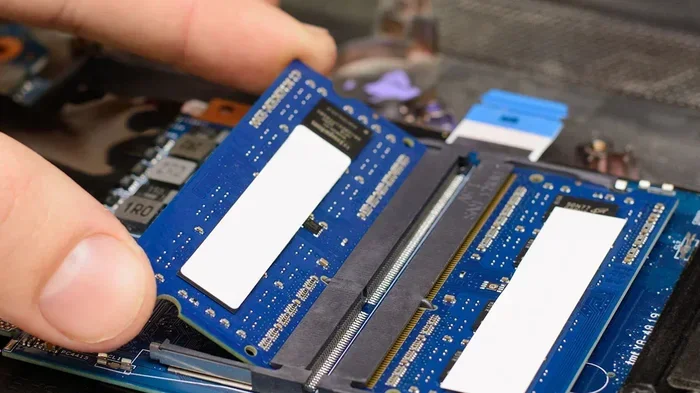
If you are replacing existing RAM, gently push the side clips outward. The RAM stick will pop up at an angle. Pull it straight out. If you are adding RAM to an empty slot, skip this step.
Step 5: Install the New RAM
Align the notch on the new RAM module with the slot. Insert it at a 30-degree angle and press down firmly until it clicks into place. The side clips should snap back automatically. This is the same process covered in our detailed guide on how to install RAM in a laptop if you want visual step-by-step instructions.
Step 6: Close Up and Test
Replace the access panel and screw it back in. Plug in your laptop and power it on. During startup, the BIOS should recognize the new RAM. You can verify it in Task Manager under the Performance tab. If the total RAM shows your new amount, the upgrade was successful.
Quick Tip: If your laptop does not recognize the new RAM, try reseating it. Remove and reinsert the module, making sure it clicks firmly into place. This fixes the issue in most cases.
Common Mistakes to Avoid When Upgrading RAM
Even though this is a simple process, mistakes can happen. Here are the most common ones to watch out for.
- Buying the wrong RAM type: DDR3 and DDR4 are not compatible. Always double-check your laptop’s requirements before purchasing.
- Mixing different brands or speeds: While it often works, mixing RAM can cause instability. Stick to matching modules for the best results.
- Forcing the RAM in: RAM should slide in smoothly with gentle pressure. If it resists, check the alignment. Forcing it can damage the slot.
- Skipping the BIOS update: Some older Acer laptops need a BIOS update to support higher RAM capacities. Check Acer’s website for your model.
- Not grounding yourself: Static electricity can damage sensitive components. Touch a metal surface before handling RAM modules.
Where to Buy Compatible RAM for Acer Laptops
You have several options for purchasing RAM. Online retailers like Amazon and Newegg carry a wide selection. Crucial and Kingston are two trusted brands that offer laptop-specific memory kits. Their websites even have tools where you can enter your Acer model number and they will show you exactly what is compatible.
Buying a matched pair of RAM sticks is usually the best approach. Look for 2×8 GB kits if you are upgrading to 16 GB total. This ensures both modules are identical, which maximizes dual-channel performance.
Expert Tips for Maximum Performance
Once you have upgraded your RAM, a few extra steps can help you get the most out of it.
- Enable XMP in BIOS: If your RAM supports faster speeds, you may need to enable XMP profiles in your BIOS settings. This unlocks the full speed of your memory module.
- Close Unnecessary Programs: Even with more RAM, running too many heavy programs at once can slow things down. Be mindful of what you keep open.
- Update Your Drivers: Updated drivers help your system communicate better with your new hardware. Check Acer’s support page for the latest drivers for your model.
- Consider an SSD Upgrade Too: RAM helps with multitasking, but an SSD improves boot times and app loading. Combining both upgrades gives you the best overall performance boost.
Upgrading RAM in your Acer laptop is one of the smartest investments you can make. It is affordable, easy to do, and delivers immediate results. Whether you use your laptop for school, work, or gaming, more memory means a smoother experience every day.
Take a few minutes to check your current setup, find the right RAM, and follow the steps in this guide. You will be amazed at how much faster your Acer laptop feels after the upgrade. No need to spend money on a new machine when a simple memory boost can make your old one feel like new again.
Start your upgrade today and enjoy the difference. Your laptop will thank you for it.
Frequently Asked Questions
Can I upgrade RAM in any Acer laptop?
Most Acer laptops allow RAM upgrades, but some ultra-thin or budget models have soldered memory that cannot be replaced. Check your specific model on Acer’s support page to confirm whether your laptop has accessible RAM slots before purchasing any components.
How much does it cost to upgrade RAM in an Acer laptop?
A single 8 GB DDR4 SO-DIMM typically costs between $20 and $40. A 16 GB kit usually ranges from $40 to $80. Prices vary by brand and speed, but RAM upgrades remain one of the most affordable laptop improvements you can make.
How do I know which RAM is compatible with my Acer laptop?
Check your laptop model number on the bottom of the device or in Windows Settings. Visit Acer’s official support page and enter your model to find the exact RAM specifications, including type, maximum capacity, and speed.
Can I mix different RAM brands in my Acer laptop?
Yes, mixing brands usually works, but it is not ideal. For the best stability and performance, use matching RAM modules from the same brand, with the same capacity, speed, and timings. Mismatched RAM can sometimes cause compatibility issues or reduce performance.
Will upgrading RAM make my Acer laptop faster?
Yes, upgrading RAM can significantly improve speed, especially if your current memory is low. You will notice faster multitasking, quicker app switching, and smoother performance in memory-heavy tasks like gaming and video editing.
Is it hard to upgrade RAM in an Acer laptop?
No, it is one of the easiest laptop upgrades you can do. Most Acer laptops have an access panel on the bottom that lets you reach the RAM slots in just a few minutes. All you need is a small screwdriver and a little patience.