4 Gb Ram in Laptop
4 gb ram in laptop can still handle everyday tasks like browsing, email, and light document work. However, it may struggle with modern multitasking, Windows 11, and demanding applications. This guide explains what to expect and how to improve performance on a 4 GB system.
Let’s talk about 4 gb ram in laptop computers. Many people buy budget laptops with this amount of memory every day. The question is simple: is it enough? The answer depends on what you plan to do with your machine.
A laptop with 4 GB of RAM can still serve you well. It handles basic tasks like checking email, browsing the web, and writing documents. But if you try to run several programs at once, you will notice the slowdown. Understanding how your computer uses memory helps you make the best choice.
This guide covers everything you need to know about 4 gb ram in laptop systems. We will look at real-world performance, common limitations, and smart ways to get more out of your machine. Whether you are buying new or trying to improve an old laptop, you are in the right place.
Key Takeaways
- Basic Use Works: 4 GB RAM handles web browsing, emails, and word processing for light users.
- Limitations Exist: Modern apps and operating systems demand more memory, causing slowdowns.
- Upgrade Paths: Many laptops allow RAM upgrades to 8 GB or more for better performance.
- Optimize First: Closing background apps and using lightweight software helps maximize 4 GB.
- Check Compatibility: Always verify your laptop’s RAM type and slot availability before buying.
- Value Option: A 4 GB laptop works well as a second machine or for children’s use.
📑 Table of Contents
What Does 4 GB RAM Mean for Your Laptop?
RAM stands for Random Access Memory. Think of it as your laptop’s short-term workspace. When you open a program, it loads into RAM so your processor can access it quickly. More RAM means more programs can stay open at the same time.
With 4 GB of memory, your laptop has a small workspace. It can handle one or two browser tabs, a word processor, and maybe a music player. But open too many things, and the system starts to slow down. The computer begins using your storage drive as temporary memory, which is much slower.
For light users, 4 GB is still practical. If your daily routine involves checking email, watching videos, and writing simple documents, this amount works fine. But power users who edit photos, play games, or run multiple apps will feel the limits quickly.
How RAM Affects Everyday Tasks
Your computer’s memory affects almost everything you do. Here is how 4 GB handles common activities:
- Web Browsing: You can browse with 3-5 tabs open. Beyond that, pages start to lag and reload frequently.
- Office Work: Word, Excel, and PowerPoint run smoothly for basic tasks. Large spreadsheets may cause delays.
- Video Streaming: Watching Netflix or YouTube works well. But you cannot have many other apps open at the same time.
- Email: Gmail, Outlook, and other email clients work perfectly with 4 GB.
- Light Photo Editing: Basic edits in free tools like Paint work. Professional software like Photoshop will struggle.
The key takeaway is that 4 GB works for simple, focused tasks. It does not work well when you juggle many things at once.
Operating Systems and 4 GB RAM
The operating system you use plays a big role in how well 4 GB performs. Different systems have different memory needs. Let us look at the most common options.
Windows 11 on 4 GB RAM
Windows 11 is a heavier operating system than its predecessors. Microsoft recommends at least 8 GB of RAM for smooth performance. On 4 GB, Windows 11 will run, but you will notice delays. The system uses a lot of memory for background processes, leaving less for your apps.
If you must use Windows 11 with 4 GB, here are some tips:
- Disable unnecessary startup programs.
- Use lightweight browsers like Brave or Opera.
- Turn off visual effects in system settings.
- Keep only essential apps running at one time.
Windows 10 on 4 GB RAM
Windows 10 runs a bit lighter than Windows 11. Four GB of memory is more manageable on Windows 10. You can still use the computer for everyday tasks without constant frustration. Many budget laptops still come with Windows 10 and 4 GB RAM for good reason.
ChromeOS and Linux on 4 GB RAM
If you want the best experience from 4 GB, consider a lightweight operating system. ChromeOS runs well on 4 GB because it is designed for cloud-based tasks. Linux distributions like Lubuntu or Xubuntu use even less memory. These options can breathe new life into an older laptop.
Common Limitations of 4 GB RAM Laptops
Every laptop has limits, and 4 GB has its fair share. Understanding these limitations helps you set realistic expectations. Let us look at the most common problems users face.
Multitasking Struggles
The biggest issue with 4 GB is multitasking. If you have a browser open with several tabs, a music app, and a word processor, your laptop will slow down. The system runs out of memory and starts using the hard drive as virtual memory. This process, called swap file usage, is much slower than actual RAM.
Modern App Demands
Today’s apps are getting heavier. Even simple web pages use more memory than they did a few years ago. Social media sites, news sites, and streaming platforms all demand more from your computer. A laptop with 4 GB of memory was built for an older era of software.
Gaming and Creative Work
Gaming on 4 GB RAM is very difficult. Most modern games require at least 8 GB. Even older games may struggle if you have other programs running. Creative work like video editing, 3D modeling, and graphic design needs much more memory than 4 GB can provide.
Future-Proofing Concerns
Software keeps evolving. What works fine today may not work tomorrow. Apps are designed for systems with 8 GB or more. A 4 GB laptop may become outdated faster than you expect. If you plan to keep your laptop for several years, 4 GB could become a real problem.
How to Improve Performance on 4 GB RAM
Do not give up if your laptop has only 4 GB of memory. There are many ways to squeeze better performance from your system. These tips can make a noticeable difference in day-to-day use.
1. Close Unnecessary Programs
This sounds obvious, but many people keep apps running in the background without realizing it. Every open program uses RAM. Get in the habit of closing apps you are not using. Check your system tray for hidden programs that are eating up memory.
2. Use Lightweight Software
Choose lighter alternatives to heavy applications. For example:
- Use LibreOffice instead of Microsoft Office for basic tasks.
- Choose Firefox or Brave over Chrome for browsing.
- Use VLC for video playback instead of heavier media players.
- Try Notepad++ instead of Word for simple text editing.
3. Manage Browser Tabs
Web browsers are the biggest memory hogs. Each open tab uses RAM, even if you are not looking at it. Use tab manager extensions to suspend tabs you are not actively reading. Bookmark pages you want to return to later and close those tabs.
4. Disable Startup Programs
Many programs launch automatically when you start your computer. They run in the background and use valuable memory. Open your task manager and disable unnecessary startup items. This frees up RAM from the moment you turn on your laptop.
5. Add More RAM If Possible
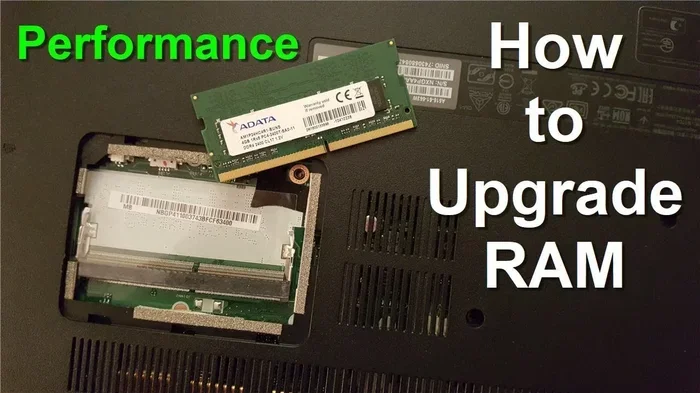
If your laptop allows upgrades, adding more RAM is the best solution. Many laptops have an extra RAM slot you can use. Check your laptop model to see what type of memory it supports. Some laptops have memory soldered to the motherboard and cannot be upgraded.
If you are unsure about upgrading, check out our guide on how to upgrade RAM in a laptop for step-by-step instructions. Also, you can learn what RAM does in a laptop to better understand the process.
6. Use a Solid State Drive
While not RAM, an SSD helps your laptop feel faster. It reduces the time spent swapping data to the storage drive. If your 4 GB laptop still has a hard drive, upgrading to an SSD can make a big difference in overall speed.
Should You Buy a Laptop with 4 GB RAM?
Buying a laptop with 4 GB of RAM is a decision that depends on your needs and budget. Let us look at the pros and cons to help you decide.
When 4 GB Makes Sense
There are situations where 4 GB is perfectly fine:
- You need a basic computer for children or elderly family members.
- You use the laptop for simple tasks like email and web browsing only.
- You are on a very tight budget and cannot afford more memory.
- You plan to use the laptop as a secondary machine.
- You run a lightweight operating system like ChromeOS or Linux.
When You Should Avoid 4 GB
There are also times when 4 GB is not a good choice:
- You need to run professional software for work or school.
- You want to play modern video games.
- You regularly work with large files, spreadsheets, or presentations.
- You plan to keep the laptop for more than two years.
- You do not want to deal with constant slowdowns and frustration.
Comparing 4 GB vs 8 GB vs 16 GB
To put things in perspective, here is a quick comparison of different RAM amounts:
| RAM Amount | Best For | Multitasking | Longevity |
|---|---|---|---|
| 4 GB | Basic tasks, light users | Poor | 1-2 years |
| 8 GB | Everyday use, students | Good | 3-5 years |
| 16 GB | Power users, gaming, creative work | Excellent | 5+ years |
As you can see, 4 GB is the entry-level option. It works for basic needs but will feel limiting quickly. If your budget allows, stepping up to 8 GB makes a huge difference. For reference, you can check our article on 8 GB RAM in laptops to see what a real upgrade looks like.
Can You Upgrade 4 GB RAM in Your Laptop?
Many people wonder if they can add more memory to their existing laptop. The answer is: it depends on your model. Some laptops have removable RAM that you can swap out. Others have memory soldered to the motherboard that cannot be changed.
Here is how to find out if your laptop supports upgrades:
- Check your laptop manual or the manufacturer’s website.
- Look up your laptop model online to see if it has accessible RAM slots.
- Use a tool like Crucial System Scanner to check your current memory and upgrade options.
- Open your laptop and physically inspect the RAM slots if you feel comfortable doing so.
If your laptop has a free RAM slot, you can add another 4 GB or 8 GB stick. This will double or triple your total memory. For example, adding 8 GB to your existing 4 GB gives you 12 GB of total RAM. That is a huge improvement for most users.
Before buying new memory, make sure you check the RAM type your laptop uses. Older laptops may use DDR3, while newer ones use DDR4 or DDR5. Using the wrong type will not work. You can learn more about checking your laptop’s memory in our guide on how to check RAM memory in laptop.
If you are not sure whether your laptop can be upgraded, visit our page on can I upgrade RAM in my laptop. It covers the most common scenarios and helps you figure out your options.
Expert Tips for Getting the Most from 4 GB RAM
Here are some extra tips from our team that can help you run a 4 GB laptop more smoothly:
- Restart your laptop regularly. This clears out temporary memory and refreshes the system.
- Use a USB drive as ReadyBoost. Windows can use a fast USB flash drive to supplement your RAM. It is not as good as real memory, but it helps a little.
- Keep your system updated. Software updates often include memory optimizations and bug fixes.
- Use Task Manager wisely. Press Ctrl+Shift+Esc to see which programs are using the most memory. Close the heavy ones you do not need.
- Consider a lightweight browser. Browsers like Brave and Opera use less memory than Chrome, which can free up significant RAM.
These small changes add up over time. You will notice your 4 GB laptop running faster and smoother with just a few adjustments.
Conclusion
A 4 gb ram in laptop setup is a viable option for basic computing needs. It handles web browsing, email, and light document work without major issues. However, it has clear limitations when it comes to multitasking, modern software, and demanding tasks.
If you are buying a new laptop today, we recommend at least 8 GB of RAM whenever possible. The small price difference is worth the massive improvement in performance and longevity. But if you already have a 4 GB laptop, do not despair. With the right optimizations and smart usage habits, you can still get good value from your machine.
Remember, RAM is just one part of the puzzle. Your processor, storage type, and overall system balance all matter too. Focus on the whole picture when evaluating your laptop’s performance.
We hope this guide has helped you understand what to expect from a laptop with 4 GB of memory. Use these tips to get the most from your system, and consider an upgrade when your needs grow beyond what 4 GB can handle.
Frequently Asked Questions
Is 4 GB RAM enough for a laptop in 2024?
It depends on what you do. For basic tasks like web browsing and email, 4 GB still works. But for modern multitasking and running Windows 11, 8 GB is the recommended minimum. If you only use your laptop for simple, focused tasks, 4 GB can be sufficient.
Can I upgrade 4 GB RAM to 8 GB in my laptop?
Yes, if your laptop has a removable RAM slot and supports 8 GB modules. Check your laptop model to confirm compatibility. Some budget laptops have soldered RAM that cannot be upgraded, so always verify before purchasing new memory.
What happens when 4 GB RAM is full?
When your RAM is full, the system uses your storage drive as temporary memory, called virtual memory or swap. This is much slower than actual RAM and causes noticeable lag. Programs may freeze, and your laptop will feel sluggish until you close some applications.
Can I run Windows 11 with 4 GB RAM?
Windows 11 can run on 4 GB RAM, but performance will be limited. The operating system itself uses a significant amount of memory, leaving less for your applications. Expect slowdowns when opening multiple programs or browser tabs simultaneously.
How do I check how much RAM my laptop has?
You can check your RAM by opening the Task Manager and clicking on the Performance tab. On Windows, you can also go to Settings > System > About to see your installed memory. For a detailed view, use the Command Prompt and type “wmic memorychip get capacity.”
Is a 4 GB RAM laptop worth buying used?
A used 4 GB laptop can be worth it if you need a basic machine for light tasks. Just make sure the laptop has an SSD and a decent processor. These factors matter more than RAM alone for everyday use. Consider upgrading the RAM later if your needs grow.