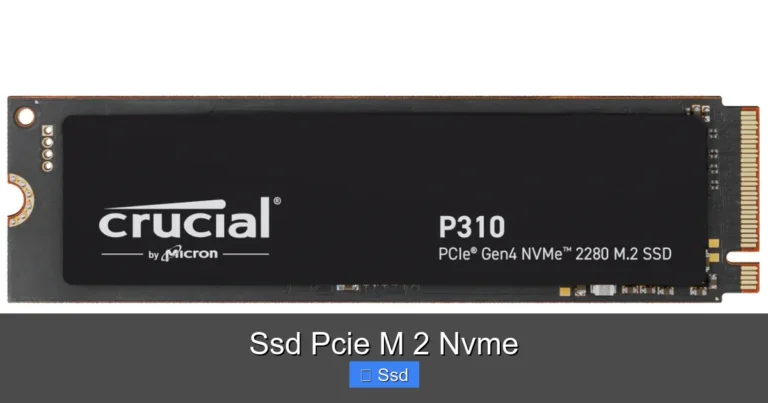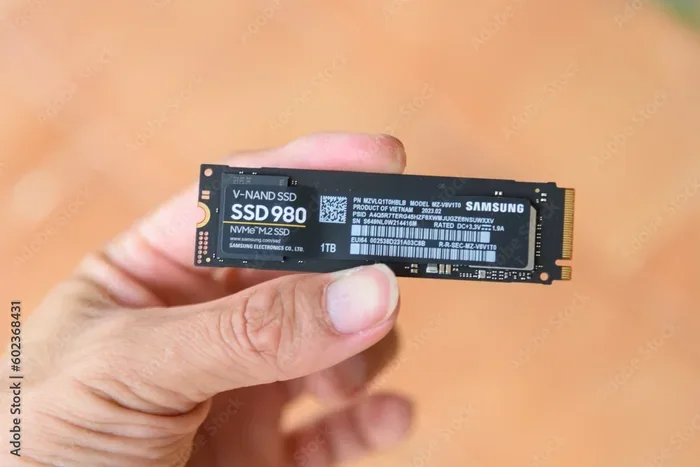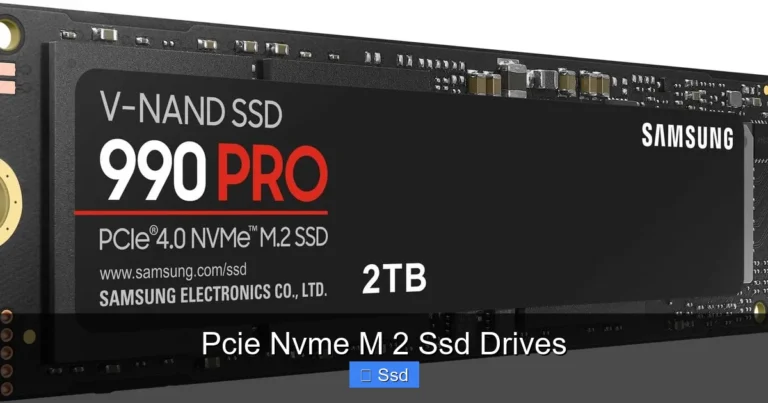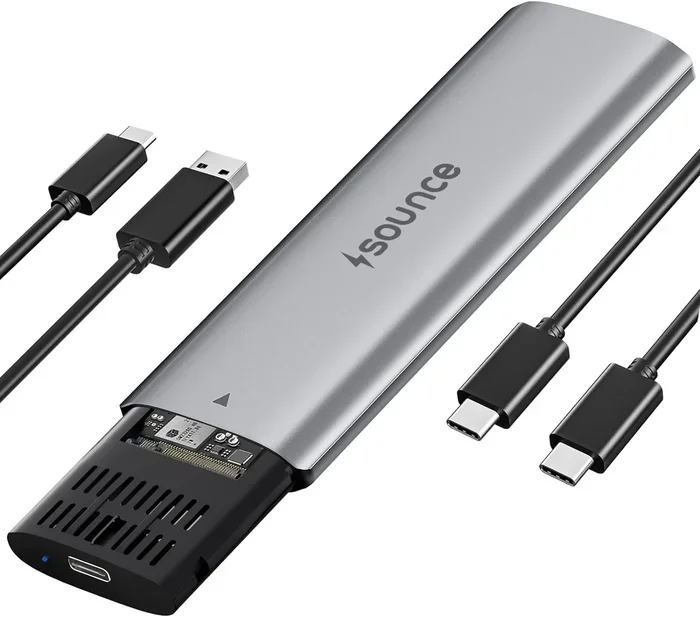
Nvme Ssd M.2 1tb
A nvme ssd m.2 1tb is one of the fastest and most popular storage upgrades you can make. This guide covers everything you need to know about choosing, installing, and getting the most out of a 1TB NVMe M.2 solid state drive. You will learn about speeds, compatibility, and top picks for every budget.
Upgrading your storage is one of the easiest ways to breathe new life into an old computer. A nvme ssd m.2 1tb drive offers lightning-fast speeds and plenty of space for your files, games, and applications. Whether you are building a new PC or upgrading a laptop, this guide has everything you need.
In this article, we will break down what makes an NVMe M.2 SSD special, how it compares to other drives, and what to look for when shopping. By the end, you will feel confident picking the right 1TB NVMe M.2 solid state drive for your needs. Let us dive in.
Key Takeaways
- Speed Boost: An NVMe M.2 1TB SSD delivers read speeds up to 7,000 MB/s, far faster than old hard drives.
- Easy Upgrade: M.2 slots are found on most modern PCs and laptops, making installation simple.
- Price Range: You can find a quality 1TB NVMe SSD for around $50 to $100.
- Capacity Sweet Spot: 1TB gives you enough room for your operating system, games, and files.
- NVMe vs SATA: NVMe drives are much faster than SATA SSDs because they use the PCIe bus directly.
- Compatibility Matters: Always check if your motherboard supports NVMe M.2 before buying.
📑 Table of Contents
What Is an NVMe M.2 1TB SSD?
An NVMe M.2 1TB SSD is a small, flat storage device that plugs directly into your motherboard. The term M.2 refers to the physical shape and size of the drive. NVMe stands for Non-Volatile Memory Express, which is the protocol that allows the drive to communicate with your system at incredibly high speeds.
Unlike traditional hard disk drives, there are no moving parts inside an NVMe SSD. This means they are faster, quieter, and more durable. A 1TB NVMe M.2 SSD gives you roughly 1,000 gigabytes of storage, which is plenty for most users.
How Does NVMe Technology Work?
NVMe was designed specifically for flash storage. It uses the PCIe (Peripheral Component Interconnect Express) bus to transfer data. This is a direct connection to your CPU, which removes bottlenecks found in older storage interfaces.
Think of it like a highway. A traditional SATA SSD is like a two-lane road. An NVMe drive is like a multi-lane superhighway. Data flows much faster because there is less congestion. This is why a nvme ssd m.2 1tb can load games and boot your operating system in seconds.
Why Choose a 1TB NVMe M.2 SSD?
There are many reasons to choose a 1TB NVMe M.2 SSD for your system. Here are the biggest benefits that make this storage option so popular.
- Blazing Fast Speeds: NVMe drives offer read speeds of 5,000 to 7,000 MB/s. That means large files transfer in moments.
- Small Form Factor: The M.2 stick is tiny, about the size of a gum stick. It saves space inside your PC case.
- Energy Efficient: NVMe SSDs use less power than hard drives, which helps laptop battery life.
- No Noise: With no spinning parts, these drives run completely silent.
- Affordable at 1TB: The 1TB capacity hits a sweet spot between price and storage space.
If you are tired of slow boot times and endless loading screens, a 1TB NVMe M.2 solid state drive is the solution. You will notice the difference the moment you turn on your computer.
Who Needs a 1TB NVMe M.2 SSD?
Almost anyone can benefit from this upgrade. Gamers will love the fast load times. Content creators will appreciate the quick file transfers. Students will enjoy a responsive laptop that keeps up with multitasking. Even casual users will notice a smoother, faster experience.
If you currently use a 256GB or 512GB drive and keep running out of space, a 1TB model gives you room to grow. You can store your operating system, favorite apps, photos, and a large game library all on one drive.
NVMe M.2 SSD vs SATA SSD
One of the most common questions is how NVMe compares to SATA SSDs. Both use the M.2 form factor, but they are very different under the hood.
| Feature | NVMe M.2 SSD | SATA M.2 SSD |
|---|---|---|
| Max Read Speed | 7,000 MB/s | 550 MB/s |
| Interface | PCIe (Gen 3 or Gen 4) | SATA III |
| Latency | Very Low | Higher |
| Price (1TB) | $50 – $100 | $35 – $60 |
| Best For | Gaming, Video Editing | Basic Storage |
The NVMe drive is clearly the faster option. If your motherboard supports it, there is really no reason to choose a SATA M.2 drive anymore. The nvme ssd m.2 1tb option will give you a much better experience for gaming and professional work.
That said, SATA M.2 drives are still fine for basic storage needs. If you just need extra space for documents and media, a SATA drive works well. But for speed and performance, NVMe is the clear winner.
Top Features to Look For
Not all NVMe M.2 1TB SSDs are created equal. Here are the key features you should check before buying.
PCIe Generation
Most modern NVMe SSDs use PCIe Gen 3 or Gen 4. Gen 4 is faster and is found on newer platforms. However, Gen 3 drives are still very fast and often more affordable. If you have an older motherboard, a Gen 3 1TB NVMe M.2 SSD will still be a massive upgrade over a hard drive.
DRAM Cache
DRAM cache helps the SSD manage data more efficiently. Drives with DRAM tend to be faster and more consistent, especially during heavy workloads. Look for this feature if you plan on doing video editing or running multiple applications at once.
Endurance (TBW Rating)
TBW stands for Terabytes Written. It tells you how much data you can write to the drive over its lifetime. Most 1TB NVMe SSDs have a TBW rating of 300 to 600 terabytes. For normal use, this is more than enough. Heavy users should aim for higher TBW ratings.
Brand Reputation and Warranty
Stick with trusted brands like Samsung, Kingston, Crucial, and WD. These companies offer reliable drives with solid warranties, often 3 to 5 years. Reading reviews and checking the nvme ssd m.2 1tb price from different sellers can also help you find a good deal.
How to Install Your NVMe M.2 1TB SSD
Installing an NVMe M.2 SSD is surprisingly easy. You do not need to be a tech expert. Here is a simple step-by-step guide.
- Turn off your PC and unplug it from the wall.
- Open your case by removing the side panel with a screwdriver.
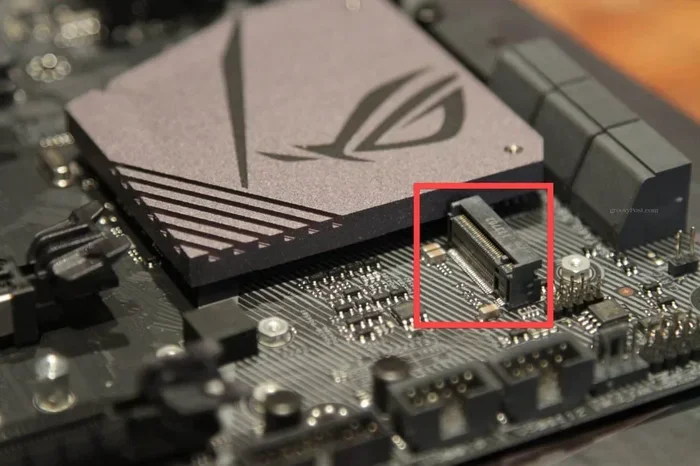
- Locate the M.2 slot on your motherboard. It looks like a small slot with a tiny screw nearby.
- Insert the SSD at a 30-degree angle into the slot. Gently push it down until it sits flat.
- Secure the drive with the tiny screw. Do not overtighten.
- Close the case and plug your PC back in.
- Boot into your BIOS or operating system. The new drive should be detected automatically.
If you are using a laptop, the process is similar but you may need to remove the bottom panel. Always check your laptop manual for specific instructions. Once installed, you can format the drive and start using it right away.
For more details on compatible models, check out our guide on 1TB NVMe M.2 SSD options that work well with most systems.
Common Mistakes to Avoid
Even with a simple upgrade, there are a few mistakes people make. Avoid these to get the best results from your new nvme ssd m.2 1tb drive.
- Buying without checking compatibility: Not all motherboards have M.2 slots that support NVMe. Always verify your motherboard supports PCIe NVMe before purchasing.
- Ignoring cooling: Some NVMe drives run hot, especially during heavy use. Consider adding a small heatsink or fan if your case has poor airflow.
- Skipping firmware updates: Manufacturers release firmware updates that improve performance and fix bugs. Check the manufacturer website after installing your drive.
- Not enabling AHCI or NVMe mode in BIOS: If the drive is not showing up, you may need to change the SATA or NVMe mode in your BIOS settings.
These small steps can make a big difference in how well your new 1TB NVMe M.2 solid state drive performs over time.
Final Thoughts
A nvme ssd m.2 1tb is one of the best upgrades you can make to any computer. The speed improvements are dramatic, and the 1TB capacity gives you plenty of room for everything you need. Whether you are a gamer, a creator, or just someone who wants a faster PC, this storage solution delivers.
Prices have come down significantly, and you can find excellent drives for under $100. With easy installation and instant performance gains, there is no reason not to upgrade. Pick a trusted brand, check your motherboard compatibility, and enjoy the lightning-fast world of NVMe storage.
If you want to explore more options, visit our NVMe M.2 SSD 1TB page for a full list of available models and reviews.
Frequently Asked Questions
Is an NVMe M.2 1TB SSD worth it?
Absolutely. The speed boost over a traditional hard drive or even a SATA SSD is huge. You will notice faster boot times, quicker game loads, and snappier overall performance. At around $50 to $100, the value is hard to beat.
Can I use a 1TB NVMe M.2 SSD as my boot drive?
Yes, that is one of the best uses for this drive. Install your operating system and frequently used programs on it for the fastest possible experience. Most users find it to be the ideal boot drive for both desktops and laptops.
Do I need a heatsink for my NVMe M.2 SSD?
It depends on your setup. If you have good airflow in your case or use your PC for light tasks, a heatsink may not be necessary. But if you do heavy workloads like video editing or gaming for long sessions, a heatsink can help maintain peak performance.
What is the difference between M.2 and NVMe?
M.2 is the physical shape and size of the drive. NVMe is the communication protocol it uses. A drive can be M.2 but use the slower SATA protocol. When people say NVMe M.2, they mean a drive that is both the M.2 form factor and uses the fast NVMe protocol.
How long does a 1TB NVMe SSD last?
Most quality NVMe SSDs last 5 to 10 years under normal use. The endurance rating, measured in TBW, tells you the drive’s expected lifespan. For everyday use, you will likely replace the drive for other reasons long before it wears out.
Will my laptop support an NVMe M.2 1TB SSD?
Most modern laptops from the last 5 years support NVMe M.2 SSDs. Check your laptop manual or look up your model online to confirm. If it has an M.2 slot and supports NVMe, you can upgrade with ease.