Does a Usb C to Usb a Adapter Affect Speed 2
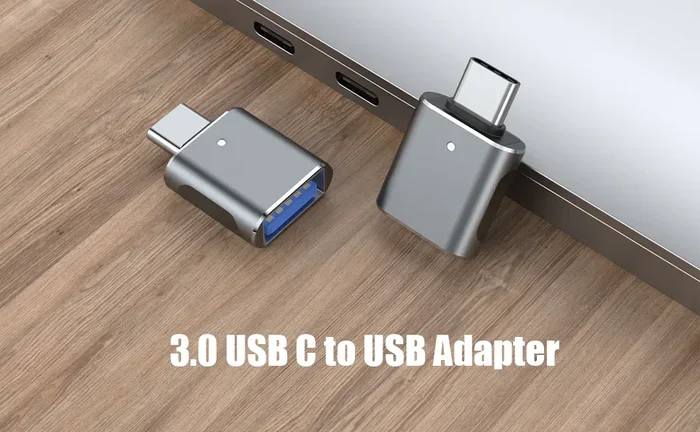
Does a USB C to USB A adapter affect speed? The short answer is yes, but the impact depends on several factors. The adapter itself, the USB protocol version, cable quality, and your connected devices all play a role in determining real-world data transfer speeds. In most cases, a quality adapter will not significantly slow things down, but cheap or outdated adapters can bottleneck your connection.
You just bought a shiny new USB C to USB A adapter. You plug it in, connect your favorite external drive, and then you wait. The file transfer feels slower than expected. You start wondering, does a USB C to USB A adapter affect speed? This is a question many tech users ask every day, and the answer is not as simple as yes or no.
The truth is that a USB adapter can impact your data transfer speed, but the degree of impact varies widely. Several factors come into play, including the adapter build quality, the USB protocol version, and even the devices you are connecting. In this guide, we will walk you through everything you need to know about USB C to USB A adapter speed. By the end, you will understand why your transfers might be slow and how to fix it.
Whether you are using an external hard drive, a flash drive, or an M.2 NVMe SSD enclosure, the adapter you choose matters. Let us dive deep into the world of USB adapters and uncover the truth about speed.
Key Takeaways
- USB C to USB A adapters can affect speed: The adapter quality and USB protocol version are the biggest factors.
- USB 3.0 and USB 3.1 adapters maintain fast speeds: Look for adapters that support SuperSpeed USB for the best performance.
- Cheap adapters may bottleneck your connection: Low-quality adapters can reduce transfer rates significantly.
- Cable length matters: Longer cables can cause slight speed drops due to signal loss.
- Your device’s USB port matters too: The slowest device in the chain determines the overall speed.
- Not all adapters are created equal: Always check the adapter’s specifications before buying.
📑 Table of Contents
What Is a USB C to USB A Adapter?
A USB C to USB A adapter is a small device that lets you connect a USB C cable to a USB A port. It bridges the gap between older and newer USB standards. Many modern laptops and phones use USB C, but plenty of devices still rely on USB A ports. The adapter makes them work together.
How USB C and USB A Differ
USB C and USB A look very different. USB C is the smaller, oval-shaped connector you see on newer devices. USB A is the larger, rectangular connector found on older computers, printers, and chargers. Both can carry data and power, but they differ in speed capabilities and design.
USB C supports faster protocols like USB 3.1 and USB 3.2. USB A is commonly found in USB 2.0 and USB 3.0 versions. When you use an adapter, you are essentially connecting two different worlds. The adapter must translate the signal between them, and this process can affect speed.
Does a USB C to USB A Adapter Affect Speed?
This is the million-dollar question. The answer is nuanced. A good quality adapter should not significantly reduce your speed. However, a poor-quality adapter can create a bottleneck that slows everything down. Let us break this down further.
Understanding USB Protocols and Bandwidth
Every USB connection follows a specific protocol. The protocol determines the maximum bandwidth available. USB 2.0 offers a max speed of about 480 Mbps. USB 3.0 jumps to 5 Gbps. USB 3.1 reaches 10 Gbps, and USB 3.2 can go up to 20 Gbps.
When you use a USB C to USB A adapter, the speed is capped by the lowest protocol in the chain. If your USB C port supports USB 3.1 but your USB A port only supports USB 2.0, your transfer speed will drop to USB 2.0 levels. The adapter itself does not slow things down. It is the older port that creates the limitation.
Here is a quick comparison of common USB protocols:
- USB 2.0: Max speed of 480 Mbps. Common in older USB A ports.
- USB 3.0 (USB 3.2 Gen 1): Max speed of 5 Gbps. Found in many modern USB A ports.
- USB 3.1 (USB 3.2 Gen 2): Max speed of 10 Gbps. Found in newer USB C ports.
- USB 3.2 Gen 2×2: Max speed of 20 Gbps. Found in the latest USB C devices.
USB 3.0 vs USB 2.0 Adapters
Not all adapters are built the same. A USB 3.0 adapter supports data transfer speeds up to 5 Gbps. A USB 2.0 adapter maxes out at 480 Mbps. That is a huge difference. If you buy a cheap USB 2.0 adapter by mistake, your fast external drive will perform at USB 2.0 speeds.
Always check the adapter specifications. Look for labels like “SuperSpeed USB” or “USB 3.0” on the packaging. If the adapter does not mention a speed rating, assume it is USB 2.0. A quality USB adapter clearly states its supported protocol.
Factors That Impact Adapter Speed
Several factors determine how fast your data transfers when using a USB C to USB A adapter. Let us look at each one in detail.
Adapter Build Quality
The build quality of the adapter matters more than most people think. A well-made adapter uses better internal components and tighter signal routing. This means less signal loss and faster transfer speeds. A cheap adapter with poor shielding can introduce electrical noise, which slows down data transfer.
Brand name adapters from reputable manufacturers tend to perform better. They also tend to last longer. When you are shopping for an adapter, do not just grab the cheapest option off the shelf. Spending a few extra dollars on a quality adapter can make a real difference in your data transfer rate.
Cable Quality and Length
The cable you use with your adapter also affects speed. Longer cables can cause signal degradation. A short, high-quality cable will maintain better speeds than a long, thin one. If you need a longer cable, look for one with better shielding and a thicker gauge.
Also, pay attention to the cable’s data rating. Some cables only support charging and not data transfer. Make sure your cable supports the USB protocol you need. A charging-only cable will not transfer any data at all, regardless of how good your adapter is.
Device Compatibility
Your connected devices also play a role. If you plug a fast USB C external SSD into a USB A port using an adapter, the USB A port becomes the bottleneck. The adapter is not the problem. The older port is.
For example, if you use an M.2 NVMe SSD enclosure with a USB C connection, you want to connect it to a USB C port on your computer. If you use an adapter to connect it to a USB A port, you will lose some of the speed benefits of the NVMe drive. The adapter adds a small amount of overhead, but the bigger issue is the USB A port’s speed limit.
Similarly, if you use an M.2 NVMe SSD to USB 3.1 adapter, the speed depends on whether your USB A port supports USB 3.0 or higher. A USB 2.0 USB A port will severely limit the performance of even the fastest NVMe drive.
Power Delivery Considerations
USB C supports higher power delivery than USB A. Some adapters pass through power while others do not. If your adapter does not support adequate power delivery, your connected device might not charge properly or might experience intermittent disconnections. This can indirectly affect speed by causing transfer interruptions.
If you need both data transfer and charging through the same adapter, make sure it supports USB power delivery. Look for adapters rated for at least 60W if you plan to charge laptops while transferring data.
Real-World Speed Tests and What to Expect
Theoretical speeds are one thing. Real-world speeds are another. In practice, you will rarely hit the maximum advertised speeds of any USB protocol. Here is what you can realistically expect from different setups.
When using a quality USB 3.0 USB C to USB A adapter with a USB 3.0 external drive, you can expect transfer speeds of around 400 to 450 Mbps. This is close to the 5 Gbps theoretical limit of USB 3.0, accounting for real-world overhead.
With a USB 2.0 adapter, speeds drop dramatically. You might see transfer rates of 25 to 35 Mbps. That is less than one-tenth of the USB 3.0 speed. The difference is noticeable when transferring large files or backing up a full hard drive.
Here are some practical tips to maximize your adapter speed:
- Always use a USB 3.0 or higher adapter for best results.
- Keep your cables as short as possible.
- Avoid using hub adapters that add extra connection points.
- Make sure your devices support the same USB protocol.
- Update your device drivers regularly for optimal performance.
If you are using an M.2 NVMe SSD USB setup, the adapter quality becomes even more critical. NVMe drives are incredibly fast, and a poor adapter can prevent you from reaching their full potential. A high-quality adapter ensures you get the most out of your fast storage.
How to Choose the Right USB C to USB A Adapter
Not all adapters are created equal. Here is what you should look for when buying one.
Check the USB Protocol Support
The first thing to check is the USB protocol the adapter supports. Look for USB 3.0 or USB 3.1 support. These protocols offer the best speeds. USB 2.0 adapters are fine for basic tasks like charging or transferring small files, but they will bottleneck any high-speed device.
Look for Gold-Plated Connectors
Gold-plated connectors offer better conductivity and resist corrosion better than other materials. They also provide a more secure connection, which reduces the chance of intermittent disconnections during file transfers.
Read Reviews and Check Brand Reputation
Before buying any adapter, read user reviews. Look for feedback on real-world speed performance. A brand with a good reputation is more likely to deliver a quality product. Avoid generic, no-name adapters with suspiciously low prices. They often cut corners on build quality and internal components.
Consider Your Use Case
Think about what you will use the adapter for. If you just need to connect a keyboard or mouse, a basic USB 2.0 adapter will work fine. But if you need to transfer large files or connect an external SSD, invest in a USB 3.0 or USB 3.1 adapter. The extra cost is worth the speed improvement.
Common Myths About USB Adapter Speed
There are several myths floating around about USB adapters and speed. Let us clear up the most common ones.
Myth 1: All adapters slow down your speed. This is not true. A quality adapter that supports the correct USB protocol will not noticeably reduce speed. The bottleneck usually comes from the connected devices or ports, not the adapter itself.
Myth 2: More expensive adapters are always faster. Price does not always equal speed. Some expensive adapters are overbuilt but offer the same speed as cheaper alternatives. Focus on the protocol support and build quality rather than the price tag.
Myth 3: USB C is always faster than USB A. USB C is a connector type, not a speed standard. A USB C port can support USB 2.0, which is just as slow as a USB 2.0 USB A port. Always check the protocol, not just the connector shape.
Myth 4: Adapters degrade over time and slow down. A good quality adapter should maintain its speed over time. If your adapter starts performing slowly, it might be a sign of physical damage or dust in the connector. Clean the ports and try again before assuming the adapter has degraded.
Understanding these myths helps you make better buying decisions. Do not fall for marketing hype. Focus on the technical specifications that actually matter for USB transfer speed.
When Should You Avoid Using an Adapter?
There are times when using an adapter is not the best solution. If you need maximum speed for large file transfers, consider upgrading your devices to support the same USB standard natively. For example, if you have a USB C external SSD, use it with a USB C port on your computer instead of an adapter.
Also, if you are using an NVMe SSD to USB adapter for professional workloads, direct connections are always preferable. Adapters add a small amount of latency, which may not matter for casual use but can add up during intensive tasks like video editing or large backups.
For everyday use, such as charging your phone or transferring documents, a USB C to USB A adapter works perfectly fine. Just make sure you buy a quality one that supports the right protocol.
Another scenario where you should avoid adapters is when using multiple devices in a chain. Daisy-chaining adapters increases the chance of signal loss and speed drops. If possible, use direct connections for critical tasks.
Final Thoughts
So, does a USB C to USB A adapter affect speed? The answer is yes, but the effect is usually minimal if you use a quality adapter that supports the right USB protocol. The biggest speed killers are cheap adapters, outdated USB standards, and mismatched devices. By choosing the right adapter and understanding how USB protocols work, you can enjoy fast and reliable data transfers every time.
Invest in a good adapter, use short and high-quality cables, and always match your devices to the right USB standard. These simple steps will help you get the most out of your USB C to USB A adapter. Whether you are backing up files, transferring photos, or connecting legacy devices, the right adapter keeps everything running smoothly and at full speed.
Remember that your USB adapter speed is only as good as the weakest link in the chain. Check your ports, check your cables, and choose quality adapters. With the right setup, you will not notice any speed loss at all.
Frequently Asked Questions
Can a USB C to USB A adapter slow down my external SSD?
Yes, it can if the adapter or the USB A port only supports USB 2.0. USB 2.0 speeds are much slower than USB 3.0 or USB 3.1. Always make sure your adapter and port support at least USB 3.0 for optimal external SSD performance.
Does the length of the adapter cable affect speed?
Longer cables can cause slight signal degradation, which may reduce speed. For best results, use a short, high-quality cable with your adapter. Keep cables under 3 feet for maximum speed.
Is USB 3.0 the same as USB 3.1?
USB 3.0 and USB 3.1 are different standards. USB 3.0 offers speeds up to 5 Gbps, while USB 3.1 offers speeds up to 10 Gbps. However, both use the same connector types. Make sure your adapter supports the protocol you need.
Do I need a special adapter for NVMe SSDs?
Yes, NVMe SSDs require adapters that support the NVMe protocol over USB. A standard USB adapter will not work with NVMe drives. Look for adapters specifically designed for NVMe SSDs, such as an M.2 NVMe SSD to USB 3.1 adapter.
Can I use a USB C to USB A adapter for charging?
Yes, you can. Most USB C to USB A adapters support charging. However, make sure the adapter supports the power delivery your device needs. Some adapters only support data transfer and not charging.
Why is my USB adapter not reaching advertised speeds?
Several factors can cause this. The connected device might not support the advertised protocol. The cable quality might be poor. Or the USB port might be operating at a lower speed. Check all components in the chain to identify the bottleneck.
=== INTERNAL LINKS USED ===
For more information on USB adapters and speed, check out these related articles on our site: