Is Usb Better Than Hdmi for Video Quality

Is USB better than HDMI for video quality? The short answer is no — HDMI is designed specifically for high-quality video and audio transfer, while USB is more versatile but generally not built for direct video output. However, USB-C and Thunderbolt have changed the game, and in some cases, USB connections can match or even rival HDMI performance. This guide breaks down the differences so you can make the best choice for your display and video setup.
When you set up a monitor, a TV, or a projector, one question keeps popping up: should you use USB or HDMI? It seems like a simple choice, but the answer is not always obvious. Both cables carry signals, but they do it in very different ways. If you care about video quality, understanding the differences really matters.
HDMI has been the go-to connection for screens for years. It was designed from the ground up to deliver sharp images and clear sound through a single cable. USB, on the other hand, is a jack-of-all-trades. It handles data transfer, device charging, and sometimes video output too. But does that versatility make it better for video? Not always. Let us dive deep into this comparison and find out once and for all.
Key Takeaways
- HDMI is the standard for video quality: It was built specifically for carrying uncompressed video and audio signals to displays.
- USB is more versatile: It handles data, power, and in some cases video, but it is not always the best choice for pure video output.
- USB-C and Thunderbolt change the rules: These newer USB versions can carry video signals and rival HDMI in many scenarios.
- Bandwidth matters a lot: HDMI generally offers higher bandwidth for resolutions like 4K and beyond.
- Your use case decides the winner: Gaming, video editing, and casual browsing all have different cable needs.
📑 Table of Contents
- What Is HDMI and Why Does It Matter for Video?
- What Is USB and How Does It Handle Video?
- Direct Comparison: USB vs HDMI for Video Quality
- When to Use HDMI for the Best Video Quality
- When USB Makes Sense for Video Output
- Common Mistakes People Make With Video Cables
- Expert Insights on Choosing the Right Connection
- Final Verdict: Is USB Better Than HDMI for Video Quality?
What Is HDMI and Why Does It Matter for Video?
HDMI stands for High-Definition Multimedia Interface. It is a dedicated digital connection built to carry video and audio signals from a source device to a display. Think of it as a highway built specifically for visual and sound data. The cable has gone through several versions over the years, and each version improved speed, resolution support, and features.
Most people know HDMI as the cable you plug into your TV, gaming console, or laptop. It supports a wide range of resolutions, from 1080p Full HD all the way up to 8K in the latest versions. The latest HDMI 2.1 standard even supports dynamic HDR, higher refresh rates, and wider color gamuts. If you want the best display quality without tweaking settings, HDMI is usually the path of least resistance.
HDMI Versions and What They Support
Here is a quick look at the main HDMI versions and what they can handle:
- HDMI 1.4: Supports 4K at 30Hz. Good for basic 4K content but not ideal for fast motion.
- HDMI 2.0: Handles 4K at 60Hz. This is the sweet spot for most home entertainment and casual gaming.
- HDMI 2.1: Supports up to 10K resolution and refresh rates as high as 120Hz at 4K. Built for serious gamers and professionals.
The bandwidth increases with each version. More bandwidth means more data can travel through the cable per second. This directly impacts the sharpness, smoothness, and color accuracy of your video. For anyone who cares about video performance, HDMI offers a clear advantage.
What Is USB and How Does It Handle Video?
USB stands for Universal Serial Bus. Unlike HDMI, USB was not originally designed for video. It was created to connect peripherals like keyboards, mice, external hard drives, and printers. Over time, however, USB evolved to support video output as well. This is where things get interesting.
USB comes in several shapes and speeds. You have USB-A, USB-B, USB-C, and the newer Thunderbolt protocols that use the USB-C connector. Each type has different capabilities. When people ask if USB is better than HDMI for video quality, they are often thinking about USB-C, which can carry video signals through a technology called DisplayPort Alt Mode.
USB Types That Support Video
- USB-C with DisplayPort Alt Mode: Can output video to compatible monitors. Supports resolutions up to 4K and beyond depending on the version.
- Thunderbolt 3 and 4: Uses the USB-C connector and supports video output with very high bandwidth. Thunderbolt 4 can drive two 4K displays or one 8K display.
- USB 3.0 and 3.1: These older USB types do not natively carry video signals. You would need an adapter to convert USB to HDMI or DisplayPort.
The key takeaway here is that USB can handle video, but it is not its primary job. You are essentially borrowing a data connection to do the work of a dedicated video connection. This works well in many cases, but there are limits.
Direct Comparison: USB vs HDMI for Video Quality
Now let us get to the heart of the matter. How do USB and HDMI stack up against each other when it comes to delivering video? The answer depends on several factors, including resolution, refresh rate, color depth, and the specific hardware you are using.
Resolution and Refresh Rate
HDMI has a clear edge when it comes to native resolution and refresh rate support. HDMI 2.1 can push 4K at 120Hz or even 8K at 60Hz without breaking a sweat. USB-C with DisplayPort Alt Mode can also reach 4K at 60Hz, but pushing higher refresh rates or resolutions often requires Thunderbolt technology.
If you are a gamer who wants smooth gameplay at high refresh rates, HDMI 2.1 is hard to beat. For casual use like browsing or watching movies, USB-C works just fine for most people.
Color Accuracy and HDR
Color accuracy matters a lot for video editors, designers, and anyone who cares about true-to-life visuals. HDMI supports HDR (High Dynamic Range) natively across its newer versions. This means wider color ranges, deeper blacks, and brighter highlights — all without extra setup.
USB can also support HDR, but it depends on the display and the source device. The video signal path through USB is sometimes less reliable for HDR metadata, which can lead to incorrect color rendering. If you are doing professional video editing, you will want to double-check that your USB connection handles HDR correctly.
Audio Integration
One big advantage of HDMI is that it carries both video and audio in a single cable. USB, by default, does not carry audio in the same seamless way. You might need separate audio routing or additional software to get sound through a USB video connection. For a clean, simple setup, HDMI wins here.
| Feature | HDMI | USB (USB-C) |
|---|---|---|
| Max Resolution (Current Gen) | 10K (HDMI 2.1) | 8K (Thunderbolt 4) |
| Max Refresh Rate at 4K | 120Hz | 60Hz (standard), 120Hz+ (Thunderbolt) |
| HDR Support | Native (HDMI 2.0+) | Supported (varies by device) |
| Audio Carried | Yes (built-in) | Sometimes (needs routing) |
| Bandwidth | Up to 48 Gbps (HDMI 2.1) | Up to 40 Gbps (Thunderbolt 4) |
| Ease of Use | Plug and play | May need adapters or drivers |
As you can see from the comparison, both connections have strengths. HDMI is more straightforward and reliable for pure video tasks. USB offers flexibility, especially if you are using a modern laptop with limited ports.
When to Use HDMI for the Best Video Quality
There are clear situations where HDMI is the better choice for video quality. If you are setting up a home theater system, HDMI is the obvious winner. The single-cable solution for both audio and video keeps things simple and clean.
Gamers will also benefit from using HDMI, especially with consoles like the PlayStation 5 and Xbox Series X. These devices use HDMI 2.1 to deliver 4K gaming at 120Hz with HDR. Trying to replicate that experience over a USB connection would be difficult and often impossible without extra hardware.
For professional video editing workflows, HDMI provides a stable and consistent signal to external monitors. If you are using a setup like the best PC laptop for photo and video editing, you will want a reliable video output that does not drop frames or misrender colors. HDMI delivers that dependability.
Another great use case is connecting to large displays or projectors in conference rooms or classrooms. HDMI is universally supported across almost all modern displays. You plug it in, and it works — no drivers, no adapters, no fuss.
When USB Makes Sense for Video Output
Despite HDMI’s advantages, there are plenty of situations where USB — especially USB-C — is the smarter choice. Modern laptops are getting thinner and lighter, and many of them have ditched traditional HDMI ports entirely. If your laptop only has USB-C ports, you do not really have a choice but to use USB for video.
USB-C is incredibly convenient for people who work across multiple devices. You can charge your laptop, connect to a monitor, and transfer files all through a single cable type. This kind of versatility is hard to ignore, even if HDMI performs slightly better for pure video.
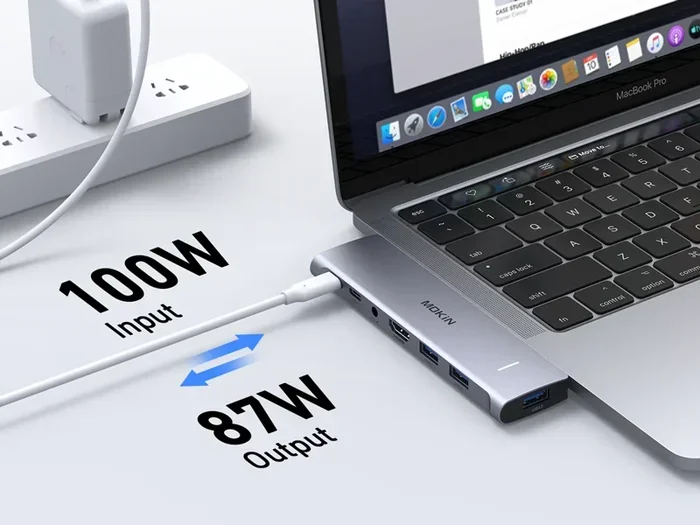
If you are a creative professional who travels often, a USB-C docking station can simplify your life enormously. You plug one cable into your laptop, and suddenly you have video output, internet access, and peripheral connections all at once. For those who also care about audio quality during video calls or editing sessions, consider pairing your setup with best headphones for video editing to get the full picture.
Thunderbolt technology has also made USB a serious contender for video quality. Thunderbolt 4 can deliver the same video performance as a native HDMI connection in many scenarios. If you invest in a good Thunderbolt dock or cable, you can get excellent display quality without needing a dedicated HDMI port.
Common Mistakes People Make With Video Cables
Even when people buy the right cables, they sometimes make mistakes that hurt their video quality. Here are a few pitfalls to avoid:
- Using an old HDMI cable for 4K content: Not all HDMI cables support 4K. Make sure you have at least an HDMI High Speed cable or an HDMI 2.0+ certified cable for 4K content.
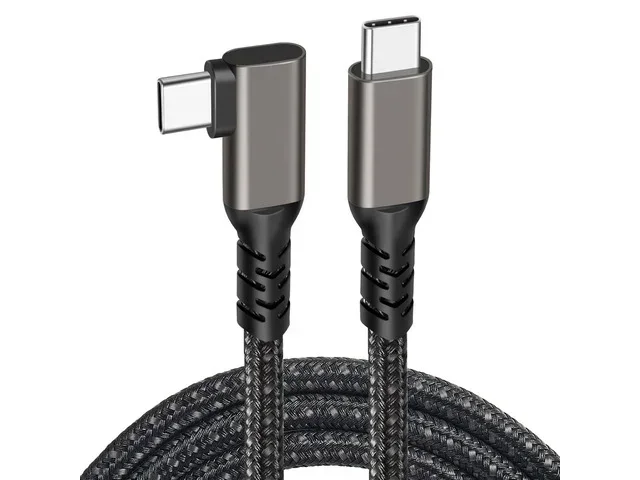
- Assuming all USB-C cables are equal: A standard USB-C cable may not support video output. Look for cables that explicitly mention DisplayPort Alt Mode or Thunderbolt support.
- Ignoring cable length: Longer cables can signal loss, especially at high resolutions. Keep your HDMI or USB cables as short as practical for the best performance.
- Forgetting about adapters: Cheap adapters can degrade your video signal. Invest in quality adapters from reputable brands to maintain video clarity.
- Not checking your display’s capabilities: Your cable is only as good as the weakest link in the chain. Make sure your monitor, TV, or projector supports the resolution and refresh rate you are trying to achieve.
These mistakes are easy to make, and they can be frustrating to troubleshoot. Taking a few extra minutes to verify your setup can save you a lot of headaches down the road.
Expert Insights on Choosing the Right Connection
From years of testing and reviewing display setups, here is what the experts generally agree on. HDMI remains the gold standard for dedicated video output. It is reliable, widely supported, and optimized for delivering the highest video quality possible.
USB-C and Thunderbolt are closing the gap fast. For most everyday users, a USB-C connection with video output capability is more than sufficient. The convenience and versatility it offers outweigh the slight performance difference in many real-world scenarios.
If you are building a serious workstation for tasks like video editing or professional graphic design, consider using both HDMI and USB-C strategically. Use HDMI for your primary display and USB-C for secondary monitors or docking stations. This hybrid approach gives you the best of both worlds.
Also, keep an eye on the data transfer speed of your overall system. A fast connection like Thunderbolt 4 can move data at up to 40 Gbps, which is comparable to the bandwidth of HDMI 2.1. This means USB-based video connections are only going to get better over time.
Final Verdict: Is USB Better Than HDMI for Video Quality?
The honest answer is that HDMI is still better for pure video quality in most situations. It was designed specifically for this purpose, and it shows in every aspect of performance — from resolution support to color accuracy to ease of use. If you want the best possible picture without any hassle, HDMI is the way to go.
That said, USB — especially USB-C and Thunderbolt — has earned its place as a viable alternative. For laptop users, travelers, and anyone who values a single-cable setup, USB delivers excellent video quality with added convenience. The gap between the two is shrinking with each new generation of technology.
Your best move is to evaluate your specific needs. Consider what devices you are connecting, what resolutions you need, and how much flexibility you want in your setup. For most people, having both HDMI and USB-C options available gives you the most freedom. If you want to explore more about display setups, check out our guide on the best computer monitors for video editing to find the perfect display for your workflow.
At the end of the day, the cable is just a tool. The real magic happens when you pair the right connection with the right display and use it for the right purpose. Make informed choices, and your video experience will be all the better for it.
Frequently Asked Questions
Can USB-C replace HDMI completely?
In many cases, yes. USB-C with DisplayPort Alt Mode or Thunderbolt can deliver video signals that match or come close to HDMI performance. However, some devices and displays still work better with a native HDMI connection, especially for gaming and professional workflows.
Does USB affect video quality compared to HDMI?
USB can affect video quality if you are using an older or lower-quality cable. Modern USB-C and Thunderbolt cables offer excellent video quality, but HDMI still provides a more consistent and dedicated video signal path for high-resolution content.
Is Thunderbolt USB better than HDMI for 4K video?
Thunderbolt 3 and 4 can handle 4K video very well, often at 60Hz or higher. For most 4K use cases, Thunderbolt performs comparably to HDMI 2.0. However, HDMI 2.1 has an edge for 4K at 120Hz or higher refresh rates.
Do I need a special USB cable for video output?
Yes, you need a USB-C cable that supports video output. Look for cables that mention DisplayPort Alt Mode or Thunderbolt compatibility. A standard USB charging cable will not carry a video signal.
Which is better for gaming: USB or HDMI?
HDMI is generally better for gaming, especially if you want high refresh rates and low input lag. HDMI 2.1 supports features like Variable Refresh Rate (VRR) and Auto Low Latency Mode (ALLM) that gaming setups rely on.
Can I use both USB and HDMI at the same time?
Absolutely. Many people use HDMI for their primary display and USB-C for a secondary monitor or docking station. Using both connections gives you more flexibility and can improve your overall workflow.
=== CONCLUSION ===
So, is USB better than HDMI for video quality? The answer is not a simple yes or no. HDMI remains the stronger choice for dedicated video output, offering higher bandwidth, better refresh rates, and native HDR support. USB, particularly USB-C and Thunderbolt, has caught up in many areas and offers unmatched convenience and versatility.
The best approach is to understand your needs and choose accordingly. For pure video quality and reliability, go with HDMI. For flexibility and modern connectivity, USB-C is a fantastic option. By knowing the strengths and limitations of each connection, you can build a setup that delivers the best possible experience for your specific use case.