Is There a Difference Between a Usb 2 0 Cable and a Usb 3 0 Cable
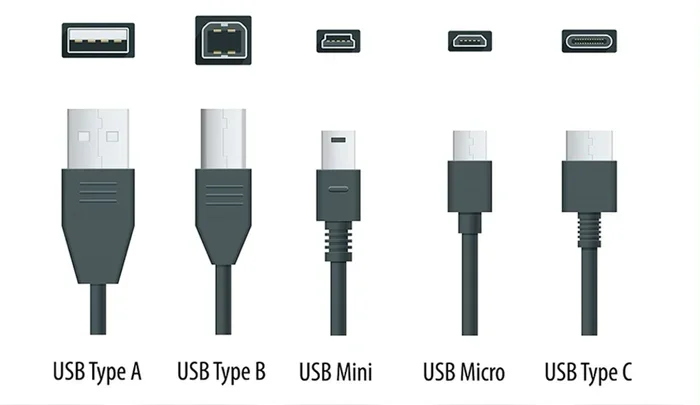
Yes, there is a big difference between a USB 2.0 cable and a USB 3.0 cable. USB 3.0 cables offer much faster data transfer speeds, better power delivery, and improved bandwidth compared to USB 2.0. Understanding these differences helps you choose the right cable for your devices and storage needs, whether you are backing up files to an M.2 NVMe PCIe 3.0 SSD or just charging your phone.
Have you ever grabbed a USB cable from a drawer and wondered if it really matters whether it is a USB 2.0 cable or a USB 3.0 cable? The short answer is yes, it matters a lot. But let us break it down in a way that actually makes sense.
When you plug in a device, you want it to work fast and reliably. Whether you are transferring photos from a camera, backing up files to an external drive, or charging your phone, the type of USB cable you use makes a real difference. In this guide, we will walk through everything you need to know about USB 2.0 vs USB 3.0 cables. We will cover speed, power, compatibility, and how to tell them apart.
By the end, you will never grab the wrong cable again. Let us dive in.
Key Takeaways
- USB 3.0 is significantly faster: It offers up to 5 Gbps transfer speeds, while USB 2.0 maxes out at 480 Mbps.
- USB 3.0 cables deliver more power: They can supply up to 900 mA, compared to USB 2.0’s 500 mA.
- They are backward compatible: A USB 3.0 cable works in a USB 2.0 port, but you will only get USB 2.0 speeds.
- You can tell them apart by color: USB 3.0 ports and cables often have a blue interior or a “SS” logo.
- Choose based on your needs: If you transfer large files or use external storage like an SSD or NVMe drive, USB 3.0 is the better choice.
📑 Table of Contents
What Is a USB 2.0 Cable?
A USB 2.0 cable is one of the older USB cable types. It was released back in April 2000 and became the standard for many years. You have probably used one without even realizing it. Most early flash drives, printers, and mice relied on USB 2.0 connections.
The USB 2.0 standard supports a maximum data transfer rate of 480 megabits per second, or Mbps. That sounds fast, but compared to newer standards, it is quite slow. Think of it like a two-lane highway. Cars can move, but there is a limit to how much traffic it can handle at once.
Here are some key facts about USB 2.0 cables:
- Max data transfer speed: 480 Mbps
- Power output: Up to 500 milliamps (mA)
- Common connector types: USB-A, USB-B, mini-USB, micro-USB
- Typical use: Charging devices, basic file transfers, connecting keyboards and mice
- Release year: 2000
Even though USB 2.0 is old, it is still around. Many budget devices and accessories still use USB 2.0 ports and cables. They work fine for simple tasks like charging a phone or connecting a basic mouse. But if you try to move large files or use a fast external drive, you will feel the bottleneck.
When USB 2.0 Is Still Useful
Do not count USB 2.0 out just yet. There are still plenty of situations where a USB 2.0 cable gets the job done. For example, if you are just charging a Bluetooth headset or syncing a small document, the slower speed does not matter at all. USB 2.0 cables are also cheaper, which makes them a good option for devices that do not need fast data transfer.
Additionally, many older computers and peripherals only have USB 2.0 ports. If you have an older printer or a legacy device, a USB 2.0 cable is exactly what you need. The key is knowing when to use it and when to upgrade.
What Is a USB 3.0 Cable?
A USB 3.0 cable is the newer, faster version of the USB standard. It was introduced in November 2008 and brought a huge leap in performance. The official name for USB 3.0 is “USB 3.2 Gen 1,” but most people still call it USB 3.0. It is like going from that two-lane highway to a multi-lane expressway.
The USB 3.0 standard supports data transfer speeds of up to 5 gigabits per second, or Gbps. That is more than ten times faster than USB 2.0. This speed boost makes a massive difference when you are copying large video files, backing up data to a drive, or transferring a full folder of high-resolution photos.
Here are the key features of USB 3.0 cables:
- Max data transfer speed: 5 Gbps
- Power output: Up to 900 mA
- Common connector types: USB-A, USB-B, USB-C
- Typical use: Fast file transfers, external SSDs, HD video editing, charging tablets
- Release year: 2008
One of the best things about USB 3.0 is its improved power delivery. Because it can supply more current, devices charge faster. If you have ever noticed that your phone or tablet charges quicker with one cable than another, the USB version might be the reason.
USB 3.0 and Storage Speeds
If you are using an external drive for backups or extra storage, the cable matters a lot. A USB 3.0 cable can fully take advantage of a fast solid-state drive. For example, when you connect an M.2 NVMe PCIe 3.0 SSD through an external enclosure, a USB 3.0 cable ensures you are not leaving speed on the table. With a USB 2.0 cable, the drive would be severely limited by the older standard.
Key Differences Between USB 2.0 and USB 3.0 Cables
Now let us put the two side by side. Understanding the differences helps you make smart choices about which cable to buy and when.
Speed Comparison
Speed is the most obvious difference. USB 2.0 tops out at 480 Mbps, while USB 3.0 reaches 5 Gbps. To put that in perspective, transferring a 1-gigabyte file takes about 17 seconds on USB 3.0 but around 28 seconds on USB 2.0. For small files, the difference is barely noticeable. But for large files like videos or disk images, the gap becomes very clear.
Power Delivery
USB 3.0 cables deliver more power than USB 2.0 cables. USB 2.0 provides up to 500 mA at 5 volts, while USB 3.0 provides up to 900 mA at 5 volts. This means USB 3.0 can charge devices faster and power more demanding accessories like external hard drives without needing a separate power source.
Bandwidth and Data Handling
Bandwidth is another area where USB 3.0 pulls ahead. USB 2.0 has a single-direction data path, meaning it can either send or receive data at a time. USB 3.0 uses a dual-direction approach, allowing it to send and receive data simultaneously. This is a big reason why USB 3.0 feels so much snappier during real-world use.
Cable Construction
USB 3.0 cables have more internal wires than USB 2.0 cables. A standard USB 2.0 cable has four wires, while a USB 3.0 cable has five or more. Those extra wires handle the additional data paths and power delivery. This is also why USB 3.0 cables are often slightly thicker than USB 2.0 cables.
| Feature | USB 2.0 | USB 3.0 |
|---|---|---|
| Max Data Speed | 480 Mbps | 5 Gbps |
| Power Output | 500 mA | 900 mA |
| Internal Wires | 4 | 5+ |
| Data Direction | Single | Dual |
| Connector Color | Black or White | Blue or Teal |
| Release Year | 2000 | 2008 |
How to Tell the Difference Between USB 2.0 and USB 3.0
It is actually pretty easy to tell these cables apart if you know what to look for. You do not need to be a tech expert. Here are the simplest ways to identify each type.
Look at the Color
USB 3.0 ports and cables often have a blue-colored interior or a blue plastic tongue inside the connector. USB 2.0 ports and cables are usually black or white inside. This is the quickest visual cue. If you see blue, you are likely looking at a USB 3.0 connection.
Check for the “SS” Logo
Many USB 3.0 ports and cables have a “SS” logo printed on them. “SS” stands for “SuperSpeed,” which is the marketing name for USB 3.0’s data transfer standard. If you see the SS symbol, you know it supports the faster USB 3.0 speeds.
Feel the Cable Thickness
Because USB 3.0 cables have more internal wiring, they tend to be slightly thicker than USB 2.0 cables. This is not always a perfect indicator, but it is a helpful clue when you are comparing two cables side by side.
Check the Device or Port Label
Sometimes the device itself tells you the USB version. Look for “USB 3.0,” “USB 3.2 Gen 1,” or “SuperSpeed” printed on the device, the port, or the original packaging. If none of these labels are present, it is likely a USB 2.0 device.
Can You Use a USB 3.0 Cable with a USB 2.0 Port?
Yes, you can. USB 3.0 cables are backward compatible with USB 2.0 ports. This means if you plug a USB 3.0 cable into a USB 2.0 port, it will work. Your device will charge, and you can transfer files. But here is the catch: you will only get USB 2.0 speeds.
The cable does not magically upgrade the port. The connection will operate at the speed of the slower device. So if you have a USB 3.0 flash drive but plug it into a USB 2.0 port using a USB 3.0 cable, the transfer speed will still be limited to 480 Mbps.
This is an important point to remember. If you want the full benefits of USB 3.0, you need both a USB 3.0 cable and a USB 3.0 port on your device. Both sides of the connection must support USB 3.0 for you to see the speed improvement.
What About the Reverse?
Can you use a USB 2.0 cable in a USB 3.0 port? Yes, you can. But again, you will be limited to USB 2.0 speeds. The cable determines the maximum capability of the connection, and a USB 2.0 cable simply cannot carry the faster data rates of USB 3.0.
This is especially relevant if you are using an external storage device. If you want to get the most out of a fast SSD or NVMe drive, make sure you use a USB 3.0 or higher cable and plug it into a USB 3.0 port on your computer.
Which Cable Should You Choose?
Choosing between a USB 2.0 cable and a USB 3.0 cable depends on what you plan to do. Here are some simple guidelines to help you decide.
Choose USB 3.0 If…
- You regularly transfer large files like videos, photos, or disk images.
- You use an external hard drive or SSD for backups.
- You want faster charging times for your devices.
- You connect to a 1TB NVMe M.2 SSD or other high-speed storage.
- You want future-proofing for your accessories and cables.
Choose USB 2.0 If…
- You only need to charge simple devices like headphones or remotes.
- You are connecting older peripherals that do not support faster speeds.
- You are on a tight budget and need a basic cable for light tasks.
- You have a device that only has a USB 2.0 port.
For most people today, having a few USB 3.0 cables on hand is the smart move. They are not much more expensive than USB 2.0 cables, and they work with both old and new devices. The extra speed and power are worth having, even if you do not always need them.
A Note on USB-C
You might also hear about USB-C connectors. USB-C is a connector shape, not a speed standard. USB-C cables can support USB 2.0, USB 3.0, USB 3.1, or even USB 3.2 and USB4 speeds. So when buying a USB-C cable, check the specifications to make sure it supports the speed you need. A USB-C cable that only supports USB 2.0 will not give you the fast speeds you might expect.
Common Mistakes People Make With USB Cables
There are a few mistakes that people make all the time when it comes to USB cables. Avoiding these can save you frustration and help you get the most out of your devices.
Mistake 1: Assuming all cables are the same. Not all USB cables are created equal. A USB 2.0 cable and a USB 3.0 cable have different capabilities. Always check the label or specifications before buying.
Mistake 2: Using a long cable for fast transfers. Longer USB cables can reduce signal quality and slow down data transfer. For the best speeds, use the shortest cable that works for your setup.
Mistake 3: Ignoring the port version. Even if you have a USB 3.0 cable, a USB 2.0 port will limit your speed. Both the cable and the port must support the same standard for full performance.
Mistake 4: Cheap cables from unknown brands. Very cheap cables may not meet the official USB specifications. They might claim to be USB 3.0 but only deliver USB 2.0 speeds. Stick to reputable brands and trusted retailers.
Final Thoughts
The difference between a USB 2.0 cable and a USB 3.0 cable is real and significant. USB 3.0 cables are faster, deliver more power, and handle data in both directions at the same time. For most everyday tasks, USB 2.0 still works fine. But if you transfer large files, use external drives, or want faster charging, USB 3.0 is the way to go.
Take a moment to check the cables you use every day. If you are still relying on USB 2.0 for everything, upgrading to a few USB 3.0 cables could make a noticeable difference. It is a small change that can save you time and frustration in the long run.
Now that you know the differences, you can shop with confidence. Grab the right cable for the job, and your devices will thank you for it.
Frequently Asked Questions
Can a USB 3.0 cable charge devices faster than a USB 2.0 cable?
Yes, it can. USB 3.0 cables deliver up to 900 mA of power compared to USB 2.0’s 500 mA. This means devices like phones and tablets can charge faster when connected to a USB 3.0 cable and a compatible port.
Are USB 3.0 cables more expensive than USB 2.0 cables?
Not really. The price difference is usually very small. A decent USB 3.0 cable costs only a dollar or two more than a USB 2.0 cable. Given the speed and power benefits, the extra cost is well worth it.
Do I need a special port to get USB 3.0 speeds?
Yes, you do. Both the cable and the port must support USB 3.0 for you to get the faster speeds. Plugging a USB 3.0 cable into a USB 2.0 port will limit you to USB 2.0 speeds.
What does the “SS” logo on a USB port mean?
The “SS” logo stands for “SuperSpeed.” It indicates that the port supports USB 3.0 speeds. You will usually find this logo next to the port on your computer or device.
Can I use a USB 2.0 flash drive with a USB 3.0 port?
Yes, you can. USB 3.0 ports are backward compatible with USB 2.0 devices. The flash drive will work, but it will operate at USB 2.0 speeds since the drive itself only supports USB 2.0.
How long can a USB 3.0 cable be without losing speed?
For best performance, keep USB 3.0 cables under about 3 meters, or roughly 10 feet. Longer cables can experience signal loss and slower transfer speeds. If you need a longer cable, consider using a powered USB hub to maintain speed.