Do You Have to Format a New Usb Stick
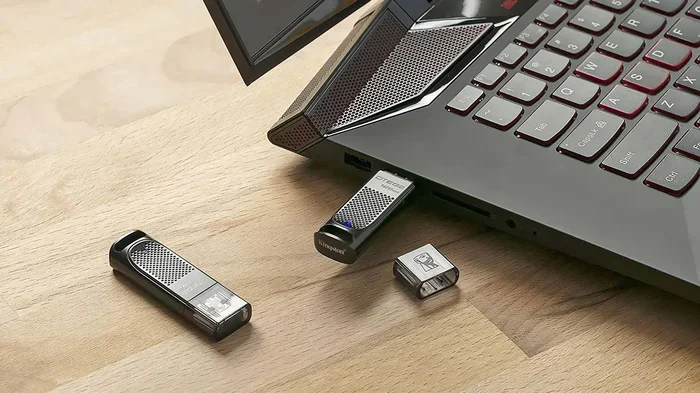
Most new USB sticks do not need formatting right out of the box. However, there are times when formatting a new USB stick is a smart move, especially if you want to ensure compatibility across different devices. This guide walks you through everything you need to know about USB drive formatting, file systems, and when to format or skip the process entirely.
This is a comprehensive guide about Do You Have To Format A New Usb Stick.
Key Takeaways
- New USB sticks often come pre-formatted: Most are ready to use straight from the package.
- Formatting ensures compatibility: Choosing the right file system like FAT32, exFAT, or NTFS matters for different devices.
- You should format if the drive has errors: A blank USB stick that is not showing up often needs a fresh format.
- Formatting erases all data: Always back up files before you format any USB storage device.
- The process is simple on both Windows and Mac: You do not need special software to format a USB stick.
- Different use cases need different formats: Large files, small devices, and cross-platform sharing all have ideal file system choices.
[FEATURED_IMAGE_PLACEHOLDER]
Do You Have to Format a New Usb Stick?
You just unboxed a shiny new USB flash drive. It looks clean. It feels fast. And the first question that pops into your head is, “Do I need to format this thing?” The short answer is usually no. Most new USB sticks come pre-formatted from the factory and are ready to go the moment you plug them in.
But here is the thing. Not every USB stick is created equal. Some come formatted in a way that works great on Windows but not on a Mac. Others might have a file system that limits the size of files you can transfer. And sometimes, a brand-new drive simply does not work right out of the box.
That is exactly why understanding USB drive formatting matters. Whether you are using your USB storage device for work, school, or personal backups, knowing when and how to format can save you a lot of headaches down the road.
In this guide, we will walk through everything you need to know. We will cover when formatting is necessary, which file system to choose, and how to format a new USB stick in just a few clicks. By the end, you will feel confident every time you plug in a fresh drive.
What Does It Mean to Format a USB Stick?
Formatting a USB flash drive means setting up a file system on the drive. Think of the file system as the rulebook your computer uses to read, write, and organize files. Without a file system, your computer would not know how to store or find anything on the drive.
Why Is a File System Important?
Every USB storage device needs a file system to function. The file system tells the computer things like:
- How files are named and stored
- How much space each file takes up
- What the maximum file size can be
- Which devices and operating systems can read the drive
When you format a USB stick, you are essentially creating this rulebook from scratch. Any existing data on the drive gets wiped clean. That is why you should always back up important files before formatting.
Common File Systems for USB Sticks
There are three main file systems you will encounter with USB flash drives:
- FAT32: Works on almost every device. Great for cross-platform use. But it has a 4 GB file size limit.
- exFAT: A modern replacement for FAT32. No file size limit. Works on both Windows and Mac.
- NTFS: The default for Windows. Offers advanced features like file permissions. Not natively writable on Macs.
Each has its strengths. The right choice depends on what you plan to do with your USB stick.
When Do You Need to Format a New USB Stick?
Most of the time, a brand-new USB stick works perfectly without any formatting. But there are specific situations where formatting a new USB drive makes sense.
The Drive Is Not Recognized by Your Computer
Sometimes you plug in a new USB flash drive and nothing happens. The drive does not show up in File Explorer or Finder. This can happen if the file system is corrupted during shipping or if the drive uses a format your computer does not support.
In this case, formatting the USB stick is the fastest fix. It gives the drive a fresh file system that your computer can read. Just remember to check the drive for any pre-loaded software or files first, in case you want to keep them.
You Want to Use the Drive on Multiple Devices
If you plan to use your USB storage device on both a Windows PC and a Mac, you might run into compatibility issues. Some USB sticks come formatted as NTFS, which works great on Windows but is read-only on Macs.
Formatting the drive to exFAT or FAT32 solves this problem. You get full read and write access on both platforms. This is especially helpful if you share files between a work computer and a personal laptop.
The Drive Comes with Pre-Installed Software
Some USB flash drives come bundled with extra software. Maybe it is a backup tool, a password manager, or some trial software you do not want. Formatting the drive removes all of this bloat and gives you a clean, blank USB stick.
You Need a Specific File System for a Task
Certain tasks require a specific file system. For example, if you want to format a USB stick larger than 32 GB as FAT32, you might run into problems because Windows does not support it natively. You would need to format it as exFAT instead.
Similarly, if you are using the USB stick to install an operating system, the drive might need to be in a specific format. Always check the requirements before you start.
How to Format a New USB Stick on Windows
Formatting a USB stick on Windows is quick and easy. You do not need any third-party software. Here is how to do it step by step.
Step-by-Step Guide
- Plug in your USB stick. Wait for Windows to recognize it.
- Open File Explorer. Click on This PC in the left sidebar.
- Right-click the USB drive. Select Format from the menu.
- Choose a file system. Pick FAT32, exFAT, or NTFS based on your needs.
- Check the Quick Format box. This speeds up the process.
- Click Start. Confirm the warning that all data will be erased.
- Wait for the process to finish. You will see a confirmation message when done.
That is it. Your USB flash drive is now formatted and ready to use. The whole process takes less than a minute for most drives.
Quick Tips for Windows Formatting
- Always use Quick Format unless you suspect the drive has bad sectors.
- Back up any files on the drive before formatting, even if it is brand new.
- Close all programs that might be accessing the drive before you format.
- Use exFAT if you are unsure which file system to pick. It is the most versatile option.
How to Format a New USB Stick on Mac
Mac users have a slightly different process, but it is just as straightforward. You will use the built-in Disk Utility app to format a USB stick on macOS.
Step-by-Step Guide for Mac
- Plug in your USB stick. Wait for it to appear on your desktop or in Finder.
- Open Disk Utility. You can find it in Applications > Utilities or by searching with Spotlight.
- Select your USB drive. Click on it in the left sidebar.
- Click Erase. This is the Mac equivalent of formatting.
- Choose a format. Select MS-DOS (FAT) for FAT32 or ExFAT for the exFAT file system.
- Give the drive a name. Choose something descriptive.
- Click Erase to confirm. The process takes just a few seconds.
Your USB storage device is now formatted for Mac use. If you plan to use it on both Mac and Windows, choose ExFAT for the best compatibility.
Which File System Should You Choose?
Choosing the right file system is one of the most important decisions when formatting a new USB stick. Here is a simple comparison to help you decide.
| Feature | FAT32 | exFAT | NTFS |
|---|---|---|---|
| Windows Compatible | Yes | Yes | Yes |
| Mac Compatible | Yes | Yes | Read-only |
| Max File Size | 4 GB | No limit | No limit |
| Max Drive Size | 2 TB | No limit | 256 TB |
| Best For | Small files, older devices | Cross-platform use | Windows-only use |
For most people, exFAT is the best choice. It works everywhere, has no file size limits, and is designed specifically for flash storage like USB flash drives. If you only use Windows and want advanced features like encryption, go with NTFS.
Do You Need to Format Every New USB Stick?
Here is the honest truth. In most cases, you do not need to format a new USB stick. The vast majority of USB flash drives are ready to use the moment you take them out of the packaging.
Think of formatting like washing a new dish before you use it for the first time. It is not strictly necessary. But it can give you peace of mind, especially if you want to make sure the file system matches your needs.
If your new USB stick works perfectly on your computer, there is no need to format it. Just start using it. But if you run into issues or have specific compatibility needs, formatting is a quick and easy solution.
Expert Insight
According to tech experts, the main reason to format a brand-new USB storage device is compatibility. Different devices and operating systems prefer different file systems. A drive that works fine on one computer might not work on another. Formatting ensures your USB stick works everywhere you need it to.
Also worth noting: if you buy a USB stick from a less reputable brand, it might come with sketchy pre-installed software. Formatting the drive removes all of that and gives you a clean slate. This is a smart security practice for any USB flash drive.
Common Mistakes to Avoid When Formatting a USB Stick
Formatting is simple, but people do make mistakes. Here are a few to watch out for:
- Forgetting to back up files: Even on a new drive, there might be pre-loaded content you want to keep. Always check first.
- Choosing the wrong drive: Double-check that you are formatting the correct drive. Formatting the wrong drive can erase important data.
- Using the wrong file system: If you choose NTFS and then try to use the drive on a Mac, you will run into problems. Pick exFAT for cross-platform use.
- Interrupting the format: Never pull out the USB stick while it is formatting. This can corrupt the drive permanently.
- Skipping the format when needed: If the drive is acting up or not showing up, do not ignore it. A quick format often fixes the problem.
Avoiding these simple mistakes keeps your USB storage device healthy and reliable for years to come.
Can You Use Alternative External Storage Instead of a USB Stick?
If you find yourself needing more storage than a standard USB flash drive can offer, you might want to explore other options. External SSD drives connected through USB adapters are a popular alternative. For example, an M.2 NVMe SSD to USB adapter lets you turn a high-speed internal SSD into a portable external drive. These adapters provide fast data transfer speeds that far exceed what a typical USB stick can deliver.
Similarly, you can use an M.2 NVMe to USB C SSD enclosure to house an NVMe drive in a portable casing. These enclosures connect via USB-C and offer excellent speeds for large file transfers. If you are looking for a step up from a basic USB flash drive, these external storage solutions are worth considering.
Keep in mind that external SSDs connected through USB adapters or enclosures may also need formatting depending on your device and operating system. The same file system rules apply, so always choose a format that works across all your devices.
Final Thoughts
So, do you have to format a new USB stick? In most cases, the answer is no. Your new USB drive is likely ready to go right out of the box. But formatting is a useful tool to have in your back pocket when things do not work as expected.
Whether you need to fix a USB stick that is not showing up, ensure cross-platform compatibility, or wipe pre-installed software, knowing how to format is a valuable skill. The process is fast, simple, and built right into both Windows and Mac.
The key is to choose the right file system for your needs. Use exFAT for versatility, FAT32 for older devices, and NTFS for Windows-only setups. And always remember to back up any data before you format.
With this knowledge, you can walk up to any new USB flash drive with confidence. You know exactly what to do and why it matters. Your USB storage device is about to work exactly the way you need it to.
FAQs
Do all new USB sticks come pre-formatted?
Most new USB flash drives come pre-formatted with a file system like FAT32 or exFAT. However, some drives may come with a different format depending on the manufacturer or target market. It is always a good idea to check if the drive works on your device before formatting it.
Will formatting a new USB stick erase its warranty?
No, formatting a new USB stick does not void its warranty. The warranty covers manufacturing defects, not normal use like formatting. You can safely format your USB storage device without worrying about losing your warranty coverage.
How long does it take to format a USB stick?
A quick format on a USB flash drive usually takes less than a minute. A full format, which checks for bad sectors, can take longer depending on the drive size. For most everyday uses, a quick format is all you need.
Can you format a USB stick on a smart TV or gaming console?
Some devices allow you to format a USB stick directly, but it is usually better to format it on your computer first. This gives you more control over the file system and ensures compatibility with the device you plan to use it on.
Is it safe to format a USB stick multiple times?
Yes, it is completely safe to format a USB stick multiple times. Regular formatting can actually help keep the drive healthy by clearing out corrupted files. Just make sure you back up any important data before each format.
What is the difference between formatting and erasing a USB stick?
Formatting sets up a new file system on the drive and removes all existing data. Erasing typically refers to deleting individual files. A format does a deeper reset of the entire drive structure, making it a more thorough way to start fresh with your USB storage device.
Frequently Asked Questions
What is Do You Have To Format A New Usb Stick?
Do You Have To Format A New Usb Stick is an important topic with many practical applications.