Does Usb C to Hdmi Work for Iphone
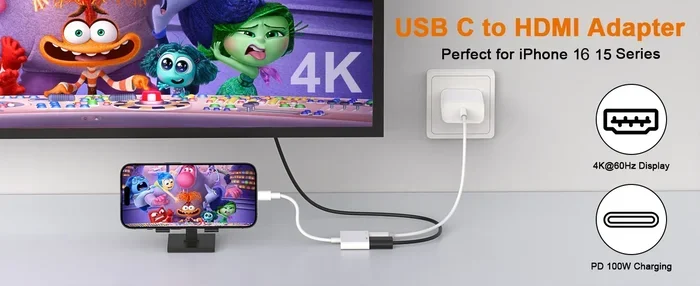
Yes, USB C to HDMI works for iPhone, but only on newer models with a USB C port. The iPhone 15 and iPhone 16 series fully support USB C to HDMI connectivity, making it easy to mirror your screen to a TV or monitor. In this guide, we walk you through compatibility, setup, troubleshooting, and the best adapters for a seamless experience.
If you have just upgraded to a newer iPhone and want to connect it to a TV or monitor, you might be wondering whether USB C to HDMI actually works. The short answer is yes, but there are some important details you need to know before you plug anything in. This guide covers everything from compatibility to setup to troubleshooting.
Apple made a big change with the iPhone 15 lineup. The company switched from the Lightning connector to a USB C port. This opened up a whole new world of connectivity options. You can now charge your phone with the same cable you use for your laptop, and you can even mirror your iPhone screen to a larger display. But not every iPhone supports this. Let us break it down.
Key Takeaways
- USB C to HDMI works on iPhone 15 and later: Only iPhones with a USB C port can use USB C to HDMI adapters for external display output.
- You need the right adapter: A quality, MFi-certified USB C to HDMI adapter is essential for a reliable and stable connection.
- Check your display compatibility: Not all monitors and TVs work perfectly with iPhone video output, so verify your display supports HDMI input.
- Wireless is an alternative: AirPlay and screen mirroring can replace wired connections in many casual use cases.
- Common issues have simple fixes: Most USB C to HDMI problems like no signal or no audio are easy to solve at home.
- External storage works too: The USB C port on newer iPhones supports more than just displays, including fast external SSDs.
📑 Table of Contents
- What Is USB C to HDMI and How Does It Work?
- Which iPhones Support USB C to HDMI?
- How to Connect Your iPhone to an HDMI Display
- Common Problems and How to Fix Them
- Best USB C to HDMI Adapters for iPhone
- USB C to HDMI vs Wireless Screen Mirroring
- Expert Tips for the Best USB C to HDMI Experience
- Can You Use USB C to HDMI with External Storage?
- Conclusion
What Is USB C to HDMI and How Does It Work?
USB C to HDMI is a simple adapter or cable that lets you send video and audio from a device with a USB C port to a display with an HDMI input. Think of it as a bridge between your iPhone and your TV, monitor, or projector.
The adapter contains a small chip that converts the digital signal from your iPhone into an HDMI signal that your display can understand. Most adapters also carry audio, so you get sound along with your video. This makes USB C to HDMI a very convenient solution for presentations, movie nights, or gaming.
Here is how a typical setup works:
- Plug the USB C end into your iPhone.
- Connect the HDMI end to your display using an HDMI cable.
- Switch your TV or monitor to the correct HDMI input.
- Your iPhone screen should appear on the larger display.
The process is straightforward. But the key question is whether your specific iPhone model supports it. We will cover that next.
Which iPhones Support USB C to HDMI?
Not every iPhone can use a USB C to HDMI adapter. The feature depends on the port your iPhone has.
iPhone 15 and iPhone 15 Pro
The iPhone 15 and iPhone 15 Pro were the first iPhones to feature a USB C port. This means they fully support USB C to HDMI connections. You can connect either model to an external display using a compatible adapter. Apple also supports DisplayPort over USB C, which gives you flexibility with different types of monitors and displays.
iPhone 16 and iPhone 16 Pro
The iPhone 16 series continues the USB C tradition. These models also support USB C to HDMI video output. Apple improved the chipsets in the iPhone 16 lineup, which may offer better display support and higher resolutions in some cases. If you own an iPhone 16, you should have no trouble connecting to an HDMI display.
Older iPhone Models (iPhone 14 and Earlier)
If you are still using an iPhone with a Lightning port, a standard USB C to HDMI adapter will not work directly. You would need a Lightning to HDMI adapter instead. Apple sells its own Digital AV Adapter for this purpose. However, these Lightning adapters can be expensive and sometimes have reliability issues. If you are on an older iPhone, consider upgrading if you want the full USB C to HDMI experience.
How to Connect Your iPhone to an HDMI Display
Setting up a USB C to HDMI connection is easy. Follow these steps for a smooth experience.
Step 1: Get the Right Adapter
Not all adapters are created equal. Look for a high-quality USB C to HDMI adapter that is certified for use with Apple devices. Cheap, unbranded adapters may cause flickering, no signal, or poor audio. Spending a little more on a trusted brand saves you from frustration later.
Step 2: Gather Your Cables
You will need two things: the adapter and an HDMI cable. Make sure your HDMI cable is in good condition. A damaged cable can cause signal drops or no picture at all. If you are unsure, try a different cable first before troubleshooting the adapter.
Step 3: Connect Everything
Plug the USB C end of the adapter into your iPhone. Then connect the HDMI cable from the adapter to your TV or monitor. Make sure both connections are firm and secure. A loose connection is the most common reason for setup failures.
Step 4: Switch Your Display Input
Use your TV remote to switch to the correct HDMI port. Most TVs label their HDMI inputs as HDMI 1, HDMI 2, and so on. Once you select the right input, your iPhone screen should appear on the display.
Step 5: Adjust Display Settings
If the picture does not fill the screen, you may need to adjust the display settings on your iPhone. Go to Settings, then Display and Brightness. From there, you can adjust the resolution and scaling to fit your external display properly.
Common Problems and How to Fix Them
Even with the right setup, you might run into issues. Here are the most common problems with USB C to HDMI on iPhone and how to solve them.
No Signal on Your Display
This is the most common issue. If your TV or monitor shows no signal, try these steps:
- Unplug the adapter and plug it back in firmly.
- Try a different HDMI cable.
- Make sure your TV is on the correct HDMI input.
- Restart your iPhone and try again.
Sometimes the adapter simply needs to be reseated. A loose connection is often the culprit behind a blank screen.
Flickering or Distorted Video
Flickering usually points to a cable or adapter problem. Low-quality HDMI cables are a common cause. Try using a shorter, high-speed HDMI cable. If the issue persists, your adapter may be faulty. Replace it with a certified adapter from a reputable brand. Also, make sure your HDMI cable is not damaged or frayed.
No Audio Through HDMI
Some setups deliver video but no sound. This happens when the adapter does not properly carry the audio signal. Check your iPhone settings to make sure the volume is not muted. You can also go to Settings, then Sounds and Haptics, and adjust the output. If that does not work, try a different adapter. The audio chip in cheap adapters is often the weak point.
Adapter Not Recognized by iPhone
If your iPhone does not recognize the adapter at all, the adapter may not be compatible. Not all USB C to HDMI adapters work with every device. Look for MFi-certified adapters. MFi stands for Made for iPhone. These are tested and approved by Apple for compatibility. Always check for the MFi logo before purchasing.
Best USB C to HDMI Adapters for iPhone
Choosing the right adapter matters. A poor-quality adapter can ruin your experience. Here are some tips for finding the best one.
Look for MFi Certification. MFi certification means Apple has tested the accessory for safety and compatibility. Always choose an MFi-certified USB C to HDMI adapter. This gives you peace of mind and reduces the chance of connection issues.
Consider Your Needs. Think about how you plan to use the adapter. If you just want to watch movies, a basic adapter works fine. If you need to present at work, look for one that supports higher resolutions. Some adapters also support charging pass-through, which lets you charge your iPhone while connected to a display.
Read Reviews. Before buying, read user reviews. Real-world feedback helps you spot potential issues that product descriptions might miss. Look for adapters with consistently positive ratings and mentions of reliability.
USB C to HDMI vs Wireless Screen Mirroring
Wired connections are not the only way to share your iPhone screen. Wireless options like AirPlay offer a different set of advantages.
When to Use USB C to HDMI
A wired USB C to HDMI connection is best when you need a stable, lag-free experience. This is important for presentations, gaming, or watching fast-moving video. Wired connections also do not depend on your Wi-Fi network, so they work even if your internet is slow or unavailable.
When to Use Wireless Mirroring
Wireless screen mirroring through AirPlay is great for casual use. It is convenient and requires no extra cables or adapters. If you just want to share photos with family on the TV, AirPlay is the easier option. However, wireless mirroring can have a slight delay and may drop frames during fast action.
Which Should You Choose?
For most users, a wired USB C to HDMI connection provides the best quality and reliability. Wireless mirroring is a good backup option for quick, informal sharing. Many people keep both options available depending on the situation.
Expert Tips for the Best USB C to HDMI Experience
Here are some expert tips to get the most out of your USB C to HDMI setup.
- Use a short HDMI cable: Shorter cables maintain a stronger signal and reduce the chance of interference.
- Keep your iPhone updated: Apple regularly releases iOS updates that improve display compatibility. Always run the latest version.
- Close unnecessary apps: When mirroring your screen, closing background apps can improve performance and reduce lag.
- Check your display settings: Make sure your TV or monitor is set to the correct resolution for the best picture quality.
- Invest in quality accessories: A good adapter and cable make a big difference. Cheap accessories often cause more problems than they solve.
You can also explore other USB C accessories to round out your setup. For example, if you enjoy high-quality audio, consider pairing your iPhone with best USB Type C headphones for a complete wired experience. And if you plan to use an external display for work or creative projects, check out the best PC monitor for work to find a great match for your iPhone.
Can You Use USB C to HDMI with External Storage?
Yes, one of the great things about the USB C port on newer iPhones is versatility. You can connect external drives and storage devices in addition to displays. For example, you can plug in a high-speed external SSD to transfer files directly to your iPhone. The SanDisk Extreme Portable 2TB external USB C NVMe SSD is a popular choice for users who need fast, portable storage on the go.
This means your iPhone becomes a hub for multiple devices. You can connect to a display for presentations while also having external storage attached. Just make sure your adapter supports multi-function use if you plan to daisy-chain devices. The beauty of the USB C ecosystem is that one port can handle display output, data transfer, and charging all at once.
Conclusion
USB C to HDMI works great for iPhone, but only if you have the right model and the right accessories. iPhone 15 and iPhone 16 users can take full advantage of this connection type. Older iPhones with Lightning ports need a different adapter. The key is to choose a certified adapter, use a quality HDMI cable, and follow the setup steps outlined above. With the right gear, connecting your iPhone to a TV or monitor is quick, reliable, and incredibly useful. Try it out and enjoy the bigger screen experience.
Frequently Asked Questions
Can I use any USB C to HDMI adapter with my iPhone?
Not all adapters work with every iPhone. You need an MFi-certified adapter that is specifically designed for Apple devices. Cheap, uncertified adapters may cause compatibility issues, flickering, or no signal at all. Always look for the MFi logo before purchasing to ensure proper adapter compatibility.
Do I need a special cable in addition to the adapter?
Yes, you need a standard HDMI cable to connect the adapter to your TV or monitor. The adapter itself has a USB C end and an HDMI port. You plug the HDMI cable into the adapter and then into your display. Make sure the HDMI cable is in good condition for the best results and a stable wired connection.
Can I charge my iPhone while using USB C to HDMI?
This depends on the adapter you choose. Some USB C to HDMI adapters support charging pass-through, which means you can plug in a power source and charge your iPhone at the same time. Check the product specifications before buying if this feature matters to you, especially during long presentations or movie sessions.
What resolution can I expect from USB C to HDMI on iPhone?
The resolution depends on your iPhone model and the adapter. Most iPhone 15 and iPhone 16 models support up to 4K output at 60Hz. However, the actual resolution may vary based on the app you are using and the display you are connected to. Always check your adapter specifications for supported display resolution details.
Why does my iPhone screen look stretched on the TV?
This usually happens when the display scaling does not match your TV’s native resolution. Go to Settings on your iPhone, then Display and Brightness. Adjust the display settings to match your external screen. You can also try changing the resolution in your TV’s settings to fix the stretching issue and get a proper picture.
Is USB C to HDMI better than AirPlay for screen mirroring?
For quality and reliability, yes. A wired USB C to HDMI connection provides a stable, lag-free signal with no compression. AirPlay is convenient and wireless, but it can experience delays, frame drops, and quality loss depending on your Wi-Fi network. For presentations or gaming, a wired connection is the better choice.