Does Usb to Sata Cable Work

Yes, a USB to SATA cable works and lets you connect SATA drives like SSDs and hard drives to your computer through a simple USB port. It is a handy tool for data transfer, drive cloning, and giving old drives new life. However, speed and compatibility depend on the cable quality, USB version, and the type of drive you use.
Have you ever grabbed an old hard drive or SSD from a broken computer and wondered if you could still get your files off it? A USB to SATA cable might be the answer you are looking for. This simple adapter promises to bridge the gap between your storage drive and any computer with a USB port. But does it actually work? The short answer is yes. The longer answer involves a few important details that can make or break your experience.
In this guide, we will walk through everything you need to know about using a USB to SATA cable. We will cover how it works, what drives it supports, speed expectations, common pitfalls, and the best ways to use one. Whether you are a tech beginner or someone who just wants to rescue old data, this article has you covered.
Key Takeaways
- A USB to SATA cable works: It connects SATA drives to computers via USB for data access and transfer.
- Speed varies by USB version: USB 3.0 and USB C offer much faster transfer rates than USB 2.0.
- Compatibility matters: Not all cables support all drive types, so check specs before buying.
- Power delivery can be an issue: Some drives need extra power that a single USB port may not provide.
- Use cases are broad: Data recovery, drive cloning, and external storage are all practical uses.
- Quality counts: Cheap cables may cause errors, slow speeds, or fail to work at all.
📑 Table of Contents
What Is a USB to SATA Cable?
A USB to SATA cable is a connector adapter that links a SATA storage drive directly to a USB port on your computer. SATA stands for Serial Advanced Technology Attachment. It is the standard interface used inside desktop PCs and laptops for hard drives and solid state drives. A USB to SATA cable essentially takes that internal connection and makes it available externally.
These cables come in different shapes and sizes. Some are simple adapter cables with a SATA connector on one end and a USB plug on the other. Others include a power supply to handle larger drives that need more juice. The design makes it easy to plug in a bare drive and start accessing files right away.
How Does It Connect?
The SATA side of the cable attaches to the drive using a standard SATA data connector. This is the same port you would find inside a desktop computer. The USB side plugs into any available USB port on your computer or laptop. Once connected, your operating system should recognize the drive as an external storage device.
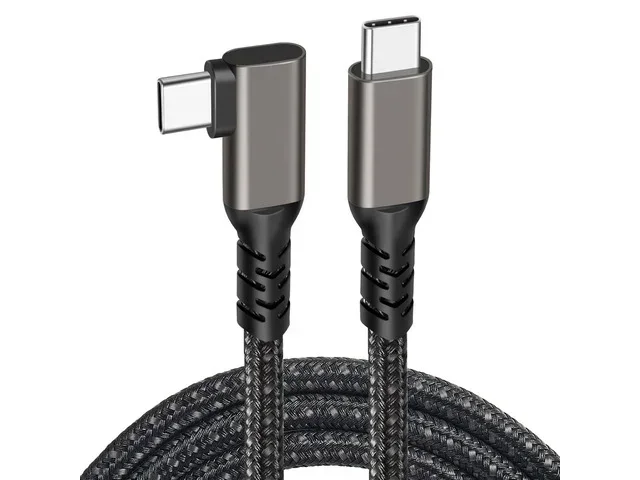
Most cables use USB 3.0 or USB 3.1 connections for better speed. Some newer options use USB C, which offers even faster data rates and a reversible plug design. The key is matching your cable to your drive and your computer’s available ports.
Does a USB to SATA Cable Actually Work?
The honest answer is that it depends on several factors. A USB to SATA cable works well for most SATA drives, including 2.5-inch SSDs, 3.5-inch desktop hard drives, and optical drives. But performance and reliability can vary based on the cable quality, the USB version, and the drive itself.
For basic tasks like copying files, backing up data, or recovering documents from an old drive, a USB to SATA cable works great. It gives you direct access to the drive without needing to install it inside a computer case. This makes it one of the most convenient tools for quick data access.
When Does It Work Best?
A USB to SATA cable works best when you are dealing with a healthy SATA drive that simply needs to be accessed externally. Here are some scenarios where it shines:
- Data recovery: Pulling files from a drive in a dead computer.
- Drive cloning: Copying an entire drive to another drive using cloning software.
- Old drive reuse: Turning an unused internal drive into portable storage.
- System diagnostics: Checking a drive for errors or bad sectors.
- OS testing: Booting from a drive on a different computer for troubleshooting.
In all these cases, the cable provides a straightforward path between the drive and your system. You do not need special enclosures or expensive docking stations for simple tasks.
When Might It Not Work?
There are situations where a USB to SATA cable might not work as expected. Some older drives require more power than a single USB port can deliver. In those cases, the drive may spin up but not be recognized, or it may disconnect randomly. Additionally, very old IDE drives cannot be connected with a SATA cable because they use a completely different connector.
Another limitation is speed. If you use a USB 2.0 cable, the transfer speed will be much slower than the drive is capable of. A USB 2.0 connection maxes out around 480 Mbps, while a SATA III drive can deliver up to 6 Gbps. So the cable becomes the bottleneck.
Speed and Performance: What to Expect
Speed is one of the biggest concerns when using a USB to SATA cable. The actual transfer rate depends on three things: the drive speed, the USB version, and the cable quality.
SATA III drives can theoretically transfer data at 6 Gbps. But if your cable connects through USB 2.0, you will be limited to about 480 Mbps. That is a huge difference. Here is a simple breakdown of what you can expect:
- USB 2.0: Up to 480 Mbps (about 60 MB/s). Suitable for small files but painfully slow for large transfers.
- USB 3.0: Up to 5 Gbps (about 625 MB/s). Much better and handles most SATA drives easily.
- USB 3.1 Gen 2: Up to 10 Gbps (about 1,250 MB/s). Fast enough for even the quickest SATA drives.
- USB C with USB 3.1: Similar to USB 3.1 Gen 2 speeds with a more convenient connector.
Real-World Speed Tests
In real-world use, a USB to SATA cable with USB 3.0 can deliver around 400 to 500 MB/s on a good SATA III SSD. That is fast enough for everyday file transfers, video editing, and even running applications directly from the drive. A traditional spinning hard drive will max out around 150 MB/s over USB 3.0, which is still plenty for backup and storage tasks.
If you need even faster speeds, you might want to look at an M 2 Nvme Ssd To Usb C Ssd Enclosure or an Nvme Ssd To Usb Adapter. These devices use the NVMe protocol over USB and can reach speeds well beyond what SATA offers. They are a great upgrade path if you are working with newer NVMe drives.
Compatibility: Which Drives Work with a USB to SATA Cable?
Not every storage drive works with a USB to SATA cable. Compatibility depends on the drive interface and the cable design. Here is a closer look at what works and what does not.
Drives That Work
Most 2.5-inch and 3.5-inch SATA drives work perfectly with a USB to SATA cable. This includes:
- 2.5-inch SATA SSDs (common in laptops)
- 3.5-inch SATA desktop hard drives
- SATA optical drives like DVD and Blu-ray readers
- External SATA drives with removable enclosures
- Server-grade SATA drives (with proper power)
The cable provides both the data connection and, in most cases, the power needed to run the drive. For 2.5-inch drives, the USB connection usually supplies enough power. For 3.5-inch desktop drives, you may need a cable with an external power adapter.
Drives That Do Not Work
Some drives cannot be connected with a standard USB to SATA cable. These include:
- IDE/PATA drives (older connectors, different protocol)
- M.2 NVMe drives (need a different adapter or enclosure)
- mSATA drives (require a specific mSATA to USB adapter)
- SCSI drives (enterprise-level, different interface entirely)
If you have an M.2 NVMe drive, you will need a different solution. An M 2 Nvme Ssd To Pcie adapter or an M 2 Nvme Ssd Enclosure Adapter Usb 3 1 would be the right choice for those drives. These adapters convert the NVMe PCIe interface to USB, giving you external access to NVMe storage.
Common Mistakes and How to Avoid Them
Using a USB to SATA cable seems simple, but there are several mistakes that can cause frustration. Learning what to avoid saves time and protects your data.
Using the Wrong Power Supply
The most common mistake is trying to power a 3.5-inch drive without an external power source. These drives need 12 volts, which a standard USB port cannot provide. Always check if your cable includes a power adapter or if you need to buy one separately. A drive that does not get enough power will fail to spin up or will disconnect during use.
Ignoring Cable Quality
Cheap cables may use poor shielding or thin wires that cause data errors. Over long transfers, these errors can corrupt files or make the connection drop. Invest in a well-reviewed cable from a reputable brand. Look for cables that support USB 3.0 or higher and have good build quality.
Not Checking Drive Health First
If you are using a USB to SATA cable for data recovery, the drive might already be failing. Running intensive read operations on a dying drive can make the situation worse. Consider using diagnostic tools first or consulting a professional if the data is extremely valuable.
Forgetting to Safely Eject
Always use the safely remove hardware feature before unplugging your cable. Pulling the plug while data is still writing can corrupt files or damage the drive. This is especially important with external drives that do not have the protection of a closed system.
Best Practices for Using a USB to SATA Cable
To get the most out of your USB to SATA cable, follow these practical tips:
- Use USB 3.0 or higher ports: This ensures you get the best possible speeds and stable connections.
- Check drive jumpers: Some older SATA drives have jumper settings that affect how they are detected. Set them to cable select or master as needed.
- Keep cables short: Longer cables can introduce signal loss and reduce transfer speeds.
- Use a powered hub if needed: If your computer USB port cannot supply enough power, a powered USB hub can help.
- Update your drivers: Make sure your operating system has the latest USB and storage drivers installed.
- Store drives properly: When not in use, keep your SATA drives in anti-static bags to prevent damage.
Quick Tips for Better Results
- Plug the cable into the drive first, then into the computer to ensure proper detection.
- Use a cable with a metal connector for better durability and heat dissipation.
- If the drive does not show up, try a different USB port or restart your computer.
- For large transfers, use a file manager that shows transfer progress and can resume after interruptions.
- Keep your drive cool during long operations. Overheating can cause throttling or failure.
Alternatives to a USB to SATA Cable
While a USB to SATA cable is convenient and affordable, it is not the only option. Depending on your needs, other tools might serve you better.
A SATA to USB enclosure encloses the drive in a protective shell with a built-in USB connection. This is great for permanent external drive setups. An NVMe to USB adapter works with newer M.2 NVMe drives and offers faster speeds than SATA-based solutions. For users who work with multiple drives, a multi-drive docking station provides a one-stop solution with hot-swappable bays.
If you are specifically working with M.2 SATA drives, an Ssk Aluminum M 2 Nvme Sata Ssd Enclosure or an Orico M 2 Nvme Sata Ssd Enclosure can house your drive securely while providing USB connectivity. These enclosures also protect the drive from dust and physical damage.
Each alternative has its pros and cons. A cable is the simplest and cheapest option. Enclosures offer better protection. Docking stations provide the most flexibility. Choose based on how often you need to connect drives and what types of drives you work with.
Final Thoughts
So, does a USB to SATA cable work? Absolutely. It is one of the simplest and most cost-effective ways to connect a SATA drive to any computer with a USB port. Whether you need to recover lost files, clone a drive, or repurpose an old storage device, this cable gets the job done.
The key is to choose the right cable for your needs, use a fast enough USB port, and avoid the common mistakes that can cause problems. With a quality cable and a little care, you can access your SATA drives quickly and reliably whenever you need to.
For users working with newer NVMe drives, consider an M 2 Nvme Ssd To Usb C Ssd Enclosure or an Nvme Ssd To Pcie Adapter to unlock the full speed potential of modern storage. And if you are setting up a new drive, check out our guide on how to set up new NVMe SSD for step-by-step instructions to get started.
A USB to SATA cable is a tool that every computer user should have in their kit. It is affordable, versatile, and incredibly useful. Give it a try next time you need to access a drive outside of a computer case, and you will wonder how you ever managed without one.
Frequently Asked Questions
Can I use a USB to SATA cable with a 3.5-inch hard drive?
Yes, but you need a cable that includes a power adapter. A 3.5-inch drive requires 12 volts to spin up, and a standard USB port cannot provide that. Make sure your cable comes with an external power supply or use a separate SATA power adapter.
What is the difference between USB to SATA and USB to NVMe?
A USB to SATA cable connects traditional SATA drives using the SATA protocol. A USB to NVMe adapter connects M.2 NVMe drives using the PCIe protocol. NVMe drives are much faster than SATA drives, so the adapter needed is different and typically more expensive.
Will a USB to SATA cable work with Mac computers?
Yes, most USB to SATA cables work with Mac computers that have USB ports. The drive should be recognized automatically by macOS. However, some older Macs may require additional drivers or may only support USB 2.0 speeds.
Can I boot my operating system from a drive connected with a USB to SATA cable?
In most cases, yes. You can boot from a SATA drive connected via USB to SATA cable. However, boot speeds will be slower than an internal connection. Make sure your BIOS or UEFI settings allow USB boot devices and that the cable supports the drive properly.
Why does my drive keep disconnecting when using a USB to SATA cable?
This usually happens due to insufficient power supply or a poor-quality cable. Try using a different USB port, a powered USB hub, or a higher-quality cable. If the drive is a 3.5-inch model, ensure you are using the included power adapter.
Is a USB to SATA cable the same as a SATA docking station?
No, they are different. A cable is a simple adapter that connects one drive at a time. A docking station holds the drive in a cradle and often supports multiple drives with features like power buttons and indicator lights. Cables are cheaper and more portable, while docks offer more convenience for frequent use.