Is Dvi to Hdmi Compatible

Yes, DVI to HDMI is compatible in most cases, but it depends on the DVI type you have. This guide explains how DVI and HDMI signals work together, which adapters you need, and common mistakes to avoid. You will learn about DVI-D, DVI-I, and DVI-A and how each one affects your display setup.
Have you ever plugged a DVI cable into an HDMI port and wondered if it would work? You are not alone. Many people face this DVI to HDMI compatibility question every day. The good news is that in most cases, these two connections can work together. But there are a few things you need to know first.
This guide breaks down everything you need about DVI to HDMI compatibility. We will cover the different DVI types, what adapters you need, and why audio might not work. By the end, you will know exactly what to buy and how to set it up. No guesswork. No frustration.
Whether you are connecting an older monitor to a new laptop or hooking up a desktop to a modern TV, this guide has you covered. Let us dive in and make your display setup simple.
Key Takeaways
- DVI to HDMI works: Digital DVI signals can convert to HDMI with the right adapter
- DVI type matters: DVI-D and DVI-I support digital signals, while DVI-A only carries analog
- No audio over DVI: DVI does not carry sound, so HDMI audio needs a separate solution
- Adapter quality counts: Cheap adapters can cause signal loss or no display at all
- Resolution limits exist: Older DVI standards may not support 4K or higher refresh rates
- Check your ports: Know what DVI and HDMI versions your devices support before buying
- Setup is simple: Most connections require just one adapter cable and no software
📑 Table of Contents
- What Is DVI and How Does It Work?
- Is DVI to HDMI Compatible? The Short Answer
- How to Choose the Right DVI to HDMI Adapter
- Does DVI to HDMI Support Audio?
- Resolution and Signal Quality
- Common Mistakes to Avoid
- Quick Setup Guide for DVI to HDMI
- Expert Insights on DVI to HDMI Compatibility
- Final Thoughts
What Is DVI and How Does It Work?
DVI stands for Digital Visual Interface. It was created in the late 1990s to replace older VGA connections. DVI carries digital video signals from a source to a display. It was a big step forward when it came out.
DVI connectors come in different shapes and sizes. The most common types are DVI-D, DVI-I, and DVI-A. Each one handles signals differently. Understanding which type you have is the first step to making a DVI to HDMI connection work.
DVI-D: Digital Only
DVI-D carries a fully digital signal. This is the most common type you will find on modern devices. It does not support analog signals at all. When you use a DVI to HDMI adapter with DVI-D, the conversion is straightforward. The digital signal translates cleanly to HDMI.
DVI-I: Integrated Digital and Analog
DVI-I supports both digital and analog signals. This makes it the most versatile type. You can use DVI-I to connect to digital displays or older analog monitors. A DVI to HDMI cable with DVI-I will work just as well as DVI-D for digital connections.
DVI-A: Analog Only
DVI-A only carries analog signals. This type is rare today. If you have a DVI-A connection, converting to HDMI is not as simple. You would need an active converter that changes the analog signal to digital. This can add cost and complexity to your setup.
Is DVI to HDMI Compatible? The Short Answer
The short answer is yes. DVI to HDMI is compatible for video signals in most situations. Both DVI-D and DVI-I use digital signals that HDMI can read. You just need the right adapter or cable.
However, there is one big catch. DVI does not carry audio. HDMI does. So if you are connecting a device that relies on DVI for video, you will need a separate way to get sound. We will cover this in detail later.
Here is a quick look at what works and what does not:
- DVI-D to HDMI: Works perfectly for video. No signal loss.
- DVI-I to HDMI: Works perfectly for video. Same digital signal.
- DVI-A to HDMI: Requires an active analog-to-digital converter.
- HDMI to DVI: Also works the same way in reverse.
As long as you match the right type, your DVI to HDMI connection will carry video without problems. The key is knowing which DVI port you are working with.
How to Choose the Right DVI to HDMI Adapter
Not all adapters are the same. Buying the wrong one can waste your time and money. Here is what to look for when shopping for a DVI to HDMI adapter.
Check Your DVI Port Type
Look closely at the port on your device. Does it have pins in the middle? Is there a flat pin on the bottom? These details tell you whether you have DVI-D or DVI-I. If you are unsure, check your device manual or look up the model online.
Once you know your port type, pick an adapter that matches. A DVI-D to HDMI adapter works for DVI-D ports. A DVI-I to HDMI adapter works for DVI-I ports. Using the wrong adapter can result in no display at all.
Active vs. Passive Adapters
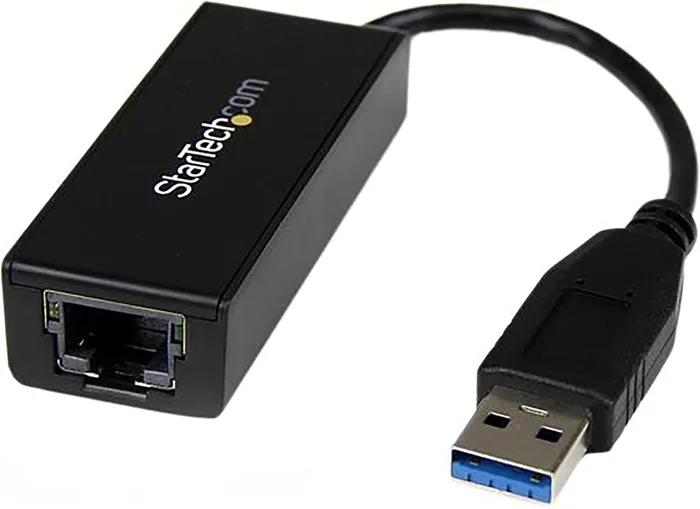
Passive adapters simply change the shape of the connector. They do not change the signal. Active adapters include a chip that converts the signal. For most DVI to HDMI setups, a passive adapter is all you need.
Use an active adapter only when converting DVI-A to HDMI or when you need to boost a weak signal. Active adapters cost more but solve specific problems. For standard digital connections, save your money with a passive option.
Cable Length and Quality
Longer cables can weaken your signal. Keep your DVI to HDMI cable under 15 feet for the best results. If you need a longer run, look for cables with built-in signal boosters. Cheap, flimsy cables often cause flickering or no signal.
Buy from reputable brands. A well-built adapter saves you from headaches later. Look for gold-plated connectors and solid shielding. These small details make a big difference in signal quality.
Does DVI to HDMI Support Audio?
This is the most common question people ask. The honest answer is no. DVI does not carry audio. It only transmits video. HDMI carries both video and audio on the same cable.
So if you connect a device using DVI to HDMI, you will get a picture but no sound. This can be frustrating, especially when watching movies or playing games.
Here are a few ways to solve the audio problem:
- Use a separate audio cable: Run a 3.5mm or optical cable from your source to your speakers or sound system.
- Use an adapter with audio support: Some adapters include an audio input. These let you plug in a separate audio cable.
- Check your source settings: Some devices let you route audio through a different output while using DVI for video.
Keep this in mind when planning your setup. DVI to HDMI gives you great video, but you will need a plan for sound.
Resolution and Signal Quality
One of the biggest concerns with DVI to HDMI connections is resolution. Can you get 4K? What about high refresh rates? The answer depends on your DVI version and cable quality.
Standard DVI supports up to 1920×1200 at 60Hz. This is fine for most office work and everyday use. Single-link DVI maxes out at this resolution. Dual-link DVI can push higher, up to 2560×1600 at 60Hz.
If you want 4K resolution, DVI will not cut it. You need HDMI 2.0 or higher, or a DisplayPort connection. Do not expect a DVI to HDMI adapter to magically unlock 4K. The DVI standard simply does not support that bandwidth.
For most users, DVI to HDMI works great for Full HD (1080p) displays. This covers the majority of monitors and TVs in use today. If your needs are simple, you will have no problems at all.
Common Mistakes to Avoid
Even with the right adapter, people still run into issues. Here are the most common mistakes and how to avoid them.
Buying the Wrong Adapter Type
This is the number one mistake. Not all DVI ports are the same. Buying a DVI-D adapter for a DVI-A port will not work. Always check your port type first. Take a photo of the port if you need to look it up later.
Ignoring Firmware and Drivers
Sometimes your display will not work even with the right adapter. Outdated graphics drivers can cause this. Update your GPU drivers from the manufacturer’s website. A simple update often fixes DVI to HDMI detection issues.
Using a Damaged Cable
A bent pin or frayed cable can ruin your connection. Inspect your cables before plugging them in. If the connector feels loose or wobbly, replace it. A new cable costs very little compared to the frustration of a bad connection.
Assuming Plug and Play Always Works
Most of the time, you plug in the adapter and it works. But not always. Some devices need you to switch the input source manually. Check your TV or monitor menu and select the right HDMI input. This small step saves a lot of confusion.
Quick Setup Guide for DVI to HDMI
Ready to connect your devices? Follow these simple steps for a hassle-free setup.
- Identify your DVI port type. Look at the connector and check for pins or a flat bottom pin.
- Buy the matching adapter. DVI-D to HDMI for DVI-D ports. DVI-I to HDMI for DVI-I ports.
- Plug the DVI end into your source device. This could be a desktop, laptop, or graphics card.
- Plug the HDMI end into your display. Connect to your monitor, TV, or projector.
- Switch your display input. Use your monitor or TV remote to select the HDMI input.
- Set up audio separately. Use a 3.5mm cable or optical output for sound.
- Adjust display settings. Go to your operating system display settings and set the right resolution.
That is it. Your DVI to HDMI connection should be working now. If you run into issues, go back and check each step. Most problems come from a mismatched adapter or wrong input selection.
Expert Insights on DVI to HDMI Compatibility
Display technology has changed a lot over the years. DVI was once the standard for desktop computers. Today, HDMI and DisplayPort dominate the market. But DVI is far from dead. Many office monitors and older graphics cards still use DVI ports.
According to display industry experts, DVI to HDMI conversion remains one of the most common adapter use cases. This is because so many devices still have DVI outputs. The transition to fully digital display standards took longer than expected.
The good news is that modern adapters handle the conversion well. Signal quality remains strong with a good adapter. You do not lose much in the process. As long as you stay within the resolution limits of DVI, the experience is smooth and reliable.
For users building or upgrading a setup, consider adding an HDMI output if possible. But if your device only has DVI, do not worry. A simple adapter gets the job done. DVI to HDMI compatibility is well supported and widely available.
When shopping, look for adapters that are certified by the display standards organization. Certified adapters meet quality benchmarks and reduce the chance of signal problems. A small extra cost can save you a lot of trouble down the road.
Final Thoughts
DVI to HDMI compatibility is straightforward in most cases. If you have a DVI-D or DVI-I connection, a simple adapter gives you a working HDMI link. The video signal converts cleanly and reliably. Just remember that DVI does not carry audio, so plan your sound setup separately.
Know your DVI type. Buy the right adapter. Keep your cables in good shape. Follow the setup steps and you will be up and running in minutes. This is one of the easiest display upgrades you can make.
Do not let confusion stop you from connecting your devices. With the right knowledge and a quality adapter, your DVI to HDMI setup will work perfectly. Take the time to get it right and enjoy your display without any headaches.
Frequently Asked Questions
Can I connect a DVI monitor to an HDMI port on my laptop?
Yes, you can. You just need a DVI to HDMI adapter or cable. Make sure your laptop has a DVI output or use a compatible dock. Keep in mind that DVI does not carry audio, so you will need separate speakers or a headphone connection for sound.
Why does my DVI to HDMI adapter show no signal?
This usually happens when the adapter type does not match your DVI port. Check if you have DVI-D, DVI-I, or DVI-A and buy the correct adapter. Also make sure you have selected the right HDMI input on your display and that your graphics drivers are up to date.
Can I get 4K resolution through DVI to HDMI?
No, standard DVI does not support 4K resolution. DVI maxes out at 1920×1200 on single-link and 2560×1600 on dual-link. If you need 4K, you should use an HDMI 2.0 or higher port directly, or switch to DisplayPort for the best results.
Do I need a special driver for DVI to HDMI conversion?
No, DVI to HDMI adapters work plug and play in most cases. You do not need to install any special software. Just make sure your graphics card drivers are current, as outdated drivers can sometimes cause display detection problems.
Can I use a DVI to HDMI cable instead of an adapter?
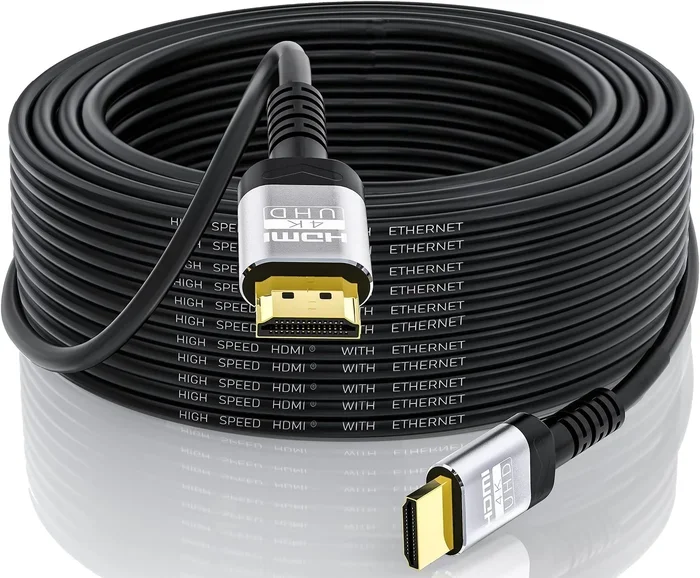
Yes, DVI to HDMI cables work just as well as adapters. They have a DVI connector on one end and an HDMI connector on the other. These cables are convenient if you want a single cable solution without extra adapters hanging off your setup.
Is DVI to HDMI better than using VGA to HDMI?
Yes, DVI to HDMI is much better than VGA to HDMI. DVI carries a digital signal, which gives you a sharper and cleaner picture. VGA carries an analog signal that can degrade over distance. For the best display quality, always choose digital connections like DVI or HDMI.