Should I Use Mini Displayport or Hdmi
Choosing between Mini DisplayPort and HDMI can be confusing, but it does not have to be. Both ports deliver high-quality video and audio, but they differ in size, compatibility, and features. This guide breaks down everything you need to know to pick the right connection for your setup.
Have you ever stared at the back of your laptop or monitor and wondered which port to use? If you have both a Mini DisplayPort and an HDMI option, you are not alone. Many people face this exact dilemma every day. The good news is that choosing the right connection is simpler than it looks.
In this article, we will walk you through everything you need to know about Mini DisplayPort vs HDMI. We will cover what each port does, how they compare, and which one is the better fit for your setup. By the end, you will feel confident making the right choice.
Whether you are hooking up a monitor for work, connecting a laptop to a TV, or building a gaming station, the right cable matters. Let us dive in and break it all down.
Key Takeaways
- Mini DisplayPort and HDMI serve the same core purpose: connecting your device to a display, but they are not interchangeable without adapters.
- HDMI is more common on TVs and consumer devices, while Mini DisplayPort is often found on Macs and professional monitors.
- Your choice depends on your device, resolution needs, and available ports.
- Adapters are widely available and affordable, making it easy to switch between the two.
- Both support high resolutions up to 4K and beyond, but HDMI 2.1 offers higher bandwidth for gaming and HDR content.
- Always check your device specs before buying a cable or adapter.
📑 Table of Contents
What Is Mini DisplayPort?
Mini DisplayPort is a compact video connection developed by Apple. It first appeared in 2008 on MacBook Pro laptops. Since then, it has become a staple on many Apple devices and some PC hardware.
The Mini DisplayPort is small in size but powerful in capability. It carries both video and audio signals through a single cable. This makes it a clean and simple option for connecting your laptop or desktop to an external monitor.
Key Features of Mini DisplayPort
- Compact design: The small form factor makes it ideal for thin laptops and compact devices.
- High resolution support: It can handle resolutions up to 4K and even 8K on newer versions.
- Audio and video in one cable: No need for separate audio connections.
- Common on Mac systems: Most Apple desktops and laptops use this port.
- Compatible with DisplayPort technology: It uses the same underlying protocol as standard DisplayPort.
If you own a Mac or a Windows PC with a Mini DisplayPort, you already have a reliable way to connect to external displays. The port delivers excellent image quality and works well for both office work and creative tasks like video editing and graphic design.
What Is HDMI?
HDMI stands for High-Definition Multimedia Interface. It is the most widely used display connection in the world. You will find HDMI ports on almost every TV, monitor, gaming console, and streaming device.
HDMI has been around since 2003 and has gone through several versions. Each new version brings better bandwidth, higher resolution support, and improved features. HDMI cables carry both video and audio signals, just like Mini DisplayPort.
Key Features of HDMI
- Universal compatibility: HDMI works with TVs, monitors, projectors, and game consoles.
- Multiple versions: HDMI 1.4, 2.0, and 2.1 each offer different levels of performance.
- High bandwidth: HDMI 2.1 supports up to 10K resolution and refresh rates up to 120Hz.
- Consumer electronics standard: Most home entertainment devices use HDMI.
- Easy to find: HDMI cables and adapters are available everywhere.
HDMI is the go-to choice for most people. If you want to connect your laptop to a living room TV or set up a console, HDMI is almost always the right pick. Its widespread use means you will never have trouble finding the right cable.
Mini DisplayPort vs HDMI: Key Differences
Now that you know what each port is, let us compare them side by side. Understanding the differences will help you make the best decision for your needs.
Physical Size and Design
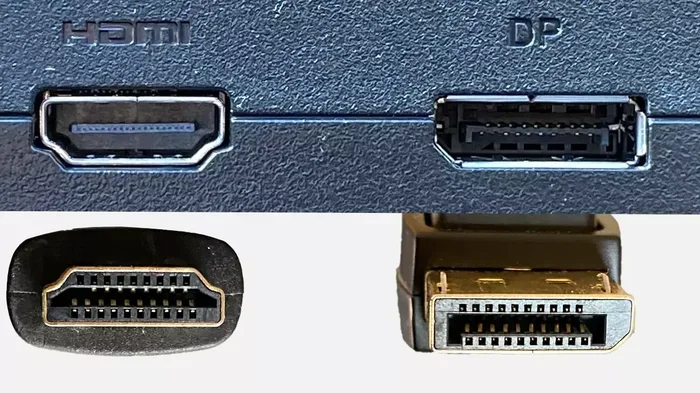
The most obvious difference is size. Mini DisplayPort is much smaller than a standard HDMI port. This makes it better suited for thin laptops and compact devices where space is limited. HDMI is larger and more robust, which works well for TVs and desktop monitors.
Resolution and Bandwidth
Both ports can handle high resolutions. Mini DisplayPort 1.4 supports 4K at 120Hz or 8K at 60Hz. HDMI 2.0 supports 4K at 60Hz, while HDMI 2.1 pushes that to 4K at 120Hz or even 8K at 60Hz. For most everyday tasks, both connections are more than enough.
Audio Support
Both Mini DisplayPort and HDMI carry audio alongside video. You do not need extra cables for sound. However, HDMI has an advantage when connecting to home theater systems, as it is the standard audio-video connection for TVs and soundbars.
Compatibility
HDMI is more universally compatible. If you are connecting to a TV, projector, or standard monitor, HDMI is almost always supported. Mini DisplayPort is more common on professional and Apple devices. If you are unsure, check your device specifications.
Price and Availability
HDMI cables are cheaper and easier to find. You can grab one at any electronics store or gas station. Mini DisplayPort cables are less common, so they may cost a bit more. However, adapters between the two are affordable and widely available.
| Feature | Mini DisplayPort | HDMI |
|---|---|---|
| Port Size | Small | Larger |
| Max Resolution (common versions) | 4K at 120Hz, 8K at 60Hz | 4K at 120Hz (HDMI 2.1), 8K at 60Hz |
| Audio Support | Yes | Yes |
| Common Devices | Macs, professional monitors | TVs, monitors, consoles, projectors |
| Cable Availability | Moderate | Very High |
| Adapter Options | Yes, widely available | Yes, widely available |
Which Connection Should You Choose?
The answer depends on your specific situation. There is no single “best” option. Instead, the right choice comes down to what devices you are connecting and what you plan to do.
Choose Mini DisplayPort If
- You own a Mac laptop or desktop.
- You are connecting to a professional monitor or display.
- Your device only has Mini DisplayPort outputs.
- You need a compact connection for a portable setup.
- You are doing creative work like video editing or graphic design.
Choose HDMI If
- You are connecting to a TV or home theater system.
- You use gaming consoles or streaming devices.
- Your monitor or display only has HDMI inputs.
- You want the easiest and most universal connection.
- You need HDMI 2.1 features like 4K at 120Hz for gaming.
If you are still unsure, here is a simple rule of thumb. Look at the ports on both your device and your display. Use the cable that matches both sides. If they do not match, grab an adapter. Adapters are cheap and work great.
For those building a gaming setup, you might also want to consider whether your GPU supports the display connection you choose. If you are unsure about upgrading your hardware, check out our article on Should I Upgrade My CPU or GPU to make the best decision for your system.
Devices That Use Each Port
Understanding which devices use Mini DisplayPort and which use HDMI can save you a lot of hassle. Here is a quick overview.
Devices with Mini DisplayPort
- Apple MacBook Pro (2008-2015 models)
- Apple iMac desktops
- Mac Mini
- Many professional-grade monitors
- Some Windows laptops and workstations
- Certain graphics cards from AMD and NVIDIA
Devices with HDMI
- Almost all modern TVs
- Gaming consoles (PlayStation, Xbox, Nintendo Switch)
- Streaming devices (Roku, Apple TV, Fire Stick)
- Most budget and mid-range monitors
- Laptops and desktop PCs (many models)
- Projectors and soundbars
If you are using a mini PC for your setup, the port options may vary. Many mini PCs come with HDMI as the primary output, but some models include Mini DisplayPort as well. If you are curious about mini PC performance for gaming, you can read our guide on Are Mini PCs Good For Gaming.
Adapters and Compatibility Tips
One of the best things about modern display connections is that adapters make everything flexible. You can connect almost any device to almost any display with the right adapter.
Common Adapter Types
- Mini DisplayPort to HDMI: Lets you connect a Mac or laptop with Mini DisplayPort to an HDMI monitor or TV.
- HDMI to Mini DisplayPort: Connects an HDMI source to a display with Mini DisplayPort input.
- Mini DisplayPort to DisplayPort: Converts a Mini DisplayPort signal to a standard DisplayPort connection.
- USB-C to HDMI: Many modern laptops with USB-C ports can output HDMI with a simple adapter.
- USB-C to Mini DisplayPort: Useful for newer laptops that only have USB-C outputs.
Tips for Buying Adapters
- Always check the version of the adapter. An HDMI 2.0 adapter will not support HDMI 2.1 features.
- Buy from reputable brands to avoid signal loss or compatibility issues.
- Active adapters are better for high-resolution setups. Passive adapters work for most everyday uses.
- If you need to run long cable runs, consider a powered adapter to maintain signal quality.
When setting up your display connections, keep in mind that your overall system performance matters too. If you are using a laptop and want to make sure everything runs smoothly, our article on How Much Power Does A Laptop Use When Plugged In can help you understand how your setup affects energy consumption.
Expert Insights and Final Thoughts
Both Mini DisplayPort and HDMI are excellent choices for connecting your devices to displays. They both deliver high-quality video and audio, and both support modern resolutions and refresh rates. The real difference comes down to your specific devices and needs.
If you are in the Apple ecosystem, Mini DisplayPort is a natural fit. If you are connecting to a TV, gaming console, or standard monitor, HDMI is the way to go. And if you need to bridge the gap between the two, adapters are your best friend.
Do not overthink this decision. Both connections are mature, reliable, and widely supported. Pick the one that matches your ports, grab the right cable or adapter, and enjoy your display.
The world of display connections can feel overwhelming at first, but it does not have to be. Once you understand the basics, the choice becomes clear. Focus on what your devices support, what your display needs, and what you plan to do with the connection. That is all the information you need.
Remember, the best cable is the one that works with your setup. Whether that is Mini DisplayPort or HDMI, you are making the right choice as long as it fits your needs. Happy connecting!
Frequently Asked Questions
Can I use a Mini DisplayPort to HDMI cable directly?
Yes, you can buy a cable with a Mini DisplayPort on one end and an HDMI plug on the other. These cables work great for connecting Macs to TVs or HDMI monitors. Just make sure the cable supports the resolution you need.
Is HDMI better than Mini DisplayPort for gaming?
HDMI 2.1 is excellent for gaming because it supports high refresh rates and features like Variable Refresh Rate. However, Mini DisplayPort 1.4 also handles 4K gaming well. The best choice depends on your GPU and monitor capabilities.
Do all Macs have Mini DisplayPort?
Not all Macs. Older MacBooks and iMacs use Mini DisplayPort, but newer models from 2016 onward use USB-C or Thunderbolt 3/4. These USB-C ports can carry DisplayPort signals with the right adapter.
Can I connect two monitors using Mini DisplayPort and HDMI?
Yes, you can connect one monitor via Mini DisplayPort and another via HDMI at the same time. Your device just needs to support multiple display outputs. Check your graphics card or laptop specs to confirm.
Does Mini DisplayPort support audio?
Yes, Mini DisplayPort carries both video and audio signals through the same cable. You do not need a separate audio connection when using Mini DisplayPort to connect to a monitor or display.
What is the difference between Mini DisplayPort and standard DisplayPort?
The main difference is size. Mini DisplayPort is a smaller version of the standard DisplayPort connector. Both carry the same video and audio signals and offer the same performance. Mini DisplayPort is just designed for devices with limited space.
=== CONCLUSION ===
Choosing between Mini DisplayPort and HDMI does not have to be stressful. Both connections deliver excellent video and audio quality, and both are widely supported across devices. The key is to know what your devices have and what your display needs.
If you are on a Mac or using professional monitors, Mini DisplayPort is a great option. If you are connecting to a TV, console, or standard display, HDMI is your best bet. And if the two do not match, a simple adapter solves the problem instantly.
Take a moment to check your ports, think about your setup, and pick the connection that works best for you. With the right cable or adapter, you will be up and running in minutes. Enjoy your display and happy connecting!