Why Does My Hdmi Splitter Keep Losing Signal
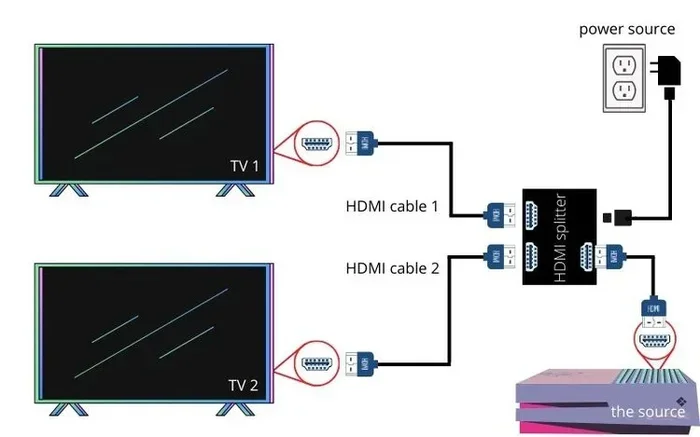
An HDMI splitter losing signal is a frustrating but common problem that usually stems from cable quality, power issues, or compatibility mismatches. In this guide, you will learn the top reasons behind HDMI splitter signal drops and discover simple, actionable fixes you can try right now. We cover everything from basic troubleshooting to expert-level tips that keep your splitter running smoothly.
There is nothing more annoying than sitting down to watch your favorite show or give a presentation, and suddenly your HDMI splitter drops the signal. The screen goes black. The audio cuts out. You wonder, “Why does my HDMI splitter keep losing signal?” You are not alone. This is one of the most common problems people face with HDMI splitters, and the good news is that it is usually fixable.
An HDMI splitter signal loss problem can happen for many reasons. Sometimes it is a simple cable issue. Other times, it is a deeper compatibility or power problem. In this article, we will walk you through every possible cause and every practical fix. Whether you are using a splitter for dual monitors, gaming, or home theater setups, this guide has you covered.
By the time you finish reading, you will know exactly what to check, what to replace, and how to prevent signal drops from happening again. Let us dive in and solve this problem for good.
Key Takeaways
- Weak cables are the #1 culprit: Low-quality or too-long HDMI cables cause frequent signal loss.
- Power supply matters: Many splitters need external power to work reliably.
- Resolution mismatches trigger drops: Mismatched output resolutions between devices lead to constant signal interruptions.
- Overheating kills signal stability: Poor ventilation and extended use can cause your splitter to overheat and drop signal.
- Firmware and driver updates help: Keeping your devices updated can resolve compatibility issues that cause signal loss.
- Replacement may be needed: If all else fails, a new splitter with better specs solves most persistent problems.
📑 Table of Contents
What Causes HDMI Splitter Signal Loss
Understanding the root cause is the first step to fixing any tech problem. When your HDMI splitter keeps losing signal, there are usually a few common reasons behind it. Let us break them down so you can pinpoint what is happening in your setup.
Low-Quality or Damaged Cables
The most common reason for signal drops is a bad cable. HDMI cables carry high-bandwidth video and audio signals. If the cable is old, damaged, or just cheap, it cannot handle the data properly. This leads to frequent HDMI signal drop moments where the picture disappears for a second or two.
Here are signs your cable might be the problem:
- The screen flickers randomly
- Signal drops happen more often when you move the cable
- You notice visible damage on the connector pins
- The splitter works fine with one cable but not another
If you are using a cable longer than 15 feet, signal degradation becomes a real issue. Longer cables weaken the signal, especially if they are not high-speed certified. Always invest in premium HDMI cables that support the bandwidth your splitter needs.
Insufficient Power Supply
Many people do not realize that some HDMI splitters need external power to function properly. A splitter that relies only on the HDMI port for power may struggle when splitting a signal to multiple displays. The result? Frequent signal loss and frustrating dropouts.
Check your splitter model to see if it has a USB power port or an AC adapter input. If it does, make sure you are using the power supply that came with it. Running a powered splitter without plugging it in is a recipe for HDMI splitter signal drop problems.
Resolution and Refresh Rate Mismatches
Every device in your setup has its own supported resolution and refresh rate. When your HDMI splitter display issues involve one monitor showing a picture and another going black, a resolution mismatch is often the cause.
For example, if your source device outputs at 4K 60Hz but one of your displays only supports 1080p 30Hz, the splitter may struggle to bridge that gap. The signal drops because the splitter cannot properly convert or downscale the output on the fly.
Here is what you can do:
- Match the resolution settings across all connected displays
- Set your source device to the lowest common resolution
- Check your splitter’s specifications for supported resolutions
- Update your GPU drivers to ensure proper output handling
Common HDMI Splitter Signal Problems and Symptoms
Not all signal loss looks the same. Different problems have different symptoms, and recognizing them helps you fix the issue faster. Here are the most common HDMI splitter problems people report.
Intermittent Black Screens
This is when your screen goes black for a few seconds and then comes back. It is incredibly annoying, especially during gaming or movie watching. Intermittent black screens usually point to a loose connection, a cable that is slightly damaged, or a splitter that is overheating.
If you notice this happens more when your room is warm or after using the splitter for a long time, overheating is likely the cause. Splitters generate heat when they process and duplicate signals. Without proper ventilation, they can throttle performance and drop the signal.
No Signal on One Output Port
If one display works fine but the other shows “no signal,” the problem is usually specific to that output path. Check the cable connected to that port first. If the cable is fine, the splitter’s internal circuitry for that port may be failing.
Sometimes, this happens because the display connected to that port is set to the wrong input channel or has a different EDID (Extended Display Identification Data) profile. Resetting the display settings often resolves this.
Audio and Video Desync
Another common issue is when the audio and video are out of sync. The picture and sound do not match up. This is especially noticeable during fast-action content. HDMI splitter lag and desync often occur when the splitter cannot process the signal fast enough for all connected displays.
Budget splitters are more prone to this issue. If audio-video sync is critical for your use case, look for a splitter with built-in signal amplification and buffering.
How to Fix HDMI Splitter Signal Drops
Now that you know what causes the problem, let us get into the fixes. These steps are ordered from the simplest solutions to more advanced troubleshooting methods.
Step 1: Check and Replace Your Cables
Start with the easiest fix first. Swap out the cables connecting your splitter to your displays. Use high-speed, certified HDMI cables that are rated for the resolution you are running. If your current cables are longer than 10 feet, try shorter ones to see if the signal stabilizes.
Also, check the cable ends for bent pins or loose fit. A cable that is not fully seated in the port will cause intermittent signal loss. Unplug and replug every connection firmly.
Step 2: Ensure Proper Power Supply
If your splitter has a power input, plug it in. Do not skip this step. Some people buy a powered splitter and then forget to connect the power adapter. Without proper power, the splitter cannot maintain a stable signal across all outputs.
Use the original power adapter that came with the splitter. If you lost it, make sure the replacement matches the voltage and amperage specifications. Using the wrong power supply can cause HDMI splitter not working issues and even damage the device.
Step 3: Adjust Resolution and Refresh Rate Settings
Go into your source device’s display settings and lower the output resolution. Try setting it to 1080p first, even if your displays support higher resolutions. See if the signal stays stable. If it does, you know the issue was a resolution mismatch.
You can then gradually increase the resolution to find the sweet spot where your splitter and all displays work together without signal drops. Also, check the refresh rate. Lowering it from 120Hz or 144Hz to 60Hz often resolves stability issues.
Step 4: Update Device Drivers and Firmware
Your graphics card, source device, and sometimes even the splitter itself may have firmware or driver updates available. These updates often fix HDMI splitter compatibility issues that cause signal loss.
For your graphics card, visit the manufacturer’s website and download the latest drivers. For your source device, check for system updates. Some smart TVs and monitors also receive firmware updates that improve HDMI handshake reliability.
Interestingly, if you notice your computer fan keep running after connecting a splitter to multiple displays, it might be because your GPU is working harder to push the signal. This extra workload can also contribute to thermal throttling, which may worsen signal instability.
Step 5: Reduce Heat and Improve Ventilation
If your splitter feels warm to the touch, it is overheating. Overheating causes signal drops and can shorten the lifespan of your device. Place the splitter in an open area with good airflow. Do not stack it under other electronics or hide it inside a closed cabinet.
Some users report that their HDMI splitter overheating problems disappear simply by adding a small USB fan nearby or elevating the device on a stand. Keeping the ambient temperature cool helps a lot.
Also, if you notice that your system runs hot overall, it could be related to broader thermal issues. For instance, if you find that your CPU temp is so high at idle, your entire system may be running warmer than it should, which affects all peripherals including your splitter.
Preventing HDMI Splitter Signal Loss in the Future
Prevention is always better than troubleshooting. Once you have your splitter working reliably, you want to keep it that way. Here are best practices to maintain a stable connection.
Use Quality Equipment
Not all splitters are created equal. Cheap, no-name splitters from unknown brands often have poor signal processing chips that cannot handle sustained use. Invest in a reputable brand that supports the resolutions and number of outputs you need.
If you are looking for a reliable splitter for a dual-monitor setup, check out our guide on the best HDMI splitter for dual monitors to find a model that fits your needs and budget.
Keep Cables Organized and Short
Longer cables mean more signal loss. Keep your cable runs as short as possible. If you must use longer cables, consider adding an HDMI signal booster or repeater in the middle of the run.
Also, avoid running HDMI cables parallel to power cables. Electromagnetic interference from power cables can degrade the HDMI signal. Keep them at least a few inches apart or use shielded cables.
Limit the Number of Splits
Every time you split a signal, the strength of that signal gets divided. A 1×2 splitter divides the signal in half. A 1×4 splitter divides it into quarters. The more displays you connect, the weaker the signal becomes for each one.
If you need to connect more than two displays, consider using a powered splitter with signal amplification. Some models include built-in boosters that maintain signal strength across all outputs. This is especially important if you are running high resolutions like 4K.
When to Replace Your HDMI Splitter
Sometimes, despite your best efforts, the splitter simply cannot be saved. Here are signs it is time to replace your device.
- The splitter is more than 3-4 years old and technology has advanced
- You are trying to use a 4K splitter that only supports 1080p
- The splitter physically damages cables or ports
- Signal drops happen constantly even after trying all fixes
- The splitter overheats immediately after powering on
Before buying a new one, make sure you understand what you need. Consider the resolution you want, the number of outputs, whether you need audio extraction, and if you need a powered or passive model. Choosing the right splitter from the start prevents a lot of headaches.
Keep in mind that your system’s overall capabilities also matter. If you have limited RAM in your laptop, running multiple high-resolution displays through a splitter might push your system beyond its limits, which can manifest as signal instability.
Expert Tips for Stable HDMI Splitter Performance
Here are some bonus tips from the field that can make a real difference in your splitter’s reliability.
- Power cycle regularly: Unplug your splitter for 30 seconds once a week. This clears any residual charge and resets the signal processing.
- Use cable testers: A simple HDMI cable tester can quickly tell you if a cable is working properly before you blame the splitter.
- Firmware updates: Some splitters have updatable firmware. Check the manufacturer’s website periodically for updates.
- Avoid hot-swapping: Plug and unplug HDMI cables while the splitter is powered on. This can shock the circuitry and cause intermittent failures.
- Match EDID profiles: Make sure all your displays have compatible EDID settings. Mismatched EDID profiles are a hidden cause of signal drops.
By following these tips, you can dramatically reduce the chances of your HDMI splitter losing signal again. A little preventive care goes a long way.
Conclusion
A HDMI splitter that keeps losing signal is almost always a solvable problem. Start with the basics: check your cables, ensure proper power, and match your resolution settings across all devices. If those steps do not work, move on to driver updates, heat management, and firmware checks. And if your splitter is old or damaged, do not hesitate to replace it with a better model.
The key is to troubleshoot systematically. Do not jump to conclusions. Work through each possible cause one at a time. Most of the time, the fix is simpler than you think. With the right cables, proper power, and a little maintenance, your HDMI splitter can deliver a rock-solid signal for years to come.
Now that you know what to look for and how to fix it, you are well equipped to tackle any HDMI splitter signal loss problem. Get back to enjoying your content without interruptions.
Frequently Asked Questions
Why does my HDMI splitter keep losing signal after a few minutes?
This is usually caused by overheating or an insufficient power supply. Check if your splitter feels warm and make sure it is plugged into a power source if it requires one. Also, inspect your cables for damage, as degraded cables can cause intermittent signal drops after the initial handshake succeeds.
Can a bad HDMI cable cause signal loss on a splitter?
Absolutely. A low-quality, damaged, or too-long HDMI cable is the most common reason for signal drops. Always use high-speed, certified HDMI cables that are appropriate for the resolution you are running. Replacing a cheap cable with a good one often solves the problem entirely.
Do I need a powered HDMI splitter for stable signal?
Not always, but powered splitters are much more reliable. A passive splitter draws all its power from the HDMI source, which can lead to signal weakness when splitting to multiple displays. If you experience frequent signal loss, switching to a powered model with its own power adapter is highly recommended.
Why does my HDMI splitter work on one TV but not the other?
This usually happens because of a resolution or refresh rate mismatch between your source device and the problematic TV. Try lowering the output resolution on your source device to see if both displays work. You may also need to check the EDID compatibility of each display connected to the splitter.
How can I boost the HDMI signal from my splitter?
You can use an HDMI signal booster or repeater inline with your cable run. These devices amplify the signal and help it travel longer distances without degradation. Also, make sure your splitter has proper ventilation and is not overheating, as thermal throttling weakens the output signal.
Is HDMI splitter signal loss covered under warranty?
It depends on the manufacturer and the cause of the failure. If the splitter is defective or stops working within the warranty period, most reputable brands will replace it. However, damage caused by using incompatible cables, power surges, or physical abuse is typically not covered. Always check the warranty terms before purchasing.
=== CONCLUSION ===
HDMI splitter signal loss is a common but fixable issue. By understanding the causes and following the steps in this guide, you can restore stable signal to all your displays. Start with cable checks, power verification, and resolution matching. Move to advanced fixes like driver updates and heat management if needed. And remember, a quality splitter from a reputable brand saves you time and frustration in the long run.