Why Should I Use Displayport Over Hdmi
DisplayPort delivers higher bandwidth, better 4K support, and superior refresh rates compared to HDMI. It is the go-to choice for PC gamers and professionals who need the best image quality. Switching to DisplayPort can unlock smoother gameplay and sharper visuals on your monitor.
If you have ever stood in front of a monitor display wall trying to pick the right cable, you know the confusion. HDMI and DisplayPort are the two big players. But which one should you actually use? The answer depends on what you need from your setup. Many people default to HDMI because it comes with almost every device. But DisplayPort has some serious advantages that most users overlook.
In this guide, we will walk through every reason why DisplayPort beats HDMI for most setups. Whether you are a gamer, a content creator, or just someone who wants the best picture quality, this article covers it. We will look at bandwidth, resolution support, refresh rates, and more. By the end, you will know exactly which cable to grab.
Key Takeaways
- Higher Bandwidth: DisplayPort offers more data throughput than most HDMI versions.
- Better for Gaming: Supports higher refresh rates and resolutions for competitive gamers.
- Daisy-Chaining: Connect multiple monitors through a single DisplayPort output.
- Future-Proof: DisplayPort 2.1 supports up to 8K and beyond.
- FreeSync and G-Sync: Native adaptive sync support for tear-free gaming.
- No Licensing Fees: VESA developed DisplayPort without the costs tied to HDMI.
- USB-C Integration: DisplayPort Alt Mode works through USB-C and Thunderbolt ports.
📑 Table of Contents
- What Is DisplayPort and How Does It Compare to HDMI?
- Why DisplayPort Wins on Bandwidth
- DisplayPort and Gaming: A Perfect Match
- Resolution and Multi-Monitor Support
- When HDMI Makes More Sense
- DisplayPort Versions: A Quick Overview
- Common Mistakes People Make with DisplayPort and HDMI
- Expert Insights: What Professionals Recommend
- Conclusion: Which Cable Should You Choose?
What Is DisplayPort and How Does It Compare to HDMI?
DisplayPort is a digital display interface developed by VESA. It first appeared in 2006 and has gone through several major updates. HDMI, on the other hand, was designed more for consumer electronics like TVs and Blu-ray players. Both cables carry video and audio. But they were built with different goals in mind.
HDMI focuses on simplicity and wide compatibility. You can plug it into your TV, soundbar, game console, or laptop. DisplayPort focuses on performance and flexibility. It is built for PCs, workstations, and high-end monitors. Think of HDMI as the universal jack-of-all-trades. Think of DisplayPort as the specialist built for performance.
Physical Differences Between the Two Connectors
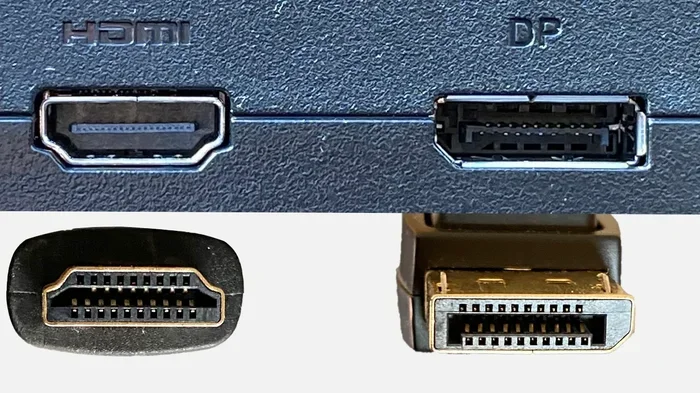
One quick way to tell them apart is the shape. DisplayPort connectors have a flat top with a slight curve on the sides. HDMI connectors are more rectangular with beveled edges. DisplayPort also comes in different sizes. The standard DisplayPort is the largest. Mini DisplayPort is smaller and common on older Macs. USB-C with DisplayPort Alt Mode is the newest and most compact form.
HDMI has a similar history with size variations. Standard HDMI is the original. Mini HDMI is smaller. Micro HDMI is the tiniest. But the physical size does not tell the whole story. The real differences lie inside the cable itself. The internal wiring determines bandwidth, resolution support, and feature sets.
Why DisplayPort Wins on Bandwidth
Bandwidth is the amount of data a cable can carry per second. More bandwidth means higher resolutions and faster refresh rates. DisplayPort was designed from the ground up to push massive amounts of data. This makes it the clear winner for demanding setups.
DisplayPort Bandwidth Compared to HDMI
DisplayPort 1.4 supports up to 32.4 Gbps of bandwidth. HDMI 2.1 supports up to 48 Gbps. So HDMI has more raw bandwidth on paper. But here is the catch. Most monitors and GPUs do not fully use HDMI 2.1 capabilities. DisplayPort 2.1 changes the game completely. It supports up to 80 Gbps. That is more than enough for 16K displays in the future.
For most users right now, DisplayPort 1.4 handles everything they need. It can drive a 4K display at 144Hz with ease. HDMI 2.0 can do 4K at 60Hz. If you want higher refresh rates, DisplayPort is your best bet. You can read more about how your GPU affects display performance in our article on why your GPU spikes to 100 and how it impacts your display output.
Why Bandwidth Matters for Your Setup
Bandwidth directly affects what your monitor can display. Low bandwidth limits your resolution and refresh rate options. With enough bandwidth, you get smooth motion and crisp details. Here is what bandwidth means in real terms:
- 4K at 60Hz needs about 12 Gbps.
- 4K at 144Hz needs around 25 Gbps.
- 4K at 240Hz needs over 30 Gbps.
- 8K at 60Hz needs around 48 Gbps.
DisplayPort 1.4 handles all of these with room to spare. Older HDMI versions struggle with the higher refresh rates. If you want a smooth gaming experience or detailed creative work, bandwidth is everything.
DisplayPort and Gaming: A Perfect Match
Gamers love DisplayPort for good reason. It was designed with PC gaming in mind. The features that matter most to gamers all lean heavily toward DisplayPort.
Adaptive Sync Support
DisplayPort was the first interface to support adaptive sync technology. This means your monitor can sync its refresh rate with your GPU. The result is smooth gameplay without screen tearing. Both FreeSync and G-Sync work natively over DisplayPort. HDMI only added adaptive sync support in HDMI 2.1, and not all TVs and monitors support it yet.
If you play competitive games, every millisecond counts. Screen tearing and input lag can cost you matches. DisplayPort gives you the smoothest possible experience. You get consistent frame delivery and responsive controls. This is especially important for fast-paced shooters and racing games.
High Refresh Rate Support
Modern gaming monitors offer 144Hz, 240Hz, and even 360Hz refresh rates. These high refresh rates deliver buttery smooth motion. But they need a lot of bandwidth. DisplayPort 1.4 can handle 1080p at 240Hz and 1440p at 144Hz without any problem. HDMI 2.0 maxes out at 1080p 240Hz or 1440p 75Hz.
If you have a high refresh rate monitor, you need DisplayPort. It is really that simple. The extra bandwidth gives you access to the full potential of your display. Your games look better and feel more responsive. You will notice the difference immediately, especially in fast-moving scenes.
Resolution and Multi-Monitor Support
DisplayPort was built for professionals who need multiple monitors. It supports daisy-chaining, which lets you connect several displays in a chain from a single port. Each monitor passes the signal to the next one. This means fewer cables and less clutter on your desk.
Daisy-Chaining Monitors with DisplayPort
Daisy-chaining is one of DisplayPort’s best features. You plug one cable from your PC into the first monitor. Then you run another cable from the first monitor to the second. This continues for as many monitors as you need. It works because DisplayPort carries both video and data signals.
HDMI does not support daisy-chaining. Each monitor needs its own cable back to the PC. This creates cable mess and uses up multiple ports. If you use three or more monitors, DisplayPort saves you time and desk space. It also reduces the number of ports you need on your GPU.
Resolution Scaling with DisplayPort
DisplayPort handles high resolutions better than HDMI in most cases. DisplayPort 1.4 supports 4K at 120Hz and even 8K at 60Hz with DSC (Display Stream Compression). HDMI 2.1 can match these numbers but only on the latest devices. Most TVs and monitors still use HDMI 2.0, which limits you to 4K at 60Hz.
For creative professionals who work with 4K or even 8K content, DisplayPort is the clear choice. Video editors, 3D artists, and photographers all benefit from the higher bandwidth. You get accurate colors, sharp details, and smooth playback. Your workflow becomes faster and more efficient.
You can also check out how much power your laptop uses when connected to external displays in our article on how much power a laptop uses when plugged in. External displays can increase your power draw, especially with high refresh rates.
When HDMI Makes More Sense
DisplayPort is not always the best choice. HDMI has its own strengths that make it the better option in certain situations. Let us look at when HDMI wins.
Home Theater and TV Connections
If you are connecting a laptop to a TV for movie night, HDMI is the way to go. Almost every TV has HDMI ports. It also carries audio through a single cable. You do not need separate audio connections. HDMI supports CEC, which lets you control your TV volume with your laptop keyboard.
DisplayPort does not carry audio to TVs as reliably. Some TVs support DisplayPort audio, but many do not. For home entertainment setups, HDMI is simply more convenient. You plug in one cable and everything works.
Console Gaming and Streaming Devices
Game consoles like PlayStation and Xbox use HDMI. Streaming devices like Roku and Apple TV also use HDMI. If your primary use is console gaming or streaming, you do not need DisplayPort. HDMI is the standard for these devices. Your TV or monitor likely only has HDMI inputs anyway.
However, if you game on both PC and console, consider your monitor carefully. Many modern monitors have both HDMI and DisplayPort inputs. This gives you the flexibility to connect either device. Use DisplayPort for your PC and HDMI for your console.
Laptop and Portable Device Use
Many laptops only have HDMI or USB-C ports. If your laptop has HDMI, it makes sense to use it for external displays. But if your laptop has USB-C with DisplayPort Alt Mode, you can use a simple USB-C to DisplayPort cable. This gives you the best of both worlds. You get DisplayPort performance through a modern USB-C port.
Laptops also have power and connectivity considerations. Using an external display can drain your battery faster. If you are working on battery power, be mindful of your display settings. You can find more tips on optimizing your laptop in our guide about laptop power usage when plugged in.
DisplayPort Versions: A Quick Overview
Understanding DisplayPort versions helps you choose the right cable. Each version brings better bandwidth and new features. Here is a quick look at the major versions.
| Version | Max Bandwidth | Max Resolution | Key Feature |
|---|---|---|---|
| DisplayPort 1.2 | 17.28 Gbps | 4K at 60Hz | MST (Multi-Stream Transport) |
| DisplayPort 1.4 | 32.4 Gbps | 8K at 60Hz (with DSC) | HDR support, DSC |
| DisplayPort 2.0/2.1 | 77.37–80 Gbps | 16K with DSC | Ultra-high bandwidth, UHBR |
DisplayPort 1.4 is the most common version right now. It is found on most modern GPUs and monitors. DisplayPort 2.1 is newer and offers incredible bandwidth. But you need compatible hardware on both ends to take advantage of it. When shopping for cables, always check the version numbers. A DisplayPort 1.2 cable will limit your performance even if your monitor supports 1.4.
Which DisplayPort Cable Should You Buy?
Look for cables labeled with the version number. Premium cables certified by VESA ensure reliable performance. Avoid cheap unbranded cables that may not deliver the advertised bandwidth. A good DisplayPort cable costs between $10 and $25. It is a small price for a big upgrade in display quality.
Common Mistakes People Make with DisplayPort and HDMI
Even experienced users make mistakes when choosing between DisplayPort and HDMI. Here are the most common ones to avoid.
- Using an old cable with a new monitor: An outdated cable limits your resolution and refresh rate. Always match your cable to your display capabilities.
- Assuming all HDMI is the same: HDMI 2.0 and HDMI 2.1 are very different. Using HDMI 2.0 with an HDMI 2.1 monitor caps your performance.
- Ignoring DSC: Display Stream Compression lets DisplayPort push beyond standard limits. Not all monitors support it, so check before you buy.
- Forcing the wrong cable: DisplayPort and HDMI look similar but are not interchangeable without an adapter. Using the wrong one can cause signal issues.
- Overlooking USB-C Alt Mode: Many users do not realize their USB-C port supports DisplayPort output. This can save you from buying extra ports or adapters.
Avoiding these mistakes ensures you get the best possible picture from your setup. Take a few minutes to check your hardware specifications before buying cables. It saves money and frustration in the long run.
Expert Insights: What Professionals Recommend
Most tech professionals and reviewers recommend DisplayPort for PC setups. The reasons are clear. Higher bandwidth, better refresh rate support, and multi-monitor capabilities make it the superior choice for computers. Professional reviewers at display technology sites consistently rank DisplayPort above HDMI for PC use.
However, professionals also note that HDMI has its place. For living room setups, home theaters, and console gaming, HDMI remains the standard. The key is understanding your use case. If your primary display is a PC monitor, go with DisplayPort. If it is a TV or home entertainment setup, HDMI makes more sense.
Some users also wonder about display connectivity issues. If you have ever struggled with your mouse not appearing on your laptop screen, that is often a display output problem. Check your cable and port settings first. For more on this, you can read our article on why you cannot see your mouse on your laptop.
Conclusion: Which Cable Should You Choose?
The answer depends on your setup and needs. For PC gaming, creative work, and multi-monitor setups, DisplayPort is the clear winner. It offers higher bandwidth, better refresh rates, and features that HDMI simply cannot match. If you have a modern gaming monitor or a 4K creative display, use DisplayPort.
For home entertainment, console gaming, and simple TV connections, HDMI is the better choice. It is more widely compatible and more convenient. Most TVs and streaming devices rely on HDMI, and for good reason.
The best approach is to have both cables available. Use DisplayPort for your PC and HDMI for your console or TV. This way, you get the best performance from every device. Investing in quality cables is one of the easiest ways to improve your display experience. A good cable costs little but makes a huge difference in picture quality and reliability.
Take a moment to review your current setup. Check which ports your monitor and GPU support. Choose the cable that matches your needs. Your eyes will thank you for the sharper, smoother image. And your gaming or creative workflow will feel faster and more responsive than ever before.
Frequently Asked Questions
Is DisplayPort better than HDMI for gaming?
Yes, DisplayPort is generally better for PC gaming. It offers higher bandwidth, supports higher refresh rates, and has native adaptive sync support. Most gaming monitors come with DisplayPort for these exact reasons.
Can I use a DisplayPort to HDMI adapter?
Yes, you can use an adapter to connect DisplayPort to an HDMI display. However, the performance will be limited by the lower of the two standards. If your GPU outputs DisplayPort 1.4 but your monitor only has HDMI 2.0, you will be capped at HDMI 2.0 capabilities.
Does DisplayPort carry audio?
Yes, DisplayPort carries both video and audio through a single cable. However, not all displays support DisplayPort audio input. Monitors and TVs vary in their audio support, so check your device specifications.
Do I need DisplayPort 2.1 for 4K gaming?
No, DisplayPort 1.4 is more than enough for 4K gaming at 144Hz. DisplayPort 2.1 is designed for future-proofing and 8K or higher resolutions. Most current GPUs and monitors work perfectly with DisplayPort 1.4.
Why does my monitor only have HDMI ports?
Many budget monitors and TVs use HDMI because it is the industry standard for consumer electronics. Manufacturers include HDMI to ensure broad compatibility with laptops, consoles, and streaming devices.
Can I daisy-chain monitors with HDMI?
No, HDMI does not support daisy-chaining. Each monitor needs a separate cable connected directly to your PC or laptop. DisplayPort supports MST (Multi-Stream Transport), which allows daisy-chaining multiple monitors from one port.
=== CONCLUSION ===
DisplayPort offers clear advantages over HDMI for PC users. Higher bandwidth, better refresh rates, and multi-monitor support make it the smarter choice for most setups. HDMI still holds value for home entertainment and console gaming. Understanding the strengths of each cable helps you make the right decision for your specific needs.
Upgrade your cables today and experience the difference. Your displays will thank you with sharper images and smoother performance.