Is There a Difference Between Hdmi Input and Output
HDMI input and output serve very different roles in your home setup. The input port receives audio and video signals from a source device, while the output port sends those signals to a display or speaker. Understanding this basic distinction helps you connect devices correctly and avoid frustrating setup mistakes.
Have you ever stared at the back of your TV or laptop and wondered about those tiny ports labeled HDMI? You are not alone. Many people plug cables in without thinking twice. But here is the thing — HDMI input and HDMI output are not the same. They do completely different jobs. Knowing the difference can save you time, prevent setup headaches, and even improve your audio and video quality.
In this guide, we will break down everything you need to know about HDMI input vs output. We will cover what each port does, how to identify them, and why getting it right matters. Whether you are setting up a home theater, connecting a gaming console, or just trying to hook up a second monitor, this article has you covered.
Key Takeaways
- HDMI input receives signals: It pulls audio and video data from a source device like a laptop or gaming console into a display or AV receiver.
- HDMI output sends signals: It transmits content from a device to a screen, projector, or sound system for playback.
- Labeling matters: Always check the port label on your device. Input ports are often labeled “IN” while output ports say “OUT.”
- Using the wrong port causes problems: Plugging a cable into the wrong HDMI port can result in no signal, no sound, or poor display quality.
- HDMI ARC and eARC are special output types: These ports handle audio return channels for smart home theater setups.
- Adapters can change direction: HDMI adapters can convert input to output and vice versa when needed.
📑 Table of Contents
What Is HDMI?
HDMI stands for High-Definition Multimedia Interface. It is a standard cable connection used to carry both audio and video signals through a single cable. Before HDMI, you needed separate cables for sound and picture. HDMI simplified everything. One cable handles it all.
Today, almost every display device uses HDMI. TVs, monitors, projectors, and even some laptops have HDMI ports. The technology has evolved over the years. Newer versions support higher resolutions, faster refresh rates, and better color depth. But the basic idea stays the same. HDMI moves audio and video data from one device to another.
Why HDMI Is Still Important
Even with wireless options like Bluetooth and Wi-Fi streaming, HDMI remains the gold standard for quality. Wireless connections can introduce lag or compression. A wired HDMI connection delivers clean, uncompressed audio and video. That is why gamers, movie lovers, and professionals still rely on it.
Here are a few reasons HDMI is still relevant:
- High bandwidth: HDMI supports large amounts of data transfer quickly.
- Single cable solution: One cable carries both sound and image.
- Wide compatibility: Nearly all modern devices support HDMI.
- Reliable connection: Wired connections are more stable than wireless.
What Is HDMI Input?
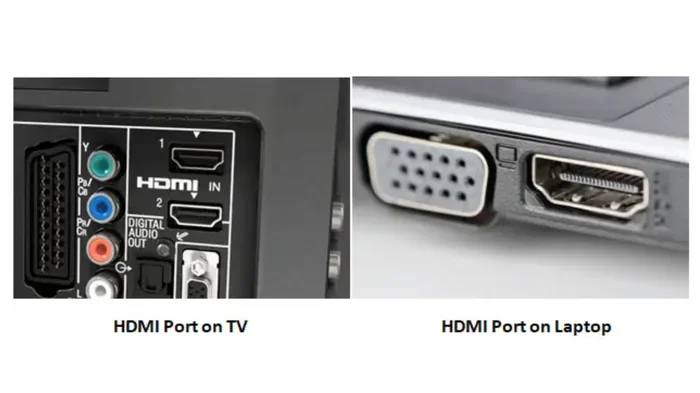
An HDMI input port receives signals from an external source. Think of it as a doorway that lets content come into your device. Your TV has HDMI inputs because it needs to receive signals from cable boxes, streaming sticks, gaming consoles, and Blu-ray players.
When you plug your laptop into a TV using an HDMI cable, the TV is using its HDMI input to receive the signal. The TV does not generate the content. It simply displays what the source device sends. That is the core job of any input port.
Common Devices With HDMI Input Ports
Many devices rely on HDMI inputs to function properly. Here are some examples:
- Televisions: Most TVs have three to four HDMI inputs for connecting various source devices.
- AV receivers: These home theater hubs use HDMI inputs to receive audio and video from multiple sources.
- Projectors: Projectors often have HDMI inputs so you can display content from a laptop or media player.
- Monitor displays: Some monitors include HDMI inputs for PC or console use.
When shopping for a TV or projector, pay attention to how many HDMI input ports it has. If you have multiple devices, you will need several inputs. A splitter or HDMI switch can help if you run out of ports.
What Is HDMI Output?
An HDMI output port does the opposite of an input. It sends signals out from a device to a display or audio system. Think of it as a doorway that lets content leave your device. Your laptop has an HDMI output because it sends its screen and sound to an external monitor or TV.
When you connect your phone to a TV using an HDMI adapter, your phone is using its HDMI output. The TV receives that signal on its HDMI input. The two work together. One sends, and the other receives. This back-and-forth is the foundation of how connected devices communicate.
Common Devices With HDMI Output Ports
Many everyday gadgets use HDMI output ports. Here are some examples:
- Laptops and computers: They send video and audio to external displays.
- Gaming consoles: Devices like the PlayStation and Xbox use HDMI output to send gameplay to a TV.
- Streaming devices: Apple TV, Roku, and Chromecast with Google TV output signals to displays.
- Camcorders and cameras: Some models have HDMI output for playback on larger screens.
It is important to understand that a device can have both input and output ports. A modern AV receiver, for example, has multiple HDMI inputs to receive signals from various sources and HDMI outputs to send processed audio and video to your speakers or TV. This is where things can get confusing, so always check the labels.
HDMI Input vs Output: The Key Differences
The difference between HDMI input and output comes down to direction. Input receives. Output sends. That is the simple truth. But there are a few more details that are worth understanding.
Here is a quick comparison of the two:
- Direction of signal flow: Input brings data into the device. Output sends data out of the device.
- Device role: Devices with mostly inputs are displays (TVs, monitors). Devices with mostly outputs are sources (laptops, consoles).
- Port labeling: Input ports are often marked “IN” or “HDMI 1,” “HDMI 2.” Output ports may say “OUT” or “HDMI ARC” for audio return channels.
- Signal processing: Input ports receive raw signals. Output ports may send processed or converted signals depending on the device.
Getting this distinction right matters a lot. If you plug a source device into an output port instead of an input port, you will get no picture or sound. It is a common mistake that trips up many people, especially during initial setup.
How to Tell Input From Output
Most devices clearly label their HDMI ports. Look for small text printed near each port. If you see “IN” or “HDMI 1,” that is an input. If you see “OUT” or “ARC,” that is an output. Some devices use color coding or icons as well.
When labels are unclear, check the device manual or visit the manufacturer’s website. The difference between monitors and speakers also applies here — displays tend to have more inputs, while source devices tend to have more outputs. This general rule can help you figure things out when labels are missing.
Common HDMI Connection Setups
Now that you understand the basics, let us look at how these ports work together in real-world setups. Different setups use different combinations of inputs and outputs.
Home Theater Setup
A typical home theater uses multiple HDMI connections. Your cable box or streaming device connects to your AV receiver using an HDMI output. The AV receiver then sends the processed audio and video to your TV via its HDMI output. The TV receives the signal on its HDMI input. Meanwhile, your speakers connect to the AV receiver for sound output.
This chain of connections is why understanding input and output direction matters. One wrong connection and your entire system falls apart. It is like trying to fit a square peg in a round hole.
Gaming Console Setup
Setting up a gaming console is straightforward. Your console has an HDMI output port. Your TV has HDMI input ports. You connect the two with a single HDMI cable. The console sends the game visuals and audio out through its output. The TV receives and displays them through its input.
If you have multiple consoles, you will use different HDMI input ports on your TV — one for each console. This lets you switch between them easily using your TV remote.
PC to Monitor Setup
Connecting a computer to an external monitor follows the same logic. Your PC uses its HDMI output to send the display signal. Your monitor uses its HDMI input to receive it. Some monitors also have speakers built in, and the audio travels through the same HDMI connection. This is much simpler than running separate audio and video cables.
For those who use external audio systems, the difference between coaxial and component speakers becomes relevant when you move beyond HDMI for audio connections. HDMI handles both audio and video, but coaxial and component cables handle only audio or video separately.
HDMI ARC and eARC: Special Output Types
You may have noticed an HDMI port labeled “ARC” or “eARC” on your TV or receiver. These are special types of HDMI output ports. ARC stands for Audio Return Channel. eARC stands for Enhanced Audio Return Channel.
These ports allow your TV to send audio back to your soundbar or AV receiver using the same HDMI cable. This is incredibly useful. Instead of running a separate audio cable from your TV to your sound system, you use one HDMI cable for both directions. The TV uses its HDMI input to receive video from a source, and its HDMI ARC output to send audio to your sound system.
eARC is the newer and better version. It supports higher-quality audio formats like Dolby Atmos. If you are building a home theater setup, look for eARC ports on your devices. They make the whole setup cleaner and deliver better sound.
Why ARC Matters
Without ARC, you might need multiple cables to handle audio. ARC simplifies this. It also supports CEC (Consumer Electronics Control), which lets you control multiple devices with one remote. So when you turn on your TV, your soundbar turns on too. That is a nice convenience that comes from using the right HDMI ports correctly.
Common HDMI Mistakes and How to Avoid Them
Even with a clear understanding of inputs and outputs, mistakes happen. Here are some common errors and how to fix them.
Plugging Into the Wrong Port
This is the most common mistake. You plug your gaming console into an HDMI output port on your TV instead of an input port. Result? No display. Always double-check the port label before connecting. If your TV has HDMI 1, HDMI 2, and HDMI 3, those are all inputs. The HDMI OUT port (if present) is for sending the TV’s signal to another display.
Using a Low-Quality HDMI Cable
Not all HDMI cables are created equal. Cheap cables may not support the bandwidth needed for 4K or 8K resolution. They can also cause signal dropouts or audio sync issues. Invest in a good-quality HDMI cable that matches your device capabilities. Look for cables rated for the HDMI version your devices support.
Ignoring Firmware Updates
Your devices sometimes need software updates to support the latest HDMI features. If your new 4K TV does not display the best quality, check for a firmware update. This simple step can resolve many compatibility issues and improve your overall experience.
Assuming All Ports Are the Same
Not every HDMI port on your device supports the same features. Some ports may support 4K at 60Hz while others only support 1080p. Some ports support ARC while others do not. Read your device manual to understand what each port can do. This knowledge prevents frustration and helps you get the best performance.
Expert Tips for Better HDMI Connections
Want to get the most out of your HDMI setup? Here are some expert tips that make a real difference.
- Label your cables: Use small tags or colored tape to mark which cable goes where. This saves time when troubleshooting.
- Use an HDMI switch: If you have more devices than input ports, an HDMI switch lets you connect multiple sources to one input.
- Keep cables short: Longer cables can weaken the signal. Use the shortest cable that reaches your setup comfortably.
- Check for bent pins: Inspect the HDMI connector before plugging it in. Bent pins can damage ports and cause intermittent issues.
- Power cycle your devices: If you get no signal, turn everything off, unplug for 30 seconds, and plug back in. This simple reset often fixes connection problems.
These small habits add up. They keep your setup running smoothly and protect your equipment. If you are dealing with audio connections beyond HDMI, you might also want to explore the difference between studio monitors and speakers to understand which audio equipment best suits your needs.
Final Thoughts
The difference between HDMI input and output is simple but important. Input receives signals. Output sends them. Once you grasp this concept, setting up any device becomes much easier. You will avoid common mistakes, get better picture and sound quality, and save yourself a lot of frustration.
Take a moment the next time you set up a new device. Look at the ports. Identify which ones are inputs and which are outputs. Make the right connections. You will be glad you did. Understanding HDMI input and output is one of those small bits of knowledge that pays off every single time you use your devices.
Whether you are building a home theater, setting up a gaming station, or connecting a second monitor to your laptop, the principles remain the same. Input receives. Output sends. Keep that in mind and your connections will always work as they should.
Frequently Asked Questions
Can I use an HDMI output as an input?
No, HDMI output ports are designed to send signals out, not receive them. Pluging a source device into an output port will not work. Always connect source devices to input ports on your display or receiver.
How many HDMI inputs do I need on my TV?
It depends on how many devices you connect. Most people need at least three HDMI inputs for a TV, covering a cable box, gaming console, and streaming device. If you have more devices, consider using an HDMI switch to expand your options.
What is the difference between HDMI input and output on a laptop?
Most laptops only have HDMI output ports because they are source devices. They send video and audio to external displays. Some laptops with HDMI input ports exist but are rare and usually found on specific business or workstation models.
Does HDMI carry both audio and video?
Yes, HDMI carries both audio and video signals through a single cable. This is one of the biggest advantages of HDMI over older connection types that required separate cables for sound and picture.
Can I convert HDMI output to input with an adapter?
Standard HDMI adapters cannot reverse the direction of a port. An HDMI output port will not become an input just because you use an adapter. The hardware inside the port determines its direction. However, capture cards and certain AV devices can accept HDMI input and re-output it through USB or other connections.
What does HDMI ARC stand for and what does it do?
HDMI ARC stands for Audio Return Channel. It is a special type of HDMI port that allows your TV to send audio back to your soundbar or AV receiver. This eliminates the need for a separate audio cable and simplifies your home theater setup.