Why Wont Amazon Video Play Through Hdmi

Amazon video not playing through HDMI is a common frustration with several easy-to-fix causes. From HDMI cable problems and HDCP errors to app glitches and port issues, this guide walks you through every possible reason and solution. You will learn how to troubleshoot your setup step by step and get back to streaming without hassle.
You settle in for a movie night. You open Amazon Video on your device. You hit play. And all you get is a black screen or no sound at all through your HDMI connection. It is incredibly frustrating. You are not alone. Thousands of users face this exact problem every single day.
The good news? Most of the time, the fix is simple and takes just a few minutes. Whether you are using a Fire TV Stick, a laptop, a gaming console, or a smart TV, the reasons Amazon video will not play through HDMI tend to fall into a few common categories. This guide covers every one of them.
We will walk you through each possible cause step by step. You will learn how to spot the problem fast and apply the right fix. No technical degree required. Just clear, practical advice that actually works.
Key Takeaways
- HDMI cable quality and length can directly cause Amazon video playback failures.
- HDCP errors are one of the most common reasons Amazon video won’t display through HDMI.
- Outdated apps and firmware often lead to streaming problems that are easy to fix.
- Port and connection issues on your TV, Fire Stick, or laptop can block video output.
- Simple troubleshooting steps like restarting devices and checking cables solve most problems.
- Audio-video sync issues through HDMI can be resolved with a few settings adjustments.
📑 Table of Contents
Why Amazon Video Won’t Play Through HDMI
When Amazon Prime Video refuses to play through your HDMI cable, the root cause usually falls into one of several buckets. Understanding what is going on helps you fix it faster. Let us break down each reason clearly.
HDMI Cable Problems
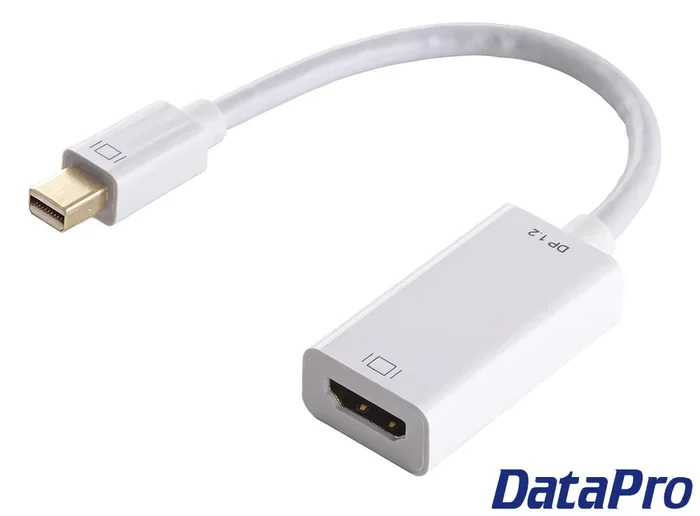
The simplest explanation is often the right one. A damaged or low-quality HDMI cable can prevent video from reaching your screen. Over time, cables wear out. The connectors bend. The internal wiring frays. Even a cable that looks fine on the outside may have broken internal pins.
Cheap cables are especially problematic. They may not support the bandwidth needed for HD streaming. If your cable is old or was included with a device years ago, it might be time for a replacement. A high-speed HDMI 2.0 or HDMI 2.1 cable handles 4K streaming without issues.
Try swapping in a different cable first. This alone solves the problem more often than people realize. Use a cable that is under six feet long for best results. Longer cables can lose signal strength.
HDCP Errors
HDCP stands for High-bandwidth Digital Content Protection. It is a copy protection system built into HDMI connections. Amazon Video uses HDCP to protect its content from being copied illegally.
Sometimes HDCP causes the video to fail to play. You might see a black screen, a blank display, or an error message. This happens when your HDMI splitter, AV receiver, or even a cheap cable does not support HDCP properly.
If you have a receiver or splitter in your setup, try bypassing it. Connect your device directly to the TV with a single HDMI cable. If the video plays then, the splitter or receiver was the problem. Replace it with an HDCP-compatible model.
App or Software Glitches
The Amazon Video app itself can sometimes cause playback issues. Apps accumulate cache files over time. These files can corrupt and cause the app to freeze, crash, or refuse to output video through HDMI.
On Fire TV devices, go to Settings > Applications > Amazon Video > Clear Cache. On smart TVs, look for a similar option in your app settings. On laptops, try closing the app completely and reopening it.
Also check for app updates. Amazon releases updates frequently. An outdated version of the app may not work well with your device’s current firmware. Keeping everything updated is one of the easiest ways to prevent streaming problems.
Common HDMI Connection Issues
Not every problem with Amazon Video and HDMI comes from the cable or the app. Sometimes the connection between devices is the real culprit. Let us look at the most common connection-related issues.
HDMI Port Problems
Your TV or monitor has multiple HDMI ports. But not all of them work equally well. Some ports may be damaged. Others may not support the resolution or refresh rate you are trying to use.
Try plugging your device into a different HDMI port on your TV. If you are using a soundbar or AV receiver, try connecting directly to the TV instead. Each port and device in the chain can introduce compatibility issues.
Also check for dust or debris in the port. A loose connection can cause the video to cut out or not display at all. Use a can of compressed air to clean the port gently before plugging in your cable.
Resolution and Display Settings
Sometimes the resolution or display settings on your device do not match what your TV supports through HDMI. If your device tries to output a resolution that the TV cannot handle, you get a black screen or no video.
On Fire TV, go to Settings > Display & Sounds > Display and lower the resolution to 1080p. On a laptop, right-click the desktop and go to display settings. Change the output resolution to match your TV’s native resolution.
This simple adjustment fixes many HDMI playback problems instantly. Always match the output resolution to the TV’s capabilities.
Audio and Video Sync Issues
Another common problem is when the video plays but the audio does not come through HDMI. Or the audio and video are out of sync. This is especially annoying during action movies or sports.
Check your TV’s audio output settings. Make sure it is set to output through HDMI and not through built-in speakers. On some TVs, you need to change the audio output format to Dolby Digital or PCM in the sound settings.
On your Amazon Fire TV or streaming device, go to Settings > Display & Sounds > Audio and try changing the audio format. Sometimes switching between Dolby Atmos and Stereo resolves sync issues quickly.
Device-Specific Troubleshooting
Different devices have different quirks when it comes to Amazon Video and HDMI playback. Here is how to troubleshoot the most common setups.
Fire TV Stick and Fire TV
Fire TV devices are generally reliable, but they are not immune to HDMI issues. A common problem is the Fire Stick not outputting video after a software update. This usually happens because the new update changes the default resolution or display settings.
To fix this, try connecting the Fire Stick directly to the TV without any intermediate devices. If you cannot see the screen, use the Fire TV app on your phone as a remote. Navigate to Settings > Display & Sounds and reset the display settings to default.
Also make sure your Fire TV is plugged into a power source with the original power adapter. Using a USB port on the TV for power can cause insufficient power issues, which leads to playback failures.
Laptop or PC Through HDMI
Streaming Amazon Video on a laptop through an HDMI cable to a TV is a great setup. But it can cause problems too. Laptops often have different graphics cards for internal displays and HDMI output. The Amazon app may try to use the wrong one.
Open your laptop’s graphics control panel (NVIDIA Control Panel, AMD Radeon Settings, or Intel Graphics Command Center). Make sure the HDMI output is set as the primary display for video playback. Also update your graphics drivers regularly.
If you are dealing with a laptop issue, you might also find our article on why 12GB RAM matters for video tasks helpful for understanding your system’s capabilities.
Smart TV Built-In Apps
Many people use the Amazon Video app directly on their smart TV. In this case, the HDMI connection is not even involved. But the video still might not play correctly. This usually points to the TV’s internal software or internet connection.
Restart your TV completely. Unplug it from the wall for at least 30 seconds. Then plug it back in. Also clear the Amazon app cache in your TV’s application manager. Check your internet speed too. Slow internet causes buffering and playback failures that look like HDMI problems.
Quick Fixes That Work Every Time
Before you dive into complex troubleshooting, try these quick fixes. They solve the majority of Amazon Video HDMI problems in under five minutes.
- Unplug and replug the HDMI cable at both ends. This refreshes the connection.
- Restart your streaming device and your TV. A simple reboot clears temporary glitches.
- Try a different HDMI port on your TV or monitor.
- Replace the HDMI cable with a new high-speed cable.
- Update the Amazon app and your device firmware.
- Clear the app cache and data on your streaming device.
- Bypass any HDMI splitters or switches and connect directly.
These steps might seem basic. But they genuinely fix the problem most of the time. Start here before trying anything more advanced.
When to Seek Professional Help
Most Amazon Video HDMI issues are easy to fix at home. But sometimes the problem points to a deeper hardware issue. If you have tried every fix above and the video still will not play through HDMI, it may be time to dig deeper.
Check if the HDMI port on your TV or device is physically damaged. Look for bent pins or discoloration. If you have another device you can test with the same cable and port, do it. This helps you isolate whether the problem is with the TV, the cable, or the streaming device.
If the issue persists across multiple devices and cables, your TV’s HDMI controller may need professional repair. Contact the manufacturer’s support team or visit an authorized service center. Do not attempt to open the TV yourself, as this can void your warranty.
Preventing Future HDMI Playback Issues
Once you get Amazon Video playing smoothly through HDMI, you want to keep it that way. A few simple habits can prevent most problems from coming back.
- Invest in high-quality HDMI cables from reputable brands.
- Keep your devices and apps updated at all times.
- Avoid plugging and unplugging HDMI cables forcefully.
- Use cable management to prevent physical strain on connections.
- Restart your streaming device once a week to clear temporary files.
- Keep your devices in a well-ventilated area to prevent overheating.
Taking care of your setup goes a long way. A little prevention saves you from hours of frustration later.
Final Thoughts
Having Amazon Video not play through HDMI is a frustrating experience. But it is almost always fixable. The cause is usually one of the common issues we covered today. A bad cable, an HDCP error, outdated software, or a simple settings mismatch.
Start with the quick fixes. Work your way through the troubleshooting steps. You will find the solution in most cases. And now you have the knowledge to prevent these issues from happening again.
Happy streaming. Your next movie night is just one HDMI fix away.
Frequently Asked Questions
Why does Amazon Video show a black screen when connected through HDMI?
A black screen usually means your HDMI cable is not transmitting the video signal properly. This can happen with damaged cables, HDCP errors, or incorrect resolution settings. Try replacing the cable and checking your display settings first.
Can a bad HDMI cable cause Amazon Video to stop playing?
Yes, absolutely. A faulty or low-quality HDMI cable is one of the most common reasons Amazon Video will not play through HDMI. Even if the cable looks fine, internal damage can block the signal. Replacing it with a high-speed HDMI cable often fixes the issue instantly.
How do I fix HDCP errors when streaming Amazon Video?
To fix HDCP errors, bypass any HDMI splitters or receivers and connect your device directly to the TV. Make sure your cable supports HDCP and is not too long. Updating your device firmware can also resolve HDCP handshake problems.
Why is there no sound when Amazon Video plays through HDMI?
No sound usually means your TV’s audio output is not set to use HDMI. Go to your TV’s sound settings and select HDMI as the audio output. You may also need to change the audio format in your Amazon app or device settings to match your TV’s capabilities.
Does using an HDMI splitter affect Amazon Video playback?
Yes, HDMI splitters can cause playback issues, especially if they do not support HDCP or the resolution you are streaming. Try connecting your device directly to the TV without any splitters to see if that resolves the problem.
How often should I replace my HDMI cable for streaming?
You do not need to replace your HDMI cable regularly. However, if you notice frequent playback issues, a worn or damaged cable may be the cause. A good quality high-speed HDMI cable can last several years with proper handling and care.