Why Is My Hdmi Not Working on My Xbox One
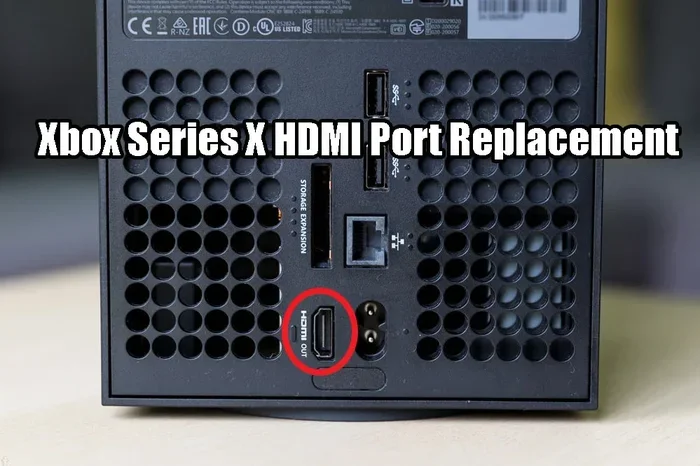
Why Is My Hdmi Not Working On My Xbox One? This is a common frustration that can ruin your gaming session in seconds. A loose cable, wrong TV input, or outdated console settings are usually to blame. You can fix most HDMI problems on your Xbox One with simple steps you can do at home. This guide walks you through every cause and solution so you get back to gaming quickly.
You sit down after a long day, grab your controller, and press the Xbox button. But instead of your favorite game lighting up the screen, all you get is a black display. Your HDMI is not working on your Xbox One, and you have no idea why. It is one of the most annoying problems a gamer can face, but here is the good news: it is usually fixable.
Whether your Xbox One shows no signal at all, flashes a warning, or displays a weird error message, the root cause almost always comes down to a handful of common issues. A faulty cable, a misconfigured TV input, or a simple software glitch can all lead to the same frustrating result. This guide covers every major reason your HDMI connection might fail and gives you step-by-step solutions that actually work.
You do not need to be a tech expert to follow along. We will keep things simple and practical. By the end of this article, you will know exactly what to check, what to try, and when it is time to replace a piece of hardware. Let us get your gaming setup working again.
Key Takeaways
- Check Your Cable First: A damaged or loose HDMI cable is the most common reason for no signal on your Xbox One.
- Match Your TV Input: Your TV must be set to the correct HDMI source or port for the console to display.
- Power Cycle Everything: A full power reset of both your Xbox One and TV can resolve handshake and detection issues.
- Update Console Settings: Incorrect resolution or refresh rate settings can cause your Xbox One to lose HDMI output.
- Inspect Ports for Damage: Bent or worn HDMI ports on either your console or TV can block the signal entirely.
- Try a Different Cable or Port: Swapping the HDMI cable or using another TV port often solves the problem fast.
- HDCP Errors Matter: HDCP handshake failures can prevent your Xbox One from sending video to your display.
📑 Table of Contents
- Understanding How HDMI Works with Your Xbox One
- Common Reasons Why HDMI Is Not Working on Xbox One
- Step-by-Step Fixes to Get Your HDMI Working Again
- When to Replace Hardware or Seek Professional Help
- Quick Tips to Prevent HDMI Problems on Xbox One
- Expert Insight: The Most Overlooked HDMI Fix
- Conclusion
Understanding How HDMI Works with Your Xbox One
Before we dive into fixes, it helps to understand what is happening behind the scenes. When you plug an HDMI cable from your Xbox One to your TV, the console sends both video and audio signals through that single cable. Your TV then receives those signals and displays them on screen. This process is called an HDMI handshake.
The handshake is a quick digital conversation between your Xbox and your TV. The console says, “I am sending a signal,” and the TV says, “I am ready to receive it.” If something interrupts this conversation, you get a black screen or no signal message. Understanding this helps you see why so many things can go wrong, from a loose cable to a settings mismatch.
Your Xbox One HDMI port is a standard Type A port, the same kind you find on most TVs and monitors. The cable itself carries uncompressed video and audio, which makes it reliable but also sensitive to physical damage or improper seating. Knowing how this connection works gives you a big advantage when troubleshooting.
Common Reasons Why HDMI Is Not Working on Xbox One
Several issues can cause your Xbox One to lose HDMI output. Let us break down the most common ones so you can quickly narrow down the problem.
Faulty or Damaged HDMI Cable
The HDMI cable is the most likely culprit. Over time, cables wear out. The connector pins can bend, the insulation can crack, and the internal wiring can break. If your cable has been plugged and unplugged many times, it may no longer make a solid connection.
Even a new cable can be defective. Manufacturing defects happen more often than you might think. If you recently bought a replacement cable, do not assume it is good just because it is new. The quality of the cable matters a lot for stable HDMI signal transmission.
Wrong TV Input or Source
This one sounds obvious, but it happens all the time. Your TV has multiple HDMI ports, and each one needs to be selected as the active source. If your TV is set to HDMI 1 but your Xbox is plugged into HDMI 2, you will see nothing but a blank screen.
Some smart TVs also have input auto-detection issues. The TV might not automatically switch to the correct source when your Xbox turns on. This is especially common with older TV models or when you have many devices connected through a receiver or soundbar.
HDMI Port Damage
Physical damage to the HDMI port on your Xbox One or your TV can block the connection entirely. If the port is bent, cracked, or has debris inside, the cable cannot make proper contact. This type of damage often happens from yanking the cable out forcefully or from the port being bumped repeatedly.
Dust and lint can also accumulate inside the HDMI port over time. This buildup can prevent the cable pins from making full contact. A quick inspection with a flashlight can sometimes reveal this simple but overlooked problem.
HDCP Handshake Failure
HDCP stands for High-bandwidth Digital Content Protection. It is a digital copy protection system built into the HDMI standard. Sometimes, the HDCP handshake between your Xbox One and TV fails, and the console refuses to send a video signal.
This can happen after a firmware update, when you switch cables, or when your TV does not support the HDCP version your Xbox is using. An HDCP error often shows up as a black screen with a message about copy protection. It is not a hardware failure, but it still stops your game from displaying.
Incorrect Resolution or Display Settings
If your Xbox One is set to output a resolution or refresh rate your TV does not support, the display will go black. This commonly happens when you move your console to a new TV or after changing the Xbox One display settings.
For example, if your Xbox is set to 4K output but your TV only supports 1080p, the signal will not display properly. Similarly, a refresh rate mismatch can cause the same issue. These settings can sometimes get changed accidentally or during a system update.
Step-by-Step Fixes to Get Your HDMI Working Again
Now that you know the common causes, let us walk through the solutions. Try these in order, starting with the simplest fixes first.
Step 1: Check the HDMI Cable Connection
Start with the basics. Unplug the HDMI cable from both your Xbox One and your TV. Look at the connectors closely. Are there any bent pins? Is there dust or debris in the port? Use a can of compressed air to clean out the ports if needed.
Plug the cable back in firmly. You should feel a slight click when it seats properly. Do not force it. If the cable feels loose in the port, that is a sign the connector is worn out and needs replacement. This is the same logic you would use when troubleshooting why your USB device is not connecting to a laptop.
Step 2: Try a Different HDMI Cable
If reseating the cable does not work, grab a different HDMI cable and test it. This is the fastest way to rule out a bad cable. Use a high-speed HDMI cable that supports the bandwidth your Xbox One needs.
Make sure the cable is not overly long. Longer cables can weaken the signal, especially with older or cheaper cables. A cable under six feet is ideal for most home setups. If the new cable works, you have found your problem and can retire the old one.
Step 3: Switch Your TV Input Source
Use your TV remote to cycle through the HDMI inputs. Go through each one until you see the Xbox home screen. If you are using a soundbar or AV receiver, make sure it is also set to the correct input. Some receivers have their own input selection that overrides the TV setting.
If your TV has multiple HDMI ports, try plugging the cable into a different port. This helps you determine if the original port is damaged. Label the working port so you do not have to guess next time.
Step 4: Power Cycle Your Xbox One and TV
A full power cycle can resolve many HDMI handshake issues. Start by turning off your Xbox One. Unplug the power cable from the back of the console. Wait at least thirty seconds. While you wait, unplug your TV from the wall as well.
After thirty seconds, plug your TV back in and turn it on. Then plug your Xbox One back in and power it on. This reset clears any temporary glitches in the HDMI communication between devices. It is a surprisingly effective fix that many people skip.
Step 5: Adjust Xbox One Display Settings
If your Xbox One boots but still shows no picture, you may need to change the display settings. Here is how: Turn on your Xbox One and press the Xbox button on your controller. Go to Profile and system, then select Settings. Choose General, then TV & display options.
Change the resolution to 1080p and the refresh rate to 60 Hz. These are the most widely supported settings. If you can now see the screen, your TV simply does not support the previous settings. You can then slowly increase the resolution to find the sweet spot for your display.
Step 6: Reset the HDMI Handshake
If the handshake is failing, you can force a fresh one. Turn off your Xbox One and disconnect the HDMI cable from both ends. Wait one minute. Then reconnect the cable to the Xbox first, then to the TV. Turn on the Xbox and let the TV detect the new signal.
This sequence ensures both devices start fresh. Think of it like restarting a conversation. Both sides need to introduce themselves again. This simple reset resolves the majority of HDMI handshake failures on Xbox One consoles.
When to Replace Hardware or Seek Professional Help
Sometimes, software fixes are not enough. If you have tried every step above and your HDMI still does not work, it is time to consider hardware issues.
Signs Your Xbox One HDMI Port Is Damaged
Look for these warning signs. The cable feels loose or wobbly in the port. You see physical damage like cracks or bent pins around the port. The console works fine on a different TV but not on your main one. Or the problem only happens when you wiggle the cable slightly.
If any of these sound familiar, your Xbox One HDMI port may be damaged. This type of issue usually requires professional repair or a console replacement. Attempting to fix a bent HDMI port yourself can cause more harm than good.
When to Replace Your HDMI Cable
Even if your cable looks fine on the outside, the internal wiring can be damaged. If you have tested multiple cables and the problem persists only with one specific cable, that cable is the issue. Replace it with a certified high-speed HDMI cable from a reputable brand.
Do not cheap out on HDMI cables. A quality cable ensures stable signal delivery and lasts longer. Look for cables that support Ethernet and are rated for high bandwidth. These are widely available and affordable.
When Your TV May Be the Problem
Sometimes the TV is the culprit, not the Xbox. Try connecting your Xbox One to a different TV or monitor. If it works fine on another display, your original TV may have a faulty HDMI port or a software issue with its input handling.
Some TVs have firmware updates that improve HDMI compatibility. Check your TV manufacturer’s website for the latest updates. Updating your TV firmware can resolve unexpected HDMI detection problems.
Quick Tips to Prevent HDMI Problems on Xbox One
Prevention is always better than troubleshooting. Here are some simple habits that keep your HDMI connection healthy.
- Always unplug cables gently. Pull the connector, not the cable itself. Yanking causes internal wire damage over time.
- Keep your HDMI ports clean. Dust and debris are the enemies of good connections. A quick wipe with a dry cloth every few months helps.
- Use cable management. Avoid letting cables bend sharply or bear weight. Sharp bends can damage the internal wiring.
- Keep firmware updated. Both your Xbox One and your TV benefit from regular firmware updates that improve compatibility.
- Label your HDMI ports. Knowing which port your Xbox uses saves you time when switching inputs on your TV.
- Have a spare cable on hand. A backup HDMI cable in your setup bag means you are never stuck if a cable fails mid-game.
Expert Insight: The Most Overlooked HDMI Fix
Here is something many people miss. The HDMI port on the back of your Xbox One is a soldered connection to the motherboard. Over time, thermal expansion and contraction from heating and cooling can weaken this solder joint. This is especially common in older consoles that have been running hot for years.
If you notice your HDMI works sometimes but not others, and the cable feels secure, this could be the cause. A professional repair technician can re-solder the port. It is a relatively inexpensive fix compared to buying a whole new console. This is a great tip to keep in mind if you have tried everything else without success.
Another thing to keep in mind is that your experience with device connection issues is not unique. Many people face similar problems with their peripherals, such as dealing with issues where a mouse is not working on a laptop or when a USB mouse stops responding. These are all part of the same family of connection troubleshooting. The principles are the same: check the cable, check the port, check the settings, and reset the connection.
Also, if you have ever dealt with a situation where your mouse is not showing up on your laptop, you know how disorienting it is when a device simply stops communicating. The same frustration applies when your Xbox One loses its HDMI signal. The troubleshooting mindset stays the same: start simple, work through the basics, and escalate from there.
Understanding these patterns helps you become a better troubleshooter overall. You start to see the connections between different device problems, and that knowledge makes you faster and more confident when fixing issues in the future.
Conclusion
Why Is My Hdmi Not Working On My Xbox One? In most cases, the answer is a simple one. A loose cable, the wrong TV input, or a minor settings issue is usually behind the problem. By working through the steps in this guide, you can fix the majority of HDMI issues without spending a dime.
Start with the cable. Check the connections. Switch your TV input. Power cycle both devices. Adjust your display settings. Each step takes only a few minutes, and any one of them could solve the problem. If those do not work, try replacing the cable or testing with a different TV.
Remember that hardware damage is rare but possible. If your HDMI port is physically damaged, professional repair is the best path forward. Taking care of your cables and ports goes a long way in preventing future issues.
Now that you have the knowledge to tackle this problem, you are ready to get back to what matters most: playing your games. Do not let a black screen ruin your evening. Follow these steps, stay patient, and your Xbox One will be up and running in no time.
Frequently Asked Questions
Why does my Xbox One show no signal on HDMI?
This usually means your TV is not receiving the video signal from your console. The most common causes are a loose or damaged HDMI cable, the wrong TV input selected, or a failed HDMI handshake. Try reseating the cable, switching inputs, and power cycling both devices to fix it.
Can a bad HDMI cable damage my Xbox One?
No, a bad HDMI cable will not damage your Xbox One. It will only prevent the video and audio signal from reaching your TV. However, using a very poor quality cable can sometimes cause intermittent issues or fail to support the resolution your console is set to output.
How do I know if my Xbox One HDMI port is damaged?
Signs of a damaged HDMI port include a loose fit with the cable, visible physical damage like bent or broken pins, and the problem persisting across multiple cables and TVs. If the console works with a different cable on a different TV, the port on your original TV may be the issue instead.
What is the HDMI handshake and why does it fail?
The HDMI handshake is the brief digital exchange between your Xbox One and your TV when they first connect. The console sends a signal, and the TV confirms it is ready. This can fail due to a loose cable, incompatible settings, HDCP errors, or a power interruption during startup. Power cycling both devices usually fixes it.
Should I use an HDMI adapter with my Xbox One?
Only use adapters that are specifically designed for the Xbox One and certified by HDMI licensing. Cheap or uncertified adapters can introduce signal loss, cause HDCP errors, or fail to support the bandwidth needed for high-resolution output. A direct cable connection is always best.
How do I reset my Xbox One display settings to default?
Go to Settings, select General, then choose TV & display options. From there, select Reset display settings. This restores your resolution and refresh rate to the default values, which are 1080p and 60 Hz. This is a great step if your HDMI output stopped working after a settings change.