Boost Laptop Gaming

Boosting your laptop for gaming is easier than you think. You can improve frame rates, reduce lag, and extend battery life with a few simple tweaks. This guide covers RAM upgrades, cooling solutions, software settings, and more to help you get the most out of your boost laptop gaming setup.
Nothing beats the thrill of firing up your favorite game on your laptop. But let us be real sometimes your machine just does not perform the way you want it to. Stuttering frames, long load times, and overheating can turn a fun session into a frustrating one. The good news is that you do not need to buy a new device to fix these problems.
With the right approach, you can boost laptop gaming performance significantly. Whether you are a casual player or someone who takes competitive gaming seriously, small changes can make a huge difference. This guide walks you through every step you need to take. We will cover hardware upgrades, software tweaks, cooling solutions, and much more. By the end, you will know exactly how to squeeze every ounce of power from your machine.
So grab your laptop, and let us get started. No jargon, no fluff, just practical advice that actually works.
Key Takeaways
- Upgrade your RAM: Adding memory is one of the fastest ways to boost laptop gaming performance and multitask smoothly.
- Keep it cool: A good cooling pad prevents thermal throttling and keeps your GPU and CPU running at full speed.
- Tweak in-game settings: Lowering a few graphics options can dramatically improve frame rates without ruining the experience.
- Update drivers regularly: Fresh GPU and system drivers unlock better performance and fix bugs that slow you down.
- Close background apps: Freeing up system resources gives your games more power to run efficiently.
- Switch to an SSD: Upgrading from an HDD to an SSD cuts load times and improves overall system responsiveness.
📑 Table of Contents
- Why Your Laptop Might Be Struggling with Games
- Hardware Upgrades That Make a Real Difference
- Software Tweaks to Maximize Performance
- Cooling Solutions That Keep Your Laptop Performing
- Power Settings and Battery Optimization
- Common Mistakes That Hurt Gaming Performance
- Final Thoughts: How to Keep Boosting Your Laptop Gaming
Why Your Laptop Might Be Struggling with Games
Before we dive into fixes, it helps to understand what is slowing your laptop down in the first place. Most gaming laptops are powerful out of the box. But over time, several factors can eat into that performance.
Thermal throttling is a big culprit. When your laptop gets too hot, it automatically slows down the CPU and GPU to protect itself. This keeps your device safe but kills your frame rates. Dust buildup inside the vents makes this problem even worse.
Another common issue is not enough RAM. Modern games demand a lot of memory. If your system is running low, it starts swapping data to your storage drive, which slows everything down. You can learn more about how much memory you really need by checking out our guide on how much RAM for a gaming laptop.
Outdated drivers and unnecessary background programs also steal valuable resources. Even a dozen open browser tabs can impact your game. The good thing is that most of these problems have simple solutions. Let us look at them one by one.
Hardware Upgrades That Make a Real Difference
Upgrading your hardware is the most effective way to boost laptop gaming performance. Some changes are quick and affordable, while others require a bit more effort. Here are the upgrades that deliver the best results.
Add More RAM
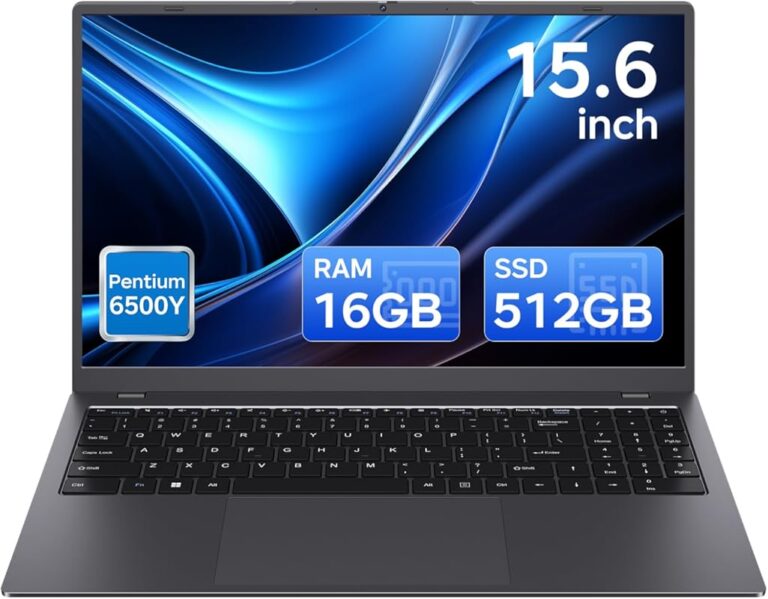
RAM is like your laptop’s short-term memory. The more it has, the more tasks it can handle at once. Most modern games recommend at least 16GB of memory to run smoothly. If you are still running with 8GB, you are likely hitting bottlenecks every time you play.
Upgrading your RAM is one of the easiest and cheapest improvements you can make. Many laptops allow you to add or swap memory sticks without any special tools. For budget-friendly options, check out our picks for gaming laptops with 16GB RAM under 500.
Before you buy, make sure your laptop supports the type of RAM you want. Look up your model number and check the maximum memory it can handle. DDR4 and DDR5 are the current standards, and both offer a noticeable speed boost over older types.
Switch to an SSD
If your laptop still uses a traditional hard drive, upgrading to a solid-state drive is a game-changer. SSDs load games much faster and make your entire system feel snappier. You will notice shorter boot times, quicker game launches, and smoother level transitions.
A 1TB SSD is usually enough for most gamers. It gives you plenty of space for several large titles without breaking the bank. You can find affordable options that fit most laptop models easily.
Upgrade Your GPU When Possible
Some laptops allow you to swap or upgrade the graphics card, but this is less common. Most gaming laptops come with a dedicated GPU soldered to the motherboard. However, external GPU enclosures (eGPUs) offer an alternative. They connect through a Thunderbolt port and give you a desktop-level graphics card.
eGPUs are not cheap, but they are powerful. If you want the absolute best visuals and frame rates, this is worth considering. Just make sure your laptop supports Thunderbolt before you invest.
Software Tweaks to Maximize Performance
You do not always need new hardware to get better performance. Sometimes the right software settings are all you need. Here are the tweaks that deliver the biggest gains.
Enable Game Mode in Windows
Windows 10 and 11 come with a built-in Game Mode feature. It prioritizes system resources for your games and blocks unnecessary notifications. To turn it on, open the Settings app, go to Gaming, and toggle Game Mode on.
This simple switch can improve frame stability. It stops Windows Update and other background tasks from interrupting your gameplay. It is one of the easiest ways to start boosting your setup today.
Update Your Graphics Drivers
GPU manufacturers release driver updates regularly. These updates often include performance improvements for new games and fixes for known issues. Running outdated drivers can leave a lot of performance on the table.
NVIDIA and AMD both offer free tools that automatically check for updates. NVIDIA GeForce Experience and AMD Adrenalin make this process effortless. Set them to check weekly, and you will always stay current.
Adjust In-Game Graphics Settings
You do not need to max out every setting to enjoy a great game. Lowering a few options can dramatically improve your frame rate. Start with these settings:
- Shadow quality: Lowering shadows has a big impact on performance with minimal visual loss.
- Anti-aliasing: This smooths edges but costs a lot of GPU power. Turn it down or off.
- Volumetric lighting: Beautiful but demanding. Reduce it for smoother gameplay.
- Texture quality: Keep this high if you have enough VRAM. It affects visual detail more than performance.
Finding the right balance takes a little experimenting. But most games look great even with a few settings turned down. The goal is a smooth experience, not necessarily perfect graphics.
Close Background Programs
Every program running in the background uses your laptop’s resources. Browsers with many tabs, streaming apps, and even antivirus scans can steal processing power from your games.
Before you launch a game, close everything you do not need. Use the Task Manager to see which programs are using the most memory and CPU. Ending these tasks frees up resources for your game. You will be surprised how much smoother things run with fewer programs competing for attention.
Cooling Solutions That Keep Your Laptop Performing
Heat is the enemy of performance. When your laptop gets too hot, it slows itself down to prevent damage. This is called thermal throttling, and it kills your frame rates. Keeping your laptop cool is one of the most important things you can do to boost laptop gaming.
Use a Cooling Pad
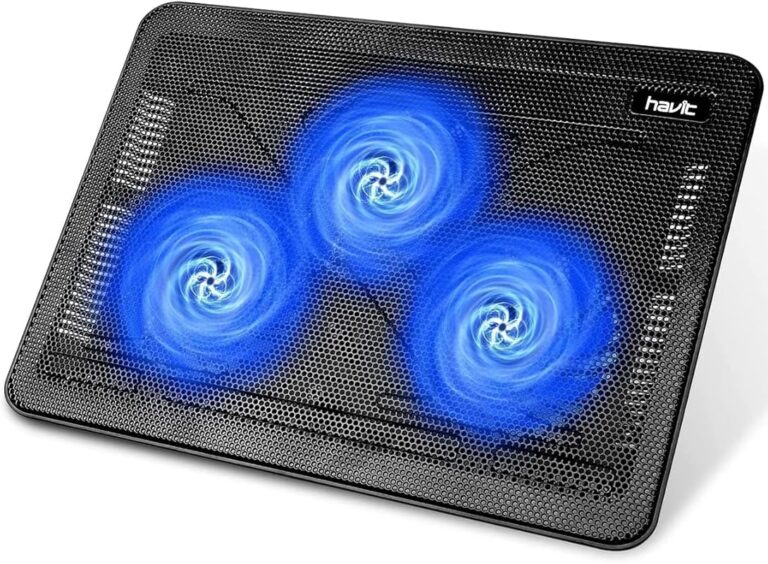
A cooling pad is one of the simplest and most effective upgrades you can make. These pads sit under your laptop and blow extra air across the bottom vents. They come in various sizes and designs to fit different laptops.
Look for a pad with large fans and adjustable fan speeds. Some models even have built-in USB hubs, which is a nice bonus. A good cooling pad can lower your laptop’s temperature by 10 to 15 degrees. That difference alone can prevent thermal throttling during intense gaming sessions.
Clean Your Vents and Fans Regularly
Dust builds up inside your laptop over time. It clogs the fans and blocks airflow, which causes heat to build up faster. Cleaning your vents takes just a few minutes and can make a big difference.
Use compressed air to blow dust out of the vents. Hold the fans still while you do this so they do not spin too fast. Do this every few months, especially if you play in a dusty environment. Your laptop will stay cooler and run quieter.
Elevate Your Laptop
Even without a cooling pad, you can improve airflow by elevating the back of your laptop. A simple laptop stand or even a few books can raise the back end and allow more air to flow underneath.
This small change helps hot air escape more efficiently. It is a free and easy way to keep temperatures down during long gaming sessions.
Power Settings and Battery Optimization
Your laptop’s power plan has a direct impact on gaming performance. If you are plugged in, you want your system running at full power. If you are on battery, you need to balance performance with battery life.
Switch to High Performance Mode
Go to your Power Settings and select the High Performance plan. This tells your laptop to use maximum power for the CPU and GPU. You will notice better frame rates and faster response times.
Keep in mind that this mode drains your battery quickly. Use it only when you are plugged in and ready to game. For longer sessions, make sure your charger is connected.
Reduce Screen Brightness
Your display uses a surprising amount of power. Lowering the brightness a bit can extend your battery life significantly. You probably will not notice much difference in image quality, but your battery will last longer.
Some laptops also offer adaptive brightness, which adjusts automatically based on lighting conditions. Turn this off when gaming so it does not interfere with your settings.
Common Mistakes That Hurt Gaming Performance
Even experienced gamers sometimes make mistakes that hurt their setup. Avoid these common pitfalls to keep your laptop running at its best.
Skipping driver updates: Old drivers cause compatibility issues and miss performance optimizations. Update them regularly.
Ignoring temperatures: Running hot for long periods can damage your hardware over time. Monitor your temps and take action if they get too high.
Overloading your storage: A nearly full hard drive slows down your system. Keep at least 15 to 20 percent of your storage free.
Running too many apps at once: Multitasking while gaming steals resources. Close everything except your game for the best performance.
Neglecting malware scans: Viruses and malware run silently in the background and consume system resources. Keep your antivirus active and run regular scans.
Final Thoughts: How to Keep Boosting Your Laptop Gaming
Boosting your laptop for gaming does not require a huge budget or technical expertise. Start with the easy wins, like closing background apps and updating your drivers. Then move on to hardware upgrades like adding RAM or switching to an SSD. Finally, invest in cooling solutions to keep your laptop running at peak performance.
Every improvement, no matter how small, adds up. You will notice smoother frame rates, faster load times, and a more enjoyable gaming experience. The key is to stay consistent and keep optimizing over time.
Your laptop is a capable gaming machine. With the right tweaks and upgrades, it can perform like a machine that costs twice as much. So take action today and start boosting your setup. Your games will thank you for it.
Frequently Asked Questions
How can I boost my laptop gaming performance for free?
You can boost laptop gaming performance without spending a dime by closing background programs, enabling Windows Game Mode, updating your graphics drivers, and adjusting in-game settings. Lowering shadow quality, anti-aliasing, and volumetric lighting can dramatically improve frame rates. These free tweaks make a noticeable difference right away.
How much RAM do I need for gaming on a laptop?
Most modern games run well with 16GB of RAM, which is the sweet spot for gaming laptops today. If you are still on 8GB, upgrading to 16GB will give you a huge performance boost. For future-proofing, 32GB is ideal but not strictly necessary for most players.
Does a cooling pad really help gaming performance?
Yes, a cooling pad can significantly help by reducing thermal throttling. When your laptop stays cooler, the CPU and GPU maintain higher clock speeds for longer. This translates to better and more consistent frame rates during intense gaming sessions.
Is it worth upgrading from an HDD to an SSD for gaming?
Absolutely. Switching to an SSD dramatically reduces game load times and improves overall system responsiveness. Your games will launch faster, levels will load quicker, and your laptop will feel much snappier in everyday use. It is one of the most worthwhile upgrades you can make.
Can I boost laptop gaming without spending money on hardware?
Yes, software optimizations alone can boost laptop gaming performance a great deal. Updating drivers, closing background apps, adjusting power settings, and tweaking in-game graphics can all improve frame rates without any hardware cost. These steps are the first things you should try before buying anything new.
What is thermal throttling and how does it affect gaming?
Thermal throttling happens when your laptop gets too hot and automatically slows down the CPU and GPU to protect itself. This causes lower frame rates, stuttering, and slower performance. Using a cooling pad, cleaning your vents, and elevating your laptop are easy ways to prevent it.