Playing Games on the Surface Laptop 3
The Surface Laptop 3 is a capable machine for casual and mid-range gaming, thanks to its powerful Intel processors and solid display. While it is not a dedicated gaming laptop, you can enjoy a wide range of titles with the right settings and tweaks. This guide walks you through everything you need to know about gaming on the Surface Laptop 3, from performance expectations to optimization tips.
Key Takeaways
- The Surface Laptop 3 handles casual and mid-tier games well: Titles like Minecraft, Fortnite, and indie games run smoothly on this device.
- Understanding your specs matters: Knowing your processor, RAM, and graphics capabilities helps you pick the right games.
- Lowering game settings boosts performance: Adjusting resolution and graphics quality makes a big difference on this thin device.
- Cooling is essential during long gaming sessions: The Surface Laptop 3 can overheat if you push it too hard for extended periods.
- External accessories improve the experience: A mouse and cooling pad can make gaming much more enjoyable.
- You can upgrade some components: Adding more RAM can help improve gaming performance on older Surface Laptop 3 models.
📑 Table of Contents
- Can the Surface Laptop 3 Handle Gaming?
- Understanding the Surface Laptop 3 Specs for Gaming
- Best Games to Play on the Surface Laptop 3
- Optimizing Game Settings for Better Performance
- Tips to Improve Gaming Performance on the Surface Laptop 3
- Common Problems When Gaming on the Surface Laptop 3
- Conclusion
Can the Surface Laptop 3 Handle Gaming?
Many people ask whether the Surface Laptop 3 is good enough for gaming. The short answer is yes, but with some limits. Microsoft designed this laptop as a productivity and everyday use device, not a dedicated gaming machine. However, it still delivers a surprisingly fun gaming experience for many titles.
The Surface Laptop 3 comes in two main versions: one with an Intel Core i5 processor and another with an Intel Core i7 processor. Both options handle light to medium gaming very well. If you want to play casual games, indie titles, or older AAA releases, this laptop will serve you nicely.
For those wondering can the Surface Laptop 3 run games like Fortnite or Minecraft, the answer is a solid yes. You may need to adjust settings, but the experience remains enjoyable. The key is knowing what to expect and how to get the best performance out of your device.
Hardcore gamers who want ultra-high frame rates at maximum settings will find this laptop lacking. But for everyday gamers who want to relax with a good game after work, the Surface Laptop 3 does a great job. It balances portability, style, and enough power for most gaming needs.
What to Expect from Gaming Performance
You should expect smooth gameplay at medium to low settings for most modern titles. Frame rates will vary depending on the game and your specific configuration. Simple 2D games and older 3D titles will run flawlessly. More demanding 3D games will need some compromise on visual quality.
The integrated Intel graphics in the Surface Laptop 3 are decent for everyday use. They are not as powerful as a dedicated NVIDIA or AMD GPU. But for the types of games most people play, they are more than enough. Think of it as a capable all-rounder rather than a specialist.
Understanding the Surface Laptop 3 Specs for Gaming
Before you start gaming, it helps to understand what you are working with. The Surface Laptop 3 has several specs that directly affect how games run. Let us break them down so you can make informed decisions.
First, you should check your RAM to see what your laptop currently has. The Surface Laptop 3 comes with 4GB or 8GB of RAM in most models. For gaming, 8GB is the recommended minimum. If you have 4GB, some modern games will struggle to run properly.
Processor Performance
The Intel Core i5 and i7 processors in the Surface Laptop 3 are strong for their size. These chips handle multitasking and gaming with ease. The i7 version offers extra power for more demanding titles. Both processors use Intel UHD graphics built right into the chip.
When you are gaming, the processor handles game logic, AI calculations, and physics simulations. A faster processor means smoother gameplay and fewer stutters. The Surface Laptop 3 processors are more than capable for most gaming scenarios.
Graphics and Display
The Surface Laptop 3 features a beautiful 13.5-inch PixelSense display with a resolution of 2256 x 1504. This sharp screen makes games look vibrant and detailed. The display also supports a 10-point touchscreen, which can be useful for certain games.
However, the integrated graphics are the main limitation for gaming. Intel UHD graphics are designed for everyday tasks, not heavy gaming. This means you will need to lower settings in demanding games. The trade-off is worth it for the stunning display quality you get.
Storage and Speed
The Surface Laptop 3 uses SSD storage, which loads games faster than traditional hard drives. Game load times are quick, and you will spend less time staring at loading screens. Storage capacity varies by model, so make sure you have enough space for your game library.
If you find your storage getting full, consider external storage options. You can also look into upgrading your RAM if your model supports it. More RAM and faster storage both contribute to a better gaming experience.
Best Games to Play on the Surface Laptop 3
Not all games are created equal when it comes to the Surface Laptop 3. Some titles run beautifully, while others will push the hardware to its limits. Here is a breakdown of the best games to play on this device.
Casual and Indie Games
Indie games are a goldmine for Surface Laptop 3 users. These titles are often lightweight but incredibly creative and fun. Games like Stardew Valley, Hollow Knight, and Celeste run perfectly on this laptop. You can enjoy hours of gameplay without any performance issues.
Casual games like Among Us, Fall Guys, and Rocket League also work great. These games do not demand high-end hardware, so they are perfect for the Surface Laptop 3. You can play them during breaks or while relaxing at home.
Minecraft and Sandbox Games
Minecraft is one of the most popular games in the world, and it runs well on the Surface Laptop 3. The game is not very demanding, and you can enjoy it at good frame rates. Other sandbox games like Terraria and Don’t Starve Together also perform well.
These games are great because they let you play for short or long sessions. You do not need a powerful machine to enjoy them. The Surface Laptop 3 handles them with room to spare.
Older AAA Titles
If you want to play more demanding games, older AAA titles are your best bet. Games from 2015 to 2018 often run well on the Surface Laptop 3 at medium settings. Titles like GTA V, The Witcher 3, and Skyrim can be enjoyed with some minor setting adjustments.
These games were designed for hardware that is now considered mid-range. The Surface Laptop 3 falls into that category nicely. You may not get maxed-out graphics, but the gameplay experience remains excellent.
Games That May Struggle
Very demanding modern games like Cyberpunk 2077, Red Dead Redemption 2, and Alan Wake 2 will not run well on the Surface Laptop 3. These titles require dedicated graphics cards and more processing power. Trying to force them will result in poor frame rates and frustration.
Stick to the titles that match your hardware capabilities. There are thousands of great games that work perfectly on the Surface Laptop 3. You will never run out of options.
Optimizing Game Settings for Better Performance
Getting the most out of your Surface Laptop 3 for gaming requires some tweaking. You do not need to be a tech expert to make these adjustments. A few simple changes can dramatically improve your gaming experience.
Lowering Resolution and Graphics Settings
The easiest way to boost game performance is to lower the resolution. Running games at 720p instead of the native 1080p or higher can make a big difference. Most games look perfectly fine at lower resolutions, especially on a 13.5-inch screen.
You should also reduce graphics settings like shadows, anti-aliasing, and texture quality. These settings consume the most GPU resources. Turning them down frees up power for smoother gameplay. You can always turn them back up if your laptop handles the game well.
Managing Background Processes
Close unnecessary programs before you start gaming. Background apps consume RAM and processing power that games need. Use the Task Manager to see what is running and close anything you do not need.
Disabling startup programs can also help. Fewer background processes mean more resources for your game. This simple step often improves performance more than any in-game setting change.
Updating Drivers and Software
Keep your Intel graphics drivers up to date. Updated drivers often include performance improvements for games. You can check for driver updates through the Intel Driver & Support Assistant or the Device Manager.
Also make sure your Windows operating system is current. Microsoft regularly releases updates that improve system stability and performance. A well-maintained laptop simply games better.
Using Game Mode in Windows
Windows 10 and 11 include a Game Mode feature designed to optimize your system for gaming. It prioritizes game processes and disables unnecessary notifications. Turn on Game Mode before you launch any game for the best experience.
This feature is simple but effective. It ensures your laptop focuses its resources on the game you are playing. It is one of the easiest performance tweaks you can make.
Tips to Improve Gaming Performance on the Surface Laptop 3
Beyond adjusting game settings, there are several things you can do to improve your overall gaming experience on the Surface Laptop 3. These tips address both hardware and software factors.
Keep Your Laptop Cool
Gaming generates heat, and the thin design of the Surface Laptop 3 can trap it. When your laptop gets too hot, it slows down to protect itself. This is called thermal throttling, and it kills gaming performance.
Use your laptop on a hard, flat surface rather than a bed or couch. Soft surfaces block the vents and trap heat. A small laptop cooling pad can also help keep temperatures in check during long gaming sessions.
Plug In While Gaming
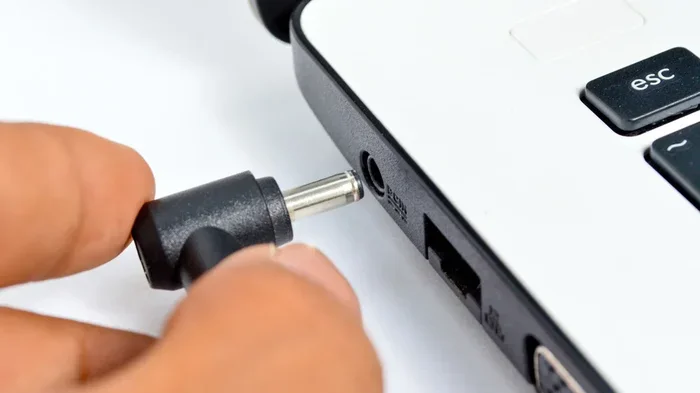
Always play games while your laptop is plugged in. Battery saver mode limits performance to extend battery life. When you are gaming, you want maximum power delivery to the processor and graphics chip.
Playing on battery also generates more heat, which compounds the thermal throttling issue. Plugging in keeps your laptop running at full speed and helps manage temperature.
Consider External Accessories
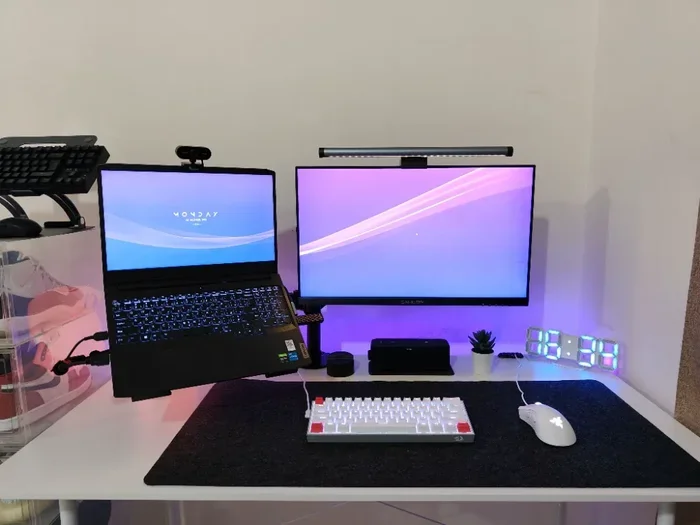
The Surface Laptop 3 keyboard and trackpad are great for work, but gaming is a different story. A USB gaming mouse gives you much more precision and responsiveness. Many gamers find that a mouse completely transforms their laptop gaming experience.
If your mouse is not working properly, you can follow troubleshooting steps to fix it. A working mouse is essential for many games, especially shooters and strategy titles.
Adjust Power Settings
Go to your Windows power settings and select the High Performance plan. This setting allows your processor to run at full speed without throttling. It makes a noticeable difference in game performance.
You can also create a custom power plan tailored for gaming. Balance performance with noise and heat levels to find what works best for you. The High Performance mode is the best starting point for most gamers.
Common Problems When Gaming on the Surface Laptop 3
Even with the best preparation, you may encounter some issues when gaming on the Surface Laptop 3. Here are the most common problems and how to solve them.
Lagging and Stuttering
Lagging is the most common complaint among Surface Laptop 3 gamers. It usually happens when the game is too demanding for your hardware. Lowering graphics settings almost always fixes this problem.
If you still experience lag after adjusting settings, check for background processes. Sometimes a hidden app is consuming resources without you knowing. Restarting your laptop before a gaming session can also clear out memory issues.
Overheating During Long Sessions
The Surface Laptop 3 is thin, which means it has limited space for heat dissipation. Long gaming sessions can cause the laptop to heat up significantly. When this happens, performance drops as the system tries to cool itself down.
Take breaks during long gaming sessions to let your laptop cool down. You can also elevate the back of the laptop with a stand to improve airflow. Keeping the vents clear of dust helps too.
Mouse or Trackpad Issues
Some gamers experience mouse or trackpad problems while playing games. This can be frustrating, especially in fast-paced titles. If your mouse stops responding, try disconnecting and reconnecting it.
You can also check your mouse settings in Windows to make sure it is configured correctly. If you are using a wireless mouse, interference can sometimes cause issues. A wired mouse is often more reliable for gaming on laptops.
Battery Drain
Gaming drains the Surface Laptop 3 battery very quickly. A gaming session that lasts two hours might reduce your battery by 50% or more. This is normal for any laptop, but it is more noticeable on the Surface Laptop 3.
Always keep your charger handy when gaming. If you must game on battery, lower your screen brightness and close background apps to conserve power. But for the best experience, plug in and play.
Audio and Sound Issues
Some users report audio problems when gaming on the Surface Laptop 3. Sound might crackle, cut out, or have a delay. This is often caused by audio driver conflicts or background processes.
Updating your audio drivers usually fixes these issues. You can also try changing the audio output device in Windows settings. Sometimes switching from built-in speakers to headphones resolves the problem.
Conclusion
The Surface Laptop 3 is a surprisingly capable device for gaming. It may not be a gaming laptop in the traditional sense, but it handles a wide variety of titles with ease. Casual gamers, indie game fans, and those who enjoy older AAA releases will find plenty to love.
The key to a great gaming experience on this laptop is managing your expectations and optimizing your settings. Lower your graphics, keep your laptop cool, and choose games that match your hardware. With these simple steps, you can enjoy hours of gaming on your Surface Laptop 3.
If you want to push your laptop further, consider upgrades like additional RAM. Upgrading your RAM can make a noticeable difference in game performance. It is one of the easiest and most affordable ways to improve your gaming experience.
Remember, gaming on the Surface Laptop 3 is about balance. You get a beautiful, portable device that also lets you enjoy your favorite games. It is not perfect for every title, but for the right games, it delivers a wonderful experience. So grab your mouse, pick a game, and start playing.
Frequently Asked Questions
Can the Surface Laptop 3 run Fortnite?
Yes, the Surface Laptop 3 can run Fortnite at medium to low settings. You will get a playable frame rate, though it may not be ultra-smooth at all times. Lowering the resolution and graphics settings helps significantly.
Is the Surface Laptop 3 good for gaming compared to a gaming laptop?
No, a dedicated gaming laptop will always outperform the Surface Laptop 3 in gaming. Gaming laptops have dedicated graphics cards and better cooling systems. However, the Surface Laptop 3 is excellent for casual and mid-range gaming.
Can I connect a gaming mouse to the Surface Laptop 3?
Yes, you can connect a gaming mouse via USB or Bluetooth. A gaming mouse provides much better precision and responsiveness than the built-in trackpad. It is highly recommended for any serious laptop gaming.
Does the Surface Laptop 3 overheat when gaming?
It can overheat during extended gaming sessions due to its thin design. Using a cooling pad and keeping the laptop on a hard surface helps prevent overheating. Taking breaks during long sessions also reduces heat buildup.
What is the best way to improve gaming performance on the Surface Laptop 3?
The best ways are lowering in-game settings, closing background apps, keeping drivers updated, and using the High Performance power plan. These simple steps can make a big difference in frame rates and smoothness.
Can I play VR games on the Surface Laptop 3?
No, the Surface Laptop 3 does not support VR gaming. VR requires powerful dedicated graphics and processing capabilities that this laptop does not have. Stick to traditional screen-based games for the best experience.