Laptop Hardware Issues
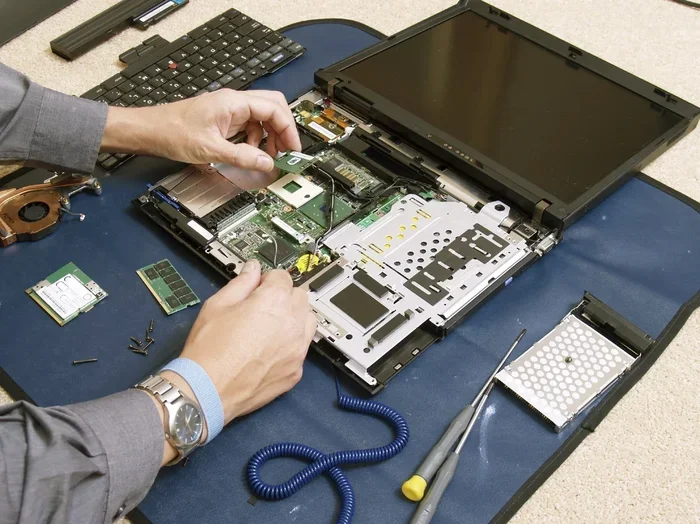
Laptop hardware issues can slow you down, cause frustrating freezes, and even lead to costly repairs if ignored. This guide covers the most common problems like overheating, RAM failures, SSD errors, and motherboard troubles, along with step-by-step fixes you can do at home. You will learn how to spot warning signs early and keep your laptop running smoothly for years.
Laptop hardware issues are more common than most people think. Whether your machine starts freezing randomly, making strange noises, or refusing to turn on, the root cause is almost always something physical inside the device. Understanding these problems early can save you hundreds of dollars and a lot of frustration.
In this guide, we break down the most frequent laptop hardware issues you will encounter. We cover everything from overheating and RAM failures to SSD errors and motherboard problems. Each section includes practical fixes you can try yourself, plus expert tips to prevent future issues. Let us dive in and get your laptop back in shape.
Key Takeaways
- Overheating is the #1 hardware killer: Clean vents and use cooling pads to prevent permanent damage.
- RAM problems cause freezing and slowdowns: A simple upgrade can breathe new life into an old laptop.
- SSD failures show warning signs early: Watch for slow boot times and frequent crashes before total failure.
- Motherboard issues need professional care: Some hardware problems are best left to trained technicians.
- Regular maintenance prevents most issues: Simple habits like updating drivers and cleaning dust go a long way.
- Know when to repair vs. replace: Understanding the cost helps you make smart decisions.
📑 Table of Contents
- Why Laptop Hardware Issues Happen in the First Place
- Overheating: The Most Common Laptop Hardware Issue
- RAM Problems and Slow Performance
- SSD and Storage Drive Failures
- Motherboard and Component Failures
- Screen and Display Hardware Problems
- Battery and Power Hardware Issues
- Preventing Laptop Hardware Issues Before They Start
- Conclusion
Why Laptop Hardware Issues Happen in the First Place
Every laptop has moving parts, electronic components, and thermal limits. Over time, wear and tear take a toll. Dust builds up, thermal paste dries out, and components degrade. Some issues come from normal use, while others stem from accidents like drops or spills.
Here are the most common reasons hardware problems develop:
- Dust accumulation: Dust clogs fans and vents, trapping heat inside the laptop.
- Thermal paste degradation: The paste between the CPU and heatsink dries out over time.
- Power surges: Electrical spikes can fry sensitive components instantly.
- Physical damage: Drops and impacts can crack circuit boards or loosen connections.
- Age and wear: Components naturally degrade after several years of use.
- Poor ventilation: Using a laptop on soft surfaces like beds blocks airflow.
Knowing the cause helps you pick the right fix. Some problems are easy to solve at home, while others need professional attention.
Overheating: The Most Common Laptop Hardware Issue
Overheating tops the list of laptop hardware issues almost every time. When a laptop gets too hot, it slows down, shuts off randomly, or even freezes mid-task. In extreme cases, prolonged overheating can permanently damage the CPU or GPU.
Signs Your Laptop Is Overheating
- The fan runs loudly all the time
- The bottom of the laptop feels burning hot
- Performance drops suddenly during heavy tasks
- The system shuts off without warning
- You see thermal throttling messages
How to Fix Overheating Problems
Start by cleaning the vents and fan. Use compressed air to blow out dust from the exhaust ports. If your laptop allows access to the internal fan, open it up and clean gently with a soft brush.
Next, check your workspace. Never use your laptop on a bed, couch, or pillow. These soft surfaces block the air vents completely. A hard, flat desk is always the best choice. You can also use a laptop cooling pad to add extra airflow.
For older laptops, the thermal paste between the CPU and the heatsink may need replacing. This is a simple and inexpensive fix that makes a huge difference. If overheating persists, the thermal paste is likely the culprit.
Another great step is to check your laptop NVMe M 2 SSD for any issues. A failing drive can cause the system to work harder, generating extra heat in the process.
RAM Problems and Slow Performance
Random Access Memory, or RAM, is one of the most important parts of your laptop. It handles everything you do right now, from browsing the web to running games. When RAM fails or becomes insufficient, your laptop slows down dramatically.
Common RAM Issues
- Blue Screen of Death (BSOD): Faulty RAM often triggers these dreaded error screens
- Random freezes: Your laptop locks up for a few seconds and then recovers
- Apps crashing: Programs close unexpectedly without warning
- Slow multitasking: Switching between browser tabs takes forever
How to Diagnose RAM Problems
Windows has a built-in tool called Windows Memory Diagnostic. Just search for it in the Start menu, and it will test your RAM for errors. You can also use free tools like MemTest86 for a deeper scan.
If you find errors, try reseating the RAM sticks. Turn off the laptop, remove the battery if possible, and gently pull the RAM modules out. Then push them back in firmly until they click. This simple step fixes many connection issues.
When to Upgrade Your RAM
If your laptop has less than 8GB of RAM in 2024, it is time for an upgrade. Most modern tasks need at least 8GB, and 16GB is the sweet spot for smooth performance. Check your laptop model before buying new RAM to ensure hardware compatibility.
For specific guidance, read our article on RAM upgrade for my laptop to find the right memory for your machine.
SSD and Storage Drive Failures
Solid State Drives have replaced old hard drives in most modern laptops. They are faster, quieter, and more reliable. But they are not immune to failure. SSD issues are a major category of laptop hardware issues that many users overlook.
Warning Signs of a Failing SSD
- Your laptop takes a very long time to boot up
- Files take forever to open or save
- You hear clicking or unusual sounds from the drive bay
- The system shows disk error messages frequently
- Your laptop freezes during file operations
How to Check SSD Health
Use tools like CrystalDiskInfo or the built-in Windows Check Disk utility. These programs read the SMART data from your drive and tell you its health status. If the health drops below 80%, you should start backing up your data immediately.
Replacing an SSD is one of the best upgrades you can do. A new laptop with SSD and 16GB RAM setup transforms an old slow machine into something that feels brand new. The entire process takes about 20 minutes if you follow a guide.
Need help with the installation? Our detailed guide on how to install M 2 NVMe SSD in laptop walks you through every step with clear instructions and pictures.
Motherboard and Component Failures
The motherboard is the backbone of your laptop. It connects every component together. When the motherboard fails, the results can be severe, ranging from the laptop not turning on to random shutdowns.
Symptoms of Motherboard Problems
- The laptop will not power on at all
- USB ports stop working suddenly
- The screen flickers or shows no signal
- The laptop beeps repeatedly on startup
- You notice a burning smell coming from the device
Common Causes of Motherboard Damage
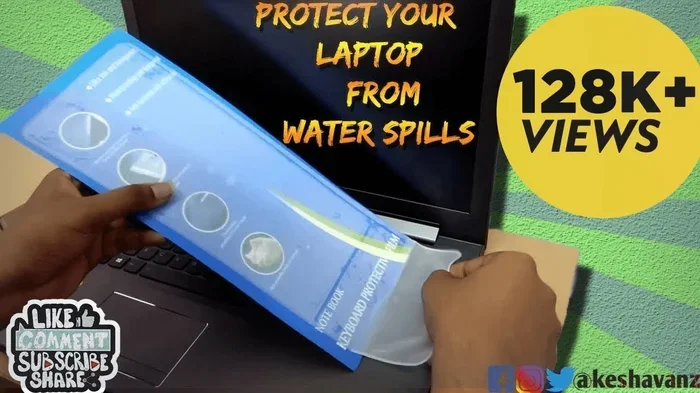
Power surges are the biggest enemy of motherboards. Always use a surge protector or a UPS (Uninterruptible Power Supply) to protect your laptop. Liquid spills are another major cause. Even a small amount of water can corrode the circuits and cause permanent damage.
Overheating also damages the motherboard over time. When the CPU runs too hot for too long, it can warp the circuit board. This is why preventing overheating is so important for the overall health of your laptop.
Repair or Replace?
Motherboard repairs can be expensive, often costing more than the laptop is worth. For older machines, replacing the entire laptop is usually the better option. However, if your laptop is relatively new and under warranty, contact the manufacturer first. Many brands cover motherboard defects for one to three years.
Screen and Display Hardware Problems
Laptop screen issues are visually obvious and very frustrating. A cracked or flickering display can make your laptop nearly unusable. Most screen problems fall into a few clear categories.
Types of Display Issues
- Cracked or broken screen: Usually from drops or impacts
- Flickering display: Could be a loose cable or failing backlight
- Dark or dim screen: The backlight may be dying
- Horizontal lines: Often a sign of LCD panel damage
- Touchscreen unresponsive: The digitizer layer has failed
Quick Fixes to Try First
Before replacing the screen, check the display cable connection. Open the laptop carefully and reseat the cable between the screen and the motherboard. Sometimes a loose cable causes flickering or no display at all.
Also, try connecting your laptop to an external monitor. If the external display works fine, the problem is almost certainly the laptop screen itself. If both displays show the same issue, the problem is likely the graphics card or motherboard.
Battery and Power Hardware Issues
Laptop batteries degrade over time. After two to three years, you will notice shorter battery life and more frequent charging. This is normal wear and not necessarily a hardware defect.
When Battery Problems Signal Hardware Failure
- The laptop only works when plugged in
- The battery swells or bulges
- The charging light does not turn on
- The laptop shuts off immediately after unplugging
A swollen battery is a serious safety hazard. Stop using the laptop immediately and replace the battery. Do not puncture or dispose of a swollen battery in regular trash. Take it to a proper recycling center.
For most laptops, replacing the battery is straightforward. You just need to find the correct model number and order a replacement. Many online retailers sell OEM and aftermarket batteries at reasonable prices.
Preventing Laptop Hardware Issues Before They Start
The best way to deal with laptop hardware issues is to prevent them from happening in the first place. A few simple habits can extend the life of your laptop by several years.
Daily Habits That Protect Your Hardware
- Keep your laptop on a hard, flat surface for proper airflow
- Clean the vents with compressed air every month
- Avoid eating or drinking near your laptop
- Use a surge protector for your charging cable
- Keep your laptop in a cool, dry environment
- Update your drivers and BIOS regularly
- Back up your data frequently to an external drive
Regular Maintenance Schedule
Set a reminder to check your laptop every three months. Clean the dust from vents, check the battery health, and run diagnostic tools on your storage drive. This simple routine catches small problems before they become big, expensive ones.
Also, consider upgrading components over time. Adding more RAM or replacing an old HDD with a new laptop NVMe M 2 SSD can make a five-year-old laptop feel like new again. These upgrades are affordable and make a noticeable difference in daily performance.
For more information on choosing the right storage upgrade, check out our guide on laptop NVMe M 2 SSD options and compatibility.
Conclusion
Laptop hardware issues are frustrating, but most of them are preventable or fixable with the right knowledge. From overheating and RAM failures to SSD errors and screen problems, understanding what causes these issues puts you in control. Regular maintenance, smart usage habits, and timely upgrades can keep your laptop running smoothly for many years.
Do not ignore warning signs like slow performance, unusual noises, or random shutdowns. These are your laptop’s way of telling you something is wrong. Address the problem early, and you will save money and avoid the headache of a total hardware failure. Take action today, and your laptop will thank you tomorrow.
Frequently Asked Questions
What are the most common laptop hardware issues?
The most common problems include overheating, RAM failures, SSD or hard drive errors, screen flickering, battery degradation, and motherboard issues. Most of these can be prevented with regular cleaning and proper usage habits.
How do I know if my laptop RAM is failing?
Signs of failing RAM include random freezes, blue screens, apps crashing, and slow multitasking. You can run the Windows Memory Diagnostic tool or MemTest86 to check for errors in your RAM modules.
Can overheating damage my laptop permanently?
Yes, prolonged overheating can permanently damage the CPU, GPU, and motherboard. It can also warp internal components and degrade the battery faster. Keeping vents clean and using your laptop on hard surfaces prevents most overheating problems.
How often should I replace my laptop SSD?
SSDs can last 5 to 10 years or more under normal use. You should replace yours when you notice very slow boot times, frequent crashes, or when the SMART health status drops below 80 percent.
Is it worth repairing a laptop motherboard?
It depends on the age and value of the laptop. For newer machines under warranty, repairs are usually worth it. For older laptops, the repair cost often exceeds the value of the device, so replacing the laptop makes more sense.
What should I do if my laptop battery is swollen?
A swollen battery is a safety hazard. Stop using the laptop immediately, unplug it, and take it to a professional repair shop or recycling center. Do not puncture or throw a swollen battery in the trash.