Laptop Charger Flickering on and Off
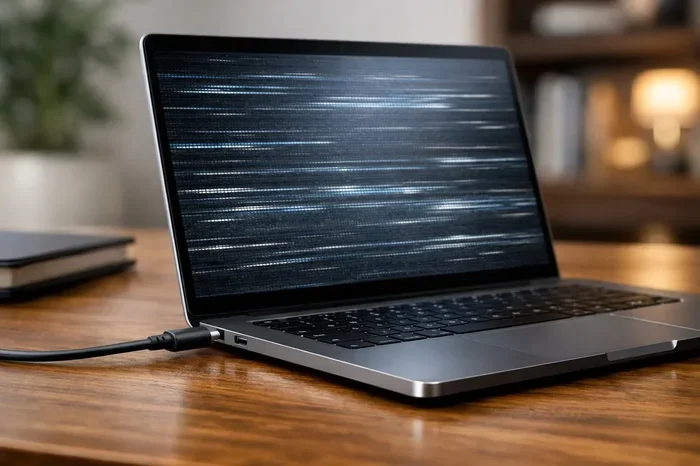
A flickering laptop charger is annoying and can signal serious issues. Whether your laptop charger flickering on and off is caused by a loose connection, a damaged cable, or a faulty power adapter, this guide covers every possible fix. You will learn how to diagnose the root cause, apply simple solutions at home, and know when it is time to replace your charger.
Nothing is more frustrating than sitting down to work on your laptop, only to watch the charging light blink on and off every few seconds. A laptop charger flickering on and off is a problem many people face, and it can happen for a variety of reasons. Sometimes the fix is as simple as reseating a cable. Other times, it points to a deeper issue that needs attention.
In this guide, we will walk you through every possible cause and every practical fix. You do not need to be a tech expert to work through this. We will keep things simple, clear, and actionable. By the end, you will know exactly what is causing the flickering and how to stop it for good.
Key Takeaways
- Loose connections are the most common reason for a flickering charger and are easy to fix.
- Damaged cables and worn-out adapters need immediate replacement to avoid further damage.
- Overheating power adapters can cause intermittent charging and should be addressed quickly.
- Software and driver issues can sometimes mimic hardware charger problems.
- Using the wrong charger or a low-quality knockoff often leads to flickering and instability.
- Electrical outlet problems and voltage fluctuations are overlooked but common causes.
- Knowing when to seek professional help saves time and protects your laptop.
📑 Table of Contents
Why Is My Laptop Charger Flickering On and Off?
A flickering charger means power is not flowing steadily to your laptop. This can happen for many reasons, ranging from simple loose connections to more serious hardware problems. Let us break down the most common causes so you can start troubleshooting.
Loose or Dirty Charging Port
The most common reason for a laptop charger flickering on and off is a loose connection. Over time, the charging port on your laptop can become worn or filled with dust and lint. When the charger plug does not sit snugly in the port, power delivery becomes inconsistent, and the charging light starts to blink.
Try wiggling the charger plug gently while it is connected. If the light changes or turns off, you have found your culprit. Dirt and debris inside the port can also prevent a solid connection. A can of compressed air can help clear out any dust safely.
Damaged or Frayed Charger Cable
Charger cables take a beating every day. They get bent, stepped on, and wrapped up tightly in bags. All of this wear and tear can cause the internal wires to break, even if the outer jacket looks fine. A damaged cable will often cause the charger to flicker or stop working altogether.
Inspect your cable carefully along its entire length. Look for kinks, exposed wires, or sections where the rubber coating is peeling away. If you see any of these signs, it is time to replace the cable. Using a damaged cable is not just inconvenient; it can also be a safety risk.
Faulty Power Adapter
The power adapter itself can fail over time. Inside every adapter, there are electronic components that convert wall power into the right voltage for your laptop. These components can wear out, especially if the adapter has been exposed to heat or power surges.
If your adapter feels unusually hot to the touch, or if it makes a buzzing sound, those are red flags. A faulty adapter may still send some power, but it will not be consistent, which leads to the flickering behavior you are seeing.
Common Causes of Laptop Charger Flickering
Beyond the obvious physical issues, several other factors can cause your charger to flicker. Understanding these will help you narrow down the problem faster.
Overheating Power Adapter
Adapters generate heat during normal use, but excessive heat is a problem. If your charger is running hot, the internal components may be struggling. Overheating can cause the adapter to shut down temporarily and then restart, which looks like flickering from the outside.
Make sure your adapter has enough airflow. Do not place it on soft surfaces like beds or couches where the vents can get blocked. A cool adapter is a reliable adapter.
Wrong or Incompatible Charger
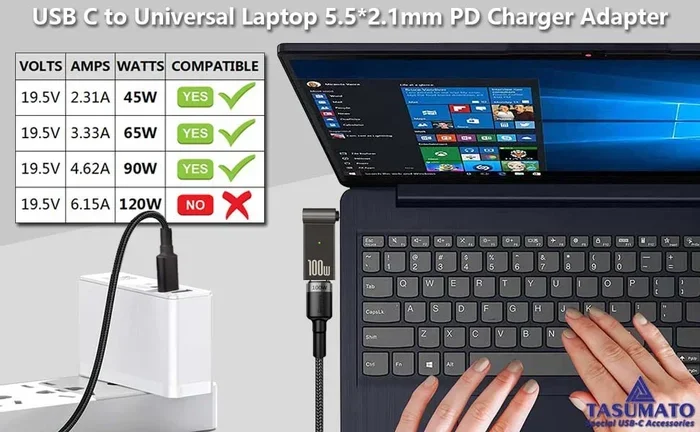
Not all chargers are created equal. Using a charger with the wrong wattage or voltage can cause all sorts of issues, including flickering. If you recently switched to a different charger or borrowed one from a friend, this could be the reason.
Always check your laptop manufacturer’s recommended charger specifications. The label on your original charger will tell you the voltage and amperage you need. Using a knockoff or generic charger might save money short-term, but it often leads to bigger problems down the road.
Electrical Outlet and Voltage Issues
Sometimes the problem is not the charger at all but the outlet you are using. Old wiring, loose outlets, and voltage fluctuations in your home can all cause inconsistent power delivery.
Try plugging your charger into a different outlet in another room. If the flickering stops, the original outlet was the issue. You might also want to avoid using extension cords or power strips for charging, as these can reduce the power flow to your charger.
How to Fix a Flickering Laptop Charger
Now that you know the common causes, let us get into the fixes. Most of these steps are simple and can be done at home with no special tools.
Step 1: Check the Physical Connection
Start with the basics. Unplug the charger from both the laptop and the wall. Inspect the charging port on your laptop and the tip of the charger plug. Clean out any dust or debris using compressed air or a soft, dry brush. Then plug everything back in firmly and see if the flickering stops.
This simple step resolves the issue more often than people realize. A snug fit makes all the difference.
Step 2: Inspect the Cable and Adapter
Next, give your charger cable and adapter a thorough visual inspection. Look for any visible damage like fraying, cuts, or exposed wires. Check the adapter brick for cracks or scorch marks. If anything looks off, do not keep using it. A damaged charger is a fire hazard.
If the cable is the problem and you can find an exact replacement, swap it out. Many manufacturers sell replacement cables separately, which is much cheaper than buying a whole new adapter.
Step 3: Try a Different Outlet
As mentioned above, the outlet itself might be the issue. Plug your charger into a different wall outlet and see if the flickering continues. If you have access to a multimeter, you can even check the voltage output of the outlet to make sure it is stable.
If the flickering stops with a different outlet, you know the original outlet is faulty. Consider having an electrician check your home wiring if this happens often.
Step 4: Update Your Laptop Drivers
Here is something many people overlook: software issues can sometimes cause flickering. Your laptop’s battery drivers and power management software play a role in how charging works. Outdated or corrupted drivers can interfere with the charging process.
Go to your laptop manufacturer’s website and download the latest battery and power management drivers. On Windows, you can also open Device Manager, find your battery entry, right-click it, and select Update Driver. This simple step can sometimes solve the problem without any hardware changes.
Step 5: Reset the Battery
If your laptop has a removable battery, try taking it out, unplugging the charger, and holding the power button for 30 seconds. Then reinsert the battery, plug in the charger, and turn the laptop on. This resets the power circuit and can clear up temporary charging glitches.
For laptops with built-in batteries, you may need to look up the specific reset procedure for your model. Many manufacturers provide detailed instructions on their support websites.
When to Replace Your Laptop Charger
Not all flickering issues can be fixed with simple troubleshooting. Sometimes the charger itself is at the end of its life and needs to be replaced.
Here are clear signs that it is time for a new charger:
- The charger cable is visibly damaged or frayed in multiple places.
- The adapter brick is cracked, discolored, or smells like it is burning.
- The flickering persists even after trying all the fixes above.
- Your laptop only charges when the cable is held at a specific angle.
- The charger gets extremely hot within minutes of being plugged in.
When buying a replacement, always go with the manufacturer’s recommended charger or a reputable third-party brand that matches the exact voltage and amperage specifications. A cheap knockoff might work for a while, but it often causes more problems than it solves.
Preventing Charger Flickering in the Future
Once you have fixed the flickering issue, you will want to keep it from happening again. Prevention is always easier than repair.
- Handle your charger gently. Avoid yanking the cable from the outlet or the laptop. Pull from the plug, not the cord.
- Store it properly. Coil the cable loosely and avoid tight bends. A cable management pouch can help keep things tidy.
- Keep the charging port clean. Regularly check your laptop’s charging port for dust and lint. A quick clean every few weeks goes a long way.
- Use a surge protector. Power surges can damage your charger and your laptop. A good surge protector adds a layer of defense.
- Avoid extreme temperatures. Do not leave your charger in a hot car or in freezing conditions. Heat and cold both degrade the internal components over time.
Taking care of your charger will not only prevent flickering but will also extend its overall lifespan. A little effort goes a long way.
Related Laptop Hardware Tips
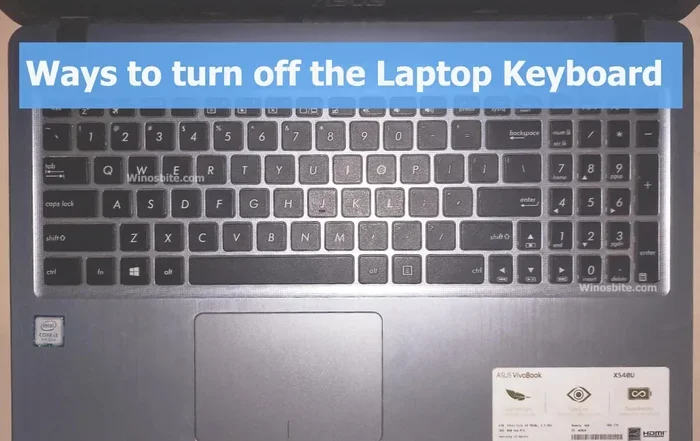
Dealing with charger issues often means you are also paying attention to other laptop hardware quirks. If you have noticed that your keypad and mouse are also not working on your laptop alongside the flickering charger, there could be a broader hardware or power issue at play. Intermittent power delivery can sometimes affect multiple components.
Similarly, if you are trying to conserve battery life and want to turn off the touch mouse when you are not using it, that is a smart move. Reducing power draw can help your battery last longer and reduce strain on your charging system.
For those who want to dive deeper into laptop settings, learning how to turn off the built-in mouse can also help with troubleshooting power-related issues. Sometimes disabling certain hardware features can reveal whether the problem is software or hardware related.
Final Thoughts
A laptop charger flickering on and off is a frustrating problem, but it is almost always fixable. Start with the simple stuff: check the connection, inspect the cable, and try a different outlet. If those steps do not work, move on to driver updates and battery resets. And if the charger is genuinely damaged, do not hesitate to replace it.
Remember, your charger is the lifeline for your laptop. Taking care of it properly will save you time, money, and a lot of headaches. Use the tips in this guide to keep your charging steady and reliable for years to come.
Frequently Asked Questions
Why does my laptop charger keep turning on and off?
The most common reason is a loose or dirty charging port. Dust, lint, or a worn-out connection can interrupt power flow and cause the charger to turn on and off repeatedly. Cleaning the port and ensuring a snug fit often solves this problem quickly.
Is a flickering laptop charger dangerous?
A flickering charger can be a sign of internal damage, which may pose a fire or electrical hazard. If the charger is overheating, smells burning, or has visible damage, stop using it immediately and replace it with a proper, manufacturer-approved charger.
Can a bad power outlet cause my charger to flicker?
Yes, absolutely. A loose outlet, faulty wiring, or voltage fluctuations in your home can cause inconsistent power delivery to your charger. Try plugging the charger into a different outlet to see if the flickering stops.
How do I know if my laptop charger needs to be replaced?
If the charger cable is frayed, the adapter brick is cracked or discolored, the flickering persists after all troubleshooting steps, or the charger gets excessively hot, it is time to replace it. Using a damaged charger can damage your laptop battery and internal components.
Can software issues cause a laptop charger to flicker?
Yes, in some cases. Outdated battery drivers or corrupted power management software can interfere with how your laptop handles charging. Updating your drivers or resetting your battery settings can sometimes resolve the flickering issue.
Will using a different charger fix the flickering problem?
It depends on the cause. If the original charger is faulty, using a compatible replacement charger with the correct voltage and amperage will fix the problem. However, if the issue is with the laptop’s charging port or battery, a new charger alone may not solve it.
=== CONCLUSION ===
A laptop charger flickering on and off is a common but solvable problem. Most of the time, the fix is simple and does not require any special tools or technical skills. Start by checking the physical connection, inspecting the cable, and trying a different outlet. If those steps do not work, move on to driver updates and battery resets. And if the charger is genuinely damaged, replacing it is the safest and most reliable solution.
Take care of your charger, use the right accessories, and stay on top of basic maintenance. Your laptop will charge steadily, and you can get back to your work without interruptions. Follow the tips in this guide, and you will be able to handle a flickering charger like a pro.