Laptop Battery Replacement Options Procedures
Laptop battery replacement is a simple process that can breathe new life into an aging device. Whether you choose an OEM battery, a third-party option, or an external charger, this guide covers every laptop battery replacement option and procedure you need to know. Save money, extend your laptop’s lifespan, and avoid common mistakes with our expert tips.
Your laptop battery is the engine behind every task you complete on the go. Over time, laptop battery replacement becomes necessary as capacity fades and charge times shorten. A dying battery can turn a productive work session into a frustrating experience. But the good news is that replacing a laptop battery is simpler and more affordable than most people think.
In this guide, we walk you through every laptop battery replacement option and procedure available today. From choosing between OEM and third-party batteries to step-by-step installation instructions, you will find everything you need. We also share practical tips to make your new battery last as long as possible. Whether you use your laptop for work, study, or entertainment, this guide has you covered.
Key Takeaways
- Know Your Battery Type: Understanding lithium-ion and lithium-polymer differences helps you choose the right replacement.
- OEM vs. Third-Party: OEM batteries offer reliability, while third-party options save money — both have pros and cons.
- Replacement Is Easier Than You Think: Most laptops allow DIY battery swaps with basic tools in under 30 minutes.
- Safety First: Always power down your laptop and disconnect the charger before starting any battery replacement.
- Extend Battery Life: Simple habits like avoiding full discharges and managing charging cycles keep your new battery healthy longer.
- Know When to Call a Pro: If your laptop has an internal battery or you feel unsure, professional help is always a smart choice.
📑 Table of Contents
- Why Your Laptop Battery Needs Replacement
- Types of Laptop Batteries Available for Replacement
- Step-by-Step Battery Replacement Procedure
- How to Choose the Right Replacement Battery
- Tips to Extend Your New Battery’s Life
- When to Seek Professional Help
- Common Mistakes to Avoid During Battery Replacement
- How to Dispose of Your Old Laptop Battery
- Conclusion
Why Your Laptop Battery Needs Replacement
Every laptop battery has a limited lifespan. Most lithium-ion batteries last between 300 and 500 charging cycles before they start to degrade. After two or three years of regular use, you may notice your battery health dropping significantly. What once lasted eight hours now barely makes it through two.
Several signs point to a battery that needs replacing. Your laptop shuts down unexpectedly even when the charge shows 20 percent. The battery swells or the laptop case feels warm near the bottom. Charging takes much longer than it used to. These are clear signals that it is time to explore battery replacement options.
Understanding Battery Degradation
Battery degradation happens naturally with every charge cycle. Each time you charge your laptop from zero to 100 percent, the chemical inside the cell weakens slightly. Over hundreds of cycles, this adds up. Heat accelerates the process too. If you often use your laptop on a bed or couch, blocked vents can cause overheating that damages the battery faster.
The good news is that modern laptops include built-in battery health monitoring. Windows and macOS both show battery health status in system settings. Checking this regularly helps you catch problems early. It also helps you decide whether a full replacement makes sense or if a simple battery calibration will do the trick.
Types of Laptop Batteries Available for Replacement
Not all laptop batteries are the same. Knowing the different types helps you make a smart choice. Each option comes with its own benefits and trade-offs.
OEM Batteries
OEM stands for Original Equipment Manufacturer. These batteries come directly from the laptop maker, such as Dell, HP, Lenovo, or Apple. OEM batteries are designed specifically for your model. They match the original specifications in terms of battery capacity, voltage, and connector type.
The biggest advantage of OEM batteries is reliability. They come with a manufacturer warranty, often lasting one year. They also undergo strict quality control. The downside is cost. OEM batteries can be 30 to 50 percent more expensive than alternatives. If you want peace of mind and long-term safety, an OEM battery is the way to go.
Third-Party Batteries
Third-party batteries are made by companies other than your laptop manufacturer. Many reputable brands produce high-quality replacement batteries that meet or exceed OEM standards. Brands like Green Cell, Cameron Sino, and NBcell offer affordable options with solid performance.
The main benefit is price. Third-party batteries often cost 40 to 60 percent less than OEM versions. You can find a wide range of battery capacities too, from standard replacements to high-capacity upgrades. The risk is quality inconsistency. Some cheap brands use lower-grade cells that degrade faster or lack proper safety certifications. Always buy from trusted sellers with good reviews.
External Battery Packs and USB-C Charging
For laptops with non-removable batteries, external options are gaining popularity. USB-C power banks can charge your laptop on the go. Some external battery packs are specifically designed for laptops and offer capacities of 60Wh to 100Wh. These are especially useful for laptop battery extension during travel or long work sessions away from an outlet.
External packs are not a true replacement for an internal battery, but they serve as a great backup solution. They are also useful if you want to avoid opening your laptop. Check whether your laptop supports USB-C charging before buying one.
Step-by-Step Battery Replacement Procedure
Replacing your laptop battery yourself is doable with the right tools and a little patience. Follow these steps carefully to ensure a safe and successful swap.
Step 1: Gather Your Tools
Before you start, collect the essentials. You will need a small Phillips screwdriver, a plastic spudger or pry tool, and an anti-static wrist strap. The anti-static strap prevents static discharge that could damage your laptop’s internal components. Work on a clean, flat surface with good lighting.
Step 2: Power Down and Disconnect
Shut down your laptop completely. Unplug the charger and disconnect any external devices. This is a critical safety step. Never attempt battery work while the laptop is powered on or plugged in. If your laptop has an internal battery that cannot be disconnected easily, hold the power button for 15 seconds to drain any residual charge.
Step 3: Locate and Remove the Old Battery
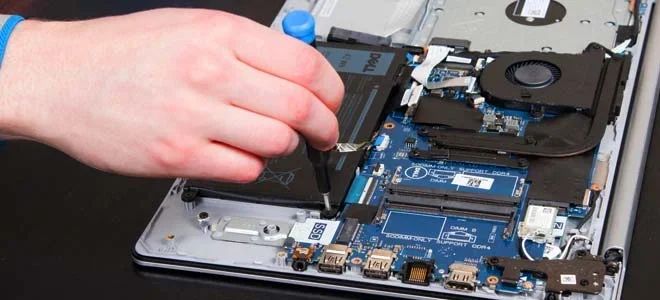
Flip your laptop over and locate the battery compartment. Some laptops have a removable battery held by screws or clips. Others have an internal battery secured with adhesive or additional screws. Use the plastic spudger to gently pry open the case if needed. Disconnect the battery connector carefully by lifting the latch or pulling the cable straight out.
Remove any screws holding the battery in place. If the battery is glued, use a plastic tool to gently lift it. Never use metal tools near the battery, as puncturing the cell can cause a fire hazard.
Step 4: Install the New Battery
Place the new battery in the compartment. Reconnect the battery connector by pressing it firmly into the slot. Secure the battery with screws or clips as needed. If the battery came with adhesive strips, press it firmly into place and hold for 30 seconds.
Close the laptop case and reconnect the charger. Power on your laptop and check if the battery is recognized. Most laptops will show a charging indicator within seconds. Let the battery charge to 100 percent before unplugging.
Step 5: Calibrate the New Battery
Battery calibration helps your laptop accurately report charge levels. Charge the battery to 100 percent and keep it plugged in for one extra hour. Then unplug and use the laptop until it shuts down from low battery. Plug it back in and charge to 100 percent again. This process resets the battery gauge and improves accuracy.
How to Choose the Right Replacement Battery
Choosing the right battery can feel overwhelming with so many options available. Here are the key factors to consider.
Check Compatibility First
Not every battery fits every laptop. Always verify the model number of your laptop before purchasing a replacement. Check the original battery label for its part number, voltage, and capacity. Match these specifications exactly when buying a new battery. Using an incompatible battery can damage your laptop or pose a safety risk.
Consider Battery Capacity
Battery capacity is measured in watt-hours (Wh) or milliampere-hours (mAh). A higher capacity means longer usage time on a single charge. If you need extended battery life for travel or remote work, consider a high-capacity replacement. Just make sure the higher capacity battery physically fits inside your laptop’s compartment.
Some laptops allow battery upgrades from the factory configuration. For example, replacing a 48Wh battery with a 72Wh option can significantly extend your runtime. This is a popular choice among professionals who work away from power outlets for long hours.
Look for Safety Certifications
Safety should never be compromised. Look for batteries with UL, CE, or ISO certifications. These marks indicate the battery has passed rigorous safety testing. Avoid batteries with no brand name, vague specifications, or suspiciously low prices. A cheap battery might save you money upfront but could pose serious risks like overheating or swelling.
Tips to Extend Your New Battery’s Life
Replacing your battery is only half the battle. Proper care ensures the new battery stays healthy for years. Here are proven tips to maximize battery longevity.
- Avoid Full Discharges: Keep your battery between 20 and 80 percent charge. Deep discharges stress the battery cells and shorten their lifespan.
- Manage Charging Cycles: A charging cycle equals draining the battery from 100 to zero and back to 100. Fewer cycles mean longer battery health. Use your laptop plugged in when possible to reduce cycles.
- Keep It Cool: Heat is the number one enemy of lithium-ion batteries. Use a cooling pad during heavy tasks and avoid using your laptop on soft surfaces like beds or pillows.
- Update Power Management Settings: Both Windows and macOS offer battery saver modes. Enable these to reduce power consumption and slow battery wear.
- Store Properly: If you store your laptop for weeks, keep the battery at around 50 percent charge in a cool, dry place.
Following these habits can add years of useful life to your replacement battery. They are simple but effective ways to protect your investment.
When to Seek Professional Help
While many laptop owners can replace their battery themselves, some situations call for professional assistance. If your laptop has an internal battery that is difficult to access, a technician can handle the job safely. Laptops like the MacBook Pro and MacBook Air have batteries glued inside the chassis. Removing these requires specialized tools and expertise.
If you notice swelling or physical damage to the old battery, do not attempt removal yourself. Swollen batteries are a fire hazard and need careful handling. Take your laptop to an authorized service center or a trusted repair shop. They have the proper equipment to dispose of damaged batteries safely.
Professional replacement also makes sense if your laptop is still under warranty. Opening the laptop yourself may void the warranty. Contact the manufacturer or an authorized service provider to arrange a free or low-cost replacement. Many manufacturers offer battery replacement programs that keep costs minimal.
Common Mistakes to Avoid During Battery Replacement
Even with the best intentions, mistakes happen during battery replacement. Here are common errors to watch out for.
- Skipping Safety Steps: Never work on a powered-on laptop. Always disconnect power and remove the battery connector first.
- Using Metal Tools: Metal screwdrivers or tools can short-circuit the battery connector. Always use plastic tools when prying or disconnecting.
- Forcing Parts: If a screw or clip does not move easily, stop and reassess. Forcing components can break the laptop casing or damage the battery connector.
- Ignoring Compatibility: Buying a battery based on price alone without checking compatibility is a recipe for problems. Always match the part number and specifications.
- Skipping Calibration: A new battery without calibration may report inaccurate charge levels. Always run the full calibration process after installation.
Avoiding these mistakes ensures a smooth replacement process and a battery that performs as expected.
How to Dispose of Your Old Laptop Battery
Old laptop batteries contain chemicals that can harm the environment if thrown in the trash. Never dispose of lithium-ion batteries in household waste. Instead, take your old battery to a local recycling center or electronics store that accepts battery recycling. Many retailers like Best Buy and Staples offer free battery drop-off programs.
Proper disposal is an important part of the replacement process. It keeps harmful materials out of landfills and supports sustainable electronics practices. Some manufacturers also offer mail-in recycling programs for old batteries. Check your laptop brand’s website for details.
Conclusion
Laptop battery replacement is one of the most impactful upgrades you can make for an aging laptop. Whether you choose an OEM battery for reliability, a third-party option for savings, or an external pack for flexibility, the right choice depends on your needs and budget. The replacement procedure itself is straightforward and manageable with basic tools and careful attention to safety steps.
By choosing the correct battery, following the proper installation steps, and adopting good charging habits, you can extend your laptop’s usable life by years. Do not let a fading battery hold you back. Take action today and enjoy the freedom of a fully charged laptop again.
For more tips on keeping your laptop running at its best, explore our guides on gaming laptops with excellent battery life and learn about power consumption when plugged in. If you are concerned about safety, read our article on can a laptop explode from overheating to understand the risks and prevention strategies.
Frequently Asked Questions
How do I know if my laptop battery needs replacing?
Signs include significantly reduced runtime, unexpected shutdowns, slow charging, and physical swelling. Check your battery health in system settings to confirm. If the battery health drops below 80 percent, replacement is usually the best option.
Can I replace my laptop battery myself?
Yes, most laptops with removable batteries allow DIY replacement. You need basic tools like a screwdriver and plastic spudger. Always power down and disconnect the charger first. If your laptop has an internal battery, consider professional help for safety.
How much does a laptop battery replacement cost?
OEM batteries typically cost between $50 and $150 depending on the brand and model. Third-party options are often cheaper, ranging from $25 to $80. External battery packs can cost $40 to $120. The price varies based on capacity and compatibility.
How long does a new laptop battery last?
A new lithium-ion battery typically lasts 2 to 4 years or 300 to 500 charging cycles. Proper care like avoiding full discharges and keeping the laptop cool can extend this lifespan significantly. Usage habits play a big role in battery longevity.
Is it safe to use a third-party laptop battery?
Yes, as long as you buy from a reputable brand with proper safety certifications like UL or CE. Avoid unbranded or suspiciously cheap batteries. Check reviews and verify compatibility before purchasing any third-party option.
Should I calibrate my new laptop battery after replacement?
Yes, calibration is highly recommended. It helps the laptop accurately report battery levels. Charge to 100 percent, keep it plugged in for an hour, then drain to zero and recharge fully. This process resets the battery management system for better accuracy.