What Is Bottlenecking
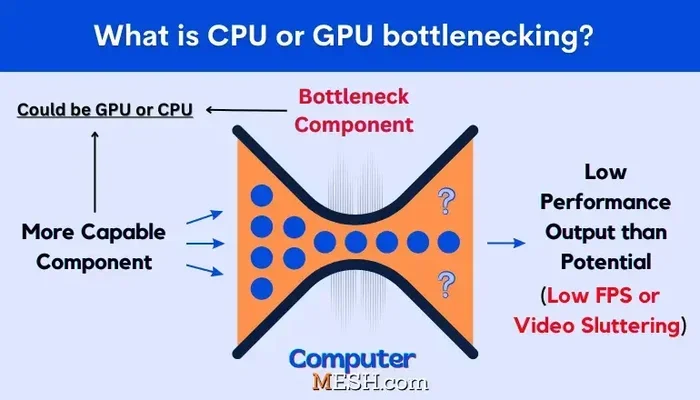
Bottlenecking happens when one PC component limits the performance of your entire system. It occurs when a powerful part like a graphics card is paired with a weaker component such as a slow processor or insufficient memory. Understanding this imbalance helps you build or upgrade a PC that runs at its full potential.
If you have built or bought a PC and it still feels slow, you might be dealing with bottlenecking. This is one of the most common issues PC users face, yet many people do not even know what it means. Simply put, bottlenecking is when one part of your system is not fast enough to keep up with the others. Think of it like a highway with six lanes, but a single-lane road feeding into it. No matter how wide the highway is, traffic can only move as fast as that narrow entrance allows.
In a PC, this means your powerful graphics card might sit idle while your processor struggles to keep up. Or your fast SSD might be held back by not enough RAM. The result is frustrating. Games stutter. Videos lag. And your expensive hardware does not deliver the performance you paid for. This guide breaks down everything you need to know about bottlenecking, from what causes it to how you can fix it.
Key Takeaways
- Bottlenecking means one component holds back the rest of your system.
- Common causes include mismatched CPU and GPU, low RAM, or slow storage.
- Signs include low frame rates, stuttering, and high usage on one part while others sit idle.
- You can fix bottlenecks by balancing components or upgrading the weak link.
- Using a bottleneck calculator helps predict issues before you buy parts.
- Regular maintenance and smart upgrades prevent most bottlenecking problems.
📑 Table of Contents
- What Does Bottlenecking Mean in a PC?
- What Causes Bottlenecking?
- How to Spot Bottlenecking
- How to Fix Bottlenecking
- Is Bottlenecking Always Bad?
- How to Prevent Bottlenecking When Building a PC
- Common Mistakes People Make With Bottlenecking
- The Role of RAM in Preventing Bottlenecking
- Final Thoughts on Bottlenecking
What Does Bottlenecking Mean in a PC?
Bottlenecking gets its name from a bottle shape. The neck of the bottle is narrow, so liquid flows through slowly no matter how much is in the body. In computing, the same idea applies. Your PC has many parts working together. The CPU, GPU, RAM, and storage all share data back and forth. When one part is significantly slower than the rest, it creates a choke point. That choke point is the bottleneck.
For example, imagine you have a top-tier graphics card but a very old processor. Your GPU is ready to render beautiful images at 60 frames per second. But your CPU cannot feed it data fast enough. So your frame rate drops. Your GPU sits there waiting. That is bottlenecking in action. It is not a broken part. It is a mismatch between parts.
Why Bottlenecking Matters
Understanding bottlenecking matters because it directly affects your experience. Whether you game, edit video, or do everyday tasks, balanced parts matter. A mismatched system wastes money. You pay for power you never get to use. More importantly, bottlenecking can cause frustration. You might blame your software or even think your hardware is defective. In reality, it is just an imbalance that needs fixing.
What Causes Bottlenecking?
Bottlenecking can happen in many ways. Each component in your PC plays a role. When one falls behind, the whole system feels it. Here are the most common causes.
CPU and GPU Mismatch
The most common type of bottlenecking happens between your processor and graphics card. These two parts work closely together during gaming and heavy tasks. The CPU handles game logic, physics, and AI. The GPU handles rendering images. If your CPU is weak but your GPU is strong, the GPU will wait for the CPU. This is called a CPU bottleneck. The opposite can happen too. A powerful CPU with a weak GPU leads to a GPU bottleneck.
Many people make this mistake when building a budget PC. They splurge on a flashy graphics card but skimp on the processor. The result is uneven performance. You get great frame rates in some games but terrible ones in others. This kind of bottlenecking is preventable with research before you buy.
Insufficient RAM
Random Access Memory, or RAM, acts as your PC’s short-term memory. It holds data your processor needs right now. When you do not have enough RAM, your system has to work harder. It starts using your storage drive as temporary memory. This is much slower and leads to bottlenecking. Your processor sits idle waiting for data that should have been in RAM.
If you want to know how much memory is right for your setup, check out our guide on What Is A Good Ram Size For A Laptop for helpful advice on matching RAM to your needs.
Slow Storage Drives
Your storage drive affects how fast your system loads games, apps, and files. An old hard disk drive (HDD) is much slower than a modern solid state drive (SSD). When your processor or GPU needs data quickly, a slow drive creates a bottleneck. You experience long load times, stuttering, and sluggish performance. Upgrading to an SSD can dramatically reduce this type of bottlenecking.
Overheating and Thermal Throttling
Heat is a silent killer of PC performance. When your CPU or GPU gets too hot, it slows itself down to avoid damage. This is called thermal throttling. It is a form of bottlenecking because your hardware is capable of more but cannot reach it. Keeping your system cool with proper airflow or a good cooler prevents this issue. You can learn more about keeping your processor cool in our article on What Is The Best Cpu Cooler.
Motherboard and Bandwidth Limitations
Sometimes the motherboard itself causes bottlenecking. Older motherboards may not support the latest RAM speeds or PCIe generations. This limits how fast data moves between components. Even if you have a fast CPU and GPU, a slow motherboard can hold them back. Always check that your motherboard supports the parts you want to use.
How to Spot Bottlenecking
Knowing the signs of bottlenecking helps you fix problems fast. You do not need to be a tech expert. Watch for these common symptoms.
Low Frame Rates in Games
If your frame rate stays low even though you have a strong graphics card, bottlenecking might be the cause. Your GPU usage stays low while your CPU usage is near 100 percent. This is a clear sign your processor cannot keep up.
Stuttering and Frame Drops
Smooth gameplay should feel consistent. If you notice sudden stutters or frame drops, your system is struggling. One component is likely waiting on another. This uneven performance is a hallmark of bottlenecking.
High Usage on One Component
Open your task manager or performance monitor. Look at CPU, GPU, RAM, and disk usage. If one shows near 100 percent while others sit low, you have found your bottleneck. This simple check gives you a clear picture of where the problem lies.
Slow Load Times
Long loading screens and slow file transfers point to storage bottlenecking. Your system is waiting on the drive to deliver data. Upgrading your storage is often the easiest fix here.
How to Fix Bottlenecking
The good news is that bottlenecking is fixable. You do not need to replace your entire PC. Here are practical steps to solve the problem.
Balance Your Components
The best way to avoid bottlenecking is to choose parts that match each other. Before buying, research which CPUs and GPUs work well together. Use online tools and guides to find the right balance. Spending a little extra on a better processor can save you from buying an expensive graphics card that cannot reach its full potential.
Upgrade the Weakest Part
If you already have a PC, identify the bottleneck and upgrade that part. Often it is the cheapest upgrade with the biggest impact. Adding more RAM, swapping to an SSD, or upgrading your processor can remove the choke point and unlock better performance.
Optimize Your Settings
Sometimes software settings cause bottlenecking symptoms. Lowering graphics settings in games reduces the load on your GPU. Closing background programs frees up RAM and CPU resources. Small changes can make a big difference in how smooth your system feels.
Keep Your System Cool
Preventing heat-related bottlenecking is straightforward. Clean dust from fans and vents. Apply fresh thermal paste to your CPU. Make sure your case has good airflow. A well-cooled system performs closer to its rated speeds. For tips on maintaining cool temperatures, our piece on What Is A Good Idle Gpu Temperature offers useful guidance.
Use a Bottleneck Calculator
Before building or upgrading, run your parts through a bottleneck calculator. These free online tools estimate whether your CPU and GPU are well matched. They give you a percentage that shows how much one part limits the other. Use them as a guide, not a guarantee. Real-world performance can vary based on the specific games and tasks you run.
Is Bottlenecking Always Bad?
Not all bottlenecking is terrible. In fact, some imbalance is normal and even expected. In gaming, a slight GPU bottleneck is often fine. Your graphics card renders frames faster than your processor can feed them. This means your GPU is working at full capacity, which is what you want. A small GPU bottleneck in gaming is usually a good thing.
The real problem is when the imbalance is severe. A 30 percent bottleneck or more will cause noticeable performance loss. A 5 to 10 percent difference is normal and rarely matters. The key is knowing when to worry and when to ignore the numbers.
How to Prevent Bottlenecking When Building a PC
Prevention is always better than cure. When planning a PC build, follow these tips to avoid bottlenecking from the start.
- Match your CPU and GPU tier. Pair a mid-range processor with a mid-range graphics card. Do not mix a high-end GPU with a budget CPU.
- Do not skimp on RAM. Enough memory ensures your system can handle multitasking and heavy workloads without slowing down. For guidance on choosing the right amount, see our article on What Is A Good Amount Of Ram For A Laptop.
- Choose fast storage. An SSD should be your primary drive. It eliminates storage-related bottlenecking and makes your system feel snappy.
- Check motherboard compatibility. Make sure your motherboard supports the RAM speed, PCIe version, and CPU socket you need.
- Plan for future upgrades. Leave room in your budget for adding RAM or upgrading storage later. This keeps your system balanced over time.
- Research before buying. Read reviews and watch benchmark videos. See how your chosen parts perform together in real scenarios.
For more advice on making smart upgrades that extend your PC’s life, check out our guide on What Is Best Investment For Lifespan Of Pc. It covers which components give you the best long-term value.
Common Mistakes People Make With Bottlenecking
Many PC users make mistakes when dealing with bottlenecking. Avoid these common pitfalls.
- Blaming the wrong part. Low performance does not always mean bottlenecking. It could be software issues, driver problems, or malware. Check all possibilities before replacing hardware.
- Overupgrading one part. Throwing money at a single component without fixing the root cause wastes resources. Find the actual bottleneck first.
- Ignoring software optimization. Sometimes updating drivers or adjusting in-game settings solves the problem. Hardware is not always the issue.
- Panicking over small differences. A 5 percent difference is normal. Do not stress over minor imbalances. Focus on severe bottlenecks that affect your daily use.
- Skipping cooling. Overlooking thermal management leads to throttling, which mimics bottlenecking. Good airflow and cooling are essential.
The Role of RAM in Preventing Bottlenecking
RAM plays a quiet but critical role in system balance. When your memory is too low, your processor cannot access data quickly enough. This creates a bottleneck even if your CPU and GPU are powerful. Modern games and applications demand at least 8 GB of RAM. For serious gaming or content creation, 16 GB is the sweet spot. If you are unsure about your laptop’s memory, our guide on What Is The Ram On A Laptop explains everything you need to know about memory and its impact on performance.
Also, RAM speed matters. Faster RAM allows your processor to access data more quickly. This reduces wait times and keeps your system running smoothly. When building or upgrading, match your RAM speed to what your motherboard and processor support. Mismatched RAM speeds can introduce their own form of bottlenecking.
Final Thoughts on Bottlenecking
Bottlenecking is not something to fear. It is a natural result of pairing mismatched components. Once you understand how it works, you can prevent and fix it with confidence. The key is balance. Every part in your PC should complement the others. When they do, your system runs smoothly, games play beautifully, and your hardware delivers the performance you expect.
Take the time to research your parts before buying. Use bottleneck calculators. Monitor your system’s performance after building. And when problems arise, diagnose the real cause. With the right knowledge, you can build a PC that works as one cohesive unit. No choke points. No wasted potential. Just smooth, reliable performance every day.
Remember, bottlenecking is fixable. Whether it means upgrading RAM, switching to a faster drive, or rebalancing your CPU and GPU, solutions are always available. Start with the tips in this guide and take control of your PC’s performance today.
Frequently Asked Questions
What is bottlenecking in simple terms?
Bottlenecking is when one PC component slows down the entire system. It happens when a weak part cannot keep up with the stronger parts. Think of it like a narrow road slowing down all the cars behind it.
How do I know if my PC is bottlenecking?
Watch for low frame rates, stuttering, or one component running at 100 percent while others sit idle. Open your task manager and check usage levels. If your CPU or GPU is maxed out while the other is not doing much, you have a bottleneck.
Can bottlenecking damage my PC?
No, bottlenecking does not damage your hardware. It just limits performance. However, heat from sustained heavy usage can cause wear over time. Keep your system cool to avoid any long-term issues.
Is a small bottleneck okay?
Yes, a small bottleneck of 5 to 10 percent is normal and usually unnoticeable. It only becomes a problem when the imbalance is large and causes stuttering, low frame rates, or slow load times in your daily tasks.
What is the easiest way to fix bottlenecking?
The easiest fix is upgrading the weakest component. Often this means adding more RAM, switching to an SSD, or pairing your CPU and GPU better. Use a bottleneck calculator to identify which part needs upgrading first.
Does bottlenecking only happen in gaming PCs?
No, bottlenecking can happen in any PC. Video editing, programming, and even everyday tasks can be affected by component imbalances. Any workload that relies on multiple parts working together can experience a bottleneck.
=== CONCLUSION ===
Bottlenecking is a common but manageable issue. It affects every PC to some degree. The key is understanding your system and keeping your parts balanced. With the right knowledge, you can build, upgrade, and maintain a PC that delivers smooth, reliable performance. Use the tips from this guide to spot problems early and fix them before they impact your experience. Your hardware deserves to work at its full potential, and now you know exactly how to make that happen.