How to Optimize Your Gaming Pc for Streaming
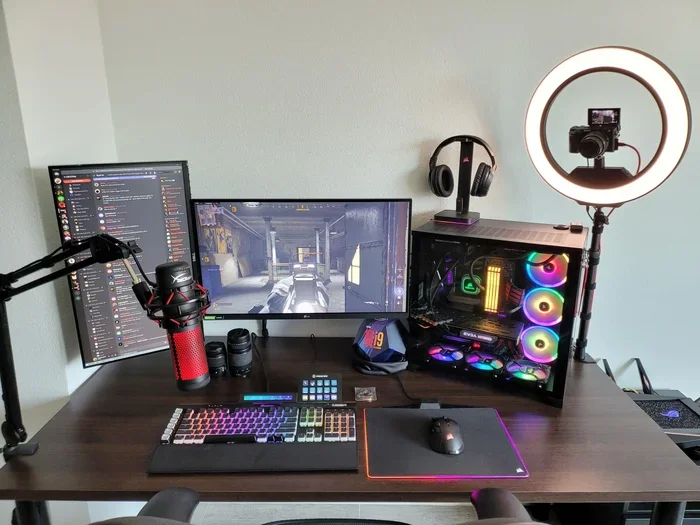
Optimizing your gaming pc for streaming means balancing performance, visuals, and audio so your broadcasts look professional and run smoothly. This guide covers encoder settings, system tweaks, and streaming software choices to help you get the best results. Whether you are a beginner or a seasoned streamer, these steps will improve your stream quality and reduce lag.
Streaming games has become one of the most popular ways to share your passion with the world. But if your gaming pc is not optimized for streaming, your viewers will notice lag, choppy visuals, and poor audio. The good news is that you do not need a supercomputer to get great results. With the right settings and a few smart upgrades, you can turn any decent rig into a reliable streaming rig.
In this guide, we will walk you through everything you need to know about optimizing your gaming pc for streaming. We will cover software settings, hardware tips, and quick fixes that make an immediate impact. By the end, you will have a clear plan to boost your stream quality and keep your viewers coming back.
Key Takeaways
- Adjust your encoder settings: Choosing the right encoder in OBS or your streaming software can make a huge difference in stream quality and CPU usage.
- Upgrade key hardware components: A strong GPU and enough RAM are essential for running games and streaming at the same time without drops.
- Clean your system regularly: Removing junk files and closing background apps frees up system resources for smoother streaming.
- Optimize your network: A wired ethernet connection and proper bitrate settings prevent buffering and keep your stream stable.
- Set up proper lighting and audio: Good visuals and clear sound make your stream more professional and engaging for viewers.
📑 Table of Contents
- Why Optimizing Your Gaming PC for Streaming Matters
- Choose the Right Streaming Software
- Tweak Your In-Game and Stream Settings
- Keep Your System Running Smoothly
- Optimize Your Audio and Visual Setup
- Upgrade Your Hardware for Better Streaming
- Protect Your PC for Long Streaming Sessions
- Quick Tips for Better Streaming Performance
- Common Mistakes Streamers Make
- Final Thoughts
Why Optimizing Your Gaming PC for Streaming Matters
When you play a game and stream at the same time, your computer has to do a lot of work. It is running the game, encoding the video, capturing audio, and sending everything to a platform like Twitch or YouTube. If your system is not set up properly, this multitasking causes frame drops, stuttering, and high latency.
A well-optimized setup delivers smooth game streaming with crisp visuals and clear sound. Viewers stay longer when the experience is seamless. Plus, platforms like Twitch reward consistent streamers with better discoverability. So taking the time to optimize your setup is not just about quality, it is also about growth.
Choose the Right Streaming Software
The software you use to broadcast matters more than most people realize. The two most popular options are OBS Studio and Streamlabs Desktop. Both are free, but they work differently under the hood.
OBS Studio is lightweight and gives you fine control over every setting. It uses fewer system resources, which leaves more power for your game. Streamlabs is more beginner-friendly with built-in widgets and alerts, but it can eat up your CPU. If you want maximum performance, OBS Studio is the better choice for most streamers.
Setting Up Your Encoder
Your encoder is the engine behind your stream. It compresses the video before sending it to the platform. There are two main types: x264 and NVENC. The x264 encoder uses your CPU, while NVENC uses your GPU. If you have a modern graphics card, NVENC is the way to go. It offloads work from your processor and keeps your gaming performance high.
In OBS, go to Settings > Output and select NVENC as your encoder. Set the rate control to CQP and keep the quality level around 20. This gives you a great balance between visual quality and performance. If you are unsure which encoder to use, check out our guide on the best PC for streaming and gaming for hardware recommendations that pair well with NVENC.
Tweak Your In-Game and Stream Settings
Getting the right balance between your game settings and your stream settings is critical. You want your game to look great without starving your system of the resources it needs to encode video.
Start by lowering some in-game graphical settings. Turn down shadow quality, anti-aliasing, and post-processing effects. These settings are heavy on your GPU but hard for viewers to notice. In return, you gain frames that keep your stream smooth.
Finding the Right Resolution and Frame Rate
Most streamers broadcast at 1080p or 720p. 1080p looks sharp but requires more bandwidth and processing power. 720p at 60 frames per second is often a better choice for smooth gameplay. If your PC struggles at 1080p, drop to 720p and increase your frame rate instead. Viewers prefer a steady 60fps over a shaky 1080p stream.
For bitrate, aim for 4500 to 6000 kbps if you have a solid upload speed. This range gives good quality without buffering. You can check your upload speed at speedtest.net to make sure your internet can handle it.
Keep Your System Running Smoothly
A clean system runs better for streaming. Over time, your PC accumulates junk files, unnecessary startup programs, and background processes that eat up your resources. Taking a few minutes to tidy up can make a noticeable difference.
Start by closing everything you do not need before you go live. Browsers with many tabs, Discord overlays, and background downloads all compete for your CPU and RAM. If you want to keep your system lean, consider running a cleanup tool regularly to remove temporary files and caches.
You should also check how much RAM your system has. Streaming while gaming can use 16 GB or more of memory. If your PC is running low, look into adding more memory. For guidance on upgrading, see our article on how to increase RAM for your laptop or desktop setup.
Remove Junk Files for Better Performance
Temporary files and caches build up fast, especially if you game and stream frequently. These files take up disk space and can slow down your system over time. Clearing them out regularly keeps your PC running at peak performance.
Windows has a built-in tool called Disk Cleanup that handles this easily. You can also use the Storage Sense feature in Windows Settings to auto-clean temporary files. For a deeper clean, our guide on how to remove junk files from your PC walks you through the process step by step.
Optimize Your Audio and Visual Setup
Great streaming is not just about video. Your audio quality matters just as much. Viewers will tolerate lower visuals, but poor audio drives people away fast. Take the time to get your sound right.
Start with a good microphone. A USB condenser mic like the Blue Yeti or HyperX QuadCast makes a big difference. Position your mic about six inches from your mouth and use a pop filter to reduce plosive sounds. In OBS, add a noise gate and a noise suppression filter to clean up background noise.
Set Up Proper Lighting
Lighting transforms the look of your stream. Even a basic ring light or a couple of LED panels can make your face look sharp and professional. Place your light source in front of you, slightly above eye level, to avoid harsh shadows.
Avoid streaming with a bright window behind you. It washes out your face and forces your camera to adjust poorly. If you want to add a professional touch, check out our guide on how to set up lighting for streaming for easy setups on any budget.
Upgrade Your Hardware for Better Streaming
Sometimes software tweaks are not enough. If your PC is older or underpowered, hardware upgrades can unlock a whole new level of performance. You do not need to replace everything at once, though. Focus on the parts that matter most for streaming.
The GPU is the most important component for a streaming setup. A modern graphics card handles both the game and the video encoding with ease. If your current card is several generations old, an upgrade will give you the biggest boost. Check out our guide on the best PC for streaming and gaming to see what cards are currently top-rated.
Add an SSD for Faster Load Times
Switching from a hard drive to a solid-state drive improves load times and overall system responsiveness. NVMe SSDs are the fastest option available and work great for storing your games and streaming software.
If you are ready to upgrade, installing an M.2 NVMe SSD is simpler than most people think. Our guide on how to install an M.2 NVMe SSD in your PC makes the process easy to follow. Just make sure your motherboard has an M.2 slot before you buy one.
Protect Your PC for Long Streaming Sessions
Streaming for hours puts stress on your system. Heat buildup, malware, and power fluctuations can all cause problems during a live broadcast. Taking preventive steps keeps your PC safe and your streams stable.
Make sure your fans are working and that airflow inside your case is good. Dust your PC every few months to prevent overheating. A temperature monitoring tool like HWMonitor can alert you if your CPU or GPU gets too hot during a session.
Use Reliable Security Software
Malware can slow your PC to a crawl and even steal your streaming credentials. A good antivirus program keeps your system safe without hogging resources. Look for lightweight security software that runs quietly in the background.
For recommendations, check out our article on the best antivirus software for gaming PC. These options are designed to protect your system without interfering with your stream or game performance.
Quick Tips for Better Streaming Performance
- Use a wired ethernet connection: Wi-Fi is convenient but unstable. A cable gives you consistent upload speeds and lower latency.
- Disable Windows Game Mode: It sometimes conflicts with OBS and causes frame drops. Turn it off and test your stream stability.
- Lower your in-game resolution: Running the game at 720p instead of 1080p frees up GPU power for encoding your stream.
- Update your GPU drivers: New drivers often include performance fixes that improve both gaming and streaming.
- Limit your overlay usage: Too many on-screen widgets and alerts strain your system and distract viewers.
- Restart your PC before going live: This clears memory and closes any background processes that could cause issues.
Common Mistakes Streamers Make
Even experienced streamers sometimes make avoidable mistakes that hurt their stream quality. One of the biggest errors is setting the bitrate too high for their upload speed. This causes constant buffering and a terrible viewer experience. Always test your upload speed and set your bitrate well below that limit.
Another common mistake is running too many background applications. Discord, Chrome with many tabs, and download managers all compete for bandwidth and CPU. Close everything you do not need before you start streaming. Finally, many streamers forget to check their audio levels. Too much background noise or distorted voice makes viewers leave quickly.
Some people also ignore their GPU temperatures. Running hot for hours can cause thermal throttling, which drops your frame rate and degrades your stream. Keep an eye on your temps and clean your PC regularly to avoid this problem.
Final Thoughts
Optimizing your gaming pc for streaming does not have to be overwhelming. Start with the software settings, clean up your system, and make small hardware upgrades as needed. Each step you take brings you closer to a professional-quality stream that viewers will enjoy.
Remember that the best setup is one that balances performance with visual quality. Test different settings, listen to feedback from your viewers, and keep refining your configuration. With patience and practice, you will build a streaming setup that stands out. Start today and watch your stream quality improve with every session.
Frequently Asked Questions
What is the best encoding setting for streaming on a gaming PC?
NVENC is the best encoder for most gaming PCs because it uses your GPU instead of your CPU. This keeps your game running smoothly while still delivering high-quality video. In OBS, select NVENC under Settings > Output for the best results.
How much RAM do I need for streaming and gaming at the same time?
16 GB of RAM is the sweet spot for most streamers. It handles modern games and streaming software without slowdowns. If you can afford it, 32 GB gives you extra headroom for multitasking and future-proofing.
Does a better GPU improve streaming quality?
Yes, a stronger GPU improves both your gaming performance and your ability to encode video. It handles the heavy lifting of rendering games and compressing stream output simultaneously. If you are serious about streaming, investing in a good GPU pays off quickly.
Should I use Wi-Fi or ethernet for streaming?
Always use a wired ethernet connection for streaming. Wi-Fi can be unstable and cause dropped frames or buffering. A cable gives you a consistent, reliable connection that keeps your stream smooth for your viewers.
How do I reduce lag when streaming and gaming?
Lower your in-game graphical settings, close background apps, and use NVENC encoding. Also make sure your bitrate matches your upload speed. These steps free up system resources and significantly reduce lag during your streams.
Can an old PC still be good for streaming?
Yes, an older PC can work for streaming if you lower your resolution and frame rate. Use 720p at 30fps or 60fps to reduce the load on your system. You can also use OBS Studio’s lightweight settings to get the most out of older hardware.