Why Isnt My Usb to Hdmi Working
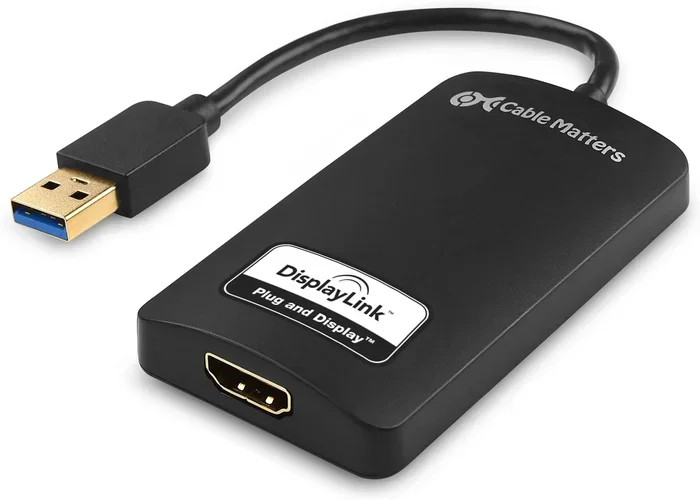
A USB to HDMI adapter not working is a frustrating but common problem. Most issues stem from driver problems, compatibility mismatches, or faulty hardware. This guide walks you through every major reason your USB to HDMI setup might fail and gives you clear, step-by-step fixes you can try right now. By the end, you will know exactly what to check and how to get your external display running again.
You plug in your USB to HDMI adapter and… nothing happens. No signal on the monitor. No display. Just a blank screen and a lot of frustration. If you have ever been here, you are not alone. This is one of the most common tech problems people face when trying to set up an external monitor or screen mirroring setup.
The good news is that most USB to HDMI issues are easy to fix. You do not need to be a tech expert. In this guide, we will walk through every major reason your HDMI connection might not be working and give you practical fixes you can try right now. Whether you are using a USB-C to HDMI cable or a traditional USB adapter, this article covers it all.
We will look at driver problems, compatibility issues, hardware faults, and simple troubleshooting steps. By the end, you will have a clear picture of what is going wrong and how to make it right. Let us get started.
Key Takeaways
- Driver issues are the #1 cause: Outdated or missing display adapter drivers are the most common reason a USB to HDMI adapter fails to work.
- Compatibility matters a lot: Not every USB to HDMI adapter works with every laptop or monitor. Check your ports and resolution needs first.
- Simple fixes often solve the problem: Replugging, restarting, and updating drivers resolve most issues without any cost.
- Hardware defects happen: If your adapter is physically damaged or too old, replacement is the best solution.
- USB port type affects performance: USB 3.0 ports deliver better results than USB 2.0 for HDMI adapters.
- Know when to seek help: If all troubleshooting steps fail, the issue may be with your laptop’s graphics card or HDMI port.
📑 Table of Contents
- Why Your USB to HDMI Adapter Might Not Be Working
- Driver and Software Issues Explained
- Hardware and Compatibility Problems
- Troubleshooting Steps That Actually Work
- When to Replace Your USB to HDMI Adapter
- Expert Tips for a Reliable USB to HDMI Setup
- Common Mistakes People Make with USB to HDMI Adapters
- Final Thoughts
Why Your USB to HDMI Adapter Might Not Be Working
There are several reasons why a USB to HDMI adapter fails to produce a signal. Understanding the root cause is the first step toward fixing it. Here are the most common culprits.
Driver Problems
Your laptop needs the right display adapter driver to communicate with the USB to HDMI device. If the driver is missing, outdated, or corrupted, the adapter will not work. This is the single most common reason people experience a no signal on monitor issue.
Windows and macOS handle drivers differently. Windows often downloads drivers automatically, but it does not always get the right one. macOS tends to be more plug-and-play but can still have issues with certain adapters. If your USB device is not recognized by your computer, a driver problem is very likely the cause.
Compatibility Mismatches
Not all adapters work with all devices. A USB 3.0 to HDMI adapter may not work properly on a USB 2.0 port. Similarly, some adapters are designed for specific operating systems or graphics cards. If your adapter compatibility is off, you will run into problems fast.
Check your laptop’s USB port version and your monitor’s HDMI input version. A mismatch here can cause the HDMI output to fail completely. Always check the adapter’s specifications before buying.
Faulty Cables or Ports
Sometimes the problem is not the adapter at all. A damaged HDMI cable or a loose USB port can cause the same symptoms. If you have tried everything else, inspect your cables and ports for physical damage.
Bent pins, dust inside the port, or a frayed cable can all lead to connection failures. A quick visual inspection can save you a lot of time.
Power Supply Issues
Some USB to HDMI adapters need more power than a single USB port can provide. This is especially true for adapters that support high resolutions like 4K. If your adapter is not getting enough power, it may not turn on or may keep disconnecting.
This is a common issue with USB-C to HDMI adapters on thinner laptops. The USB port may not deliver enough wattage to keep the adapter running steadily.
Driver and Software Issues Explained
Drivers are the bridge between your hardware and your operating system. Without the right driver, your laptop simply cannot talk to the USB to HDMI adapter. Here is how to check and fix driver-related problems.
How to Update Your Display Adapter Driver
Updating your driver is usually the first fix you should try. On Windows, go to Device Manager, find your display adapter, right-click, and select “Update driver.” On macOS, go to System Preferences, then Software Update, to check for the latest updates.
If updating does not work, try uninstalling the driver and reinstalling it from the adapter manufacturer’s website. This forces a clean install and often resolves hidden conflicts.
When Drivers Are Not the Problem
If your driver is up to date and the adapter still does not work, the issue may be deeper. Sometimes a Windows update breaks driver compatibility. In these cases, rolling back to a previous driver version can help.
You can also try using a different USB port. Some ports share bandwidth with other devices, and this can cause the USB device not recognized error. Switching to a different port often solves this.
Hardware and Compatibility Problems
Hardware issues are trickier than software problems. They require physical inspection and sometimes replacement. Here is what to look for.
Check Your USB Port Version
USB 2.0 ports are too slow for most HDMI adapters. They can handle basic display output but often fail with higher resolutions or refresh rates. If you are using a USB 3.0 to HDMI adapter, make sure it is plugged into a USB 3.0 port.
You can usually tell the difference by the color inside the port. USB 3.0 ports are often blue inside. USB 2.0 ports are black or white. If your laptop only has USB 2.0 ports, consider upgrading or using a powered USB hub.
Inspect the HDMI Cable and Monitor
A bad HDMI cable can mimic adapter failure. Try swapping in a different cable to rule this out. Also, make sure the monitor is set to the correct HDMI input channel.
Some monitors have multiple HDMI ports. If you are plugged into the wrong input, you will see no signal even if the adapter is working perfectly. This is a simple mistake but one that catches many people off guard.
Adapter Age and Wear
Adapters wear out over time. Heat, dust, and constant plugging and unplugging can degrade the internal components. If your adapter is several years old, it might simply be failing. This is a normal part of hardware life.
If you suspect your adapter is dying, try it on a different computer. If it works on another machine, the problem is likely your laptop, not the adapter. If it fails everywhere, it is time for a replacement.
Troubleshooting Steps That Actually Work
Now that you know the common causes, here is a step-by-step troubleshooting guide. Follow these in order for the best results.
Step 1: Unplug and Replug
This sounds too simple, but it works more often than you think. Unplug the adapter, wait 10 seconds, and plug it back in. This resets the connection and often fixes temporary glitches.
If you have a USB device not working on your laptop for any reason, this first step is always worth trying. Many connection issues are just temporary hiccups that a simple reset clears up.
Step 2: Restart Your Computer
A fresh restart clears out temporary software glitches and refreshes all device connections. This is one of the most effective first steps for any USB to HDMI problem. Save your work, restart, and plug the adapter back in after the boot is complete.
Step 3: Check Device Manager
On Windows, open Device Manager and look for any yellow warning icons. These indicate driver or hardware problems. If you see your adapter listed with an error, right-click and try updating or uninstalling the driver.
On macOS, go to System Information and check the USB section. This will show you if the adapter is being detected at all.
Step 4: Try a Different Port
Not all USB ports are created equal. If one port is not working, try another. This is especially important if your laptop has a mix of USB 2.0 and USB 3.0 ports.
Also, avoid using USB hubs unless they are powered hubs. Unpowered hubs often do not provide enough current for HDMI adapters to function properly.
Step 5: Update Your Operating System
Sometimes a simple OS update fixes hidden compatibility issues. Check for the latest Windows or macOS updates and install them. Restart your computer after the update and test the adapter again.
Step 6: Test on Another Device
This is the ultimate diagnostic step. Plug the adapter into a different computer or laptop. If it works there, the problem is with your original device. If it fails everywhere, the adapter itself is likely defective.
This same logic applies to many connection problems. For example, if you have ever dealt with a situation where your mouse not connecting to laptop, testing on another device follows the same diagnostic principle.
When to Replace Your USB to HDMI Adapter
Sometimes the fix is not a software update or a cable swap. Sometimes you just need a new adapter. Here is how to know when replacement is the right call.
If your adapter is more than three to four years old, consider replacing it. Technology moves fast, and older adapters may not support newer resolutions or USB standards. If you are trying to output 4K or higher and your adapter only supports 1080p, an upgrade is necessary.
Also, if you have tried every troubleshooting step and the adapter still fails on multiple devices, it is almost certainly a hardware defect. No amount of driver updates or port switching will fix a broken adapter.
When buying a new one, look for adapters that support your resolution needs, match your USB port type, and come from a reputable brand. Spending a little more on quality upfront saves you from the same frustration again.
Expert Tips for a Reliable USB to HDMI Setup
A few extra tips can help you avoid problems in the future and get the best performance from your setup.
- Use USB 3.0 or USB-C ports whenever possible. They provide more bandwidth and power for stable HDMI output.
- Keep your drivers updated. Set a monthly reminder to check for driver updates, especially after major OS updates.
- Avoid cheap, no-name adapters. They may save money upfront but often cause compatibility and reliability issues.
- Use high-quality HDMI cables. A good cable makes a real difference in signal quality and connection stability.
- Give your adapter ventilation. Adapters can get warm during use. Keep them on a flat surface and avoid blocking the vents.
- Check your graphics card settings. Sometimes the issue is not the adapter but your laptop’s graphics card configuration. Make sure it is set to allow external display output.
These small habits go a long way. They keep your external monitor setup running smoothly and help you avoid the frustration of a failing connection.
Common Mistakes People Make with USB to HDMI Adapters
Avoid these common pitfalls to save yourself time and frustration.
- Assuming all adapters are the same. Different adapters support different resolutions, refresh rates, and USB standards. Always check the specs.
- Ignoring driver updates. Many people buy an adapter, plug it in, and forget about it. Regular driver maintenance prevents most issues.
- Using a USB hub without enough power. This is one of the most overlooked causes of adapter failure. A powered hub is much more reliable.
- Not checking the monitor input source. It sounds basic, but many people plug in the adapter and wonder why there is no signal, only to realize the monitor is on the wrong input channel.
- Bending or stressing the adapter connector. Physical damage is a leading cause of adapter failure over time. Handle your adapter with care.
By avoiding these mistakes, you can extend the life of your adapter and enjoy a hassle-free HDMI connection every time.
Final Thoughts
A USB to HDMI adapter not working is almost always fixable. Start with the simple stuff: update your drivers, try a different port, restart your computer, and check your cables. These steps resolve the majority of issues without any cost or effort.
If those steps do not work, dig deeper into compatibility and hardware checks. Test on another device, inspect for physical damage, and consider whether your adapter is simply too old or the wrong type for your setup.
The key takeaway is this: do not panic. Most USB to HDMI problems have straightforward solutions. With the right approach, you can get your external display up and running in no time. Keep this guide handy for your next troubleshooting session.
Frequently Asked Questions
Why does my USB to HDMI adapter show no signal?
The most common reason is a missing or outdated display adapter driver. Update your drivers first, then check that the monitor is on the correct HDMI input. If those steps do not work, try a different USB port or cable.
Can a USB 2.0 port support a USB to HDMI adapter?
It can, but with limitations. USB 2.0 ports have lower bandwidth, so they may not support high resolutions or smooth video playback. For the best results, use a USB 3.0 or USB-C port with your adapter.
Do I need to install drivers for a USB to HDMI adapter?
Many adapters work without manual driver installation, especially on modern operating systems. However, installing the latest driver from the manufacturer’s website ensures the best performance and fixes many common issues.
Why does my adapter keep disconnecting randomly?
This is usually a power issue. Some adapters need more power than a standard USB port can provide. Try using a powered USB hub or plug the adapter directly into your laptop instead of through a hub.
Is it better to use a USB-C to HDMI adapter or a traditional USB adapter?
USB-C to HDMI adapters generally offer better performance, higher bandwidth, and more reliable connections. They are also more versatile since USB-C is becoming the standard on modern laptops and tablets.
What should I do if none of the troubleshooting steps work?
If you have tried every step and the adapter still fails, the hardware may be defective. Test the adapter on another computer to confirm. If it fails there too, replacement is the best option. Also check whether your laptop’s HDMI port itself is functioning properly.