How to Run Llms on Raspberry Pi Guide
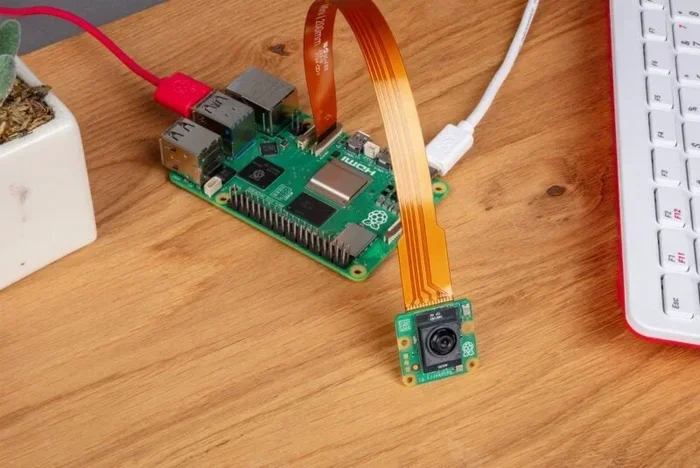
Running LLMs on a Raspberry Pi is simpler than you think. This guide walks you through everything from picking the right model to installing and running it on your single-board computer. You will learn how to set up local AI without needing a powerful desktop or cloud connection. Whether you want a personal AI assistant or a portable offline chatbot, your Raspberry Pi can handle it. Follow our step-by-step instructions and start building your own AI projects today.
Have you ever wanted to run a powerful AI chatbot right on your desk without relying on the cloud? Running LLMs on a Raspberry Pi makes that dream a reality. You do not need a fancy gaming PC or expensive hardware. A small affordable board can do the job. In this guide, we will show you exactly how to set up and run large language models on your Raspberry Pi. By the end, you will have a working local AI assistant you can chat with anytime.
The idea of running LLMs on Raspberry Pi might sound intimidating at first. But the tools available today make it surprisingly easy. Whether you are a hobbyist, a student, or just curious about AI, this guide is for you. We will cover everything from choosing the right model to installing it and getting it running. You will also learn tips to boost performance and avoid common pitfalls. Let us dive in and explore how you can bring AI to your Raspberry Pi.
Key Takeaways
- Raspberry Pi can run small LLMs: Models like Llama 3 and Mistral work well on Raspberry Pi 4 and Pi 5 with enough RAM.
- Quantization saves memory: Using 4-bit or 8-bit quantized models lets you run AI on limited hardware.
- No internet is needed: Once set up, your Pi runs AI models completely offline for privacy and portability.
- Python and Ollama make it easy: Simple tools like Ollama and Python scripts streamline the setup process.
- RAM matters a lot: Upgrading your Pi’s memory can significantly improve LLM performance and speed.
- Cooling is essential: Running AI models generates heat, so proper ventilation keeps your Pi running smoothly.
📑 Table of Contents
What Are LLMs and Why Run Them on Raspberry Pi?
Large language models, or LLMs, are AI systems trained on massive amounts of text. They can understand and generate human-like responses. You have probably used ChatGPT or similar tools online. Those run on powerful remote servers. But what if you could run a smaller version of that technology directly on your device?
That is exactly what running LLMs on Raspberry Pi allows you to do. A Raspberry Pi is a small, affordable single-board computer. The latest models, especially the Pi 4 and Pi 5, have enough power to run compact AI models. This opens up exciting possibilities for learning, tinkering, and building projects.
Here are some reasons why people love to run LLMs on Raspberry Pi:
- Privacy: Your data never leaves your device. You do not need to send messages to external servers.
- Offline use: No internet connection is required once the model is set up.
- Learning: It is a fantastic way to understand how AI models work under the hood.
- Cost: A Raspberry Pi costs far less than a gaming PC or cloud computing subscriptions.
- Portability: You can carry your AI setup anywhere and use it offline.
Choosing the Right Raspberry Pi for LLMs
Not all Raspberry Pi models are created equal when it comes to running AI. The hardware you choose matters a lot for performance. Let us look at the best options.
Raspberry Pi 4 Model B
The Pi 4 is a solid choice for beginners. It comes in 2GB, 4GB, and 8GB RAM versions. For running small LLMs, the 4GB or 8GB model works well. The 8GB version gives you more room to experiment with larger models. You can also update RAM on your laptop if you plan to compare performance across devices.
Raspberry Pi 5 Model B
The Pi 5 is the newer and faster option. It offers up to 8GB of RAM and a more powerful processor. This makes it the best choice for running LLMs on Raspberry Pi. The improved CPU and memory bandwidth mean faster AI responses and smoother performance.
What About Older Models?
Older models like the Pi 3 or Pi Zero are not ideal for LLMs. They lack the RAM and processing power needed. If you are serious about AI on a single board, invest in a Pi 4 or Pi 5. Also consider installing more RAM on your laptop to compare how different hardware handles AI workloads.
| Model | Max RAM | LLM Performance | Best For |
|---|---|---|---|
| Pi 4 (4GB) | 8GB | Good for small models | Beginners |
| Pi 4 (8GB) | 8GB | Great for medium models | Enthusiasts |
| Pi 5 (8GB) | 8GB | Best performance | Advanced users |
Preparing Your Raspberry Pi for AI
Before you can run any AI model, your Pi needs to be set up properly. This section covers the essential preparation steps.
Step 1: Install Raspberry Pi OS
Start by installing the latest Raspberry Pi OS on your microSD card. Use the official Raspberry Pi Imager tool to flash the operating system. Choose the 64-bit version for better memory handling. Once installed, boot your Pi and complete the initial setup.
Step 2: Update Your System
Open a terminal and run these commands to make sure everything is up to date:
sudo apt updatesudo apt upgrade -y
Keeping your system updated ensures compatibility with the latest AI tools and libraries.
Step 3: Install Python and Virtual Environment
Most LLM tools are built for Python. Make sure Python 3 is installed. Then create a virtual environment to keep your project files organized:
sudo apt install python3 python3-pippython3 -m venv llm-envsource llm-env/bin/activate
Step 4: Ensure Adequate Storage
AI models take up space. A 32GB microSD card is the minimum. We recommend 64GB or more for comfortable use. Also, increasing RAM on your laptop can help if you plan to manage models alongside other tasks on a desktop.
Setting Up and Running Your First LLM
Now comes the exciting part. You are ready to install and run your first AI model on the Raspberry Pi. There are a few tools that make this process straightforward.
Using Ollama for Easy Setup
Ollama is one of the easiest ways to run LLMs on a Raspberry Pi. It handles downloading and managing models for you. To install Ollama, open your terminal and run:
curl -fsSL https://ollama.com/install.sh | sh
Once installed, you can pull a model with a simple command. For example, to get a small and efficient model, type:
ollama pull llama3.2
After the download finishes, start chatting by typing ollama run llama3.2. Your Pi is now running an AI model locally.
Using Python and llama.cpp
If you prefer a more hands-on approach, llama.cpp is a great option. It is a lightweight C++ framework that runs LLMs efficiently on low-end hardware. Here is how to get started:
- Clone the repository:
git clone https://github.com/ggerganov/llama.cpp - Navigate to the folder:
cd llama.cpp - Build the project:
make - Download a quantized model from Hugging Face.
- Run the model:
./llama-cli -m model.gguf -p "Hello, how are you?"
This method gives you more control over model settings and performance tuning.
Understanding Quantized Models
You will often hear the term “quantized model” when working with LLMs on low-power hardware. Quantization reduces the size of a model by lowering the precision of its numbers. A 4-bit quantized model uses much less memory than the original. This is essential for running LLMs on Raspberry Pi because the Pi has limited RAM. Always look for GGUF format models with 4-bit or 8-bit quantization for the best results.
Optimizing LLM Performance on Raspberry Pi
Running AI on a Raspberry Pi is not always fast. But there are many ways to improve speed and responsiveness.
Use Smaller Models
The biggest factor in performance is model size. Stick to models with fewer than 3 billion parameters for the best experience. Models like Llama 3.2 (1B), Mistral 7B, and Phi-2 work well on the Pi. Larger models will run but may respond very slowly.
Manage Memory Wisely
Close unnecessary programs while running AI models. The Pi has limited memory, so every megabyte counts. If you are using a Pi 4, consider how to upgrade RAM on your laptop for comparison testing or to handle more demanding tasks alongside your Pi setup.
Add a Cooling Solution
Running AI models makes your Pi work hard, which generates heat. Use a heatsink or a fan case to keep temperatures down. Thermal throttling will slow your Pi down if it gets too hot. A simple cooling solution can make a big difference in sustained performance.
Use an SSD Instead of SD Card
Loading large model files from an SD card can be slow. Connecting a USB SSD dramatically speeds up load times and model inference. This is a simple upgrade that makes a noticeable impact.
Quick Tips for Better Performance
- Use a 64-bit operating system for better memory management.
- Always use quantized models to reduce memory usage.
- Keep your Pi in a well-ventilated area.
- Close background apps before running a model.
- Use a USB 3.0 SSD for faster model loading.
Common Mistakes to Avoid
Even with the best guide, beginners can run into trouble. Here are common mistakes and how to avoid them.
Choosing a Model That Is Too Large
The most common mistake is picking a model that exceeds your Pi’s capabilities. A 7B parameter model on a 2GB Pi will fail or crawl. Always check the minimum RAM requirements before downloading a model. Start small and work your way up.
Skipping System Updates
Outdated software can cause compatibility issues with AI tools. Always update your Pi OS and Python packages before starting a new project. This simple step saves hours of troubleshooting.
Ignoring Storage Space
AI models are large files. A single quantized model can be 4GB or more. If your SD card is nearly full, the model may fail to load. Keep at least 20GB of free space at all times.
Not Using a Virtual Environment
Installing AI libraries directly on your system can create conflicts. Always use a Python virtual environment to keep things clean and organized. This makes troubleshooting much easier later.
Fun Projects You Can Build with LLMs on Raspberry Pi
Once you have a working AI setup, the fun really begins. Here are some project ideas to try at home.
Personal AI Assistant
Set up your Pi as a voice-activated assistant. Connect a microphone and speaker, and use a simple Python script to handle voice input and AI responses. It works offline, so your conversations stay private.
Offline Chatbot for Learning
Use your Pi as a study buddy. Load an educational model and ask it questions about any topic. This is a great tool for students who want to learn without needing an internet connection.
Home Automation Brain
Connect your Pi to smart home devices and use an LLM to control them with natural language. Ask your AI to turn on lights, check the weather, or play music. It is a fun and practical project.
Portable AI Demo Station
Pack your Pi into a portable case with a screen and keyboard. Now you have a mobile AI demo station you can bring to meetups, classrooms, or hackathons. It shows people what local AI looks like in action.
Conclusion
Running LLMs on Raspberry Pi is an incredibly rewarding experience. You get to explore artificial intelligence on affordable, accessible hardware. From setting up Ollama to optimizing model performance, this guide has covered everything you need to get started. The key is to begin small, use quantized models, and keep your system well-maintained.
As you grow more comfortable, you can experiment with larger models and more complex projects. The world of local AI is expanding fast, and your Raspberry Pi is a perfect platform to explore it. Start today, follow the steps in this guide, and enjoy the power of AI right at your fingertips.
Frequently Asked Questions
Can I run ChatGPT-like models on a Raspberry Pi?
Yes, but not the full ChatGPT model. You can run smaller, quantized versions of models like Llama 3.2 and Mistral. These are not as powerful as ChatGPT but work well for basic conversations and tasks on the Pi.
Which Raspberry Pi is best for running LLMs?
The Raspberry Pi 5 with 8GB RAM is the best choice. The Pi 4 with 8GB RAM also works well for smaller models. Avoid older models with less than 4GB RAM for the best experience.
Do I need an internet connection to run LLMs on Raspberry Pi?
No. Once you download the model and tools, you can run everything offline. This is one of the biggest advantages of running AI on a Raspberry Pi. Your data stays local and private.
How much RAM do I need to run an LLM on a Raspberry Pi?
At minimum, 4GB of RAM is needed for small models. 8GB is recommended for a smoother experience. If you find your Pi struggling, you can check how to update RAM on your laptop for a comparison or use your laptop alongside the Pi for testing.
What is the fastest way to run an LLM on Raspberry Pi?
Using Ollama with a small quantized model like Llama 3.2 is the fastest method. It requires minimal setup and handles model management automatically. Combine this with a USB SSD for even better load times.
Can I use a Raspberry Pi for AI projects beyond LLMs?
Absolutely. Raspberry Pi is a versatile platform for many AI projects including image recognition, voice assistants, and home automation. The skills you learn from running LLMs apply to many other AI and machine learning projects.