What Is Nvidia Container in Task Manager
The Nvidia Container is a legitimate background process that appears in Windows Task Manager when Nvidia graphics hardware is installed. It acts as a host for several Nvidia services, including telemetry and network functions that keep your GPU running smoothly. While it normally uses very few resources, some users notice high CPU usage or wonder if it is malware. This guide covers everything you need to know, from what the process does to how to manage it effectively on your laptop.
If you have ever opened Windows Task Manager and spotted a process called Nvidia Container, you are not alone. Many laptop users see this entry and immediately wonder what it is, whether it is safe, and if it is slowing down their computer. The good news is that Nvidia Container is a completely legitimate part of the Nvidia graphics ecosystem. It plays an important role in keeping your GPU drivers and software running smoothly behind the scenes.
In this article, we will break down everything you need to know about Nvidia Container. We will explain what it does, why it appears in Task Manager, whether it is safe, and how to manage it if it is causing problems. Whether you are a casual user or a gamer who cares about GPU performance, this guide has you covered. Let us dive right in.
Key Takeaways
- Nvidia Container is a safe, official process that comes bundled with your Nvidia GPU driver and is not malware.
- It hosts multiple Nvidia services like telemetry, network communication, and system tray monitoring under one process.
- Normal resource usage is very low, but occasional spikes can happen during updates or data collection tasks.
- You can temporarily end the process in Task Manager, but it will restart when you reboot your computer.
- Verifying the file location is the best way to confirm the process is genuine and not a virus.
- Keeping drivers updated helps prevent unusual behavior and ensures Nvidia Container runs as intended.
📑 Table of Contents
- What Is Nvidia Container?
- Why Does Nvidia Container Run in Task Manager?
- Is Nvidia Container Safe or Malware?
- How Nvidia Container Affects Your Laptop Performance
- How to Manage Nvidia Container in Task Manager
- When Should You Worry About Nvidia Container?
- Key Tips for Keeping Nvidia Container Running Smoothly
- Conclusion
What Is Nvidia Container?
Nvidia Container is a background process that runs on computers with Nvidia graphics cards installed. It is part of the Nvidia driver package and serves as a host for several smaller Nvidia services. Think of it as a protective shell that keeps all the Nvidia-related tasks organized and running together. When you open your Task Manager and look at the Processes tab, you will often find Nvidia Container listed there.
The process has been a part of Nvidia’s software suite for several years now. It became more prominent when Nvidia started consolidating multiple background services into a single container. This made the system cleaner and reduced the number of separate processes running at startup. For most users, Nvidia Container is completely invisible and causes no problems at all.
What Does Nvidia Container Actually Do?
The main job of Nvidia Container is to host and manage Nvidia services that run in the background. These services handle tasks that are essential for your graphics card to work properly. Without Nvidia Container, several Nvidia features would not function as they should. The process makes sure all the pieces communicate with each other seamlessly.
Some of the key functions include managing driver updates, collecting system telemetry data, and maintaining the Nvidia system tray icon. It also supports features like GPU activity monitoring and notifications about driver updates or game optimizations. In short, Nvidia Container is the backbone that keeps Nvidia software running quietly in the background.
Which Nvidia Services Run Inside the Container?
Several Nvidia services operate inside the Nvidia Container process. The most well-known one is Nvidia Telemetry, which collects data about your GPU usage, temperature, and system performance. This data helps Nvidia improve their drivers and software over time. Another important service is the Nvidia Network Service, which handles online features, driver downloads, and communication with Nvidia servers.
Other services that run under this container include the Nvidia Display Container and various helper processes for the Nvidia Control Panel. All of these work together to provide a smooth experience for users with Nvidia graphics hardware. They run automatically when your computer boots up and stay active as long as your GPU driver is installed.
Why Does Nvidia Container Run in Task Manager?
You will always see Nvidia Container in Task Manager when your Nvidia GPU driver is properly installed. This is completely normal behavior. Windows shows every active process running on your system, and Nvidia Container is one of them. It starts automatically when you turn on your laptop and continues running until you shut down.
The reason it shows up in Task Manager is simple. Windows needs to display all active processes so users can monitor their system. Since Nvidia Container is an active background process, it naturally appears in the list. You do not need to take any action just because you see it there. It is doing its job quietly in the background.
Does Nvidia Container Use Much CPU or Memory?
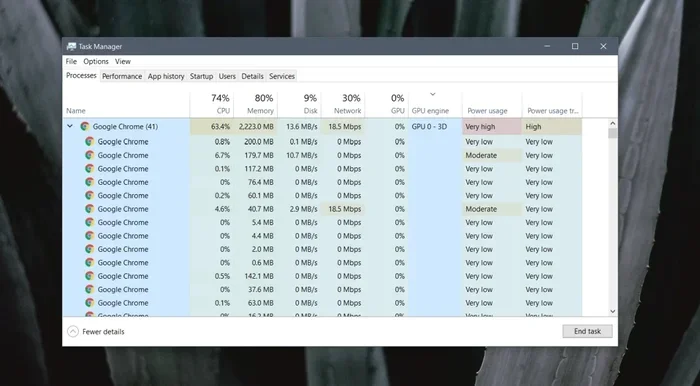
Under normal circumstances, Nvidia Container uses very little CPU and memory. Most of the time, you will see it using less than 1 percent of your CPU and a small amount of RAM, usually under 100 megabytes. This is negligible on modern laptops and should not affect your day-to-day performance at all.
However, there are times when Nvidia Container might use more resources than usual. This often happens when it is downloading driver updates or collecting telemetry data. You might notice a temporary spike in CPU usage during these periods. In most cases, the usage goes back to normal within a few minutes. If the spike persists for a long time, that is a different issue we will cover later.
Can You Disable Nvidia Container?
You can stop Nvidia Container temporarily by right-clicking it in Task Manager and selecting End Task. However, this is only a temporary fix. The process will automatically restart the next time you boot your computer or when Nvidia services need to run again. There is no built-in option to permanently disable it through Task Manager alone.
Disabling Nvidia Container is not recommended. Doing so could cause Nvidia software to stop working properly. You might lose access to the Nvidia system tray icon, GPU monitoring features, and automatic driver update notifications. It is best to let it run as intended unless you are experiencing a specific problem that requires troubleshooting.
Is Nvidia Container Safe or Malware?
This is one of the most common questions people ask when they first notice Nvidia Container in Task Manager. The short answer is yes, Nvidia Container is completely safe. It is a legitimate process developed by Nvidia Corporation and comes bundled with the official Nvidia GPU driver. It is not a virus, trojan, or any form of malware.
That said, malware can sometimes disguise itself using the same process name. This is a common tactic used by malicious software to hide in plain sight. The key is to verify that the file running on your system is the genuine Nvidia Container and not a fake copycat. Taking a few seconds to check the file location can give you peace of mind.
How to Verify the Nvidia Container File Location
To check if Nvidia Container is genuine, you need to look at where the file is stored on your computer. Right-click Nvidia Container in Task Manager and select Open File Location. The real Nvidia Container file should be located in C:\Program Files\Nvidia Corporation\NVContainer. If the file is in this folder, you are good to go.
If the file is located somewhere else, like a temporary folder or an unusual directory, that is a red flag. Run a full system scan with your antivirus software immediately. Malware sometimes uses familiar process names to trick users into ignoring suspicious activity. Always double-check when something seems off.
Common Signs of a Fake Nvidia Container Process
There are a few warning signs that the Nvidia Container on your system might not be genuine. Watch for persistent high CPU usage Nvidia processes that never go away, even when you are not running any graphics-intensive tasks. Another sign is missing Nvidia icons in your system tray, which suggests the real Nvidia services are not running.
Your antivirus software flagging the process is another clear indicator. Additionally, if you notice unfamiliar network activity coming from the Nvidia Container process, that could be a sign of tampering. In these cases, updating your drivers and running a full antivirus scan are the best first steps to take.
How Nvidia Container Affects Your Laptop Performance
For the vast majority of users, Nvidia Container has virtually no impact on laptop performance. It runs quietly in the background and uses minimal resources. However, there are specific situations where it can have a small effect. Understanding these scenarios helps you manage your system better and make informed decisions about your laptop GPU management.
Nvidia Container and GPU Temperature
Since Nvidia Container monitors GPU activity and collects telemetry data, it does add a tiny amount of load to your graphics card. This load is so small that it is barely measurable in most cases. However, if you are already pushing your GPU to its limits with demanding games or rendering tasks, every bit of extra load counts.
If you want to make sure your GPU is running at healthy temperatures, it helps to know what is a good idle gpu temperature. Generally, your GPU should stay below 50 degrees Celsius when idle and below 85 degrees Celsius under heavy load. Nvidia Container itself should not cause any significant temperature changes, but monitoring your GPU health overall is always a good practice.
Impact on System RAM and Resources
Nvidia Container uses a small amount of your laptop’s RAM, typically around 50 to 100 megabytes. On modern laptops with 8GB or more of memory, this is completely insignificant. However, if you are using an older laptop with limited RAM, every megabyte matters. Understanding how your memory is being used can help you optimize overall performance.
If you are curious about how RAM affects your laptop’s speed and multitasking ability, check out what does ram do in a laptop for a detailed breakdown of how memory impacts your daily computing experience. This knowledge helps you make better decisions about upgrades and resource management.
How to Manage Nvidia Container in Task Manager
Managing Nvidia Container is straightforward and does not require any advanced technical skills. You have several options depending on what you want to achieve. Whether you just want to check its resource usage or troubleshoot an issue, Task Manager gives you the tools you need.
Temporarily Ending the Process
If Nvidia Container is using more resources than usual and you want to stop it temporarily, right-click it in Task Manager and choose End Task. This immediately stops the process and frees up any resources it was using. Keep in mind that it will restart automatically when you reboot your computer or when Nvidia services need to run again.
This method is useful when you are troubleshooting high resource usage. It gives you a quick way to reset the process without making any permanent changes to your system. Just remember that ending the task is a temporary solution, not a permanent fix.
Adjusting Nvidia Settings to Reduce Activity
If you want to reduce the activity of Nvidia Container and its associated services, you can adjust settings in the Nvidia Control Panel. Open the Control Panel, navigate to the Manage 3D Settings or System Monitoring sections, and look for telemetry options. Disabling automatic data collection can reduce the frequency of background activity.
Reducing unnecessary background processes also contributes to better overall system health. This approach aligns with making smart choices about your best investment for lifespan of pc by minimizing resource waste and keeping your system running efficiently for years to come.
Updating Nvidia Drivers to Fix Issues
Outdated or corrupted GPU drivers are one of the most common causes of Nvidia Container issues. If the process is using unusually high CPU or memory, updating your drivers is the first step you should take. You can use Nvidia GeForce Experience to check for updates, or download the latest driver directly from the Nvidia website.
Updated drivers often include bug fixes and performance improvements that address issues with background processes. After updating, restart your computer and check Task Manager again. You should see Nvidia Container using normal levels of resources. If problems persist, a clean reinstall of the Nvidia driver package may be necessary.
When Should You Worry About Nvidia Container?
Most of the time, Nvidia Container is nothing to worry about at all. It runs silently in the background and does its job without causing any problems. However, there are a few situations where paying attention to this process is a good idea. Knowing the warning signs helps you catch potential issues early.
Persistent High CPU or Memory Usage
If Nvidia Container consistently uses more than 5 to 10 percent of your CPU, something is not right. Normal usage stays well below 2 to 3 percent in most cases. A persistent high usage pattern could indicate a buggy driver, corrupted files, or in rare cases, malware disguised as the Nvidia Container process.
Start by updating your GPU drivers to the latest version. If that does not resolve the issue, try reinstalling the Nvidia software suite completely. You can use a tool like DDU (Display Driver Uninstaller) to remove the old driver cleanly before installing a fresh copy. This often fixes stubborn background process issues.
Nvidia Container Missing from Task Manager
On the flip side, if you do not see Nvidia Container in Task Manager at all, that is also unusual. It suggests that the Nvidia driver might not be installed correctly or that the service has been accidentally disabled. Without Nvidia Container, some Nvidia features may not work as expected.
Reinstalling the Nvidia driver usually fixes this problem. Make sure to download the driver from the official Nvidia website and perform a clean installation. After rebooting, Nvidia Container should reappear in Task Manager and resume its normal operations. Your computer performance monitoring tools will once again have visibility into all Nvidia-related processes.
Key Tips for Keeping Nvidia Container Running Smoothly
Follow these simple tips to ensure Nvidia Container and your entire Nvidia software suite run without issues:
- Update your GPU drivers regularly, at least once a month, to stay current with bug fixes and optimizations.
- Monitor resource usage in Task Manager periodically to catch any unusual spikes early.
- Run antivirus scans regularly to ensure that the Nvidia Container process on your system is genuine and safe.
- Avoid third-party optimizer software that claims to clean up or disable Nvidia processes, as these can cause instability.
- Keep your Windows system updated with the latest patches, as OS updates can affect how background processes interact with your hardware.
- Do not end Nvidia Container permanently through Task Manager, as it will restart and may cause temporary software conflicts.
By following these simple practices, you can keep your Nvidia Container process running smoothly and avoid most common issues. Your laptop will benefit from better overall stability and more reliable GPU performance.
Conclusion
Nvidia Container is a safe, essential part of the Nvidia graphics ecosystem that runs quietly in the background of your laptop. It hosts important services like telemetry, network communication, and driver management that keep your GPU functioning at its best. While most users never think about it, understanding what it does helps you make better decisions about your system’s health and performance.
If you ever notice unusual resource usage or have concerns about whether the process is genuine, the steps in this guide will help you troubleshoot effectively. Always verify the file location, keep your drivers updated, and use Task Manager to monitor resource usage. With these practices in place, Nvidia Container will continue to do its job without any problems. Your graphics card and your laptop will thank you for it.
Frequently Asked Questions
Is Nvidia Container a virus or malware?
No, Nvidia Container is not a virus or malware. It is a legitimate background process that comes bundled with the official Nvidia GPU driver. However, malware can sometimes disguise itself with the same name, so always verify the file location is in the Nvidia Corporation folder to be safe.
Why does Nvidia Container use so much CPU?
Nvidia Container normally uses very little CPU, usually under 2 percent. If you see high usage, it might be downloading driver updates or collecting telemetry data. If the high usage persists, try updating your Nvidia drivers or running a full antivirus scan to rule out malware.
Can I permanently disable Nvidia Container?
There is no simple built-in way to permanently disable Nvidia Container. It will restart every time you boot your computer. Disabling it is not recommended because it can cause Nvidia software features to stop working properly, including driver updates and GPU monitoring.
Where is the Nvidia Container file located on my computer?
The genuine Nvidia Container file is located in C:\Program Files\Nvidia Corporation\NVContainer. You can verify this by right-clicking the process in Task Manager and selecting Open File Location. If the file is in a different location, it could be a sign of malware.
Does Nvidia Container affect gaming performance?
Nvidia Container has a negligible impact on gaming performance. It uses minimal CPU and memory resources, so it should not cause any noticeable frame drops or slowdowns. If you experience performance issues during gaming, the cause is likely something else entirely.
Should I remove Nvidia Container to speed up my laptop?
No, removing Nvidia Container is not a good way to speed up your laptop. The process uses very few resources and is essential for proper Nvidia GPU functionality. Instead of removing it, focus on updating drivers, managing startup programs, and keeping your system clean for genuine performance improvements.