What Is a Tray Icon
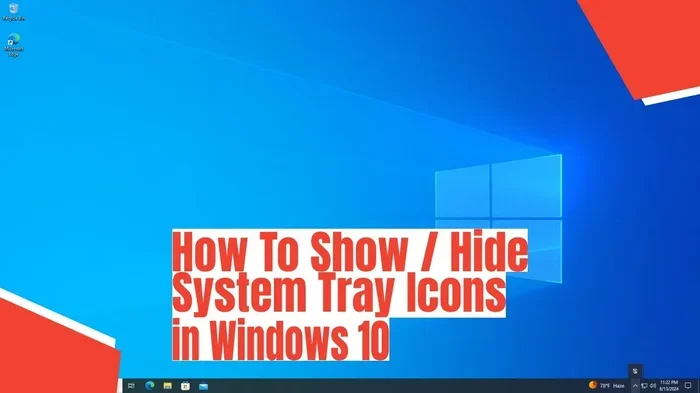
A tray icon is a small image that lives in the system tray area of your laptop screen, usually near the clock. It shows you which programs are running in the background and gives you quick access to settings and notifications. Understanding tray icons helps you manage your laptop better and keep your screen clean and organized.
Have you ever looked at the bottom-right corner of your laptop screen and wondered what those tiny little pictures are? Those small images sitting next to your clock are called tray icons. They might be tiny, but they play a big role in how you use your computer every day.
A tray icon is a small graphical symbol that lives in the system tray area of your laptop. This area is also known as the notification area. It sits at the far end of the taskbar, usually near the clock. These icons tell you what programs are running behind the scenes. They also give you fast access to important tools without needing to open a full window.
Whether you use Windows or a Mac, tray icons are everywhere. They run your antivirus software, manage your Wi-Fi connection, and show you when a new message arrives. Understanding what these little symbols mean can make your laptop experience much smoother. In this guide, we will break down everything you need to know about tray icons. You will learn what they do, how to manage them, and how to keep your system running clean and fast.
Key Takeaways
- Tray icons live in the system tray: They sit near the clock on your taskbar and show running background apps.
- They save screen space: Instead of open windows, tray icons keep apps running quietly in the background.
- You can customize them: Both Windows and Mac let you hide, show, or rearrange tray icons based on your needs.
- They provide quick access: A single click on a tray icon often opens menus, settings, or notifications instantly.
- Too many tray icons slow things down: Keeping only essential icons improves laptop performance and reduces clutter.
- Right-clicking reveals options: Most tray icons let you open, close, or configure them with a simple right-click.
- They work across operating systems: Windows, macOS, and Linux all use tray icons, though they look and behave slightly differently.
📑 Table of Contents
What Exactly Is a Tray Icon?
A tray icon is a small visual indicator that represents a program running in the background of your laptop. Unlike regular app windows that take up space on your screen, tray icons stay hidden in a compact area. They let apps run quietly without distracting you while you work.
Think of a tray icon like a flag on a ship. It tells you something is active without taking up the whole deck. When you see a tray icon, it means a program is still running even if you cannot see its window. This is especially useful for apps you need to keep active, like messaging tools or security software.
Where Do Tray Icons Live?
On Windows laptops, tray icons sit in the bottom-right corner of the screen. This area is part of the taskbar. On Mac laptops, the equivalent area is the menu bar at the top-right corner. Both operating systems use this space to display system tray icons for background processes and active apps.
You might also hear people call this area the notification center or the status bar. No matter what you call it, the purpose is the same. It gives you a quick glance at what is happening on your laptop without switching between open windows.
Why Are Tray Icons Important?
Tray icons might seem like tiny decorations, but they serve several critical functions. Without them, you would not know which apps are still running or whether your laptop is connected to the internet.
They Keep You Informed
Many tray icons show notifications. For example, your email app might display a small envelope icon when a new message arrives. Your antivirus program might show a shield icon to confirm your laptop is protected. These visual cues help you stay updated without constantly checking every app.
They Save System Resources
When you close a program window, the app often keeps running in the background. The tray icon is the only sign it is still active. This design saves memory and processing power compared to keeping every app window open. Your laptop can focus its resources on the tasks you are actively doing.
They Offer Quick Access
Tray icons give you instant access to settings and tools. A single click can open a Wi-Fi menu, adjust volume, or check your battery level. This quick access is especially handy when you are in the middle of work and do not want to search through menus.
Common Tray Icons You Will See
Every laptop shows a different set of tray icons depending on what software you have installed. However, some icons appear on almost every system. Here are the most common ones you will recognize.
Volume and Sound Icons
The speaker icon is one of the most familiar tray icons. It lets you quickly mute your laptop or adjust the volume. On Windows, clicking it opens a slider. On Mac, it opens a more detailed audio control panel. This icon is always useful, whether you are watching a video or taking a call.
Network and Wi-Fi Icons
The Wi-Fi icon looks like a small fan or signal bars. It tells you whether your laptop is connected to a network. If the icon shows a warning symbol, it means your connection is down. This icon is essential for anyone who works online or streams content regularly.
Battery and Power Icons
Your laptop’s battery icon sits in the tray and shows how much charge remains. Some icons also display the charging status. A flashing or empty battery icon warns you that it is time to plug in your charger. This simple icon can save you from a sudden shutdown during important work.
Security and Antivirus Icons
If you have antivirus software installed, it will likely show a tray icon. This icon usually looks like a shield or a checkmark. It confirms that your protection is active and up to date. If the icon turns red or shows an alert, it means something needs your attention.
How to Manage and Customize Tray Icons
Having too many tray icons can make the corner of your screen look messy. The good news is that both Windows and Mac let you manage and customize these icons. You can hide the ones you rarely use and keep the ones you need front and center.
Customizing Tray Icons on Windows
Windows gives you built-in tools to control which icons appear in the system tray. To access these settings, right-click on the taskbar and select “Taskbar settings.” From there, you can choose which icons show on the taskbar and which ones stay hidden in the overflow area.
You can also drag and drop icons to rearrange them. Some apps let you pin their tray icon so it always stays visible. If an icon is bothering you, you can right-click it and choose to hide or remove it from the tray.
For more advanced control, you can use the “Notification area” settings. This section lets you decide whether each app shows an icon, hides silently, or shows an icon and notification. Taking a few minutes to organize your tray can make a big difference in how clean your screen looks.
Customizing Tray Icons on Mac
On a Mac, the menu bar at the top of the screen serves a similar purpose to the Windows system tray. You can rearrange menu bar icons by clicking and dragging them. To remove an icon, you typically need to open the app’s preferences and uncheck the “Show in menu bar” option.
macOS also has a feature called “Dynamic Island” on newer models, which replaces some traditional tray functions. However, the classic menu bar tray icons remain a core part of the Mac experience. You can also use third-party tools to further customize what appears in your menu bar.
Tips for Keeping Your Tray Clean
A cluttered tray icon area can slow down your laptop and make it harder to find what you need. Here are some simple tips to keep things tidy:
- Uninstall apps you do not use. Every app you remove takes one less icon out of your tray.
- Hide rarely used icons. Most operating systems let you set apps to hide automatically.
- Restart your laptop regularly. This clears out background apps that may be running without your knowledge.
- Check your tray once a week. Take a moment to review which icons are active and remove anything unnecessary.
- Use the overflow menu. On Windows, hidden icons are stored in a dropdown arrow. Use this space for apps you only need occasionally.
If you are using your laptop for work, keeping your tray organized can also boost your productivity. You will spend less time searching for the right icon and more time focused on your tasks. A clean system tray also makes your laptop look polished and professional.
Tray Icons and Background Apps
One of the most important things to understand about tray icons is their connection to background apps. When you see an icon in the tray, it usually means an app is still running even if you closed its window. This behavior is by design, but it can sometimes use up your laptop’s resources.
For example, if you close your music app but still see its tray icon, the app is likely still playing music or waiting for a command. Similarly, cloud storage apps like Dropbox or Google Drive keep running in the background so they can sync your files automatically. The tray icon tells you that this syncing is active.
While background apps are useful, too many of them can slow down your laptop. Each running app uses a portion of your RAM and processor. If your laptop feels sluggish, check your tray icons. You might be surprised how many apps are quietly running in the background. Closing unnecessary background apps can free up memory and speed things up significantly.
On Windows, you can use the Task Manager to see which apps are running. On Mac, the Activity Monitor serves the same purpose. Both tools let you see which background processes are using your system resources. This is a great way to identify apps that are hogging your laptop’s performance.
Troubleshooting Common Tray Icon Issues
Tray icons are generally reliable, but sometimes things go wrong. An icon might disappear, stop working, or show an error. Here are some common problems and how to fix them.
An Icon Disappeared from the Tray
If a tray icon suddenly vanishes, the app might have crashed or stopped running. Try reopening the app and see if the icon comes back. On Windows, you can also click the overflow arrow in the system tray to check if the icon is hidden there. Sometimes a simple restart of the app or your laptop will restore the missing icon.
An Icon Is Not Responding
If clicking a tray icon does nothing, the app might be frozen. You can try right-clicking the icon and selecting “Exit” or “Quit.” If that does not work, open your Task Manager or Activity Monitor and force close the app. Then restart it to see if the icon returns to normal.
Too Many Icons Keep Appearing
This is a common problem, especially after installing new software. Many apps set themselves to start automatically and show a tray icon by default. To fix this, go to your laptop’s startup settings and disable apps you do not need running at boot time. On Windows, use the Startup tab in Task Manager. On Mac, go to System Settings and look at the Login Items section.
Taking control of your startup apps is one of the best ways to keep your tray clean and your laptop fast. It also ties into how well your laptop manages system resources and overall performance.
Tray Icons Across Different Operating Systems
Tray icons are not just a Windows thing. They exist across different operating systems, each with its own style and behavior. Understanding these differences can help you navigate any laptop you use.
On Windows, the system tray is highly customizable. You can choose which icons appear, which are hidden, and which show notifications. Windows 10 and Windows 11 both offer detailed settings for managing the notification area. The design is clean and functional, making it easy to find the icons you need.
On macOS, the menu bar tray icons are more limited in customization but very intuitive. Apple keeps the design simple and elegant. Most third-party apps let you toggle their menu bar visibility in the app settings. Mac users also benefit from the Control Center, which consolidates some tray functions into a single menu.
On Linux, tray icons vary depending on the desktop environment you use. Popular environments like GNOME and KDE handle system tray icons differently. Some Linux users prefer minimal tray setups, while others keep many icons visible. The flexibility of Linux gives you full control over what appears in your tray.
Final Thoughts on Tray Icons
Tray icons are a small but essential part of your laptop experience. They keep you connected, informed, and in control of your background apps. From the Wi-Fi icon to your antivirus shield, each tiny symbol serves a purpose. Taking a few minutes to understand and manage your tray icons can make a real difference in how smoothly your laptop runs.
Remember, a clean tray means a faster laptop. Be intentional about which apps you let run in the background. Customize your settings to show only the icons you truly need. And do not be afraid to explore your operating system’s tray settings. A little organization goes a long way toward a better computing experience.
Your tray icons are always working for you, even when you are not paying attention. Give them the attention they deserve, and they will help you get the most out of your laptop every single day.
Frequently Asked Questions
What is the difference between a tray icon and a taskbar icon?
A taskbar icon represents an open app window you can see on your screen. A tray icon represents an app running in the background that does not have an open window. Both live on the taskbar, but they serve different purposes in managing your laptop’s active programs.
Can I remove a tray icon completely?
Yes, you can remove most tray icons by right-clicking them and selecting an option to hide or disable them. You can also go into your app’s settings and turn off the option to show the icon in the system tray. On Windows, you can manage this through the Taskbar settings in your system preferences.
Why do some tray icons disappear and reappear?
Tray icons may disappear if the app crashes or stops running. They can also hide when your laptop enters sleep mode or when you adjust your notification settings. Usually, restarting the app or your laptop will bring the icon back. If it keeps happening, the app may need to be updated or reinstalled.
Are tray icons the same on every laptop?
No, tray icons vary depending on your operating system and the apps you have installed. Windows, Mac, and Linux all display tray icons differently. Even within the same operating system, different laptop brands may customize the taskbar and tray area in unique ways.
Do tray icons use up laptop battery?
Each tray icon represents a background process, and background processes do use some battery power. However, the impact is usually very small for individual apps. The real battery drain comes from having too many background apps running at once. Keeping your tray clean can help extend your laptop’s battery life.
How many tray icons is too many?
There is no set number, but if your tray area feels crowded and you cannot easily find the icons you need, it is probably too many. A good rule of thumb is to keep only the apps you actively use or need for real-time notifications visible. The rest can be hidden in the overflow menu or removed entirely.
=== CONCLUSION ===
A tray icon is one of those small features on your laptop that you probably do not think about much, but it makes a huge difference in your daily workflow. These tiny symbols keep you connected to your apps, your notifications, and your system status at all times. They work silently in the background so you can focus on what matters most.
Now that you understand what tray icons are and how to manage them, you can take control of your laptop’s interface. Keep your tray clean, customize your settings, and pay attention to which apps are running in the background. A well-organized tray leads to a faster, cleaner, and more enjoyable laptop experience. Start making small changes today, and you will notice the difference right away.