What Is Reboot to Bootloader
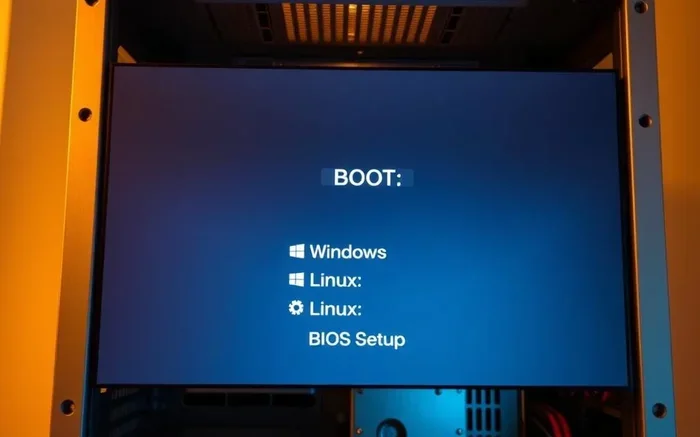
Reboot to bootloader is a startup mode that lets you access low-level controls on your device before the operating system loads. It is useful for flashing firmware, unlocking the bootloader, and troubleshooting serious software issues. Whether you are using a laptop or an Android device, understanding this mode gives you more control over your system.
Have you ever seen the words “reboot to bootloader” on your screen and wondered what it actually means? If so, you are not alone. Many laptop and smartphone users come across this term when they try to fix a stuck device or install new software. In simple terms, reboot to bootloader is a way to start your device in a special low-level mode before the full operating system loads up.
This mode gives you access to powerful tools that you cannot reach during normal use. You can flash new firmware, unlock your device, or fix serious software problems. In this guide, we will break down everything you need to know about reboot to bootloader in plain, easy-to-understand language. Let us dive right in.
Key Takeaways
- What it is: Reboot to bootloader is a special startup mode that loads the bootloader before the full operating system starts.
- Why it matters: It lets you flash firmware, unlock your device, and fix deep software problems that normal mode cannot handle.
- Who needs it: Developers, advanced users, and anyone troubleshooting boot loops or firmware issues benefit from this mode.
- How to access it: You can enter bootloader mode using key combinations, ADB commands, or settings menus depending on your device.
- Safety first: Always back up your data before making changes in bootloader mode, as incorrect steps can brick your device.
📑 Table of Contents
What Does Reboot to Bootloader Mean?
When you turn on your laptop or phone, it goes through a startup process. The bootloader is the very first piece of software that runs. It checks your hardware and then hands control over to the operating system. Reboot to bootloader means restarting your device and stopping at that first stage instead of loading the full OS.
Think of it like a building. The bootloader is the foundation. The operating system is the rest of the building. When you reboot to bootloader, you are standing at the foundation level. From there, you can make structural changes before the building is fully built.
On most devices, you will see a simple screen with a few options. These might include “Start,” “Recovery,” “Fastboot,” or “Download Mode.” Each option opens a different set of tools. The bootloader screen is the gateway to all of them.
Why Is the Bootloader Important?
The bootloader plays a critical role in how your device works. It initializes your hardware components like the processor, memory, and storage. Without a working bootloader, your device would not start at all.
Here are a few key reasons the bootloader matters:
- Hardware initialization: It sets up all the physical parts of your device before the OS takes over.
- Security checks: Many bootloaders verify that the operating system has not been tampered with.
- Firmware loading: It loads the kernel and starts the operating system boot sequence.
- Recovery access: It provides a path to recovery mode for fixing software problems.
When you reboot to bootloader, you bypass the normal startup and go straight to this foundational layer. This is exactly why it is so useful for troubleshooting and advanced operations.
When Should You Reboot to Bootloader?
Not every user needs to access bootloader mode. But there are several situations where it becomes essential. Let us look at the most common reasons people use this feature.
Flashing New Firmware or ROMs
Flashing means writing new software directly to your device’s storage. This is how you install custom ROMs, update firmware, or restore your device to factory settings. You cannot flash firmware from the normal operating system. You must reboot to bootloader first.
For example, if you want to install a custom Android ROM on your phone, you need to unlock the bootloader and flash the new software using fastboot commands. The same applies when you need to update the base firmware on a laptop’s motherboard.
Fixing a Boot Loop
A boot loop happens when your device keeps restarting and never fully loads the operating system. This is a frustrating problem, but bootloader mode can help. From the bootloader screen, you can access recovery mode and wipe your cache partition or perform a factory reset.
If your laptop keeps restarting at the logo screen, entering bootloader mode lets you try a clean boot or reinstall the system. This is one of the most practical uses of reboot to bootloader for everyday users.
Unlocking the Bootloader
Many devices come with a locked bootloader. This means you can only run software that the manufacturer has approved. If you want more freedom, you can unlock the bootloader. This opens the door to custom firmware, root access, and advanced customization.
Keep in mind that unlocking the bootloader usually wipes all your data. Always back up your files before proceeding. Also, some manufacturers void the warranty when you unlock the bootloader, so check your device policy first.
Troubleshooting Hardware Detection Issues
Sometimes your device fails to recognize internal hardware like the storage drive or the display. Bootloader mode can help diagnose these issues. Since the bootloader initializes all hardware before the OS loads, you can check if your device detects the components correctly at this early stage.
If you have recently upgraded your RAM or installed a new GPU, and your device is not recognizing it, bootloader mode can help you figure out whether the issue is hardware or software related. This is a great first step before diving into deeper troubleshooting.
How to Reboot to Bootloader on Different Devices
The exact steps to enter bootloader mode vary depending on your device type. Below we cover the most common methods for laptops and Android devices.
On Android Devices
Android phones and tablets use a dedicated bootloader partition. Here is how you can access it:
- Power off your device completely.
- Press and hold the Volume Down button and the Power button at the same time.
- Release both buttons when you see the bootloader screen.
- Use the volume keys to navigate and the Power button to select an option.
Alternatively, if your device has USB debugging enabled, you can use ADB commands. Open a terminal or command prompt on your computer and type: adb reboot bootloader. This sends a command to your device to restart directly into bootloader mode.
Some Android devices also offer a quick way to access the bootloader from the settings menu. Go to Settings, then System, and look for an option like “Developer options” or “Bootloader unlock.” This method is less common but worth checking if the key combination does not work.
On Laptops
Laptops use a slightly different approach. Most laptops use the BIOS or UEFI firmware, which serves a similar purpose to the Android bootloader. To access it:
- Restart your laptop.
- Press the boot menu key repeatedly as soon as the screen turns on. Common keys include F2, F12, Del, or Esc.
- Select the bootloader or BIOS setup option from the menu that appears.
On some laptops, you can also access the bootloader from Windows. Go to Settings, then Update and Security, then Recovery. Under “Advanced startup,” click “Restart now.” Your laptop will reboot into a special menu where you can access boot options and troubleshooting tools.
For users who have installed new hardware like a GPU or additional RAM, entering the bootloader or BIOS is a great way to check if your system recognizes the new components. This ties directly into maintaining your device and ensuring your investment in new hardware pays off properly.
What Can You Do in Bootloader Mode?
Once you are in bootloader mode, you have access to a range of powerful tools. Let us explore what you can do from this screen.
Flash Custom Firmware
Bootloader mode allows you to flash entirely new firmware onto your device. This is how manufacturers release system updates, and it is also how custom ROM developers distribute their builds. Flashing firmware replaces the existing software with a new version, which can fix bugs, add features, or completely change the look and feel of your device.
Wipe Data and Factory Reset
If your device is severely corrupted, you can use bootloader mode to perform a factory reset. This erases all user data and restores the device to its original state. It is a last-resort fix for devices that will not boot normally.
Unlock or Lock the Bootloader
As mentioned earlier, you can toggle the bootloader lock status from this mode. Unlocking gives you full control, while locking restores the manufacturer’s restrictions. This is a simple but powerful feature that changes what software your device can run.
Install Custom Recovery
A custom recovery like TWRP gives you a more advanced interface for managing your device. You can install ZIP files, create full backups, and access advanced partition management tools. You must be in bootloader mode to flash a custom recovery.
Common Mistakes to Avoid
Working with the bootloader can be risky if you are not careful. Here are some common mistakes that users make and how to avoid them.
- Skipping backups: Always back up your data before making any changes in bootloader mode. A wrong command can erase everything.
- Using the wrong firmware: Flashing firmware meant for a different device model can permanently damage your hardware. Double-check the model number and firmware version.
- Interrupting the flash process: Never turn off your device while firmware is being flashed. This can leave your device in a bricked state.
- Ignoring warnings: Bootloader screens often display warnings about data loss or warranty voiding. Read them carefully before proceeding.
- Skipping driver installation: On laptops and computers, make sure you have the correct USB drivers installed before connecting your device in bootloader mode.
Avoiding these mistakes will save you a lot of headaches. If you are new to bootloader operations, take your time and follow each step carefully. Rushing through the process is the number one cause of problems.
Expert Tips for Safe Bootloader Use
Here are some expert-level tips that will help you work with the bootloader more safely and effectively.
Keep Your Battery Charged
Before entering bootloader mode or flashing firmware, make sure your device has at least 50 to 60 percent battery. A power loss during these operations can cause serious damage. If you are working on a laptop, keep it plugged in the entire time.
Use Official Tools When Possible
Always prefer official tools from your device manufacturer. For Android devices, use the Android SDK tools including ADB and fastboot. For laptops, use the manufacturer’s official firmware update utility. Third-party tools can sometimes contain malware or incorrect firmware files.
Document Your Steps
Write down or record the steps you take while working in bootloader mode. If something goes wrong later, you will have a clear record of what you did. This makes it much easier to reverse the changes or seek help from support forums.
Know When to Stop
Not every problem requires bootloader-level intervention. If your device is still booting into the operating system, try simpler fixes first. Restart your device, clear the cache, or uninstall recent updates before jumping into bootloader mode. Sometimes the simplest solution is the best one.
Bootloader Mode and Device Longevity
Understanding how to use bootloader mode can actually extend the life of your device. Instead of replacing a laptop or phone when software issues arise, you can often fix them yourself using bootloader tools. This saves money and reduces electronic waste.
Regular maintenance like updating firmware through the bootloader, keeping your device’s software clean, and managing storage efficiently all contribute to a longer device lifespan. When you invest in a new laptop, knowing how to access and use the bootloader is one of the best ways to protect that investment over time.
For users who are considering upgrading their hardware, such as adding more memory or replacing a storage drive, understanding the bootloader helps ensure your new components work correctly with your system. Proper hardware recognition starts at the bootloader level, so it is worth learning the basics.
Conclusion
Reboot to bootloader is a powerful feature that gives you direct access to the lowest level of your device’s software. Whether you want to flash new firmware, fix a boot loop, unlock your device, or simply understand how your system starts up, this mode is an essential tool. It may seem intimidating at first, but with the right knowledge and a careful approach, anyone can use it safely.
Remember to always back up your data, use official tools, and take your time with each step. The bootloader is the foundation of your device, and treating it with respect will keep your system running smoothly for years to come. Now that you know what reboot to bootloader means and how to use it, you are better equipped to handle a wide range of device issues on your own.
Frequently Asked Questions
Is rebooting to bootloader safe?
Yes, rebooting to bootloader itself is completely safe. It simply starts your device in a low-level mode. However, any actions you take from that mode, like flashing firmware or wiping data, carry risks. Always make sure you know what each command or option does before you proceed.
Will rebooting to bootloader erase my data?
No, simply entering bootloader mode does not erase any data. Data loss only happens if you explicitly choose to wipe or flash new software. That is why it is always smart to back up your files before making any changes in this mode.
Can I exit bootloader mode without doing anything?
Yes, you can. Most devices will return to normal startup if you simply wait or select the “Start” or “Normal Boot” option from the bootloader menu. No changes will be made if you do not take any action.
What is the difference between bootloader mode and recovery mode?
Bootloader mode is the earliest startup stage and gives you access to firmware flashing and bootloader unlocking. Recovery mode is a slightly higher level that lets you wipe data, clear cache, and apply updates from a ZIP file. Both are useful, but they serve different purposes.
Do I need a computer to reboot to bootloader?
Not always. On most Android devices, you can enter bootloader mode using just the physical buttons on the device. However, if you want to flash firmware or use ADB commands, you will need a computer with the proper drivers and tools installed.
What should I do if my device gets stuck in bootloader mode?
If your device stays stuck on the bootloader screen, try disconnecting and reconnecting the USB cable if you are using a computer. You can also try holding the power button for 10 to 15 seconds to force a restart. If the problem persists, look up your specific device model for targeted troubleshooting steps.