What Is the Current Windows Version
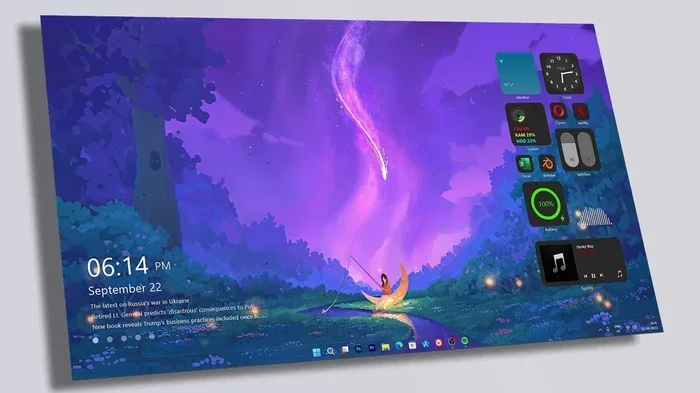
The current Windows version is Windows 11, released by Microsoft in October 2021. It brings a fresh design, improved performance, and new productivity features for laptop users. Windows 11 also requires specific system requirements that older laptops may not meet. This guide covers everything you need to know about checking, upgrading, and getting the most from your current Windows version.
If you have been wondering what is the current Windows version, you are not alone. Many laptop users want to know which version of Windows they are running and whether they should upgrade. The answer is straightforward: Windows 11 is the current version released by Microsoft. It arrived in October 2021 and has since become the standard operating system for new laptops. In this guide, we will walk you through everything you need to know.
Your laptop’s operating system controls everything you do. It manages your apps, your files, and your hardware. Knowing your current Windows version helps you stay secure and get the best performance. Whether you bought your laptop last month or five years ago, understanding your Windows version matters. Let us dive into the details.
Key Takeaways
- Windows 11 is the latest operating system from Microsoft and the current version for most laptops.
- You can check your Windows version easily through Settings or the Run command on any laptop.
- Windows 11 has specific hardware requirements including TPM 2.0 and a compatible processor.
- Upgrading to the latest version can improve security, performance, and user experience.
- Not all laptops qualify for Windows 11, so older devices may still run Windows 10.
- Microsoft provides free updates for eligible Windows 10 devices to upgrade to Windows 11.
📑 Table of Contents
- What Is the Current Windows Version?
- Key Features of Windows 11
- How to Check Your Windows Version on a Laptop
- Windows 11 System Requirements for Laptops
- Windows 10 vs Windows 11: Key Differences
- When Should You Upgrade to the Latest Windows Version?
- Tips for Getting the Most from Your Windows Version
- Frequently Asked Questions
What Is the Current Windows Version?
As of 2026, Windows 11 remains the current Windows version for most users. Microsoft released it on October 5, 2021, and it has received several major updates since then. The latest updates have added new features, improved performance, and strengthened security. Windows 11 Home and Windows 11 Pro are the two main editions most laptop users will encounter.
Microsoft follows a regular release cycle. They provide feature updates twice a year. These updates bring new tools, bug fixes, and security patches. Staying on the current Windows version ensures you get the latest protections and improvements. If your laptop supports Windows 11, you should keep it updated.
Why Does the Current Windows Version Matter?
The current Windows version affects your daily experience in many ways. Newer versions offer better security, faster performance, and modern features. Running an outdated version can leave your laptop vulnerable to malware and hackers. It can also mean missing out on new productivity tools and compatibility with the latest software.
Many apps and games now require the latest Windows version to run properly. Checking what is the current Windows version on your device takes just a few seconds. It is a simple step that can save you from many headaches down the road.
Key Features of Windows 11
Windows 11 introduced a range of exciting features. These changes make laptops feel faster and more intuitive. Here are some of the standout features:
- Redesigned Start Menu: The new Start menu is centered and clean. It offers a simpler, more modern look compared to Windows 10.
- Snap Layouts: You can now snap windows into organized layouts easily. This makes multitasking on a laptop much smoother.
- Widgets Panel: A built-in widgets area gives you quick access to weather, news, and calendar updates right on your desktop.
- Microsoft Store Redesign: The new Store offers more apps and a faster, cleaner browsing experience.
- Improved Gaming Support: Windows 11 includes Auto HDR and DirectStorage for better gaming performance on laptops.
- Enhanced Security: Features like Windows Hello and built-in antivirus protection keep your data safer.
- Better Multitasking: Virtual desktops and improved window management help you stay organized.
These features make Windows 11 a strong reason to upgrade if your laptop supports it. Even if you have been happy with Windows 10, the new features can genuinely improve your workflow.
How to Check Your Windows Version on a Laptop
Checking your current Windows version is quick and easy. You do not need to be a tech expert. Here are the simplest methods:
Method 1: Through Settings
- Click the Start button on your taskbar.
- Select Settings (the gear icon).
- Click on System in the left sidebar.
- Scroll down and select About.
- Look for the Windows specifications section. It will show your version and build number.
Method 2: Using the Run Command
- Press Windows Key + R on your keyboard.
- Type winver and press Enter.
- A popup window will display your Windows version and build number.
Method 3: Through Command Prompt
You can also open Command Prompt and type ver to see basic version information. This method works well for users who prefer keyboard shortcuts. No matter which method you choose, you will find your current Windows version in seconds.
Windows 11 System Requirements for Laptops
Not every laptop can run Windows 11. Microsoft set specific hardware requirements to ensure smooth performance. Here is what your laptop needs:
- Processor: 1 GHz or faster with at least two cores on a compatible 64-bit processor or System on a Chip (SoC).
- RAM: At least 4 GB of memory. If you are unsure about your laptop’s RAM, you can check what the RAM on a laptop typically supports for optimal performance.
- Storage: 64 GB or larger storage device.
- TPM: Trusted Platform Module version 2.0.
- Graphics Card: Compatible with DirectX 12 or later with a WDDM 2.0 driver.
- Display: A high-definition display that is 9 inches or larger with at least 720p resolution.
- Internet Connection: Required for updates and to activate certain features.
If your laptop does not meet these requirements, it may still run Windows 10. You can also check whether your current laptop is compatible by using Microsoft’s PC Health Check app. This tool scans your system and tells you if an upgrade is possible.
What If Your Laptop Does Not Qualify?
Many older laptops do not meet the Windows 11 requirements, especially the TPM 2.0 and processor checks. This does not mean your laptop is useless. Windows 10 will continue to receive support until October 14, 2025. After that, Microsoft will end mainstream support for Windows 10.
Some users choose to install Windows 11 through unofficial methods. However, this can void your warranty and cause stability issues. It is always best to check compatibility first before attempting any upgrade.
Windows 10 vs Windows 11: Key Differences
Many laptop users are still on Windows 10. Understanding the differences helps you decide whether to upgrade. Here is a quick comparison:
- Design: Windows 11 has a centered Start menu and rounded corners. Windows 10 has a more traditional left-aligned layout.
- Multitasking: Windows 11 offers Snap Layouts and better virtual desktop support. Windows 10 has basic snap functionality.
- Gaming: Windows 11 includes Auto HDR and DirectStorage. These features boost gaming performance on laptops.
- Security: Windows 11 requires TPM 2.0 and Secure Boot by default. This provides stronger protection against malware.
- Microsoft Store: The redesigned Store in Windows 11 offers more apps and a better browsing experience.
- Android Apps: Windows 11 can run Android apps through the Amazon Appstore. Windows 10 does not support this feature.
Both operating systems are solid choices. If your laptop qualifies, Windows 11 is the better option for most users. It offers a more modern experience and better long-term support.
When Should You Upgrade to the Latest Windows Version?
Timing your upgrade matters. You want to make sure your laptop is ready and your data is safe. Here are some tips to help you decide:
Upgrade Now If
- Your laptop meets all the Windows 11 system requirements.
- You want the latest security patches and features.
- Your current version is more than two years old.
- You are planning to purchase a new laptop and want the most up-to-date experience.
Wait If
- Your laptop barely meets the minimum requirements. Performance may be slow.
- You rely on specialized software that has not been tested with Windows 11.
- You have important work due soon. Updates can sometimes cause unexpected issues.
- Your laptop’s RAM or storage is limited, and you want to optimize those first.
Before upgrading, always back up your important files. Use an external drive or cloud storage. This ensures you do not lose data if something goes wrong during the update process.
Tips for Getting the Most from Your Windows Version
Once you know your current Windows version, you can take steps to optimize your experience. Here are some practical tips:
- Keep Windows Updated: Go to Settings > Windows Update and check for updates regularly. This ensures you have the latest security patches.
- Manage Startup Apps: Disable unnecessary apps that launch at startup. This improves boot time and overall performance.
- Check Your Storage: Keep at least 20% of your disk free for smooth operation. Delete old files and empty the recycle bin.
- Use Storage Sense: This built-in tool automatically clears temporary files and frees up space.
- Enable BitLocker: If you are on Windows 11 Pro, use BitLocker to encrypt your drive and protect your data.
- Run the Performance Troubleshooter: Windows has a built-in tool that identifies and fixes common performance issues.
These simple steps help your laptop run smoothly regardless of which Windows version you are using. They take only a few minutes and can make a big difference.
Frequently Asked Questions
What is the latest Windows version for laptops in 2026?
The latest Windows version for laptops in 2026 is Windows 11. Microsoft continues to release feature updates twice a year that add new capabilities and improvements. You can check your version through Settings > System > About to see which build you are running.
Can I upgrade from Windows 10 to Windows 11 for free?
Yes, Microsoft offered a free upgrade path from Windows 10 to Windows 11 for eligible devices. Even though the official free upgrade window has changed, many users can still upgrade at no cost if their laptop meets the system requirements. Always back up your data before upgrading.
What happens if my laptop does not support Windows 11?
If your laptop does not support Windows 11, you can continue using Windows 10. Microsoft provided support for Windows 10 until October 2025. After that, you should consider upgrading your laptop or exploring alternative operating systems to stay secure.
How often does Microsoft release a new Windows version?
Microsoft typically releases major feature updates for Windows 11 twice a year, usually in the spring and fall. These updates bring new features, security improvements, and bug fixes. Minor cumulative updates are released more frequently to address vulnerabilities.
Is Windows 11 better than Windows 10 for laptops?
For most users, Windows 11 is better than Windows 10 on laptops. It offers a more modern interface, improved multitasking tools, better gaming features, and stronger security. However, older laptops may not have the hardware needed to run it smoothly.
How do I know if my laptop RAM supports Windows 11?
Windows 11 requires at least 4 GB of RAM. You can check your laptop’s RAM by going to Settings > System > About. If your RAM is below 4 GB, you may experience slow performance. You can also look into RAM compatibility to see if your laptop can be upgraded for better performance.