What Is Shift on Keyboard
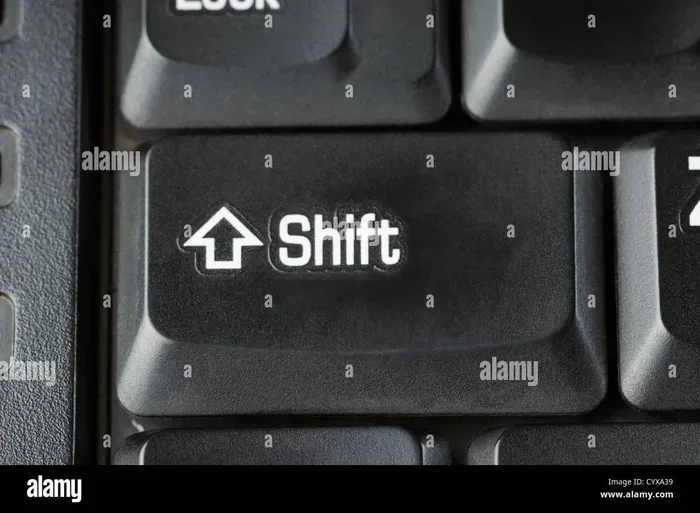
The shift key is a modifier key on your keyboard that lets you type uppercase letters, access symbols, and use keyboard shortcuts. Every standard keyboard has two shift keys, one on each side, and they play a crucial role in everyday typing. Whether you are on a desktop or a laptop, understanding the shift key helps you type faster and avoid frustration. This guide covers everything from basic functions to advanced keyboard shortcuts you can start using today.
Have you ever wondered what happens when you press that big key on the side of your keyboard with the little up arrow on it? That is the shift key, and it is one of the most important keys you will ever use. Without it, you would be stuck typing in lowercase letters only. Every letter would look the same. Sounds boring, right?
The shift key might look simple, but it does a lot more than just making capital letters. It opens up symbols, helps you use shortcuts, and even changes how other keys behave. Whether you are typing an email, coding, or just browsing the web, the shift key works quietly in the background to make your life easier.
In this article, we will break down everything you need to know about the shift key on keyboard. We will cover what it does, where to find it, how to use it with other keys, and some handy tips that even regular computer users might not know. If you have ever felt confused by your keyboard layout or wondered why certain symbols only appear when you hold down a specific key, this guide is for you.
Key Takeaways
- The shift key is a modifier key that changes the output of other keys when pressed together.
- There are two shift keys on every standard keyboard, located on the left and right sides.
- Shift lets you type uppercase letters and access secondary symbols on keys.
- Shift combinations power keyboard shortcuts that save time and boost productivity.
- Shift lock and caps lock behave differently, and knowing the difference prevents typing surprises.
- The shift key symbol is an upward arrow, and it appears on both sides of the keyboard.
- Laptop keyboards work the same way, though the shift keys may be smaller.
📑 Table of Contents
What Is the Shift Key on a Keyboard
The shift key is a modifier key. That means it changes what another key does when you press them together. On its own, the shift key does not type anything. You need to pair it with another key to see results. This is what makes it different from keys like the letter keys or the number keys, which produce output on their own.
Every standard keyboard has two shift keys. One sits on the left side, usually below the caps lock key, and the other sits on the right side, typically near the enter key. Both keys do the exact same thing. The only difference is which hand you use to press them. Most people naturally use their left pinky for the left shift and their right pinky for the right shift.
The shift key symbol looks like a solid upward arrow. On some keyboards, you might also see the word “Shift” printed above the arrow. On laptop keyboards, the shift keys are usually shorter than on full-size desktop keyboards, but they still work the same way. If you have ever struggled with a small laptop keyboard, you know that reaching the shift key can sometimes feel tricky.
Where Is the Shift Key Located
Finding the shift key is easy once you know what to look for. On the left side, it sits directly below the caps lock key and to the right of the Z key. On the right side, it sits below the backspace key and to the left of the enter key. On a laptop keyboard, the layout is similar, but the keys are compressed to save space.
If you are using an external keyboard with a desktop setup, the shift keys are easy to spot. They are two of the largest keys on the keyboard. On compact keyboards or laptop keyboards, the shift keys may be slightly narrower, but they still occupy a prominent position on both sides of the main typing area.
For anyone who has trouble with keyboard navigation, knowing where the shift keys are is essential. If your mouse is not showing up on your laptop, you can still navigate and type using the keyboard alone. The shift key plays a big role in keyboard-only navigation and shortcut use.
What Does the Shift Key Do
The shift key has several important jobs. Let us walk through each one so you understand just how versatile this little key really is.
Typing Uppercase Letters
The most common use of the shift key is typing capital letters. When you hold down the shift key and press a letter key, you get the uppercase version. For example, holding shift and pressing A gives you A. Release the shift key first, and the next letter you type will be lowercase again.
This is useful all the time. You need uppercase letters at the start of sentences, for names, for acronyms, and more. Without the shift key, typing in all caps would require holding down the shift key for every single letter, which gets tiring fast. That is where caps lock comes in, but we will get to that later.
Accessing Symbols and Numbers
Here is something many people do not realize. The number keys at the top of your keyboard have symbols on them too. When you press a number key by itself, you get the number. But when you hold down the shift key and press a number key, you get the symbol above it. For example, shift plus 1 gives you the exclamation mark. Shift plus 8 gives you the asterisk.
The same goes for other keys that have two characters printed on them. The comma key has a comma and a less-than symbol. The period key has a period and a greater-than symbol. The slash key has a forward slash and a question mark. The shift key lets you switch between these characters quickly.
Using Keyboard Shortcuts
The shift key is a key player in many keyboard shortcuts. These shortcuts help you work faster and more efficiently. Here are some common ones:
- Shift + Ctrl + C copies formatting in many programs.
- Shift + Delete permanently deletes a file without sending it to the recycle bin.
- Shift + Click in a web browser lets you open a link in a new tab.
- Shift + Tab moves backward through form fields or options.
- Shift + Arrow Keys lets you select text character by character.
These shortcuts work across most programs and operating systems. Once you start using them, you will wonder how you ever managed without them. They are especially helpful if you type a lot or work with spreadsheets and documents daily.
Shift Key vs Caps Lock
People often confuse the shift key with caps lock. They both produce uppercase letters, but they work very differently. Caps lock is a toggle key. When you press it once, it turns on and stays on. All letters you type after that are uppercase until you press caps lock again to turn it off.
The shift key is temporary. You hold it down while pressing a letter, and as soon as you let go, the shift effect stops. This means you can type a single capital letter without affecting the rest of your text. That is why the shift key gives you more control.
Some people prefer using the shift key over caps lock because it avoids accidental uppercase text. If you have ever written a whole paragraph in caps by mistake, you know how frustrating that can be. Using shift gives you precision and keeps your text looking normal.
On some laptops, if you are dealing with keyboard issues where certain keys stop working, you might notice problems with both shift and caps lock. For example, if your HP laptop keyboard is not working but the mouse is, you may need to check your keyboard settings or update your drivers to restore full functionality.
Shift Key on Laptop Keyboards
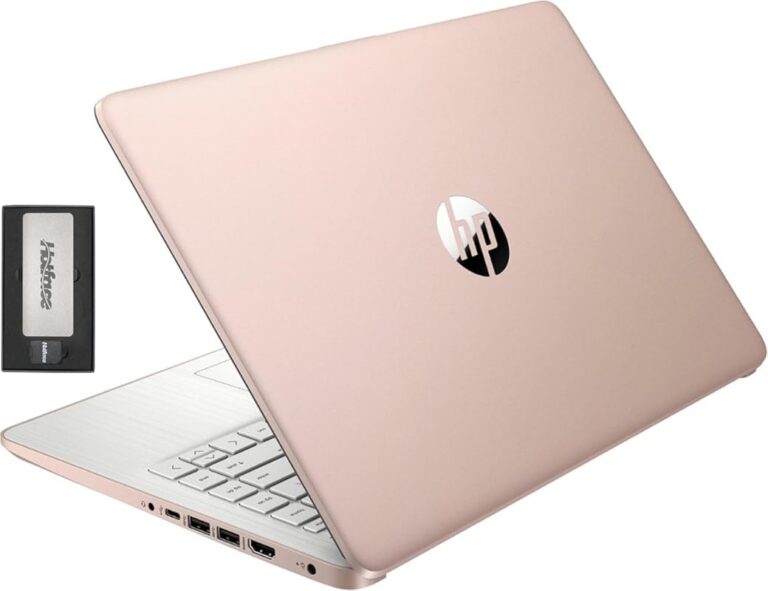
Laptop keyboards are smaller than desktop keyboards, and the shift keys reflect that. They are usually about half the width of a full-size shift key. On some laptops, the left shift key is noticeably smaller than the right one. This can take some getting used to if you are switching from a desktop keyboard.
Despite the smaller size, the shift key on a laptop works exactly the same way. It still types uppercase letters, accesses symbols, and activates shortcuts. The only difference is the physical size and placement, which might require a little adjustment in your finger positioning.
If you find yourself accidentally hitting the wrong shift key, try adjusting your hand position on the keyboard. Keep your fingers centered over the home row keys and use the correct pinky for each shift key. Over time, this muscle memory will feel natural and you will not miss a beat.
Many laptop users also deal with mouse issues from time to time. If you have ever asked yourself where is my mouse on my laptop, the answer is simple. Laptops have built-in trackpads that serve as the mouse. The trackpad is usually located below the keyboard, between the keyboard and the palm rest. If your trackpad stops working, you can use keyboard shortcuts and the shift key to navigate your laptop until you fix the issue.
Common Shift Key Problems and How to Fix Them
Like any keyboard key, the shift key can sometimes cause problems. Here are some common issues and easy fixes you can try.
Shift Key Sticky or Unresponsive
If your shift key feels sticky or does not respond when you press it, dirt and debris might be trapped underneath. Try gently cleaning the key with compressed air or a soft brush. If the problem continues, you may need to check your keyboard settings or restart your computer.
Shift Key Types Wrong Characters
Sometimes pressing shift gives you the wrong symbol or letter. This usually happens when the keyboard language or layout is set incorrectly. Check your language settings in your operating system to make sure they match your physical keyboard. On Windows, you can go to Settings and then Time and Language to adjust this.
Shift Key Does Not Work on Laptop
If the shift key stops working entirely on your laptop, try restarting your device first. If that does not help, check for driver updates or run a keyboard troubleshooter. In some cases, a simple reset of the keyboard settings can fix the problem. If you are experiencing broader input issues, such as your mouse not working on your laptop, there may be a deeper system issue that needs attention.
For regular laptop users, keeping your keyboard clean and your drivers updated goes a long way in preventing these kinds of problems. A little maintenance can save you a lot of frustration down the road.
Tips and Tricks for Using the Shift Key
Want to get even better at using the shift key? Here are some practical tips that can help you type faster and smarter.
- Use both shift keys instead of reaching across the keyboard. Use the left shift for keys on the left side and the right shift for keys on the right side.
- Pair shift with other modifier keys like ctrl and alt to unlock more shortcuts and boost your productivity.
- Double-tap shift in some programs to toggle between uppercase and lowercase quickly.
- Use shift with the arrow keys to select text precisely without using a mouse.
- Hold shift while pressing delete to permanently remove files and free up storage space.
These small habits can make a big difference in how fast and efficiently you work. Once you start using them, you will not want to go back to the old way of doing things.
Final Thoughts
The shift key might be one of the most overlooked keys on your keyboard, but it is absolutely essential. It lets you type uppercase letters, access symbols, use powerful shortcuts, and take control of your keyboard like a pro. Whether you are on a full-size desktop keyboard or a compact laptop, the shift key works the same way and delivers the same results.
Now that you understand everything the shift key can do, try incorporating some of the shortcuts and tips from this article into your daily routine. You will type faster, work smarter, and never look at your keyboard the same way again. The shift key is small, but its impact on your daily computing is huge. Give it the attention it deserves, and you will see the difference in no time.
Frequently Asked Questions
What is the shift key on a keyboard used for?
The shift key is used to type uppercase letters, access secondary symbols on keys, and activate keyboard shortcuts. It is a modifier key that changes the output of other keys when pressed together.
Where is the shift key located on a laptop?
On a laptop, the shift key is located on both sides of the keyboard. The left shift sits below the caps lock key, and the right shift sits below the backspace key. On laptops, the shift keys are usually smaller than on full-size desktop keyboards.
How do I type uppercase letters without using the shift key?
You can use the caps lock key to toggle uppercase letters on and off. However, the shift key gives you more control because it only affects one letter at a time. Caps lock affects all letters until you turn it off.
Can the shift key be used with other keys for shortcuts?
Yes, the shift key works with other modifier keys like ctrl and alt to create powerful shortcuts. For example, shift plus ctrl plus C copies formatting in many programs, and shift plus delete permanently deletes files.
Why is my shift key not working on my laptop?
A non-working shift key can be caused by dirt buildup, incorrect keyboard settings, or outdated drivers. Try cleaning the key, checking your language settings, and updating your keyboard drivers. Restarting your laptop can also resolve temporary glitches.
What does the shift key symbol look like?
The shift key symbol looks like a solid upward arrow pointing to the left. It is usually printed above or near the shift key on your keyboard. On some keyboards, you may also see the word Shift printed next to the arrow.