What Is the Teams Machine Wide Installer
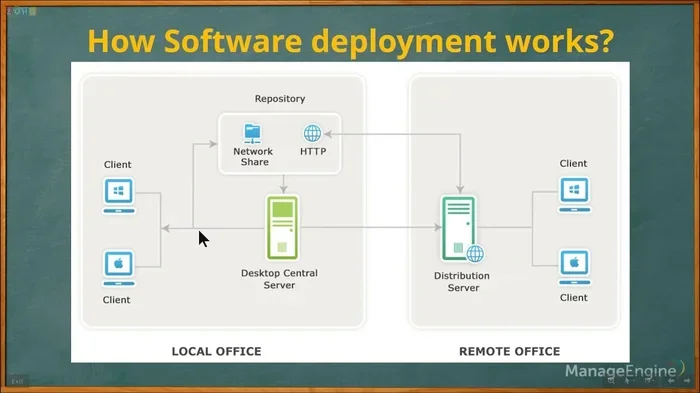
The Teams Machine Wide Installer is a deployment method that installs Microsoft Teams for every user account on a single computer. Unlike per-user installations, this approach lets IT administrators set up Teams once, and every person who logs into that laptop gets a fully functional copy. It simplifies software management, saves time, and ensures everyone on the same device has the latest version of Teams.
If you work in IT or manage a fleet of laptops, you have probably heard the term Teams Machine Wide Installer thrown around. But what exactly does it mean, and why should you care? Let us break it down in plain language.
Microsoft Teams is one of the most popular communication tools in the world right now. Millions of people use it every single day for chat, video calls, file sharing, and collaboration. But getting Teams onto a laptop is not always as simple as downloading an app. In many workplaces, IT departments need a way to install Teams across multiple user accounts on the same machine. That is where the machine-wide installer comes in.
This article will walk you through everything you need to know about the Teams Machine Wide Installer. We will cover how it works, why it matters, what the system requirements are, and how it compares to other installation methods. By the end, you will have a clear picture of whether this approach is right for your setup.
Key Takeaways
- Machine-wide deployment: Teams installs for all user accounts on one device, not just a single user profile.
- IT-friendly management: Administrators can push updates and configure settings across multiple user accounts with one installer.
- Laptop-friendly: Ideal for shared devices like work laptops used by multiple team members or shift workers.
- System requirements matter: Your laptop needs sufficient RAM and a compatible CPU to run Teams smoothly for every user.
- Separate from per-user installs: Understanding the difference helps you choose the right setup for your needs.
- Update control: Machine-wide installs give admins centralized control over when and how Teams updates happen.
📑 Table of Contents
What Is the Teams Machine Wide Installer?
The Teams Machine Wide Installer is a special deployment tool created by Microsoft. It installs the Teams application on a computer so that every user account on that device can access it. You do not need to run the installer separately for each person who logs in.
Think of it this way. Imagine a shared laptop in a small office. Three different people use it throughout the day. With a standard per-user install, each person would need to download and set up Teams themselves. That is a waste of time. With a machine-wide install, the IT team runs the installer once. From that point on, every user who opens the laptop has a ready-to-go Teams experience.
This method is part of Microsoft’s broader software deployment strategy for enterprise customers. It is designed to make life easier for system administrators who manage many devices and user accounts. Instead of repeating the same setup steps over and over, they can deploy Teams setup once and move on to other tasks.
How Does It Differ from a Per-User Installation?
A per-user installation ties the Teams app to a single user profile. When that user logs in, Teams is there. When someone else logs in, Teams is not available unless they install it separately. This is the default method for most home users.
A machine-wide installation removes that restriction. The app lives at the system level, and every user profile on the laptop can access it. Here are the key differences:
- Installation scope: Per-user installs are limited to one account. Machine-wide installs cover all accounts on the device.
- Administrative control: Machine-wide installs give IT teams more control over settings, updates, and configurations.
- Storage efficiency: The app files are stored once, shared across all users, rather than duplicated for each profile.
- Update management: Updates can be pushed centrally in a machine-wide setup, reducing the need for individual user action.
Understanding this difference is important because it affects how you manage laptop compatibility and device-based installation in your organization.
Why Use the Machine Wide Installer?
The Teams Machine Wide Installer offers several real benefits, especially for businesses and organizations that rely on shared devices or centralized IT management.
1. Saves Time for IT Administrators
Imagine managing 50 laptops, each used by 3 to 5 different people. Installing Teams per user on every single device would be a nightmare. With a machine-wide installer, you deploy once per laptop. That is a huge time saver. Your IT team can focus on higher-value tasks instead of repeating the same installation steps.
2. Ensures Consistency Across Users
When every user on a laptop has the same Teams setup, you avoid configuration mismatches. Everyone gets the same settings, the same permissions, and the same experience. This consistency is critical in enterprise environments where standardization matters.
3. Simplifies Updates
Keeping software up to date is one of the biggest challenges in IT. With a machine-wide install, updates roll out to all user accounts at once. You do not need to worry about someone running an outdated version of Teams because they never clicked the update prompt.
4. Works Well for Shared Devices
Shared laptops are common in many workplaces. Call centers, classrooms, hot-desking offices, and shift-based operations all rely on devices that multiple people use. The machine-wide installer ensures that Teams is always ready to go, no matter who sits down at the keyboard.
System Requirements for the Machine Wide Installer
Before you deploy the Teams Machine Wide Installer, you need to make sure your laptops can handle it. The app itself has specific requirements, and running it for multiple users at the same time can put extra strain on your hardware.
RAM Considerations
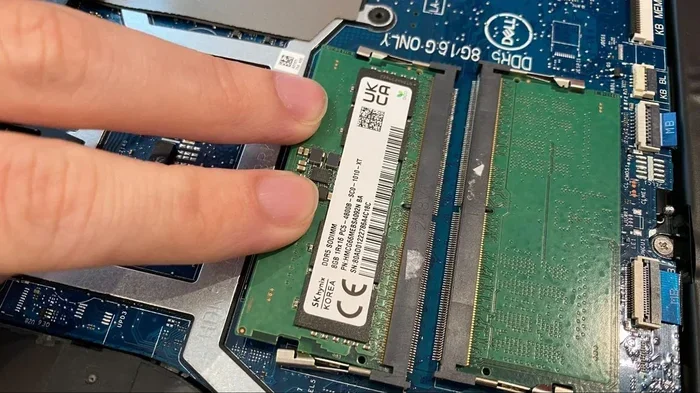
Microsoft Teams is not a lightweight application. It uses a fair amount of memory, especially during video calls or when handling large files. The minimum RAM requirement is 4 GB, but that is really the bare minimum. For a smoother experience, especially on a shared laptop, you want at least 8 GB of RAM.
If you are unsure about what your current setup has, check out our guide on What Is The Ram On A Laptop to understand how memory works in portable devices. Having enough RAM is one of the most important factors for running Teams well across multiple user sessions.
CPU and Processing Power
The processor matters too. Teams uses hardware acceleration for video and audio processing. A modern multi-core processor will handle this much better than an older single-core chip. If your laptop runs hot under load, a good cooling solution can make a big difference.
Check out our review of the What Is The Best Cpu Cooler options if you are looking to improve thermal performance on your work laptop. Keeping temperatures in check helps Teams run smoothly, especially during long video conferences.
Storage and Operating System
You need at least 4 GB of free disk space for the installer. The machine-wide installer supports Windows 10 and Windows 11, and in some cases Windows Server editions. Make sure your operating system is up to date before deploying the installer.
How to Install the Teams Machine Wide Installer
Installing the Teams Machine Wide Installer is a straightforward process, but it does require administrative privileges on the laptop. Here is a step-by-step overview of how it works.
- Download the installer: Get the machine-wide installer package from the Microsoft Teams admin center or the official Microsoft download page.
- Run as administrator: Right-click the installer file and select “Run as administrator.” This ensures the installation applies to all user accounts on the device.
- Follow the prompts: The installer will walk you through the setup process. Choose your preferred settings and click install.
- Verify the installation: Log in with different user accounts to confirm that Teams is available and working for each one.
- Configure updates: Set up automatic or scheduled updates so all user accounts stay current.
For organizations managing many laptops, this process can be automated using tools like Microsoft Endpoint Configuration Manager (MECM) or Group Policy. This allows IT teams to push the installer remotely without needing physical access to each device.
Common Challenges and How to Fix Them
While the Teams Machine Wide Installer is a powerful tool, it is not without its challenges. Here are some common issues and practical solutions.
Installation Fails on Certain Accounts
Sometimes the installer will work for the administrator account but fail for standard user accounts. This usually happens due to permission issues. Make sure the installer was run with full administrator rights and that the target accounts have the necessary folder permissions.
Teams Crashes or Runs Slowly
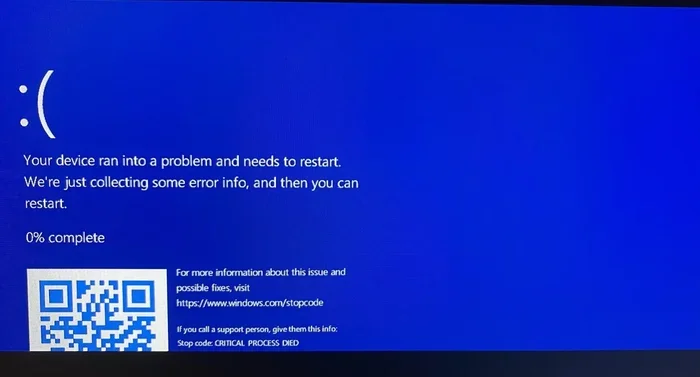
If Teams is sluggish on a machine-wide install, the first thing to check is your laptop’s resources. Running multiple user sessions on a device with low RAM will cause performance problems. Consider upgrading your laptop RAM or closing unnecessary background apps during calls.
Updates Do Not Propagate
In some cases, updates may only apply to certain user profiles. This can happen if the update mechanism is tied to individual user settings rather than the machine-wide configuration. Ensure your deployment settings are configured to apply updates across all accounts.
Storage Space Issues
Since machine-wide installs share files across profiles, you might run into storage constraints on devices with small hard drives. Regularly clean up Teams cache and old files to free up space.
Who Should Use the Machine Wide Installer?
The Teams Machine Wide Installer is not for everyone. It is designed for specific use cases where its benefits outweigh the added complexity. Here is a quick look at who should consider this approach.
- IT administrators managing shared laptops: If your organization uses shared devices, this is the way to go.
- Schools and universities: Computer labs and library laptops benefit greatly from machine-wide deployment.
- Call centers and shift workplaces: Devices that rotate between workers need a setup that works for everyone immediately.
- Large enterprises: Organizations with centralized IT teams can leverage the installer for streamlined enterprise deployment.
On the other hand, if you are a single user on a personal laptop, a standard per-user install is probably all you need. The machine-wide installer adds complexity that simply is not necessary for individual use.
Final Thoughts
The Teams Machine Wide Installer is a smart solution for organizations that need to deploy Microsoft Teams across multiple user accounts on shared laptops. It saves time, ensures consistency, and gives IT teams better control over the entire deployment lifecycle.
Of course, it is not a magic fix. You still need to consider your laptop hardware, system requirements, and the specific needs of your users. A well-planned deployment that accounts for RAM, CPU performance, and storage will deliver the best results.
If you are exploring laptop options for a Teams-heavy environment, make sure your devices have enough memory and processing power. Check out our article on What Is Good Ram For Laptop to find the right memory configuration for smooth Teams performance across all user accounts.
Whether you are an IT professional managing dozens of devices or a small business owner setting up a shared workstation, the machine-wide installer is a tool worth understanding. It turns a potentially tedious setup process into something quick, clean, and manageable.
Frequently Asked Questions
What is the difference between Teams Machine Wide Installer and per-user install?
The machine-wide installer sets up Teams for every user account on a single laptop, while a per-user install only makes Teams available to one specific account. Machine-wide installs are ideal for shared devices managed by IT teams.
Do I need admin rights to use the Teams Machine Wide Installer?
Yes, you need administrator privileges on the laptop to run the machine-wide installer. This ensures the installation applies to all user profiles on the device, not just the account running the setup.
Can the Teams Machine Wide Installer be deployed remotely?
Absolutely. IT administrators can use tools like Microsoft Endpoint Configuration Manager or Group Policy to push the installer to multiple laptops remotely, without needing physical access to each device.
What are the minimum system requirements for the machine-wide install?
You need at least 4 GB of RAM, 4 GB of free disk space, and a modern multi-core processor. Windows 10 or Windows 11 is required. For the best experience, aim for 8 GB of RAM or more.
Does the machine-wide installer support automatic updates?
Yes, it does. You can configure the installer to apply updates across all user accounts automatically. This ensures everyone on the laptop is running the latest version of Teams without manual intervention.
Is the Teams Machine Wide Installer free to use?
The installer itself is free and provided by Microsoft. However, you need a valid Microsoft 365 or Teams subscription for users to access the full features of the app. The deployment tool costs nothing, but the underlying service requires a license.