What Is a Scanner Background Service
A scanner background service is a small program that runs quietly on your laptop to manage scanning tasks. It helps your computer communicate with the scanner hardware and keeps everything ready for when you need to scan. Understanding how this service works can save you time and fix common scanning headaches.
Key Takeaways
- A scanner background service is a hidden process that keeps your scanner ready to use on a laptop.
- It runs in the background so you can scan documents without opening a full program every time.
- If the service stops working, your scanner may not show up or respond on your device.
- You can check and restart the service through your laptop’s device manager or services menu.
- Having enough RAM on your laptop helps the scanner background service run smoothly.
- Common issues include the service not starting, driver conflicts, and slow scan times.
📑 Table of Contents
- What Is a Scanner Background Service?
- How Does a Scanner Background Service Work?
- Why Is the Scanner Background Service Important?
- Common Problems with the Scanner Background Service
- How to Check If the Scanner Background Service Is Running
- Tips to Keep Your Scanner Background Service Running Smoothly
- Scanner Background Service and Your Laptop’s Performance
- What to Do When the Scanner Background Service Keeps Failing
- Final Thoughts
What Is a Scanner Background Service?
If you use a scanner with your laptop, there is a good chance a scanner background service is running right now. You might not see it. You might not even know it is there. But it plays a big role in making your scanner work properly.
So what exactly is a scanner background service? Simply put, it is a small program that runs quietly behind the scenes on your laptop. Its job is to keep the connection between your scanner and your computer alive. It listens for scan commands and tells the scanner what to do. Without it, your laptop would not know the scanner is even plugged in.
Think of it like a waiter in a restaurant. You do not see the waiter until you need something. But the waiter is always there, ready to take your order and bring your food. The scanner background service works the same way. It waits in the background until you tell it to scan a document. Then it jumps into action and handles the job.
Most laptops come with this service already installed. Whether you use a flatbed scanner, a wireless scanner, or a multi-function printer with scanning features, the background service makes it all work. It is a small but essential part of your scanning setup.
How Does a Scanner Background Service Work?
Now that you know what it is, let us look at how it actually works. The process is simpler than you might think.
When you plug in your scanner or connect it wirelessly, the scanner background service starts up. It checks to make sure the scanner is recognized by your laptop. It loads the right drivers so the two devices can talk to each other. Once everything is connected, the service stays active and waits.
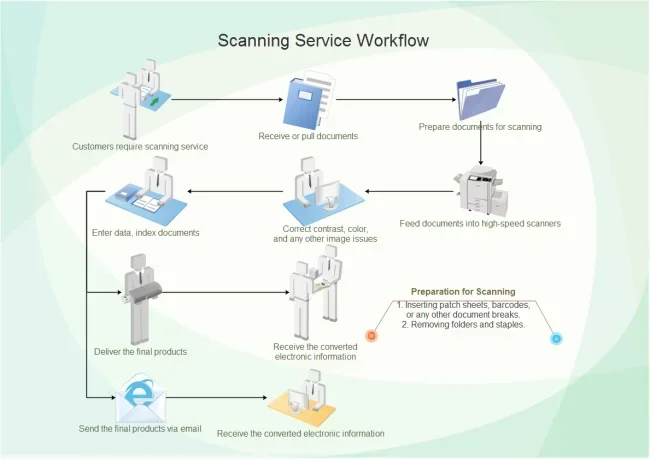
Here is what happens when you want to scan something:
- You press the scan button on the scanner or open a scanning app.
- The scanner background service receives the command.
- It tells the scanner to start the scan.
- The scanner captures the image or document.
- The service sends the scanned file to your laptop.
- The file appears in your chosen folder or app.
All of this happens in seconds. You do not need to do anything special. The service handles the communication between the two devices so you can focus on your work.
What Does the Service Use on Your Laptop?
Like any program running on your computer, the scanner background service uses some of your laptop’s resources. It uses a small amount of memory and a tiny bit of processing power. This is why having enough RAM matters. If your laptop is low on memory, the scanner service might run slowly or cause other problems.
For most scanning tasks, the service uses very little. It is not like running a heavy game or video editing software. But if you are scanning large batches of documents or high-resolution images, the service will need more resources to keep up. This is where knowing what the RAM does in a laptop really helps. RAM handles all the temporary data your laptop needs while running programs, including scanning services.
Why Is the Scanner Background Service Important?
You might be wondering why this little service matters so much. Can you not just plug in the scanner and scan? In some cases, you can. But the background service makes the whole process smoother and more reliable.
Here are the main reasons the scanner background service is important:
- Constant readiness: The service keeps your scanner ready to go at all times. You do not need to restart anything each time you want to scan.
- Driver management: It handles the communication between your laptop and the scanner using the right drivers.
- Error handling: If something goes wrong during a scan, the service can alert you and try to fix the problem.
- Multi-device support: If you have multiple scanners or a multi-function printer, the service manages all of them.
- System integration: It works with your operating system so scanning shows up as a normal function of your laptop.
Without the service, you would need to manually start the scanner driver every time. That would be annoying and slow. The background service removes that friction. It makes scanning feel like a natural part of using your laptop.
It is also worth noting that the service helps with document scanning workflows. If you scan invoices, receipts, or photos regularly, the service keeps everything organized and ready. It makes sure your scanned files go to the right place without you having to think about it.
Common Problems with the Scanner Background Service
No technology is perfect. And the scanner background service is no exception. Sometimes things go wrong. Here are the most common issues people run into.
The Service Will Not Start
This is the most common problem. You plug in your scanner, but nothing happens. The laptop does not recognize the device. In most cases, the background service has stopped or crashed. You can fix this by going into your laptop’s services menu and restarting the scanner service. On Windows, you can find it by typing “services” in the search bar and looking for your scanner service in the list.
Driver Conflicts
Sometimes the scanner background service conflicts with other software on your laptop. This can happen if you recently installed a new driver or updated your operating system. The service might not work correctly until you update or reinstall the scanner driver.
Slow Scanning Speeds
If your scans take a long time to process, the background service might be using too many resources. This often happens when your laptop does not have enough memory. If you are running many programs at once, the scanner service has to compete for resources. You can check how much RAM your laptop is using and close unnecessary programs before scanning.
The Scanner Keeps Disconnecting
If your wireless scanner keeps losing its connection, the background service might not be handling the connection properly. Try restarting the service or checking your Wi-Fi connection. Sometimes simply restarting your laptop fixes the issue.
How to Check If the Scanner Background Service Is Running
Checking on the scanner background service is easy. You do not need to be a tech expert. Here is how to do it on a Windows laptop.
- Press the Windows key and type “services.”
- Open the Services app from the search results.
- Scroll down and look for your scanner service. It might be named something like “Windows Scanner” or your scanner brand name.
- Right-click the service and select “Properties.”
- Check the status. It should say “Running.”
- If it says “Stopped,” click “Start.”
On a Mac laptop, the process is a little different. You can check through the System Preferences or use the terminal to look for scanner-related processes. Most modern Macs handle scanner services automatically, but you can still check if the service is active.
If you are not sure what your scanner service is called, try looking in your laptop’s device manager. Open the device manager, find your scanner under “Imaging Devices,” and check its status there. This will tell you if the service is working properly.
Tips to Keep Your Scanner Background Service Running Smoothly
Taking care of your scanner background service is simple. A few small habits can keep everything running without problems.
- Keep your drivers updated: Check for scanner driver updates regularly. Updated drivers help the service work better and fix known bugs.
- Restart your laptop often: A simple restart clears out old processes and gives the scanner service a fresh start.
- Close unused programs: Freeing up RAM helps the scanner service run faster. Before a big scanning job, close apps you are not using.
- Check the service status: Every few weeks, open the services menu and make sure the scanner service is running.
- Use genuine scanner software: Stick with the official software from your scanner manufacturer. Third-party apps can sometimes cause conflicts.
These tips might seem small, but they make a big difference. A well-maintained scanner service means fewer problems and faster scans. You will spend less time fixing issues and more time getting work done.
Scanner Background Service and Your Laptop’s Performance
One question people often ask is whether the scanner background service slows down their laptop. The short answer is no. The service uses very little memory and processing power when it is idle. It is designed to be lightweight and unobtrusive.
However, if your laptop is older or has limited memory, you might notice a slight slowdown. This is especially true when you are scanning large files or running many programs at the same time. In these cases, upgrading your laptop’s RAM can help. More memory means your laptop can handle the scanner service and other tasks without breaking a sweat.
If you are curious about how much RAM your laptop needs for smooth scanning, check out this guide on what is a good amount of RAM for a laptop. It will help you understand the right memory size for your needs and budget.
The scanner background service is also affected by your laptop’s overall health. If your hard drive is nearly full or your system is cluttered with old files, the service might not perform as well. Keeping your laptop clean and well-maintained helps everything run better, including scanning.
What to Do When the Scanner Background Service Keeps Failing
Sometimes the service fails over and over again. This can be frustrating. Here is what you can do when that happens.
First, try restarting the service manually. Go to the services menu, stop the scanner service, wait a few seconds, and then start it again. This often fixes temporary glitches.
If restarting does not work, try reinstalling the scanner software. Uninstall the current software, restart your laptop, and then install the latest version from the manufacturer’s website. This replaces any corrupted files that might be causing the problem.
Another option is to check for Windows updates. Sometimes a system update can interfere with the scanner service. Installing the latest updates can fix compatibility issues and get everything working again.
If none of these steps work, the problem might be with the scanner hardware itself. Try connecting the scanner to a different USB port or testing it on another laptop. This will help you figure out if the issue is with the service or the scanner.
Final Thoughts
The scanner background service is one of those things you do not think about until it stops working. And when it does stop working, it is very noticeable. Your scanner will not respond, your scanning apps will fail, and you will be stuck trying to figure out what went wrong.
The good news is that understanding how this service works makes it much easier to fix problems when they come up. You now know what the service does, how to check if it is running, and what to do when things go wrong. You also know how to keep it running smoothly with simple maintenance habits.
Your laptop’s scanner background service is a small but powerful tool. It quietly handles the hard work of connecting your scanner to your computer. Take care of it, and it will take care of your scanning needs for a long time.
Next time your scanner gives you trouble, do not panic. Open the services menu, check the status, and follow the troubleshooting steps in this article. You will have your scanner back up and running in no time.
Frequently Asked Questions
What does a scanner background service do on a laptop?
A scanner background service manages the connection between your scanner and your laptop. It keeps the scanner ready to use and handles all communication between the two devices. Without it, your laptop would not recognize the scanner.
How do I know if my scanner background service is running?
You can check by opening the Services app on your laptop. Look for your scanner service in the list. If the status says “Running,” the service is active. If it says “Stopped,” you need to start it manually.
Can a scanner background service slow down my laptop?
No, the service uses very little memory and processing power. It is designed to be lightweight. However, if your laptop has very low RAM, the service might use a noticeable amount of resources during large scanning jobs.
Why does my scanner background service keep stopping?
This can happen due to driver conflicts, software updates, or corrupted files. Try restarting the service, reinstalling the scanner software, or checking for system updates. If the problem continues, the scanner hardware might need to be checked.
Do I need to keep the scanner background service running all the time?
Yes, it is best to keep the service running if you use your scanner regularly. It ensures the scanner is always ready to connect. You can set the service to start automatically when your laptop boots up.
What is the difference between a scanner background service and a scanning app?
The scanner background service runs quietly and handles the connection between your laptop and scanner. A scanning app is the program you open to actually scan documents. The service works behind the scenes so the app can function properly.