What Is a Linux Tty Session
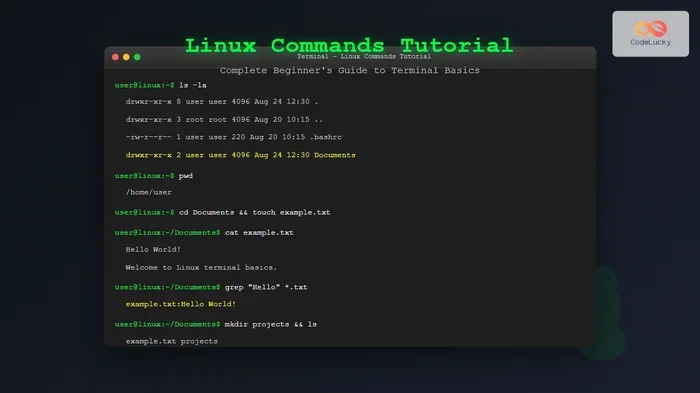
A Linux TTY session is a text-based terminal environment where you interact with your operating system through commands instead of a graphical interface. TTY stands for “teletypewriter,” and it has been a core part of Linux since the very beginning. Understanding TTY sessions helps you troubleshoot problems, manage servers, and work more efficiently on your Linux machine.
A Linux TTY session is one of those topics that sounds intimidating but is actually quite simple once you break it down. If you have ever opened a terminal window and typed commands, you have already used a TTY session. The word TTY dates back to the days of physical teletype machines, and Linux has kept the term alive. In this article, we will walk you through everything you need to know about TTY sessions in Linux. You will learn what they are, how they work, and why they still matter today.
Whether you are a beginner just starting with Linux or an experienced user looking to deepen your knowledge, this guide covers it all. We will explore the different types of TTY sessions, how to access them, and the tools that make working in a terminal even better. By the end, you will see why every Linux user should understand TTY sessions. Let us dive right in.
Key Takeaways
- TTY stands for “teletypewriter”: It is the original way humans communicated with computers before graphical interfaces existed.
- Linux TTY sessions come in many forms: From virtual consoles to terminal emulators and session managers like Screen and tmux.
- TTY sessions are essential for troubleshooting: They let you fix boot issues, recover lost passwords, and diagnose system problems.
- You can access TTY easily: Using simple keyboard shortcuts like Ctrl+Alt+F2 on most Linux distributions.
- Session management tools boost productivity: GNU Screen and tmux let you keep multiple sessions running without staying connected.
- TTY is still relevant today: Even in the age of graphical desktops, TTY remains a powerful tool for developers and system administrators.
📑 Table of Contents
What Is a TTY Session in Linux?
A TTY session is a text-based interface where you type commands and read output directly. The term comes from “teletypewriter,” an old machine that let people send messages over long distances using a keyboard and printer. Linux borrowed this concept and turned it into a powerful computing tool. When you open a terminal, you are starting a TTY session.
In a TTY session, there is no mouse, no windows, and no desktop environment. Everything happens through text. You type a command, press Enter, and the system responds with text output. This might sound old-fashioned, but it is incredibly efficient. Many developers and system administrators prefer TTY sessions because they are fast and lightweight.
TTY sessions are also called “virtual consoles” or “terminal sessions” depending on the context. The key idea is the same: you are interacting with your computer through text. The Linux kernel manages these sessions, and each one gets its own input and output channels. This means you can have multiple TTY sessions running at the same time, each completely independent of the others.
Why TTY Sessions Still Matter
You might wonder why TTY sessions matter in an age of beautiful graphical desktops. The answer is simple: TTY sessions are reliable. When your graphical interface crashes or freezes, the TTY session often keeps working. This makes it your best friend for troubleshooting. You can use a TTY session to fix problems, kill unresponsive processes, or recover your system.
TTY sessions also use far fewer system resources than a full desktop environment. If you are running a server or a low-powered machine, a TTY session gives you everything you need without the overhead. Many cloud servers and remote machines run entirely in TTY mode because it saves memory and processing power.
How TTY Sessions Work in Linux
Understanding how TTY sessions work helps you use them more effectively. At the heart of every TTY session is the Linux kernel. The kernel handles input from your keyboard and sends output to your screen. It manages each session as a separate process, which means every TTY you open has its own environment and permissions.
When you start a TTY session, the system assigns it a device file. These files live in the /dev directory and are named tty1, tty2, tty3, and so on. Each number represents a different virtual console. You can switch between them using simple keyboard shortcuts, and each one runs its own shell session.
The Role of the Shell
The shell is the program that actually reads your commands and executes them. Bash is the most common shell on Linux, but others like Zsh and Fish are popular too. When you start a TTY session, the shell starts automatically and waits for your input. You can think of the shell as the bridge between you and the Linux kernel.
Every command you type goes through the shell first. The shell interprets the command, passes it to the kernel, and then displays the result back to you. This process happens in milliseconds, which is why TTY sessions feel so responsive. The shell also handles things like command history, tab completion, and environment variables, making your work much easier.
Standard Input, Output, and Error
Every TTY session uses three standard streams. These are standard input, standard output, and standard error. Standard input is where your keyboard commands go. Standard output is where normal command results appear. Standard error is where error messages get displayed. Understanding these streams helps you debug problems and redirect output to files or other programs.
You can redirect these streams using special symbols like > and 2>. For example, you can send error messages to a log file while keeping normal output on your screen. This is a powerful technique that makes TTY sessions even more useful for advanced tasks.
How to Access TTY Sessions on Linux
Accessing TTY sessions on Linux is straightforward. Most Linux distributions give you several virtual consoles you can switch between. The default graphical desktop usually runs on TTY7 or TTY1, depending on your system. The other TTY sessions are available for you to use at any time.
Here are the most common ways to access TTY sessions:
- Keyboard shortcuts: Press Ctrl+Alt+F1 through F6 to switch to different virtual consoles. Press Ctrl+Alt+F7 or F2 to return to your graphical desktop.
- Terminal emulator: Open a terminal window from your desktop environment. This creates a TTY session within your graphical desktop.
- SSH connection: Connect to a remote Linux machine using SSH. This gives you a TTY session on the remote system.
- Recovery mode: Boot into recovery mode to access a TTY session when your system will not start normally.
Each method gives you a fully functional TTY session. The keyboard shortcut method is the most direct and works even when your graphical interface is not responding. This is why many Linux users keep TTY sessions bookmarked in their troubleshooting toolkit.
Switching Between TTY Sessions
Switching between TTY sessions is as easy as pressing a few keys. Try pressing Ctrl+Alt+F3 to jump to TTY3. You will see a login prompt asking for your username and password. After logging in, you are in a fresh TTY session. You can run commands, edit files, and manage your system just like you would in a terminal window.
To go back to your graphical desktop, press Ctrl+Alt+F2 or Ctrl+Alt+F7. The exact function key depends on your Linux distribution. Experiment with different keys to find the one that works on your system. Once you get comfortable switching between TTY sessions, you will wonder how you ever managed without them.
TTY Session Management Tools
Working in TTY sessions becomes even more powerful when you use session management tools. These tools let you keep sessions running in the background, detach from them, and reattach later. They are especially useful for long-running tasks like downloads, compilations, or server administration.
Two tools stand out in this category: GNU Screen and tmux. Both are terminal multiplexers, which means they let you manage multiple terminal sessions inside a single window. They also allow you to detach and reattach sessions, which is incredibly helpful for remote work.
GNU Screen
GNU Screen has been around for decades and remains a favorite among Linux users. It lets you create multiple virtual terminals within one TTY session. You can start a long-running process, detach from the session, and reattach later from the same or a different machine. The commands are simple once you learn the basics.
To start a new Screen session, type screen in your terminal. To detach, press Ctrl+A followed by D. To list active sessions, type screen -ls. To reattach, type screen -r followed by the session name. GNU Screen is lightweight and available on almost every Linux distribution.
If you are managing a server remotely, GNU Screen is a lifesaver. You can start a task, disconnect from the server, and come back hours later to find your task still running. This eliminates the need to keep your computer connected to the server at all times.
tmux
tmux is a newer terminal multiplexer that has gained a huge following in recent years. It offers a more modern interface and better scripting capabilities than GNU Screen. Like Screen, tmux lets you create multiple sessions, windows, and panes within a single TTY session.
To start a new tmux session, type tmux in your terminal. You can create new windows with Ctrl+B followed by C. To split panes, use Ctrl+B followed by % or “. tmux sessions persist even if you disconnect, making it perfect for remote server management and long-running tasks.
Many Linux users prefer tmux over Screen because of its intuitive key bindings and active development community. If you are just starting with session management, tmux is a great choice. The learning curve is gentle, and the benefits are immediate.
Common Uses for TTY Sessions
TTY sessions serve many practical purposes in everyday Linux use. They are not just for advanced users or system administrators. Even casual Linux users can benefit from understanding how TTY sessions work. Here are some of the most common use cases.
System Recovery and Troubleshooting
When your Linux system fails to boot into the graphical desktop, a TTY session can save the day. You can boot into recovery mode or switch to a TTY console to diagnose the problem. From there, you can check log files, reinstall drivers, or fix configuration errors. TTY sessions give you direct access to your system even when the desktop is broken.
For example, if your desktop environment crashes on startup, you can switch to TTY2, log in, and check the system logs. Commands like journalctl and dmesg help you identify the root cause. This is a skill that every Linux user should have in their toolkit.
Remote Server Management
Most servers run without a graphical desktop. They operate entirely through TTY sessions accessed via SSH. As a server administrator, you will spend most of your time in TTY mode. You will install software, configure services, monitor performance, and manage users all through text-based commands.
Using session management tools like tmux on your server ensures your work survives disconnections. You can start a complex configuration task, detach, and return to it later. This workflow is standard practice for professional Linux administrators and DevOps engineers.
Lightweight Computing
If you are using an older laptop or a machine with limited resources, TTY sessions offer a lightweight alternative to a full desktop environment. You can run a text-based Linux distribution or simply use TTY sessions alongside your existing desktop. This frees up memory and CPU for the tasks that matter most.
For users who primarily work with text editors, command-line tools, and programming languages, a TTY session provides everything they need. You can write code, compile programs, and manage files without the overhead of a graphical interface. Many developers swear by this approach for its speed and simplicity.
Tips for Getting the Most Out of TTY Sessions
Getting comfortable with TTY sessions takes a little practice, but the payoff is huge. Here are some tips to help you make the most of your TTY experience.
- Learn the keyboard shortcuts: Ctrl+Alt+F1 through F6 are your best friends for switching TTY sessions quickly.
- Use a terminal multiplexer: Tools like tmux or GNU Screen make working in TTY sessions much more productive.
- Customize your shell: Set up aliases, environment variables, and shell prompts to make your TTY sessions feel personalized.
- Explore different shells: Try Zsh or Fish alongside Bash to find the shell that fits your workflow best.
- Keep a cheat sheet: Save common commands and shortcuts in a text file for quick reference.
- Practice regularly: The more you use TTY sessions, the more natural they become. Try switching to TTY for at least one task each day.
Remember, every expert was once a beginner. Do not be afraid to experiment with TTY sessions. Make mistakes, learn from them, and soon you will wonder how you ever managed without them. The Linux community is always ready to help if you get stuck.
TTY Sessions and Laptop Hardware
TTY sessions work on all types of hardware, including laptops. In fact, using TTY sessions on a laptop can be especially useful when the graphical interface is consuming too much memory or causing display issues. If you are running a lightweight Linux setup on a laptop, TTY sessions give you full system access without any graphical overhead.
The amount of RAM on your laptop plays a role in how smoothly TTY sessions run. TTY sessions use very little memory compared to a full desktop environment. If your laptop has limited RAM, switching to a TTY session can free up resources for your actual work. You can learn more about how much RAM your laptop needs for optimal performance in our guide on what is the RAM on a laptop.
Understanding your laptop’s hardware helps you make the most of TTY sessions. For example, knowing what RAM is compatible with your laptop can help you upgrade if needed. Check out our article on how to know what RAM is compatible with my laptop for practical tips on RAM upgrades. You can also explore what constitutes a good amount of RAM for a laptop to ensure your system runs smoothly in both graphical and TTY modes.
When working remotely or managing cloud servers, the computing environment matters. TTY sessions are a fundamental part of any SaaS environment where server management happens through command-line interfaces. Understanding TTY sessions gives you a solid foundation for working in these modern computing setups.
Conclusion
A Linux TTY session is a powerful and essential tool for anyone who uses Linux. Whether you are troubleshooting a broken desktop, managing a remote server, or simply looking for a faster way to work, TTY sessions deliver. They are lightweight, reliable, and incredibly versatile. Once you start using TTY sessions regularly, you will wonder how you ever managed without them.
The beauty of TTY sessions is that they are always there when you need them. They work even when the graphical interface fails, and they use minimal system resources. Combined with tools like tmux and GNU Screen, TTY sessions become a productivity powerhouse. Take some time today to explore your TTY sessions. Switch to a virtual console, try a few commands, and experience the difference for yourself. You will be glad you did.
Frequently Asked Questions
What does TTY stand for in Linux?
TTY stands for “teletypewriter,” which refers to the old physical machines used to send and receive text messages over telegraph lines. Linux kept the term because it perfectly describes a text-based interface where you interact with the computer through typed commands and text output.
How many TTY sessions can I have on Linux?
Most Linux distributions provide six to twelve virtual TTY consoles. You can access them using Ctrl+Alt+F1 through F6 or higher, depending on your system. The exact number depends on your Linux distribution and how it is configured, but you can usually switch between at least six TTY sessions.
Is a TTY session the same as a terminal emulator?
A TTY session is the underlying text-based session managed by the Linux kernel, while a terminal emulator is a graphical program that lets you access a TTY session inside your desktop environment. Think of the terminal emulator as a window into a TTY session. Both give you the same command-line experience.
Can I run graphical applications from a TTY session?
Technically yes, but it is not recommended. TTY sessions are designed for text-based work, and running graphical applications in them can be slow and unreliable. If you need to run graphical programs, use your desktop environment instead. TTY sessions shine for command-line tasks and system administration.
Do TTY sessions use less RAM than a desktop environment?
Yes, TTY sessions use significantly less RAM than a full desktop environment. A TTY session might use only a few megabytes of memory, while a desktop environment like GNOME or KDE can use hundreds of megabytes or even gigabytes. This makes TTY sessions ideal for low-resource machines and servers.
What is the difference between a TTY and a PTY?
A TTY is a physical or virtual text-based terminal device managed by the Linux kernel. A PTY, or pseudo-terminal, is a software emulation of a TTY that runs inside a graphical terminal emulator. When you open a terminal window on your desktop, you are using a PTY. Both work the same way from the user’s perspective, but PTYs exist purely in software.