What Is F Lock on Keyboard
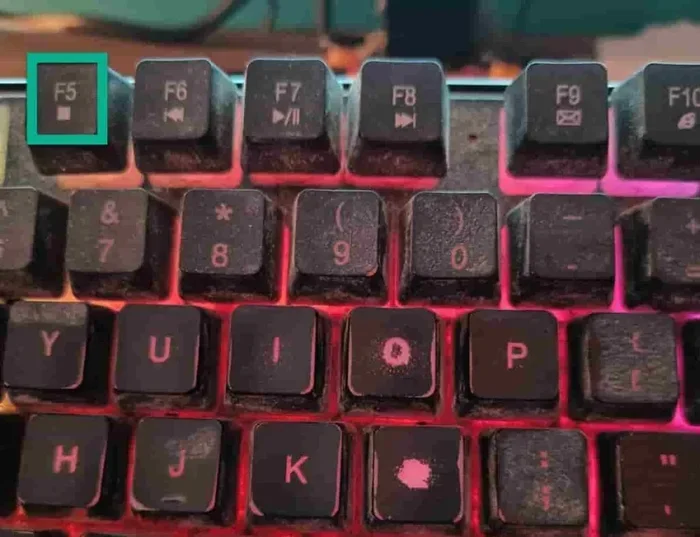
The F Lock key is a toggle switch on your laptop or desktop keyboard that controls whether the top row of keys works as standard function keys or as media and shortcut keys. When F Lock is off, pressing F1 through F12 triggers special actions like volume control or screen brightness. When F Lock is on, you get the classic F1 through F12 functions for programs and games. It is a simple but often confusing feature that many laptop users never fully understand.
Have you ever pressed F1 or F2 on your keyboard and expected one thing but got something completely different instead? Maybe your volume dropped or your screen dimmed when you just wanted to use a classic function key. That is almost certainly because your F Lock key is in a different mode than you think. The F Lock key is one of those small, overlooked keys on your laptop keyboard that can cause big confusion when you do not know what it does.
In this guide, we will break down everything you need to know about the F Lock key. You will learn what it is, how it works, where to find it, and how to fix common problems. Whether you use your laptop for work, gaming, or just browsing, understanding this key will make your daily tasks smoother and faster.
Key Takeaways
- F Lock toggles function key behavior: It switches the top row between standard F keys and media shortcuts.
- Most laptops have it: Nearly all modern keyboards include an F Lock key, usually near the bottom left.
- It is easy to turn on or off: A single press of the F Lock key changes the mode instantly.
- Press Fn + F Lock for alternatives: Many keyboards let you use the Fn key combined with F Lock for extra control.
- F Lock affects gaming and productivity: Knowing its state helps you use keyboard shortcuts correctly.
- It relates to other laptop hardware: F Lock works alongside components like What Is The Ram On A Laptop and input devices like the touchpad, which you can learn about in What Is The Mouse On A Laptop Called.
📑 Table of Contents
What Is F Lock on Keyboard?
The F Lock key is a toggle key found on most laptop keyboards and external PC keyboards. Its main job is to switch the behavior of the function keys at the top of your keyboard. These are the keys labeled F1 through F12. When F Lock is turned on, these keys perform their standard functions. When F Lock is turned off, they trigger special media or shortcut actions instead.
Think of F Lock like a light switch. Flip it one way, and your function keys behave one way. Flip it the other way, and they behave differently. It is that simple. But because there is no visual indicator on most keyboards, many users never realize the switch has been flipped.
How F Lock Works in Practice
When F Lock is set to the on position, pressing F2 might rename a file in Windows, or F5 might refresh a web page. These are the classic functions that software programs have used for decades. When F Lock is off, that same F2 key might open a search window, and F5 might lower your screen brightness. The key itself does not change. The mode does.
This dual behavior is built into the keyboard firmware. The manufacturer programs each key to have two possible actions. F Lock simply tells the keyboard which action to use at any given moment. It is a hardware-level toggle, not a software setting you need to change inside Windows or your operating system.
Where Is the F Lock Key Located?
The F Lock key is usually found on the bottom row of your keyboard, near the Ctrl, Windows, or Fn keys. On some keyboards, it sits right next to the Fn key. On others, it may be near the right Ctrl key or even in the space between the left Alt and Ctrl keys. The exact placement depends on your keyboard brand and model.
If you have a compact laptop keyboard, the F Lock key might share a key with another function. Look for a small lock icon or the letters “F-Lock” printed on the key. Some keyboards use a different label, such as “FnLk” or “Fn Lock.” These all mean the same thing. They control the function key lock state.
Finding F Lock on Popular Laptop Brands
Different laptop brands place the F Lock key in different spots. Here are some common locations:
- Dell laptops: Usually near the bottom left, often combined with the Fn key or printed on the Esc key.
- HP laptops: Often found on the Esc key or the left Ctrl key area.
- Lenovo laptops: Typically near the Fn key or on a dedicated key in the bottom-left corner.
- ASUS laptops: Sometimes printed on the Esc key or as a separate key near the spacebar.
- Acer laptops: Often shares space with the Fn key or appears as FnLk on the bottom row.
If you cannot find it, check your laptop manual or search for your specific model online. Most modern laptops include this feature, even if the key is not always obvious.
What Happens When F Lock Is On vs Off?
Understanding the difference between F Lock on and F Lock off is the key to using your keyboard correctly. Here is a quick breakdown of what each mode does.
When F Lock Is On: Your function keys work as standard function keys. F1 opens help menus in many programs. F2 lets you rename selected files. F5 refreshes your browser. F11 toggles full-screen mode in most web browsers. These are the traditional functions that software developers have relied on for years.
When F Lock Is Off: The same keys trigger special media and system actions instead. F1 might mute your sound. F2 could raise the volume. F5 might adjust brightness. F11 could put your display to sleep. These shortcuts are built into your keyboard by the manufacturer and are designed for quick access without opening any software.
Common F Key Actions When F Lock Is Off
- F1: Mute or open help
- F2: Volume up or rename
- F3: Volume down or search
- F4: Play/pause media
- F5: Brightness up or refresh
- F6: Brightness down or keyboard backlight
- F7: Mute or previous track
- F8: Play or next track
- F9: Stop or eject
- F10: Screenshot or undo
- F11: Full screen or minimize
- F12: Save or print
As you can see, the same key can do very different things depending on the F Lock setting. This is why knowing the current state of your F Lock matters so much.
How to Turn F Lock On or Off
Turning F Lock on or off is quick and easy. You do not need to open any settings or install extra software. Just press the F Lock key once, and the mode switches immediately. Here is how to do it step by step.
- Look at the bottom row of your keyboard.
- Find the F Lock key, FnLk key, or the key with a lock icon.
- Press it once.
- Check if your function keys now behave the way you want.
If pressing the F Lock key once does not work, try holding the Fn key and pressing F Lock at the same time. On some laptops, you need to hold Fn first. On others, Fn Lock is a separate key combination. Try both methods to see which works for your device.
Using Windows Mobility Center
On Windows laptops, you can also change the Fn Lock setting through the Mobility Center. Click the Start menu, type “Mobility Center,” and open it. Look for the “Function Key Row” option. You can switch between function keys and media keys from there. This is helpful if your physical F Lock key is not working or is missing.
Using BIOS or UEFI Settings
Some laptops let you set the default F Lock behavior in the BIOS or UEFI setup. Restart your laptop and press F2 or Del during boot to enter the setup menu. Look for a keyboard or function key setting. You can choose whether the function keys default to standard mode or media mode. This setting will persist even after you restart your computer.
Why Does F Lock Exist?
F Lock exists because keyboard manufacturers wanted to fit more features into a compact design. A standard keyboard has only 12 function keys. But modern laptops need shortcuts for volume, brightness, media control, and more. By giving each key two functions, manufacturers can offer more features without adding extra keys.
This design choice makes keyboards smaller and more efficient. It also gives users quick access to common actions like adjusting volume or brightness without opening any software. The trade-off is that some users get confused when their function keys suddenly start doing unexpected things. That is where F Lock comes in. It gives you full control over which function set you are using.
F Lock and Productivity
If you use keyboard shortcuts for work, F Lock being in the wrong mode can slow you down significantly. Imagine pressing F2 to rename a file and instead your screen brightness changes. Or pressing F5 to refresh a page and your volume drops. These small frustrations add up over a long workday.
Keeping F Lock in the on position is usually best for productivity. This way, your function keys always do what you expect them to do. If you need media shortcuts occasionally, you can hold the Fn key while pressing the function key to access the media action without changing the F Lock mode.
F Lock and Gaming
Gamers also benefit from understanding F Lock. Many games use F1 through F12 for quick actions like casting spells, switching weapons, or activating skills. If F Lock is off, these keys might trigger system shortcuts instead, which can ruin your gaming experience. Always check your F Lock status before a gaming session to avoid surprises.
Some gaming keyboards let you customize the F Lock behavior through dedicated software. You can set the keyboard to always use standard function keys or to use media keys by default. This level of control is especially useful for competitive players who rely on specific key bindings.
Common F Lock Problems and How to Fix Them
Even though F Lock is a simple feature, it can cause some frustrating problems. Here are the most common issues and how to solve them.
F Lock Key Does Not Respond
If pressing the F Lock key does nothing, the key might be stuck or the keyboard driver might need updating. Try cleaning around the key with compressed air. If that does not work, check your keyboard drivers in Device Manager. Right-click the Start button, open Device Manager, expand “Keyboards,” and update the driver for your keyboard.
F Lock Toggles on Its Own
Sometimes F Lock switches modes by itself. This usually happens when the F Lock key is being pressed accidentally, such as by a resting hand or a spill. Try cleaning the key area thoroughly. If the problem persists, you can disable the F Lock key through your keyboard settings or use a third-party key remapping tool.
Function Keys Work Differently After a Windows Update
Windows updates can sometimes reset your keyboard preferences. If your function keys suddenly start behaving differently after an update, press F Lock once to toggle the mode back. You can also check the Mobility Center to confirm your function key row setting is correct.
F Lock Does Not Exist on Your Keyboard
Some compact keyboards and certain laptop models do not include a dedicated F Lock key. In these cases, the function key behavior is usually controlled by the Fn key alone. Holding Fn while pressing a function key gives you the media shortcut. Releasing Fn and pressing the same key gives you the standard function. Check your laptop manual for the exact behavior of your specific model.
F Lock vs Fn Key: What Is the Difference?
People often confuse F Lock with the Fn key, but they serve different purposes. The Fn key is a modifier key, similar to Shift or Ctrl. You hold it down while pressing another key to access the secondary function. F Lock is a toggle key. You press it once, and it stays in that mode until you press it again.
Using Fn with function keys gives you temporary access to media controls. Using F Lock changes the default behavior of all function keys until you toggle it back. Both are useful, and both work together to give you maximum control over your keyboard.
On some laptops, you can even set the Fn key behavior permanently in the BIOS. This means you can choose whether holding Fn gives you the media shortcut or the standard function. This setting works alongside F Lock and gives you even more flexibility.
Tips for Getting the Most Out of F Lock
- Check F Lock status first when your function keys behave unexpectedly. A single press often fixes the problem.
- Use Fn + function keys for quick media access without changing the F Lock mode.
- Bookmark this guide so you can quickly reference it when needed.
- Clean your keyboard regularly to prevent accidental F Lock toggles from dust or debris.
- Explore your laptop BIOS for advanced keyboard settings that can customize F Lock behavior.
- Share this with friends who struggle with their function keys. It is a simple fix that many people do not know about.
Understanding your laptop keyboard and all its keys makes a big difference in your daily workflow. Just like learning about your laptop RAM helps you understand performance, knowing how F Lock works helps you use your keyboard the way it was intended. If you are curious about other laptop components, check out our guide on what is the RAM on a laptop for more helpful information.
Conclusion
The F Lock key is a small but powerful feature on your laptop keyboard. It controls whether your top row of keys works as standard function keys or as media shortcuts. Learning to use F Lock effectively can save you time, reduce frustration, and improve your overall computing experience. It takes just one press to switch modes, and once you understand how it works, you will never be confused by your function keys again.
Take a moment right now to find the F Lock key on your keyboard. Try pressing it a few times and notice how the function keys change. Once you see it in action, you will understand why this feature exists and how useful it can be. Whether you are working on a spreadsheet, browsing the web, or playing your favorite game, F Lock gives you control over your keyboard behavior.
Remember, if your function keys start acting strange, the first thing to check is your F Lock status. A quick press of that one key can solve the problem instantly. Share this knowledge with others who might be struggling with their keyboard shortcuts. Understanding these small details is what turns a casual laptop user into a power user.
Frequently Asked Questions
What does the F Lock key do on a laptop keyboard?
The F Lock key toggles the function keys between their standard roles and their media or shortcut roles. When F Lock is on, F1 through F12 work as traditional function keys. When F Lock is off, they trigger actions like volume control, brightness adjustment, and media playback.
Where is the F Lock key located on a laptop?
The F Lock key is usually on the bottom row of the keyboard, near the Ctrl or Fn keys. On some laptops, it shares a key with another function, such as the Esc key. Look for labels like “F-Lock,” “FnLk,” or a small lock icon on the key.
How do I turn off F Lock on my keyboard?
Press the F Lock key once to toggle it off. If that does not work, try holding the Fn key and pressing F Lock at the same time. You can also check the Windows Mobility Center or your laptop BIOS for function key settings.
Why do my F1 through F12 keys do strange things when I press them?
This happens when F Lock is off and your keyboard is in media shortcut mode. The same keys trigger volume, brightness, or media controls instead of their standard functions. Pressing F Lock once will switch them back to normal function keys.
Can I customize what the F Lock key does on my laptop?
Yes, many laptop manufacturers offer customization options in their keyboard software or BIOS settings. You can choose whether F Lock defaults to function keys or media keys. Some third-party tools also let you remap or disable the F Lock behavior entirely.
Is F Lock the same as the Fn key?
No, they are different. The Fn key is a modifier you hold while pressing another key for a temporary secondary action. F Lock is a toggle that permanently changes how all function keys behave until you press it again. Both work together to give you more control over your keyboard shortcuts.