What Is the Break Key on a Keyboard
The Break key is a legacy keyboard key that once served as a vital interrupt signal for early computers. Today, it often shares space with the Pause or Scroll Lock key, confusing many users. This guide explains exactly what the Break key does, where you can find it, and whether you still need it.
Key Takeaways
- The Break key is a legacy key that originated in DOS environments to halt program execution.
- It is rarely used today and often shares a key with Pause or Scroll Lock on modern keyboards.
- You can find it on full-size keyboards but it is absent from most compact laptop layouts.
- A stuck Break key can cause keyboard issues such as input delays or unresponsive keys.
- You can remap or disable the Break key through Windows settings or keyboard software.
- The Break key is not the same as the mouse on a laptop or a touchpad function.
📑 Table of Contents
What Is the Break Key on a Keyboard?
The Break key is a physical key found on traditional computer keyboards. It dates back to the early days of personal computing. Its main job was to send an interrupt signal to the processor. This signal told the computer to stop whatever program was running. Today, the Break key is a relic of the past. Most users never touch it. Yet it still exists on many full-size keyboards. Understanding what it does can help you troubleshoot odd keyboard behavior. It also clears up confusion when you see the label “Break” or “Pause/Break” on your keyboard.
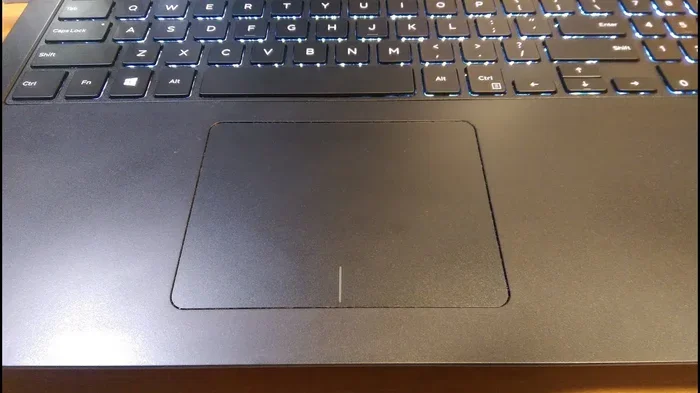
The Break key is not the same as the mouse on a laptop. It does not control your cursor. It is a pure keyboard function. You will not find it on slim laptop keyboards. Instead, it lives on desktop boards and some extended laptop models. When you press it, the computer may freeze briefly or ignore the input. The exact reaction depends on your operating system and the software you are using.
Where Is the Break Key Located?
Finding the Break key can be tricky. It is not in a standard spot like the letter rows. On most IBM-style keyboards, the Break key sits near the top right. It is often next to the Scroll Lock key. On some keyboards, it shares a single key with the Pause key. You will see the label “Pause/Break” printed on it. Pressing it alone triggers the Pause function. Holding the Fn key plus Pause/Break can activate the Break function. On compact laptop keyboards, the Break key is usually missing entirely. Manufacturers removed it to save space. If you use a laptop, you may need an external keyboard to access it.
Break Key on Laptops vs. Desktops
Desktop keyboards almost always include the Break key. They have room for a full numeric keypad and function row. Laptops prioritize portability. That means fewer keys. Many laptop keyboards omit the Break key altogether. Some business laptops include a “Fn” layer that hides the Break function under another key. You might need to press Fn plus a numbered key or a special function row key. Check your laptop manual if you cannot find it. The RAM on a laptop does not affect the Break key either. The Break key is purely a keyboard input signal.
What Does the Break Key Do?
The original purpose of the Break key was simple. It sent a hardware interrupt to the CPU. In the DOS era, this was critical. Programmers used it to stop a running program that was frozen or looping. Pressing Break would halt execution and return you to the command prompt. It was a lifesaver when a batch file went wild. Today, the Break key has almost no practical use. Modern operating systems like Windows 10 and 11 handle crashes differently. They use the Task Manager or the Ctrl+Alt+Delete sequence. The Break key simply does not fit into those workflows. Still, some legacy software and embedded systems may respond to it.
The DOS Interrupt Function
In the 1980s and 1990s, the Break key was essential. MS-DOS and early Windows relied on it. When a program ran in the foreground, pressing Break sent a SIGINT signal. This forced the program to terminate. It was the only way to stop a runaway script without restarting the whole computer. The Break key also paused text output in the command prompt. If a list of files was scrolling too fast, you could hit Break to freeze the screen. Then you could read the output at your own pace. This functionality is completely obsolete now. Modern terminals and command-line tools use Ctrl+C instead.
Modern Uses of the Break Key
Today, the Break key serves very few roles. Some BIOS setup screens still listen for the Break key during POST. Pressing it can pause the boot process. This gives you a chance to read system information. In rare cases, debugging tools for low-level programming might use the Break signal. Emulators for old operating systems often map the Break key to a stop button. If you are running a DOS game in an emulator, pressing Break will quit the game. On a standard Windows desktop, pressing Break opens the System Properties window in older versions. In Windows 10 and 11, it does nothing noticeable. The key remains a dormant relic on most machines.
Break Key vs. Pause Key vs. Scroll Lock
Many people confuse the Break key with the Pause key and Scroll Lock. They often share the same physical key. Understanding the differences helps you use your keyboard correctly. The Pause key temporarily halts a program or output. The Break key sends a stronger interrupt signal. Scroll Lock is a toggle that changes how arrow keys behave. Here is a quick comparison.
| Key | Primary Function | Modern Relevance | Common Location |
|---|---|---|---|
| Break | Sends interrupt signal to CPU | Very low; legacy use only | Near Scroll Lock, often shared with Pause |
| Pause | Halts program or output temporarily | Low; used in some BIOS and emulators | Same key as Break (Pause/Break) |
| Scroll Lock | Toggles arrow key behavior for scrolling | Very low; mostly obsolete | Next to Pause/Break, near Print Screen |
As you can see, the Break key is the most obscure of the three. It has no modern equivalent on a standard laptop mouse or trackpad. The Pause key survives in a few niches. Scroll Lock is almost dead. The Break key is the least useful of the group. Yet it remains on the keyboard because removing it would change the layout too much. Manufacturers keep it for compatibility with old hardware and software.
Common Issues with the Break Key
Even though the Break key is rarely used, it can cause problems. A stuck Break key can make your keyboard behave erratically. You might notice that other keys stop working. The cursor may freeze or jump around. Some laptops report a “keyboard not working” error when the Break key is physically stuck. This happens because the keyboard controller thinks you are holding down the Break signal. The system then blocks other inputs to prevent damage. Cleaning the key often fixes the issue. If the key is not physically stuck, a software glitch can also trigger the problem.
Is the Break Key Stuck or Unresponsive?
If the Break key is stuck, you will see the Break indicator light on or off constantly. On some laptops, the screen may flash or display a pause message. First, try pressing the Break key a few times to release it. If that fails, gently pry the keycap off with a small flathead screwdriver. Clean underneath with compressed air. Avoid using liquids. For unresponsive Break keys, check your keyboard settings in Windows. Open the Control Panel and look for keyboard speed options. Sometimes the Repeat Delay setting can interfere with legacy keys. If you are using a external keyboard, test it on another computer. This helps rule out a hardware defect.
Can the Break Key Affect Your Laptop?
A stuck Break key will not harm your laptop hardware. It will not affect your RAM of a laptop or processor. It is just a signal input. However, it can make your laptop unusable if it blocks all keyboard input. You might not be able to type passwords or open applications. In that case, connect an external USB keyboard. Use that to log in and shut down the laptop safely. Then clean or replace the internal keyboard. Most laptops have a keyboard ribbon cable that is easy to access. Replacing the keyboard is a common repair.
How to Remap or Disable the Break Key
If the Break key bothers you, you can remap it. Windows does not offer a built-in setting to disable the Break key directly. You need third-party software or registry edits. SharpKeys is a free tool that lets you remap any key. You can set the Break key to do nothing. This prevents accidental presses from causing issues. Some gaming keyboards come with proprietary software. Logitech G Hub, Razer Synapse, and Corsair iCUE all allow key remapping. You can assign the Break key to a macro or a useless function. This is a great way to clean up your keyboard layout.
On macOS, the Break key is even less relevant. Apple keyboards never included a Break key. If you use a Windows keyboard on a Mac, the Break key will map to nothing useful. You can use Karabiner-Elements to remap it. This open-source tool gives you full control over keyboard inputs. You can turn the Break key into a modifier or disable it completely. The process is simple. Download Karabiner-Elements, open the complex modifications tab, and add a rule. Your keyboard will then ignore the Break key entirely.
Final Thoughts
The Break key is a fascinating piece of computing history. It once saved countless users from frozen programs. Today, it sits quietly on your keyboard, doing almost nothing. You will rarely need it. Understanding its purpose helps you appreciate how far keyboard design has come. If you ever see a “Pause/Break” label, you now know exactly what it means. You can use it, ignore it, or remap it to suit your needs. The Break key is not a mistake. It is a reminder of the early PC era. And for that, it deserves a small spot of respect on your keyboard.
Quick Tips for the Break Key
- Quick Tip: If your keyboard has a Pause/Break key, try pressing it during a DOS boot to see the old interrupt in action.
- Quick Tip: Use SharpKeys to disable the Break key if it keeps causing input issues.
- Quick Tip: On a laptop without a Break key, use the Fn plus a function row key to simulate it if your model supports it.
Common Mistakes to Avoid
- Common Mistake: Do not confuse the Break key with the volume or brightness keys. They are completely separate.
- Common Mistake: Do not assume a stuck Break key means your laptop is broken. It is usually just dirt under the keycap.
- Common Mistake: Do not try to remove the keycap with excessive force. Use a proper keycap puller to avoid damaging the switch.
Expert Insights
Expert Insight: Many programmers from the DOS era still keep the Break key in mind. When testing old batch files in a virtual machine, Break remains the fastest way to stop execution. It is a quick shortcut that no modern key combination can fully replace in legacy environments.
Key Takeaways
The Break key is a legacy interrupt key with minimal modern use. It shares space with Pause and Scroll Lock on full-size keyboards. You can remap or disable it if it causes trouble. It will not affect your laptop’s RAM, mouse, or other components. Understanding this key gives you a deeper knowledge of keyboard layouts and PC history.
Frequently Asked Questions
What happens when you press the Break key on a modern PC?
On most modern Windows systems, pressing the Break key does nothing noticeable. In older versions of Windows, it opened the System Properties window. In DOS or command-line environments, it sent an interrupt signal to stop the current program. Today, the key is essentially dormant unless you are running legacy software or a virtual machine.
Why is the Break key missing from my laptop keyboard?
Laptop manufacturers removed the Break key to save space and create thinner designs. Compact keyboards prioritize the most-used keys. The Break key is rarely needed by average users. If you need it, you can use an external full-size keyboard or remap a spare key using software like SharpKeys.
Can a stuck Break key damage my laptop?
No, a stuck Break key will not cause physical damage. It is just a simple input signal. However, it can make your keyboard unresponsive if the system thinks the key is constantly pressed. This can block typing and mouse input. Cleaning the key or using an external keyboard usually solves the problem.
How do I disable the Break key on Windows?
Windows does not have a simple toggle for the Break key. You can use a free tool called SharpKeys to remap it to “Turn Key Off.” Download SharpKeys, select the Break key from the list, set it to disable, and write the changes to the registry. Restart your computer for the change to take effect.
Is the Break key the same as the Pause key?
They are closely related and often share the same physical key. The Pause key temporarily halts program output or execution. The Break key sends a stronger interrupt signal to the CPU. On modern keyboards, they are combined into one “Pause/Break” key. The exact behavior depends on the software and operating system you are using.
Do gaming keyboards have a dedicated Break key?
Many gaming keyboards still include the Break key, but it is often hidden in the Fn layer. You may need to press Fn plus a secondary key to activate it. Some gaming software like Razer Synapse or Logitech G Hub lets you remap the Break key to a macro or disable it entirely. This is useful if the key gets in your way during gameplay.