What Is a Trackpad on a Laptop
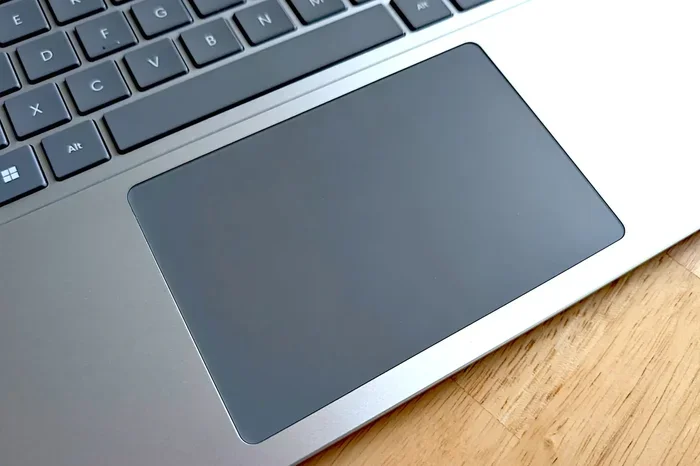
A trackpad on a laptop is a built-in pointing device that lets you control your cursor using finger movements. It replaces a traditional mouse and supports multi-touch gestures like scrolling, zooming, and right-clicking. Understanding your trackpad helps you navigate your laptop faster and more efficiently.
If you have ever wondered what a trackpad on a laptop is, you are not alone. This small, flat surface sitting below your keyboard is one of the most important parts of any laptop. It is your primary way of interacting with your screen without needing extra accessories. Whether you are a student, a professional, or a casual user, knowing how your trackpad works can make your daily tasks much easier.
The trackpad on a laptop serves as a built-in mouse. It lets you move your cursor, click links, scroll through pages, and even perform complex gestures — all with just your fingers. Unlike an external mouse, the trackpad is always there when you need it. It is compact, portable, and designed to work seamlessly with your laptop.
In this guide, we will break down everything you need to know about the laptop pointing device. From how it works to the best gestures you can use, you will find practical tips that improve your daily workflow. Let us dive in.
Key Takeaways
- A trackpad is a touch-sensitive surface: It detects finger movement and translates it into cursor motion on your screen.
- Multi-touch gestures boost productivity: Features like two-finger scrolling, pinch-to-zoom, and three-finger swiping make navigation effortless.
- Trackpad settings are customizable: You can adjust sensitivity, tap-to-click, and gesture behavior in your laptop settings.
- Palm rejection prevents accidental inputs: Modern trackpads ignore palm contact so your typing stays smooth.
- A trackpad works alongside or instead of a mouse: Many users prefer it for portability, while others use both.
- Driver updates matter: Keeping your trackpad drivers current ensures the best performance and compatibility.
📑 Table of Contents
What Is a Trackpad on a Laptop?
A trackpad is a flat, touch-sensitive surface built into the bottom of your laptop keyboard. It acts as a laptop input device that detects the position and movement of your fingers. When you slide your finger across it, the cursor on your screen moves accordingly.
Most modern trackpads support multi-touch technology. This means they can recognize multiple fingers at the same time. That capability is what enables advanced gestures like pinch-to-zoom and two-finger scrolling. Older trackpads only supported single-touch input, but today’s versions are far more powerful.
The trackpad is sometimes called a touchpad. Both terms refer to the same thing. You may also hear people call it a click pad because the entire surface can act as a button. Whether you call it a trackpad or a touchpad, it is the most convenient way to control your laptop on the go.
How Does a Trackpad Work?
Underneath the smooth surface of your trackpad, there are layers that detect electrical changes. When your finger touches the surface, it disrupts the electrical field. The trackpad sensor picks up this change and calculates where your finger is moving.
This information is sent to your laptop’s processor, which moves the cursor on your screen. The whole process happens in milliseconds. That is why the cursor feels responsive and smooth when you glide your finger across the pad.
Different laptops use different trackpad technologies. Some use capacitive sensing, which is the same technology found in smartphone screens. Others use older resistive technology. Capacitive trackpads are more responsive and support more gestures. If you are buying a new laptop, look for one with a high-quality capacitive trackpad for the best experience.
Types of Laptop Pointing Devices
While the trackpad is the most common pointing device, it is not the only one. Laptops come with different ways to control your cursor. Understanding these options helps you choose what works best for you.
Trackpad
The trackpad is the standard pointing device on most laptops. It is a flat surface that responds to finger touch. You can tap to click, swipe to scroll, and use multiple fingers for advanced gestures. Most Windows and macOS laptops come with a trackpad as the default input method.
Pointing Stick
Some laptops, especially business models from Lenovo, include a pointing stick. This is a small nub located between the keys on your keyboard. You push it with your fingers to move the cursor. It is also known as a TrackPoint. Some users love it because it keeps your hands on the keyboard at all times.
External Mouse
An external mouse connects to your laptop through USB or Bluetooth. It offers more precision and comfort for long work sessions. If you prefer using a mouse, you can learn more about how to set one up by reading our guide on how to use a mouse on a laptop. Many users use both a trackpad and a mouse depending on the situation.
Essential Trackpad Gestures You Should Know
One of the biggest advantages of a trackpad is gesture support. These shortcuts save time and make navigation feel natural. Here are the most useful gestures you should learn.
Basic Gestures
- Single-tap click: Lightly tap the trackpad to select an item or open a file.
- Two-finger scroll: Place two fingers on the pad and move them up or down to scroll through a page.
- Right-click: Tap with two fingers at the same time, or press the bottom-right corner of the trackpad.
- Drag and drop: Press and hold with one finger, then move your finger to drag an item.
Advanced Gestures
- Pinch to zoom: Place two fingers on the trackpad and spread them apart to zoom in. Pinch them together to zoom out.
- Three-finger swipe: Swipe left or right with three fingers to switch between open windows or desktops.
- Four-finger swipe: Swipe up to see all open windows. Swipe down to show your desktop.
- Rotate: Place two fingers on the trackpad and twist to rotate an image or webpage.
These gestures work on both Windows and macOS laptops, though the exact controls may vary slightly. Spending a few minutes practicing them will make your laptop feel much more responsive.
Customizing Your Trackpad Settings
Your laptop lets you adjust how your trackpad behaves. These settings can make a big difference in your daily comfort and speed.
Adjusting Sensitivity
If your cursor moves too fast or too slow, you can change the trackpad sensitivity. On Windows, go to Settings > Bluetooth & Devices > Touchpad. On macOS, go to System Settings > Trackpad. Use the slider to find a speed that feels natural to you.
Enabling Tap-to-Click
Tap-to-click lets you tap the trackpad instead of pressing it down. This feature is especially helpful if you prefer a lighter touch. You can turn it on in the same settings menu where you adjust sensitivity.
Configuring Gestures
You can choose which gestures are active on your trackpad. Some users prefer three-finger swipes for task switching, while others like four-finger swipes for desktop view. Experiment with different settings to find your ideal setup.
Palm Rejection
One common frustration is accidentally triggering trackpad inputs while typing. Modern trackpads include palm rejection technology. This feature ignores the contact from your palm so only your fingers register as input. If your trackpad still has palm rejection issues, try adjusting the sensitivity or updating your drivers.
Common Trackpad Problems and How to Fix Them
Trackpads can sometimes act up. Here are the most common issues and simple fixes.
Trackpad Not Responding
If your trackpad stops working, the first step is to check your connections. On a laptop, the trackpad connects internally through a ribbon cable. Restarting your laptop often resolves temporary glitches. If the problem persists, you may need to update your trackpad drivers. Go to your laptop manufacturer’s website and download the latest driver for your model.
Cursor Jumping or Drifting
An erratic cursor can be annoying. This usually happens when your trackpad is dirty or when moisture is on the surface. Wipe the trackpad clean with a dry, soft cloth. If the issue continues, check for driver updates or reduce the sensitivity setting.
Gestures Not Working
If your gestures stop working, make sure they are enabled in your settings. Sometimes a system update can reset your preferences. Go back to the trackpad settings and re-enable the gestures you use. Restarting your laptop can also help restore gesture functionality.
Trackpad Too Sensitive or Not Sensitive Enough
Finding the right sensitivity level is a personal preference. If you accidentally trigger inputs, lower the sensitivity. If you feel like you need to push harder to move the cursor, increase it. Small adjustments can make a big difference in your daily comfort.
Trackpad vs. Mouse: Which Is Better?
Both trackpads and mice have their strengths. The right choice depends on your needs and workflow.
| Feature | Trackpad | External Mouse |
|---|---|---|
| Portability | Built-in, always available | Requires carrying an extra device |
| Precision | Good for everyday tasks | Excellent for detailed work |
| Gestures | Built-in multi-touch support | Limited to clicks and scroll |
| Comfort | Best for short sessions | Better for long work periods |
| Desk Space | No extra space needed | Requires a flat surface |
Many professionals use both. They rely on the trackpad for quick tasks and switch to a mouse for detailed work like graphic design or video editing. The laptop pointing device you choose ultimately depends on your personal preference and the type of work you do.
For more information on laptop pointing devices and how they compare, check out what the mouse on a laptop is called. Understanding the different options helps you make the best choice for your setup.
Tips to Get the Most Out of Your Trackpad
Here are some practical tips to improve your trackpad experience.
- Keep your trackpad clean: Wipe it regularly with a microfiber cloth. Oils and dirt from your fingers can reduce responsiveness.
- Use a light touch: You do not need to press hard. A gentle tap is enough for most actions.
- Update your drivers: Regular driver updates improve performance and add new gesture support.
- Practice gestures daily: The more you use gestures, the more natural they feel. Start with two-finger scrolling and build from there.
- Consider a wrist rest: If you use your trackpad for long periods, a wrist rest can reduce strain and improve comfort.
These simple habits keep your trackpad working at its best. They also help you navigate your laptop faster and with less effort.
Conclusion
The trackpad on a laptop is a powerful and essential tool. It gives you precise control over your cursor without needing any extra accessories. From basic taps to advanced multi-touch gestures, the trackpad offers a level of convenience that few other input devices can match.
By understanding how your trackpad works and customizing its settings, you can significantly improve your daily productivity. Whether you are scrolling through a document, zooming into a photo, or switching between tasks, the right trackpad skills make everything faster.
Take some time to explore your trackpad settings and practice the gestures outlined in this guide. You will be surprised at how much smoother and more efficient your laptop navigation becomes. If you are curious about other laptop features, you might also enjoy learning about where your mouse is located on your laptop and how different pointing devices compare.
Frequently Asked Questions
What is the difference between a trackpad and a touchpad?
There is no real difference. The terms “trackpad” and “touchpad” are used interchangeably to describe the same built-in pointing device on a laptop. Both refer to the flat, touch-sensitive surface below your keyboard that controls your cursor.
Can I use a trackpad without an external mouse?
Yes, absolutely. The trackpad is designed to be your primary pointing device. Most laptop users never need an external mouse for everyday tasks. The trackpad supports all the essential functions like clicking, scrolling, and right-clicking.
Why is my trackpad not working after a system update?
System updates can sometimes reset your trackpad settings or cause driver conflicts. Try restarting your laptop first. If the issue persists, go to your settings and re-enable the trackpad, or visit your laptop manufacturer’s website to download the latest trackpad driver.
How do I clean my laptop trackpad?
Use a soft, slightly damp microfiber cloth to gently wipe the surface. Avoid using harsh chemicals or excessive moisture. Clean your trackpad regularly to prevent dirt buildup that can affect responsiveness.
Are trackpads on all laptops the same quality?
No, trackpad quality varies significantly between laptop brands and models. Premium laptops from manufacturers like Apple and Dell tend to have larger, more responsive trackpads with better gesture support. Budget laptops may have smaller trackpads with fewer features.
Can I disable the trackpad while using an external mouse?
Yes, most laptops allow you to disable the trackpad automatically when an external mouse is connected. You can find this option in your trackpad settings. This prevents accidental inputs while you type or use your mouse.