Best Msi Pro B660m A Cec Wifi Ddr4 Ram Ssd Setup Guide

The MSI Pro B660M-A CE WiFi is a reliable Micro-ATX motherboard that supports DDR4 RAM and NVMe SSDs with built-in WiFi 6. This guide walks you through every step of setting up your system, from installing memory to configuring wireless connectivity. You will learn the best practices for RAM placement, SSD installation, and WiFi setup to get the most out of your build.
Building or upgrading a PC can feel overwhelming at first. But with the right motherboard, the process becomes much simpler. The MSI Pro B660M-A CE WiFi is one of those boards that makes life easy. It comes with built-in WiFi, DDR4 RAM support, and M.2 SSD slots. This means you can build a solid system without spending extra on adapters or expansion cards.
In this guide, we will walk you through everything you need to know about setting up the MSI Pro B660M-A CE WiFi DDR4 RAM SSD configuration. Whether you are a first-time builder or someone looking to upgrade an existing system, this article has you covered. We will go through RAM installation, SSD setup, WiFi configuration, and BIOS tuning. By the end, you will feel confident and ready to get your system running.
Key Takeaways
- Easy Compatibility: The MSI Pro B660M-A CE WiFi supports DDR4 RAM and M.2 NVMe SSDs, making it a flexible choice for budget and mid-range builds.
- Built-in WiFi 6: You get fast wireless connectivity without needing a separate WiFi card or adapter.
- Simple RAM Installation: Dual-channel DDR4 setup is straightforward with clear slot placement guidance.
- Multiple Storage Options: The board offers M.2 slots and SATA ports for both NVMe and traditional SSDs.
- BIOS Setup Matters: Proper BIOS configuration ensures your RAM and SSD run at full speed.
- Avoid Common Mistakes: Skipping BIOS updates or using incompatible RAM speeds can cause issues.
📑 Table of Contents
What Is the MSI Pro B660M-A CE WiFi?
The MSI Pro B660M-A CE WiFi is a Micro-ATX motherboard built around the Intel B660 chipset. It is designed for 12th and 13th generation Intel Core processors. The board offers a clean feature set that covers everyday computing, light gaming, and productivity work. Its compact form factor makes it a great fit for smaller cases.
What sets this board apart is the included WiFi 6 module. You also get a decent VRM design for stable power delivery. The DDR4 RAM support allows for high-speed memory kits up to DDR4-4800 (OC). There are M.2 slots for NVMe SSDs and SATA ports for additional storage. All of these features make it a well-rounded choice for a budget-friendly PC build.
Why Choose This Motherboard?
There are several reasons why the MSI Pro B660M-A CE WiFi stands out. First, the price is very reasonable. You get WiFi and Bluetooth without paying extra for a separate module. Second, the DDR4 RAM support is flexible. You can use budget-friendly modules or push for faster speeds with overclocking. Third, the M.2 slots give you fast NVMe SSD speeds right out of the box.
The board also features a clean BIOS interface. MSI Click BIOS is user-friendly and easy to navigate. Even beginners can adjust settings without feeling lost. The rear I/O panel includes USB Type-C, HDMI, and DisplayPort outputs. This gives you plenty of display and peripheral connectivity options.
Key Features and Specifications
Before you start the setup process, it helps to understand what the board offers. Here are the key specifications of the MSI Pro B660M-A CE WiFi:
- Chipset: Intel B660
- CPU Support: 12th and 13th Gen Intel Core processors
- RAM Support: DDR4, up to 4800 MHz (OC), 2 DIMM slots
- Storage: 2 M.2 slots (PCIe 4.0 x4), 4 SATA 6Gb/s ports
- WiFi: WiFi 6 (AX) + Bluetooth 5.2
- Form Factor: Micro-ATX
- VRM: 6+1+1 phase power design
- Rear I/O: USB Type-C, HDMI, DisplayPort, RJ-45 LAN
These specs tell you that this board handles DDR4 RAM and NVMe SSDs with ease. The two M.2 slots mean you can install multiple SSDs for extra storage or set up a fast boot drive alongside a larger data drive. The WiFi 6 support ensures you get strong wireless speeds for browsing, streaming, and even light online gaming.
How to Set Up DDR4 RAM on the MSI Pro B660M-A CE WiFi
Installing DDR4 RAM is one of the simplest parts of building a PC. But doing it correctly ensures you get the best performance. The MSI Pro B660M-A CE WiFi has two DIMM slots. This means you can install one or two RAM sticks.
If you are using a single stick, place it in the slot closest to the CPU (usually labeled DIMM_A2). If you are using two sticks, fill both slots. This enables dual-channel mode, which improves memory bandwidth and overall system performance.
Step-by-Step RAM Installation
- Open the clips on both DIMM slot ends.
- Align the notch on the RAM stick with the key in the slot.
- Press the RAM stick down firmly until the clips click into place.
- Double-check that both sticks are seated evenly.
After installing the RAM, power on the system and check the BIOS. Go to the memory settings and verify the speed is detected correctly. If you have DDR4-3200 or DDR4-4800 RAM, you may need to enable XMP in the BIOS. XMP stands for Extreme Memory Profile. It allows your RAM to run at its rated speed instead of the default JEDEC speed.
Quick Tip: If you are unsure about RAM compatibility, check the MSI QVL (Qualified Vendor List). This list confirms which RAM kits work with this motherboard. Using a listed kit saves you from potential issues.
How to Upgrade Your RAM Later
If you need to add more RAM in the future, the process is simple. You can upgrade your system memory by adding compatible DDR4 sticks. Just make sure the new RAM matches the speed and voltage of your existing modules. Mixing different speeds can cause the system to default to the slowest module.
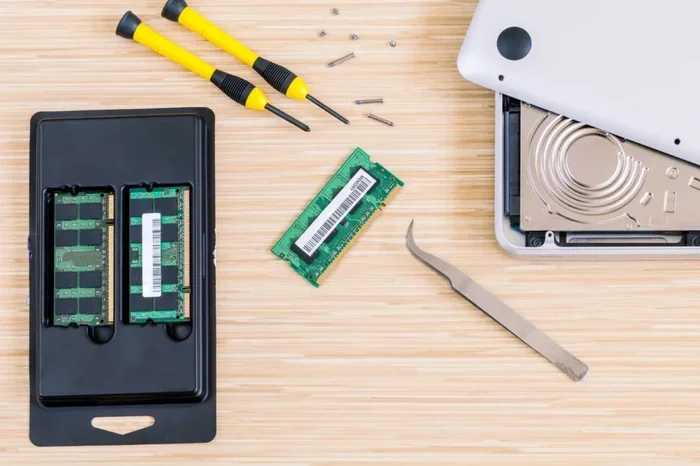
Also, if you are working with a laptop and need to swap RAM, the process differs slightly. You can follow our guide on how to change RAM on a laptop for step-by-step instructions tailored to portable systems.
Adding an SSD to Your MSI Pro B660M-A CE WiFi
Storage is a critical part of any PC build. The MSI Pro B660M-A CE WiFi gives you two M.2 slots for NVMe SSDs. These slots use the PCIe 4.0 interface, which delivers fast read and write speeds. You can also use the four SATA ports for traditional 2.5-inch SSDs or hard drives.
For most users, a single NVMe SSD is enough. It serves as your boot drive and houses your operating system and most-used applications. If you need more space, you can add a second SSD or use SATA storage for media files and backups.
Installing an NVMe M.2 SSD
- Locate the M.2 slot on the motherboard. There are two slots available.
- Remove the M.2 screw from the standoff.
- Insert the NVMe SSD at a 30-degree angle into the slot.
- Press the SSD down gently and secure it with the screw.
- Repeat for the second slot if needed.
Once the SSD is installed, enter the BIOS and check that it is detected. You may also need to configure the SATA mode to AHCI or RAID depending on your setup. AHCI is the standard mode for most users and works perfectly with NVMe drives.
If you plan to add a second SSD later, the process is very similar. You can follow detailed instructions on how to install a second NVMe M.2 SSD for a thorough walkthrough of dual-drive setups.
Which SSD Should You Choose?
When picking an SSD for the MSI Pro B660M-A CE WiFi, look for NVMe M.2 drives with PCIe 4.0 support. These drives take full advantage of the motherboard’s M.2 slots. Popular choices include the Samsung 980 Pro, the Samsung 990 Pro, and the Corsair MP600 Pro. All of these offer excellent speeds and reliability.
For a budget-friendly option, the Adata XPG SX8200 Pro is a solid pick. It delivers great performance at a lower price point. Whatever SSD you choose, make sure it fits the M.2 2280 form factor, which is the standard size for these slots.
WiFi and Connectivity Setup
One of the best features of the MSI Pro B660M-A CE WiFi is the built-in WiFi 6 module. You do not need to buy a separate WiFi card or USB adapter. The board handles wireless connectivity right out of the box. This saves you money and keeps your setup clean.
Setting Up WiFi on Your Desktop
After installing the motherboard, connect the WiFi antenna that comes in the box. The antennas screw into the back panel connectors. Once connected, power on the system and enter Windows.
Go to Settings > Network & Internet > Wi-Fi. Turn on WiFi and select your network. Enter your password and you should be connected. The WiFi 6 module supports speeds up to 2.4 Gbps on the 5 GHz band. This is more than enough for streaming, video calls, and online gaming.
If you experience slow speeds or connection issues, update the WiFi driver. Go to the MSI website and download the latest driver for the WiFi module. Installing the correct driver often fixes most connectivity problems.
Bluetooth Setup
The board also includes Bluetooth 5.2. You can connect wireless peripherals like keyboards, mice, and headphones without any extra hardware. Go to Settings > Devices > Bluetooth & other devices and toggle Bluetooth on. Pair your device and you are good to go.
Expert Insight: Bluetooth 5.2 offers better range and lower latency compared to older versions. This makes it ideal for wireless gaming headsets and peripherals that need a stable connection.
BIOS Setup and Optimization
The BIOS is the brain behind your motherboard. Getting the BIOS right ensures your DDR4 RAM and NVMe SSD run at their full potential. The MSI Pro B660M-A CE WiFi uses MSI Click BIOS, which is intuitive and easy to use.
Updating the BIOS
Before you do anything else, check if there is a BIOS update available. Updated BIOS versions often improve RAM compatibility and fix known bugs. You can update the BIOS using MSI’s Flash BIOS button on the board. This feature lets you update without a CPU, which is very convenient.
Enabling XMP for RAM
By default, your DDR4 RAM will run at a lower speed. To unlock the full speed, you need to enable XMP in the BIOS.
- Restart your PC and press Delete or F2 to enter BIOS.
- Navigate to the OC (Overclocking) tab.
- Find the XMP setting and set it to Profile 1.
- Save and exit. Your RAM will now run at its rated speed.
Configuring the M.2 Slots
In the BIOS, you can check the status of your M.2 SSDs. The BIOS shows the drive name, capacity, and interface speed. If an SSD is not showing up, make sure it is properly seated. You can also enable or disable M.2 slots individually through the BIOS settings.
Quick Tip: If you are using both M.2 slots at the same time, note that the PCIe lanes are shared. Using two NVMe drives may reduce the speed of each drive slightly. For most users, this is not a noticeable difference in everyday use.
Common Setup Mistakes to Avoid
Even with a straightforward build, mistakes can happen. Here are the most common errors people make when setting up the MSI Pro B660M-A CE WiFi:
- Skipping BIOS Updates: An outdated BIOS can cause RAM compatibility issues. Always update before installing components.
- Wrong RAM Slot Placement: Putting RAM in the wrong slots can prevent dual-channel mode from activating.
- Forgetting to Enable XMP: Without XMP, your DDR4 RAM will run at default speeds, which is slower than rated.
- Overtightening M.2 Screws: This can damage the SSD or the motherboard slot. Tighten screws gently.
- Ignoring Cooling: NVMe SSDs can get hot under heavy load. Use the included heatsink or add a standalone M.2 cooler.
- Not Connecting WiFi Antennas: Without antennas, your WiFi signal will be weak or non-existent.
Avoiding these simple mistakes saves you hours of troubleshooting. Take your time, follow each step carefully, and your build will run smoothly.
Final Thoughts and Conclusion
The MSI Pro B660M-A CE WiFi is an excellent motherboard for anyone building a PC with DDR4 RAM and NVMe SSD storage. Its built-in WiFi 6, dual M.2 slots, and user-friendly BIOS make it a top choice in the budget-friendly segment. Whether you are building a workstation, a gaming rig, or a home office PC, this board delivers solid performance.
Setting up the MSI Pro B660M-A CE WiFi DDR4 RAM SSD configuration is straightforward once you know the steps. Install your DDR4 RAM in the correct slots, mount your NVMe SSD in the M.2 slot, connect the WiFi antennas, and configure the BIOS. Each step is simple and well-documented by MSI.
Remember to update your BIOS, enable XMP for your memory, and install the latest drivers for WiFi and Bluetooth. These small steps make a big difference in system stability and performance. With the right setup, your MSI Pro B660M-A CE WiFi will serve you well for years to come.
Take your time, enjoy the process, and do not be afraid to experiment with settings. Building a PC is a rewarding experience, and the MSI Pro B660M-A CE WiFi gives you a great foundation to start from.
Frequently Asked Questions
What processors work with the MSI Pro B660M-A CE WiFi?
The MSI Pro B660M-A CE WiFi supports 12th and 13th generation Intel Core processors. This includes Core i3, i5, i7, and i9 models from those generations. Always check the CPU support list on the MSI website for the latest compatible processors before purchasing.
Can I use DDR5 RAM with this motherboard?
No, the MSI Pro B660M-A CE WiFi only supports DDR4 RAM. It does not have DDR5 compatibility. If you want DDR5 support, you would need a different motherboard with a compatible chipset like the Z690 or B760 series.
How many M.2 SSDs can I install on this board?
The motherboard has two M.2 slots that support NVMe PCIe 4.0 x4 SSDs. This means you can install up to two M.2 NVMe drives. You can also use the four SATA ports for additional 2.5-inch SSDs or hard drives if you need more storage.
Do I need to buy a WiFi card separately?
No, the MSI Pro B660M-A CE WiFi has built-in WiFi 6 and Bluetooth 5.2. The WiFi antennas are included in the box. You simply need to connect them to the rear panel for wireless functionality.
What is the maximum DDR4 RAM speed supported?
The board supports DDR4 RAM up to 4800 MHz when overclocked (OC). The default JEDEC speed is lower, typically DDR4-3200. Enabling XMP in the BIOS allows your RAM to run at its rated high speed.
Is the MSI Pro B660M-A CE WiFi good for gaming?
Yes, it is a solid choice for budget and mid-range gaming builds. The DDR4 RAM support and NVMe SSD slots ensure fast load times and smooth performance. The WiFi 6 module also provides stable wireless connectivity for online gaming sessions.