What Does Ram Do And Why It Is Important For Your PC
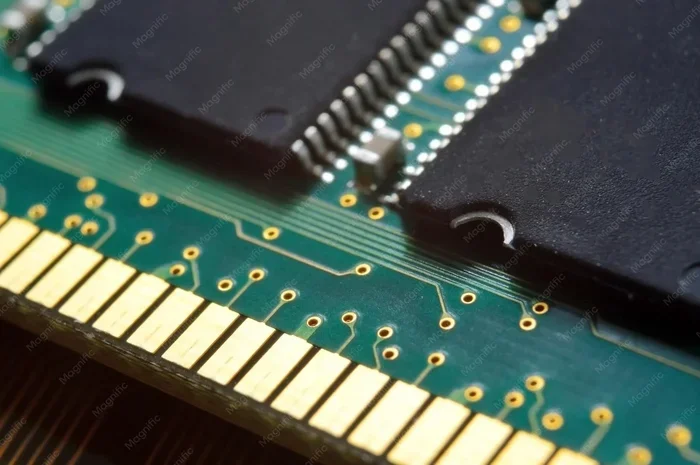
RAM (Random Access Memory) is the short-term memory your PC uses to handle tasks quickly and efficiently. It stores temporary data that your processor needs right now, which directly impacts how fast your computer runs. Without enough RAM, even powerful systems will slow down, freeze, or struggle with basic tasks.
Your PC does a lot of work behind the scenes every time you open a browser, play a game, or switch between apps. But what makes all of that happen so fast? The answer is RAM. Short for Random Access Memory, RAM is one of the most important parts of any computer. It works like a temporary workspace where your processor stores the data it needs right now. Without RAM, your PC would struggle to do even the simplest tasks.
In this guide, we will explain exactly what does RAM do and why it matters so much for your daily computing experience. We will break down how memory works, how much you actually need, and what happens when you do not have enough. Whether you are a casual user or a serious gamer, this article will help you understand why RAM is the unsung hero of your system.
Key Takeaways
- RAM acts as short-term memory: It holds data your PC needs right now, making everything faster.
- More RAM means better multitasking: You can run multiple apps without slowdowns.
- RAM speed and type matter: DDR4 and DDR5 offer different performance levels for your system.
- Too little RAM causes bottlenecks: Your PC will slow down even with a strong processor.
- Upgrading RAM is easy and affordable: It is one of the best ways to breathe life into an older PC.
- RAM does not store data permanently: Everything clears when you shut down your computer.
📑 Table of Contents
What Exactly Is RAM and How Does It Work?
RAM is a type of computer memory that stores data temporarily while your PC is running. Think of it as a desk where you spread out all the documents you are working on right now. The bigger the desk, the more papers you can have open at once without stacking them on the floor.
When you open an app or a file, your PC copies the relevant data from your storage drive and places it into RAM. This is because RAM is incredibly fast compared to hard drives or even SSDs. Your processor can read and write to RAM in nanoseconds, which is why everything feels instant when you have enough memory.
Here is the key thing to remember: RAM is volatile memory. That means it only holds data while your PC is powered on. The moment you shut down your computer, everything in RAM gets wiped clean. This is why saving your work is so important. Your permanent storage drive keeps your files safe, while RAM handles the active work.
Why RAM Speed Matters
RAM speed is measured in megahertz (MHz), and it affects how quickly your memory can send data to the processor. Faster RAM means your PC can handle demanding tasks more smoothly. For example, if you are editing videos or running heavy software, higher memory bandwidth can make a real difference. However, for everyday tasks like browsing the web or watching videos, standard RAM speed is usually more than enough.
RAM vs Storage: What Is the Difference?
Many people confuse RAM with storage, but they are very different. Your storage drive (HDD or SSD) holds your files, apps, and operating system permanently. RAM only holds the data your PC is actively using right now. Think of storage as a filing cabinet and RAM as the documents spread out on your desk. You pull files from the cabinet when you need them and put them back when you are done.
Why RAM Is Important for Your PC
RAM is important because it directly affects how smoothly your computer runs. When you have enough memory, your PC can juggle multiple tasks without breaking a sweat. When you do not have enough, everything starts to feel sluggish and frustrating.
Here are the main reasons RAM matters so much:
- Multitasking capability: More RAM lets you run several apps at the same time without slowdowns.
- Faster load times: Programs and games load quicker when data is readily available in memory.
- Smoother gaming: Modern games require significant memory to run at stable frame rates.
- Better system responsiveness: Your PC feels snappier when it does not need to constantly swap data to storage.
- Future-proofing: Having extra RAM ensures your system can handle new software demands over time.
Without enough RAM, your PC has to constantly move data between storage and memory. This creates a bottleneck that slows everything down. Even the most powerful processor will struggle if it does not have enough temporary workspace to work with.
How RAM Affects Everyday Performance
Think about all the things you do on your computer in a typical day. You might have a web browser open with 15 tabs, a music app running, a document open for work, and a messaging app in the background. Each of those apps uses a portion of your RAM. If your system has enough memory capacity, all of this runs without a hitch. If it does not, your PC will start to lag, freeze, or crash.
This is especially true for people who work with creative software like Photoshop or video editors. These programs eat up memory fast. Having ample RAM means you can work on large files without waiting for your system to catch up.
How Much RAM Do You Actually Need?
The amount of RAM you need depends on what you use your PC for. There is no one-size-fits-all answer, but here are some general guidelines to help you figure it out.
| Usage Type | Minimum RAM | Recommended RAM |
|---|---|---|
| Basic browsing and office work | 4GB | 8GB |
| Gaming | 8GB | 16GB |
| Video editing and design | 16GB | 32GB |
| Heavy multitasking and programming | 16GB | 32GB+ |
For most people, 8GB of RAM is the sweet spot for everyday use. It handles browsing, office apps, and light gaming with ease. If you are a gamer or a creative professional, 16GB gives you much more breathing room. And if you work with large datasets or run virtual machines, 32GB or more is ideal.
Curious about the specific needs for your setup? Check out our guide on how much RAM a laptop needs for a more detailed breakdown based on your usage.
Can You Have Too Much RAM?
Technically, yes, but it is rare for most users. Having more RAM than your system can use does not hurt performance. However, it does mean you are spending money on memory your PC will not actually take advantage of. For the average user, 16GB to 32GB is more than enough. Beyond that, you would only need extra memory for very specialized professional workloads.
Types of RAM: DDR4 vs DDR5
Not all RAM is the same. The two most common types you will encounter today are DDR4 and DDR5. These are different generations of memory technology, and each has its own strengths.
DDR4 has been the standard for several years and is still widely used in most PCs. It offers solid performance at an affordable price. DDR5 is the newer standard and provides faster speeds and better efficiency. However, DDR5 is still catching up in terms of availability and cost.
Key Differences Between DDR4 and DDR5
- Speed: DDR5 offers higher base speeds and can handle more data per clock cycle.
- Power efficiency: DDR5 operates at a lower voltage, which can reduce overall system power consumption.
- Price: DDR4 is generally cheaper and easier to find in the market.
- Compatibility: DDR4 and DDR5 are not interchangeable. Your motherboard must support the type you choose.
When choosing RAM for your build, make sure your motherboard supports the type you want. If you are building a new PC, DDR5 is a great option for future-proofing. If you are upgrading an older system, DDR4 is likely what you need.
What Happens When You Do Not Have Enough RAM?
Running low on memory is one of the most common causes of slow PC performance. When your RAM fills up, your system starts using your storage drive as temporary memory. This process is called paging or swapping, and it is much slower than using actual RAM.
Here are the signs that your PC needs more memory:
- Your computer takes a long time to switch between apps.
- You experience frequent freezing or hanging, especially with multiple programs open.
- Your browser tabs crash or reload frequently.
- Games stutter or drop frames during gameplay.
- Your system shows high memory usage even when you are not running demanding apps.
If you notice these issues, adding more RAM can make a huge difference. It is one of the easiest and most affordable upgrades you can do. In many cases, a simple memory upgrade can turn an old sluggish PC into a fast, responsive machine.
How to Check Your Current RAM Usage
Before you decide to upgrade, it helps to check how much RAM your PC is currently using. On Windows, you can open the Task Manager by pressing Ctrl + Shift + Esc and clicking on the Performance tab. On Mac, open Activity Monitor and look at the Memory tab. These tools show you how much memory is in use and how much is available, so you can decide if an upgrade makes sense.
If you want to learn more about checking your system specs, our article on how to check RAM on your laptop provides step-by-step instructions for different devices.
How to Upgrade Your RAM
Upgrading your RAM is one of the simplest ways to boost your PC’s performance. If you find that your system is running low on memory, adding more modules can make an immediate difference. The process is straightforward for most desktop computers and laptops.
Here are the basic steps to upgrade your memory:
- Check compatibility: Find out what type of RAM your motherboard supports (DDR4, DDR5, etc.) and how many slots are available.
- Determine your needs: Decide how much additional memory you need based on your usage and current setup.
- Purchase the right modules: Buy RAM that matches your system’s specifications for speed and capacity.
- Install the RAM: Open your PC case, locate the RAM slots, and carefully insert the new modules at a 45-degree angle until they click into place.
- Test your system: Restart your PC and verify that the new memory is recognized in your system settings.
If you are not comfortable opening your PC, you can also consult a professional or watch a tutorial specific to your model. For laptops, the process may vary depending on the brand and model. Our guide on how to upgrade RAM on your laptop walks you through the process step by step.
Quick Tips for RAM Upgrades
- Always match the RAM speed and type of your existing modules for the best results.
- If your PC has two slots, install a matched pair for dual-channel performance.
- Make sure your PC is powered off and unplugged before opening the case.
- Ground yourself before touching any internal components to avoid static damage.
Common Myths About RAM
There are a lot of misconceptions about RAM that can confuse people. Let us clear up a few of the most common ones.
Myth 1: More RAM always means a faster PC. This is not true. If your PC already has enough memory for your tasks, adding more will not make it faster. The extra memory will simply go unused. You should add RAM only when your current amount is not enough for your workload.
Myth 2: RAM speed is the most important factor. While speed matters, capacity is usually more important for most users. Having 16GB of DDR4 RAM will outperform 8GB of DDR5 in many real-world scenarios because capacity is the bigger bottleneck.
Myth 3: You need the same brand of RAM. You do not need to match brands. What matters is matching the type (DDR4 or DDR5), speed, and voltage. Different brands can work together fine as long as the specifications align.
Myth 4: Closing apps frees up RAM permanently. When you close an app, the memory it used is freed up. But that memory is immediately available for other tasks. RAM is designed to be used and reused constantly. You do not need to keep closing apps to “save” RAM.
Final Thoughts: Why RAM Deserves Your Attention
RAM plays a critical role in how your PC performs every single day. It is the temporary workspace that keeps your apps running, your games smooth, and your system responsive. Without enough of it, even the best processor and graphics card will be held back.
The good news is that understanding and managing your memory is straightforward. Now that you know what RAM does and why it matters, you can make smarter decisions about your system. Whether you are deciding how much memory to buy, when to upgrade, or how to optimize your current setup, the knowledge you have gained here will serve you well.
If your PC is feeling slow and you suspect low memory is the culprit, consider checking your current usage and exploring an upgrade. A simple RAM boost can transform your computing experience. For more tips on optimizing your system, explore our other guides on memory and performance to get the most out of your PC.
Frequently Asked Questions
What does RAM do in a computer?
RAM serves as your PC’s short-term memory, storing data that your processor needs to access quickly while you are working. It handles active tasks like running apps, browsing the web, and loading games. Without RAM, your computer would be extremely slow because it would have to fetch data from storage every time you switched tasks.
How much RAM do I need for gaming?
Most modern games run well with 16GB of RAM, which is the recommended amount for a smooth gaming experience. 8GB is the minimum but may cause slowdowns in newer titles. If you also stream or multitask while gaming, 32GB gives you plenty of headroom for everything running at once.
Can I mix different RAM sticks?
Yes, you can mix RAM sticks, but it is best to match the type, speed, and size for optimal performance. Mismatched modules can still work together, but your system may run them at the speed of the slowest stick. For the best results, use identical modules in each slot.
Does RAM speed affect FPS in games?
RAM speed can have a small impact on FPS, especially in AMD systems and certain games that are memory-sensitive. However, the difference is usually modest compared to upgrading your GPU or adding more capacity. If you are looking for the biggest performance boost, prioritize having enough memory capacity first.
How do I know if I need more RAM?
If your PC slows down when you open multiple apps, your browser tabs crash frequently, or your system uses over 80% of memory during normal tasks, you likely need more RAM. You can check your current usage in Task Manager on Windows or Activity Monitor on Mac to confirm.
Is 8GB RAM enough in 2024?
8GB of RAM is still usable for basic tasks like web browsing, document editing, and light media consumption. However, for gaming, creative work, or heavy multitasking, 16GB is now the recommended minimum. As software becomes more demanding, having extra memory ensures your PC stays responsive over time.