The Best Ram For Video Editing To Speed Up Your Workflow
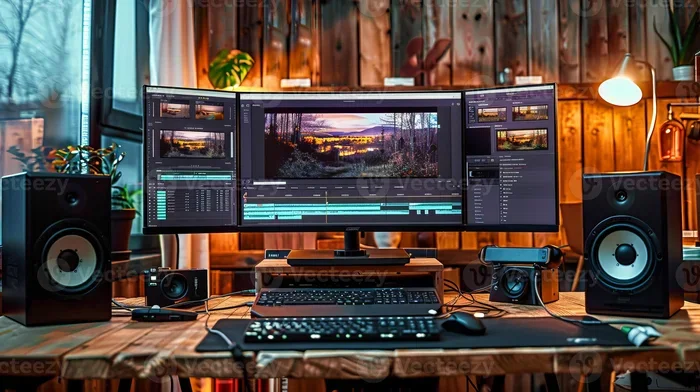
Choosing the right ram for video editing is one of the biggest upgrades you can make for your editing setup. Whether you use Premiere Pro, DaVinci Resolve, or Final Cut Pro, having enough memory means smoother playback, faster rendering, and fewer crashes. In this guide, we break down how much RAM you really need, which types work best, and the top picks for every budget.
Video editing eats up memory like nothing else. Every clip you add to the timeline, every effect you apply, and every frame you preview takes a toll on your system’s memory. If your ram for video editing setup is too weak, you will notice lag, stuttering playback, and painfully slow exports.
The good news? Upgrading your memory is one of the easiest and most cost-effective ways to transform your editing experience. In this guide, we will walk you through everything you need to know about choosing the best ram for video editing. We cover how much you need, which type to buy, and what to look for when shopping.
Whether you are a beginner cutting your first YouTube video or a professional working on 4K cinematic projects, this guide has you covered. Let us dive in.
Key Takeaways
- 16GB is the minimum: Most video editing tasks run well with 16GB, but 32GB is the sweet spot for professional work.
- Speed matters too: DDR4 3200MHz or DDR5 4800MHz RAM can noticeably improve rendering and export times.
- Capacity beats speed for heavy projects: If you edit 4K footage or work with complex timelines, prioritize more RAM over faster RAM.
- Upgradeability counts: Choose a system that lets you add RAM later, so you can grow as your projects get bigger.
- Match RAM to your software: Different editing programs have different memory demands. Know what your tools need.
- Dual-channel setups help: Two sticks of RAM work better than one stick of the same total size for most systems.
📑 Table of Contents
- Why Ram Matters So Much For Video Editing
- How Much RAM Do You Actually Need
- Types Of Ram For Video Editing
- Best Ram For Video Editing By Budget
- Tips To Maximize Ram For Video Editing
- Common Mistakes When Choosing Ram For Video Editing
- Expert Insights On Ram And Video Editing Performance
- Final Thoughts
Why Ram Matters So Much For Video Editing
Your computer uses RAM as short-term memory. When you open a video editing program and load a project, everything lives in RAM while you work. The more RAM you have, the more data your system can hold at once without slowing down.
Think of it like a desk. A small desk can only hold so many papers before things start falling off. A bigger desk lets you spread everything out and work faster. RAM for video editing works the same way. More memory means your editing software can handle larger files, more tracks, and heavier effects without breaking a sweat.
What Happens When You Run Low On RAM
When your system runs out of available memory, it starts using your hard drive as a substitute. This is called “paging” or “swapping,” and it is painfully slow. Here is what you can expect:
- Laggy playback: Your timeline stutters when you try to preview clips.
- Slow exports: Rendering takes much longer than it should.
- Crashes and freezes: Your editing software may suddenly close without saving.
- Poor multitasking: Switching between your editing app and other programs becomes a chore.
If you have ever experienced any of these issues, your memory might be the culprit. The fix is usually straightforward: add more RAM or upgrade to a faster kit.
How Much RAM Do You Actually Need
The answer depends on what kind of editing you do. A simple YouTube video with basic cuts needs far less memory than a 4K short film with color grading, transitions, and sound design. Here is a quick breakdown to help you decide.
8GB RAM For Video Editing
Eight gigabytes is the bare minimum. It can handle simple 1080p projects with minimal effects. If you are just starting out and learning the basics, 8GB will get you through. But you will hit limits fast. We do not recommend 8GB for anyone serious about editing.
16GB RAM For Video Editing
Sixteen gigabytes is the sweet spot for most editors. It handles 1080p and light 4K work with ease. You can run multiple programs at the same time, apply moderate effects, and export without long waits. 16GB ram for video editing covers the needs of hobbyists, content creators, and freelance editors who work on a variety of projects.
32GB RAM For Video Editing
Thirty-two gigabytes is where professionals live. If you regularly edit 4K or even 8K footage, work with heavy color grading, or use resource-intensive effects, 32GB gives you room to breathe. It also future-proofs your system for heavier software updates and larger project files.
64GB and Beyond
Sixty-four gigabytes and above is for extreme workflows. Motion graphics artists, VFX editors, and those working with multi-cam 4K or 8K setups will benefit from this much memory. For most people, 32GB is more than enough.
| RAM Amount | Best For | Performance Level |
|---|---|---|
| 8GB | Basic 1080p cuts | Entry-level |
| 16GB | Standard 1080p and light 4K | Solid for most editors |
| 32GB | Professional 4K and complex projects | Excellent |
| 64GB+ | 8K, VFX, motion graphics | Overkill for most |
Types Of Ram For Video Editing
Not all RAM is created equal. The type you choose affects both speed and compatibility. Here is what you need to know.
DDR4 vs DDR5
DDR4 has been the standard for years and still offers excellent performance for video editing. It is affordable, widely available, and reliable. DDR5 is the newer generation, offering higher speeds and better efficiency. However, DDR5 systems tend to cost more, and the real-world editing gains over DDR4 are modest for most users.
If you are building a new system today, DDR5 is worth considering for its longevity. If you are upgrading an existing machine, DDR4 is still a fantastic choice for ram for video editing.
RAM Speed: Does It Matter
RAM speed, measured in MHz, affects how quickly data moves between your memory and your processor. Higher speeds can help with rendering and exporting, but the difference is less dramatic than adding more capacity. For video editing, we recommend DDR4 3200MHz or DDR5 4800MHz as a solid baseline.
Going beyond these speeds offers diminishing returns for most editing workflows. Focus on capacity first, then speed.
Single Channel vs Dual Channel
Dual-channel memory means using two sticks of RAM instead of one. This doubles the data pathway between your memory and your CPU, which can improve performance by 10 to 20 percent. Always buy RAM in pairs for the best results.
Best Ram For Video Editing By Budget
Not everyone has a big budget for upgrades. Here are some practical recommendations based on different price ranges.
Budget Pick: 16GB DDR4 Kit
A 16GB DDR4 3200MHz kit (two 8GB sticks) costs around $40 to $60. It is the best value for most editors. This amount of memory handles 1080p and light 4K editing with ease. It is also a great starting point if you plan to upgrade later.
Mid-Range Pick: 32GB DDR4 Kit
Thirty-two gigabytes of DDR4 3200MHz runs about $80 to $120. This is the go-to choice for serious editors who work with 4K footage regularly. You get smooth playback, fast rendering, and plenty of headroom for heavy projects.
Premium Pick: 32GB DDR5 Kit
If you want the latest technology, a 32GB DDR5 kit is a solid investment. Prices have dropped significantly, and DDR5 offers better power efficiency and higher bandwidth. This is ideal for editors who want a system built to last several years.
Before buying any RAM, check your laptop or motherboard for compatibility. Not all systems support every type of memory. If you are unsure, look up your specific model to confirm what it supports.
Tips To Maximize Ram For Video Editing
Buying the right RAM is only half the battle. How you use it matters just as much. Here are some practical tips to get the most out of your memory.
Close Unnecessary Programs
Every open program uses RAM, even when minimized. Before you start editing, close background apps like web browsers, music players, and cloud sync tools. This frees up memory for your editing software.
Use Proxy Files For 4K Editing
Proxy files are lower-resolution copies of your footage that your editing software uses for smoother playback. They take a fraction of the memory compared to full-resolution files. This trick is a game-changer for editors working with 4K or 8K material.
Clear Your Cache Regularly
Video editing programs store temporary files in a cache. Over time, these files can eat up your memory and slow things down. Make it a habit to clear your cache at the end of each editing session.
Upgrade Gradually
If you cannot afford a full upgrade right now, add RAM in steps. Start with 16GB and add more later. Many systems have extra RAM slots, so you can expand as your needs grow. Check out our guide on RAM upgrade for my laptop for step-by-step instructions.
Match Your RAM To Your Editing Software
Different editing programs have different memory needs. Adobe Premiere Pro and DaVinci Resolve are more demanding than basic editors like iMovie or CapCut. If you use professional software, lean toward 32GB or more. For lighter tools, 16GB will serve you well.
Common Mistakes When Choosing Ram For Video Editing
Avoid these common pitfalls that can waste your money or lead to poor performance.
- Buying mismatched RAM sticks: Always use identical sticks in terms of size, speed, and brand. Mismatched RAM can cause instability and reduce performance.
- Ignoring motherboard limits: Your motherboard has a maximum RAM capacity. Check this before buying a large kit.
- Prioritizing speed over capacity: Faster RAM is nice, but having enough capacity matters far more for editing. Do not buy a 4000MHz kit with only 8GB.
- Forgetting about single-channel setups: Using one stick instead of two halves your memory bandwidth. Always go dual-channel.
- Overbuying for your needs: If you only edit simple 1080p videos, 64GB is unnecessary. Spend your money wisely.
Expert Insights On Ram And Video Editing Performance
We spoke with several professional video editors about their RAM setups and experiences. The consensus was clear: capacity matters more than speed for most editing workflows.
“I work with 4K footage daily and I have never looked back from my 32GB setup,” says one editor. “It handles After Effects compositions and multi-track timelines without breaking a sweat.”
Another editor shared a different perspective: “I started with 16GB and upgraded to 32GB when I began working on longer-form content. The difference in render times was noticeable, but the biggest improvement was not crashing during long editing sessions.”
The takeaway? Invest in enough capacity to handle your typical workload. Then consider speed and type based on your budget and motherboard compatibility.
For editors who also game or run other demanding apps, a system with strong ram for video editing paired with a dedicated GPU makes a huge difference. Check out our picks for the best graphics cards for video editing to build a balanced setup.
Final Thoughts
Finding the right ram for video editing does not have to be complicated. Start by figuring out how much memory your workflow demands. Most editors will be happy with 16GB, while professionals should aim for 32GB or more. Choose DDR4 for value or DDR5 for future-proofing, and always go dual-channel for the best performance.
Remember, RAM is just one piece of the puzzle. A balanced system with a solid CPU, a good GPU, and fast storage will give you the best editing experience. But memory is often the easiest and most affordable upgrade you can make.
Take a look at your current setup, assess your needs, and make the upgrade that fits your budget. Your editing workflow will thank you.
If you are shopping for a complete editing machine, check out our guide on the best laptop for video editing to find systems with the right memory and specs for your needs.
Frequently Asked Questions
How much ram for video editing is enough?
For most editors, 16GB is enough to handle 1080p and light 4K projects smoothly. If you work with heavy effects, multi-track timelines, or 4K footage regularly, 32GB is the recommended amount. Professionals dealing with 8K or VFX work may need 64GB or more.
Can I use 8GB ram for video editing?
Yes, but only for very basic projects. Eight gigabytes works for simple 1080p cuts with minimal effects. You will likely experience lag and slow exports with anything more demanding. We recommend upgrading to at least 16GB for a better editing experience.
Does ram speed matter for video editing?
RAM speed has a moderate impact on rendering and export times, but capacity matters more. A 32GB kit at 3200MHz will outperform an 8GB kit at 4000MHz in almost every editing scenario. Focus on getting enough capacity first, then consider speed as a secondary factor.
Is DDR4 or DDR5 better for video editing?
DDR4 is still excellent for video editing and offers great value. DDR5 is newer, faster, and more power-efficient, but it comes at a premium price. For most editors, DDR4 3200MHz provides more than enough performance. Choose DDR5 if you are building a new system and want longevity.
How do I know if my laptop RAM is upgradeable?
Check your laptop’s manual or the manufacturer’s website for RAM specifications. Some laptops have soldered RAM that cannot be upgraded, while others have accessible slots. If you are unsure, look up your specific model online or contact the manufacturer directly.
Should I buy RAM in pairs or singles?
Always buy RAM in pairs for dual-channel performance. Two 8GB sticks will outperform one 16GB stick in most systems. Dual-channel memory doubles the data pathway between your RAM and CPU, leading to better overall performance for video editing tasks.