Access Laptop Camera Remotely
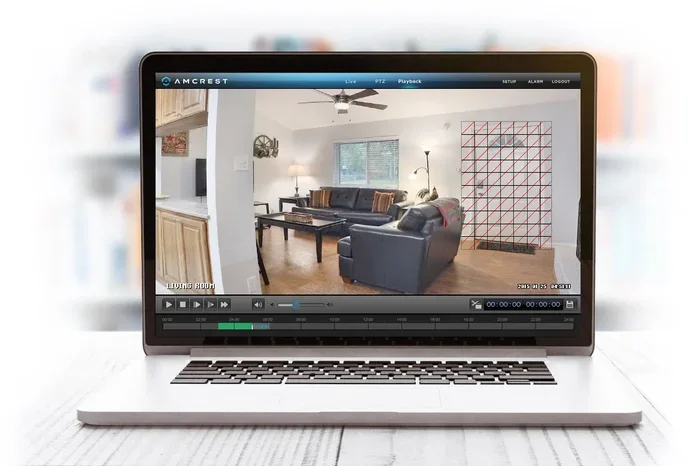
Accessing your laptop camera remotely is easier than you think. With the right software and a stable internet connection, you can view your laptop webcam from anywhere in the world. This guide covers everything you need to know, from free apps to secure setup steps.
Have you ever needed to check your laptop camera from a different room or even from another city? Maybe you want to see if your kids are safe at home, or you need to grab something from your laptop while you are away. Access Laptop Camera Remotely is not just a cool trick. It is a real solution that many people use every day for work, security, and peace of mind.
The good news is that you do not need to be a tech expert to make this happen. With a few simple tools and a quick setup, you can view your laptop webcam from your phone, tablet, or another computer. In this guide, we will walk you through every method, every tool, and every security tip you need. Let us get started.
Key Takeaways
- Remote access is simple: You only need a laptop, internet, and the right app.
- Free and paid tools exist: Options like Chrome Remote Desktop and TeamViewer let you view your camera without spending money.
- Security matters a lot: Always use strong passwords and two-factor authentication to protect your laptop camera.
- Works on all major systems: Windows, Mac, and Chromebook laptops all support remote camera access.
- Check privacy laws: Make sure you follow local rules when monitoring a device you do not own.
- Set up once, use anywhere: After initial configuration, you can access your laptop camera from your phone or another computer.
📑 Table of Contents
- What Does It Mean to Access Laptop Camera Remotely?
- Best Tools to Access Laptop Camera Remotely
- How to Set Up Remote Camera Access Step by Step
- Security Tips for Remote Camera Access
- Common Mistakes People Make When Accessing Laptop Cameras Remotely
- Comparison of Remote Camera Access Tools
- Can You Access Your Laptop Camera Remotely on Any Laptop?
- Final Thoughts
What Does It Mean to Access Laptop Camera Remotely?
When we talk about access laptop camera remotely, we mean viewing the live feed from your laptop webcam without being physically near the laptop. You might be at the office, on a train, or on vacation. As long as you have an internet connection, you can see what your laptop camera sees.
This works through remote desktop software, cloud-based apps, or built-in operating system features. The laptop you are controlling needs to be turned on and connected to the internet. The device you use to view the camera can be almost anything with a screen and a web browser.
Why Do People Need Remote Camera Access?
People have many reasons for wanting to view their laptop camera from afar. Here are some of the most common ones:
- Home security: Use your laptop as a makeshift security camera to check on your home.
- Parental monitoring: Keep an eye on children while you are in another room.
- Work productivity: Check if you left something on your screen or need to grab a file.
- Pet monitoring: See what your pets are doing while you are at work.
- IT support: Help someone troubleshoot a camera issue without being in the same place.
Best Tools to Access Laptop Camera Remotely
Choosing the right tool is the most important step. Not all remote access apps are the same. Some are free, some cost money, and some work better on certain devices. Here are the top options you should consider.
Chrome Remote Desktop
Chrome Remote Desktop is one of the easiest free tools available. It works right inside the Google Chrome browser. You install a small extension, share a code, and you are in. The video quality is decent, and the setup takes less than five minutes.
The main downside is that you need Chrome installed on both devices. It also does not offer advanced camera controls like zoom or pan. But for simple remote viewing, it gets the job done very well.
TeamViewer
TeamViewer is a powerful remote access platform that works on Windows, Mac, and Linux laptops. It gives you a full remote desktop view, which means you can open the camera app on your laptop and see the feed on your device. The free version works for personal use, and the video quality is excellent.
TeamViewer also has a mobile app, so you can access your laptop camera from your phone. This is a huge plus for people who want to check in on the go. The setup is straightforward, and the connection is very stable.
AnyDesk
AnyDesk is another great option for remote laptop camera monitoring. It is lightweight, fast, and works well even on slower internet connections. The app uses very little bandwidth, which means you get a smooth live feed without lag.
AnyDesk is free for personal use and supports file transfer, audio, and of course, webcam viewing. It is a solid choice if you want something simple and reliable. Many users prefer it over TeamViewer because it feels lighter and faster.
Windows Built-In Remote Desktop
If you use a Windows laptop, you already have a built-in tool called Remote Desktop Connection. This tool lets you connect to your laptop from another Windows PC. Once connected, you can open the Camera app and view the feed. However, this method only works on Windows Pro editions and requires some network setup.
For a simpler alternative, you can pair this with a tool like laptop remote monitoring software that adds webcam-specific features. This is a good option if you already own a Windows Pro laptop and do not want to install third-party apps.
How to Set Up Remote Camera Access Step by Step
Setting up remote camera access is not complicated, but you do need to follow the steps carefully. Here is a simple walkthrough that works for most tools.
Step 1: Choose Your Tool and Install It
Pick one of the tools we discussed above. Go to the official website and download the app on your laptop. Make sure you download from the official source to avoid malware. Install the app and restart your laptop if needed.
Step 2: Enable Camera Permissions
Go to your laptop settings and make sure the camera is allowed to run. On Windows, go to Settings > Privacy > Camera and turn on access. On Mac, go to System Settings > Privacy & Security > Camera and grant permission to your remote access app.
This step is very important. If you skip it, your remote tool will not be able to see the camera feed, no matter how good your setup is.
Step 3: Configure Remote Access
Open your remote access tool and set it up for unattended access. This means your laptop can be accessed without someone physically accepting the connection each time. Set a strong password and save the device ID or access code somewhere safe.
Step 4: Connect from Your Remote Device
Now open the same app on your phone, tablet, or another computer. Enter the device ID and password. Once connected, open the camera app on your laptop through the remote desktop view. You should see the live feed right away.
Test the connection by moving around in front of your laptop camera. Check the audio too if your setup supports it. Make sure the video is smooth and the sound is clear.
Security Tips for Remote Camera Access
Remote camera access is incredibly useful, but it also comes with risks. If someone unauthorized gains access to your laptop camera, it is a serious privacy violation. Here is how you can stay safe.
Use Strong, Unique Passwords
Never use simple passwords like “123456” or “password” for your remote access tools. Use a password manager to create and store long, random passwords. Change them every few months to stay safe.
Enable Two-Factor Authentication
Most remote access tools offer two-factor authentication. This means you need a code from your phone in addition to your password. Turn this on. It adds a strong extra layer of protection that stops most hackers.
Keep Your Software Updated
Software updates fix security holes. Always keep your remote access app, operating system, and browser up to date. Turn on automatic updates if you can. This is one of the easiest ways to protect your laptop camera privacy.
Only Connect from Trusted Devices
Do not access your laptop camera from public computers or shared devices. Always use your own phone or a trusted computer. If you must use a public device, log out completely when you are done.
Cover Your Camera When Not in Use
This is an old-school tip, but it still works. Use a small camera cover or a piece of tape when you are not using remote access. It gives you peace of mind that no one can secretly watch you through your laptop.
Common Mistakes People Make When Accessing Laptop Cameras Remotely
Even with the best tools, people make mistakes that cause problems. Here are the most common ones and how to avoid them.
- Skipping software updates: Outdated apps have known security flaws. Always update.
- Using weak passwords: A simple password is an open door for hackers. Use strong ones.
- Ignoring camera light indicators: If your laptop camera light is on and you are not using it, something may be wrong. Check your remote access software.
- Forgetting to disable remote access: When you do not need it anymore, turn it off. This reduces your attack surface.
- Not checking privacy laws: If you are monitoring a device that belongs to someone else, make sure you have their permission. In many places, recording someone without consent is illegal.
Avoiding these mistakes keeps your setup safe and legal. Take a few minutes to review your settings regularly.
Comparison of Remote Camera Access Tools
Not sure which tool to pick? Here is a quick comparison of the most popular options.
- Chrome Remote Desktop: Free, easy to use, works in browser. Best for quick, simple access.
- TeamViewer: Free for personal use, excellent video quality, mobile app available. Best for all-around use.
- AnyDesk: Free for personal use, lightweight, fast on slow connections. Best for low-bandwidth situations.
- Windows Remote Desktop: Built into Windows Pro, no extra software needed. Best for Windows users who want native tools.
If you want the easiest setup, go with Chrome Remote Desktop. If you want the best overall experience, pick TeamViewer. For slow internet, AnyDesk is your best bet.
Can You Access Your Laptop Camera Remotely on Any Laptop?
The short answer is yes, with some conditions. Your laptop needs a working webcam, an active internet connection, and the operating system must support remote access tools. Most modern laptops meet these requirements. Even budget laptops from brands like Dell, HP, and Lenovo come with built-in cameras that support remote viewing.
Older laptops may work too, but you might need to install updated camera drivers. If your laptop does not have a camera at all, you can connect an external USB webcam. This opens up even more possibilities for remote laptop camera monitoring.
For the best experience, make sure your laptop has enough RAM and processing power. A laptop with 8GB RAM and an SSD handles remote access smoothly without lag. If you are shopping for a new laptop and want strong remote performance, check out options with solid specs and reliable webcam quality.
Final Thoughts
Accessing your laptop camera remotely is a skill that offers real everyday value. Whether you use it for security, work, or simply peace of mind, the right setup makes it easy and safe. The tools are free or affordable, the setup is quick, and the results are reliable.
Start with one of the tools we recommended. Follow the setup steps carefully. Focus on security from day one. Once your system is running, you will wonder how you ever managed without it. Take control of your laptop camera today and enjoy the freedom of remote access.
Frequently Asked Questions
Is it legal to access my own laptop camera remotely?
Yes, accessing your own laptop camera remotely is completely legal. You own the device and have the right to monitor it. Just make sure you follow local privacy laws if you are monitoring a space where others might be present, and always get consent when recording someone else.
Do I need special software to access my laptop camera remotely?
You need remote access software like Chrome Remote Desktop, TeamViewer, or AnyDesk. These apps let you view your laptop screen and camera feed from another device. Most of them are free for personal use and very easy to set up.
Can I access my laptop camera remotely from my phone?
Yes, most remote access tools have mobile apps for both Android and iPhone. You simply install the app on your phone, enter your laptop credentials, and open the camera app through the remote desktop view. It works just like using a computer to access your laptop remotely.
Will remote camera access slow down my laptop?
It can use some processing power, but modern laptops handle it easily. A laptop with at least 8GB of RAM and an SSD will run remote access smoothly. If you notice lag, try closing other apps or switching to a lighter tool like AnyDesk.
How can I tell if someone is accessing my laptop camera without my permission?
Watch for your camera indicator light turning on when you are not using it. Check your remote access software for active sessions you do not recognize. Use antivirus software and keep your system updated to prevent unauthorized access to your laptop camera.
What is the best free tool for remote laptop camera access?
Chrome Remote Desktop is the best free option for most users. It requires no extra software, works in your browser, and takes minutes to set up. For a more full-featured experience, TeamViewer and AnyDesk also offer free versions for personal use.